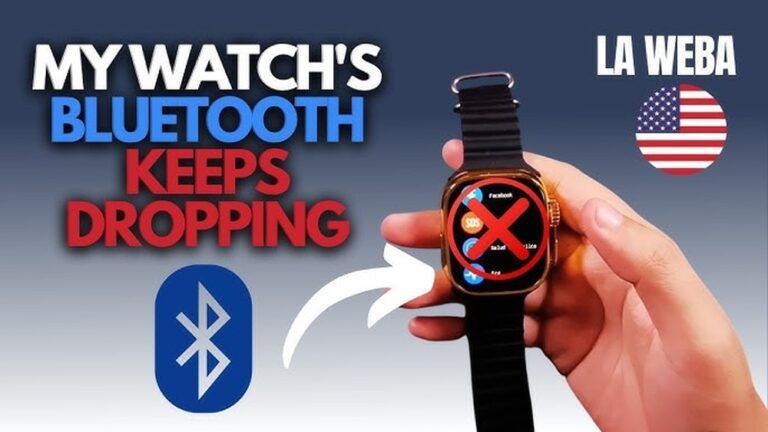
Have you ever looked down at your wrist, only to see your smartwatch disconnected from your phone? You might feel annoyed, especially when it happens over and over. It’s not just you—this is a common problem for many people. But the good news is, you can fix it.
I’ve been there myself, and after trying many solutions, I found out what really works. In this guide, I’ll walk you through the best ways to stop your smartwatch from disconnecting from your smartphone’s Bluetooth. We’ll cover easy fixes, some deeper steps, and even things most people miss.
By the end, you’ll know exactly what to do to keep your devices talking to each other, all in simple words anyone can follow.
Why Smartwatches Disconnect From Bluetooth
Before we jump into solutions, let’s look at why this happens. Understanding the reasons helps you fix the problem faster.
Common Causes
- Bluetooth Signal Interference: Other devices, thick walls, or even microwaves can disrupt Bluetooth signals.
- Outdated Software: Old firmware on your watch or phone can cause connection drops.
- Battery Saving Settings: Phones and watches often turn off Bluetooth to save power.
- Range Limitations: Bluetooth usually works only within 10 meters (about 33 feet).
- Too Many Connected Devices: If your phone connects to many gadgets at once, it may drop your watch.
- App Glitches: Sometimes, the companion app on your phone has bugs.
- Hardware Issues: Rare, but sometimes the Bluetooth chip is faulty.
Let’s move on to the step-by-step fixes. I’ll explain them in a way that’s easy to follow, even if you’re not a tech expert.
Quick Fixes To Try First
Let’s start with the basics. Many times, these simple steps solve the problem right away.
1. Restart Both Devices
This might sound obvious, but it works more often than you think. Power off your smartwatch and your phone. Wait 10 seconds, then turn them back on. Sometimes, a fresh start is all your devices need.
2. Check Bluetooth Is On
On both your phone and smartwatch, make sure Bluetooth is enabled. Sounds simple, but it’s easy to miss if you turned it off by accident.
3. Move Closer Together
Make sure your smartwatch and phone are within 10 meters (33 feet) of each other. Walls, doors, and electronics can block signals. Try holding them side by side and see if the connection improves.
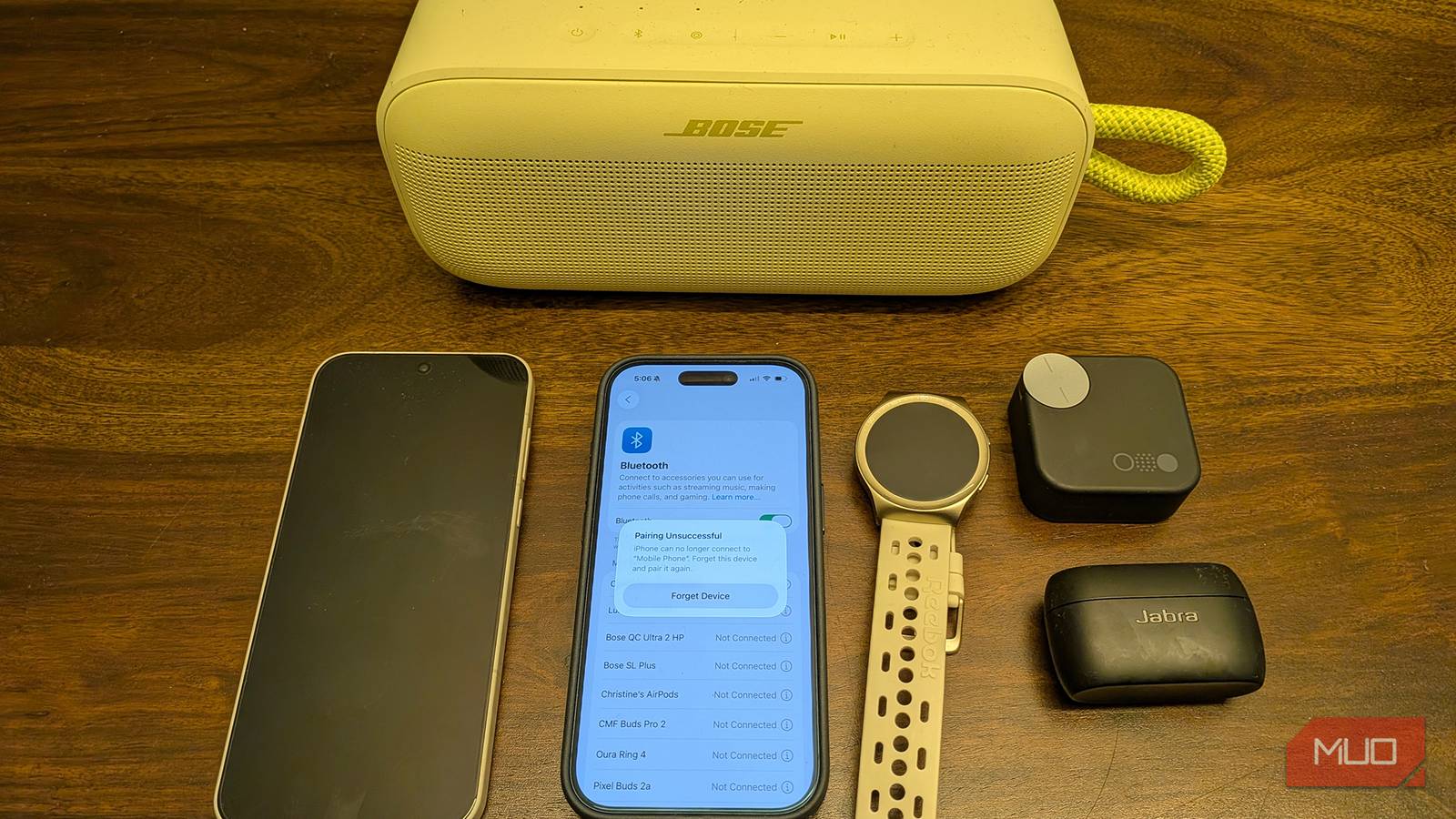
4. Forget And Re-pair Devices
Go into your phone’s Bluetooth settings. Tap your smartwatch and choose “Forget” or “Unpair. ” Then, pair them again as if you’re setting up for the first time. This can clear up old glitches.
5. Turn Off Airplane Mode
Airplane mode cuts off all wireless signals. Double-check that it’s off on both devices.
Check For Software Updates
Outdated software is a common cause of disconnects. New updates often fix known bugs. Here’s how to check:
- Open your smartwatch’s settings app.
- Look for “Software Update” or “System Update.”
- On your phone, go to Settings > System > Software Update.
- If updates are available, install them on both devices.
I once struggled with my watch disconnecting every hour. It turned out I needed a firmware update. After updating, the connection stayed strong.
Adjust Bluetooth And Battery Settings
Modern phones try to save power in smart ways, but these settings sometimes break your Bluetooth connection.
Change Battery Optimization Settings
On Android:
- Go to Settings > Apps > Your Smartwatch App > Battery.
- Turn off “Battery Optimization” for this app.
On iPhone:
- Go to Settings > Battery > Low Power Mode.
- Make sure Low Power Mode is off.
Check Bluetooth Permissions
Some phones block Bluetooth access to save power or for privacy reasons. Make sure your smartwatch app has all permissions it needs.
- Android: Settings > Apps > Your Smartwatch App > Permissions > Allow Bluetooth.
- IPhone: Settings > Privacy > Bluetooth > Allow your app.
Remove Interference And Competing Devices
Bluetooth signals can be blocked by more than you think. Here’s what to watch out for:
- Move away from Wi-Fi routers, microwave ovens, or thick walls.
- Turn off unused Bluetooth devices nearby.
- Disconnect your phone from extra Bluetooth gadgets you don’t need, like speakers or car systems.
Reset Network Settings
If your devices still won’t stay connected, try resetting your phone’s network settings. This clears all saved Bluetooth, Wi-Fi, and cellular info, so use it if nothing else works.
On Android:
- Settings > System > Reset options > Reset Wi-Fi, mobile & Bluetooth.
- Confirm your choice.
On iPhone:
- Settings > General > Reset > Reset Network Settings.
- Confirm.
Note: You’ll need to reconnect Wi-Fi and Bluetooth devices after this.

Credit: www.reddit.com
Check For App-specific Problems
Sometimes, the companion app you use with your smartwatch causes the issue. Here’s what to do:
- Go to the app store and check for updates to the smartwatch app.
- Clear the app cache (Android: Settings > Apps > App Name > Storage > Clear Cache).
- Log out and back in, or reinstall the app.
For example, a friend of mine had trouble with his fitness tracker disconnecting all the time. We found out the app was out of date, and after updating, it worked fine.
Update Or Reinstall Your Watch’s Firmware
Some smartwatches let you update their operating system or firmware through the app. This can fix hidden bugs.
- Open the smartwatch app on your phone.
- Look for a menu like “Device Settings” or “Firmware Update.”
- Follow the instructions to update.
If you can’t update, try resetting the watch to factory settings (but back up your data first).
Avoid Common User Mistakes
Many people miss these easy-to-fix problems:
- Wearing the watch too loosely: If sensors don’t touch your skin, some watches disconnect to save power.
- Using non-official chargers: Cheap chargers can cause hardware glitches.
- Pairing with multiple phones: Most smartwatches only pair with one phone at a time.
Comparing Bluetooth Versions And Range
It’s helpful to know that not all Bluetooth is the same. Devices with newer Bluetooth versions work better and connect more reliably.
| Bluetooth Version | Max Range | Speed | Stability |
|---|---|---|---|
| 4.0 | 50m (open space) | 1 Mbps | Good |
| 4.2 | 100m | 1 Mbps | Better |
| 5.0/5.1 | 240m | 2 Mbps | Best |
If your phone or watch uses Bluetooth 4. 0 but your other device uses 5. 0, you’ll get the slower, weaker connection. That’s why upgrading your gadgets can make a real difference.
Credit: www.makeuseof.com
When To Factory Reset Devices
If you’ve tried every step so far and your smartwatch still disconnects, a factory reset might be the only solution left. This wipes everything and starts fresh.
How To Factory Reset
On most smartwatches:
- Open Settings.
- Choose System > Reset or Factory Reset.
- Confirm and wait.
On your phone:
- Go to Settings > System > Reset options > Erase all data.
- Only do this if you’re sure, as it deletes everything.
Tip: Always back up your important data before a reset.
Advanced Fixes For Persistent Problems
Sometimes, your devices need more than the basics. Here are advanced tips most people miss.
Update Bluetooth Drivers (android Only)
Android phones use small pieces of software called drivers to run Bluetooth. If these get old, your connection suffers.
- Go to Settings > System > Advanced > System Update.
- Some brands let you update “Bluetooth Stack” or “Bluetooth Drivers” directly.
Try A Different Phone
If possible, pair your smartwatch with a different phone. If the problem goes away, your original phone may have a hidden hardware issue.
Test In Safe Mode
Some apps can block Bluetooth in the background. On Android, you can boot into Safe Mode:
- Hold the power button until options appear.
- Long-press “Power Off” until “Safe Mode” appears.
- Tap to enter Safe Mode.
Try pairing your smartwatch. If it stays connected, a third-party app is likely the problem.
Compare Common Smartwatch Brands And App Reliability
Here’s a look at how major brands and their apps perform for Bluetooth stability:
| Brand | Official App | Bluetooth Reliability (1-5) | Update Frequency |
|---|---|---|---|
| Apple Watch | Watch app | 5 | Monthly |
| Samsung Galaxy Watch | Galaxy Wearable | 4 | Quarterly |
| Fitbit | Fitbit app | 4 | Quarterly |
| Garmin | Garmin Connect | 3 | Quarterly |
| Generic/No-name | Varies | 2 | Rarely |
As you can see, official apps from big brands like Apple and Samsung are usually more reliable. If you use a generic smartwatch, you might face more Bluetooth problems.

Credit: www.youtube.com
Common Situations And How To Solve Them
Let’s look at a few real-life examples:
After A Phone Update
Many people notice problems after updating their phone’s software. This can reset settings or cause bugs.
Solution: Re-pair your devices and check for app updates.
When Using Fitness Tracking
Some watches disconnect only during workouts. This can be due to sweat, loose fit, or too many background apps.
Solution: Tighten the band, close unused apps, and keep your phone nearby.
Low Battery Warnings
When your watch or phone battery is low, Bluetooth may turn off to save power.
Solution: Charge both devices fully and see if the problem continues.
Smartwatch And Phone Compatibility
Some smartwatches only work well with certain phones. For example, Apple Watch is designed for iPhones, not Android. If you try to use an Apple Watch with an Android phone, you’ll face many problems.
Check the official compatibility list for your watch and phone. If they aren’t fully supported, Bluetooth issues may never go away.
Use The Right Companion App
Always use the official app for your smartwatch. Third-party apps can cause problems or even crash your watch’s software.
If you’re unsure, visit the manufacturer’s website to find the correct app. For example, Fitbit watches need the Fitbit app, not a random app from the app store.
How Environmental Factors Affect Bluetooth
Bluetooth can be affected by things you might not expect:
- Metal objects: Wearing your watch near metal jewelry can interfere.
- Heavy Wi-Fi traffic: Many routers use 2.4GHz, the same as Bluetooth.
- Large crowds: At events, so many Bluetooth devices can cause interference.
If you notice your watch disconnects at the gym or in a busy office, this could be why.
Hidden Settings That Can Help
Some hidden phone and watch settings can improve Bluetooth stability.
- On Android, enable “Keep Bluetooth on during sleep” (Settings > Bluetooth > Advanced).
- On some smartwatches, turn off “Power Saving Mode” or “Disconnect on idle.”
If you’re unsure, check your device’s support page or ask customer service.
What If Nothing Works?
If you’ve tried everything and your smartwatch still disconnects, it may be time to seek professional help. Contact the manufacturer’s support team. Many brands offer free repairs or replacements if your device is under warranty.
You can also check forums and user groups. Sometimes, other users have found a fix for your exact model.
For more detailed information on Bluetooth technology, you can also visit the official Bluetooth Wikipedia page.
Frequently Asked Questions
Why Does My Smartwatch Disconnect Only At Home?
Your home may have more wireless interference from Wi-Fi routers, microwaves, and other electronics. Try moving away from these or turning off extra devices.
Can Old Phones Cause More Disconnects With New Smartwatches?
Yes. Older phones often use older Bluetooth versions, which are less stable. Upgrading to a newer phone can help.
Is It Bad To Leave Bluetooth On All The Time?
Not usually. Bluetooth uses very little power in modern devices. Keeping it on helps your watch stay connected.
Will A Factory Reset Delete My Watch’s Data?
Yes, a factory reset erases all data on your watch. Back up anything important before doing this step.
What’s The Best Way To Contact Support If Nothing Works?
Visit your smartwatch brand’s official website. Look for a “Support” or “Contact Us” section. Provide details about your problem for faster help.
Solving Bluetooth problems can feel frustrating, but with these tips, you now have the tools to fix your smartwatch connection for good. I’ve been through this journey myself, and I know it’s worth the effort. With patience and the right steps, you’ll enjoy all the smart features your watch offers—without random disconnects.

Rubel Miah is the Senior Editor at MyStyleGrid.com, where he brings a sharp editorial eye and an unshakable love for fashion to everything he does. A true style addict, Rubel lives and breathes trends, from streetwear to high fashion, and has a knack for turning inspiration into impactful stories. With years of experience in fashion journalism and digital media, he curates content that empowers readers to express themselves through style. When he’s not editing features or forecasting the next big thing, you’ll find him hunting down vintage pieces or capturing street style moments around the city.