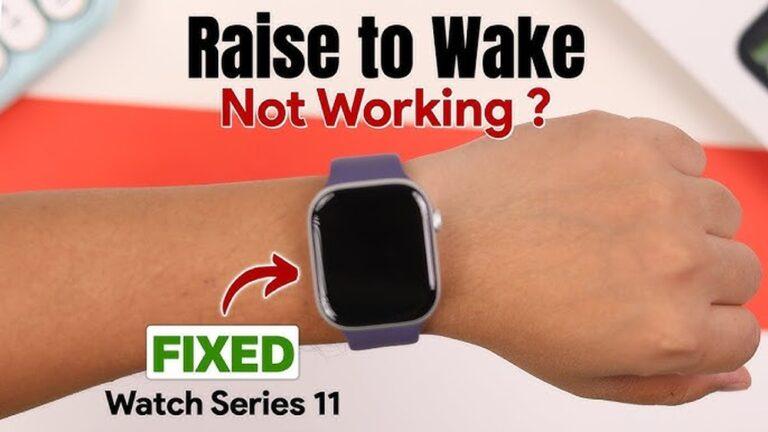
If your smartwatch screen doesn’t wake when you raise your wrist, you probably feel a little frustrated. You expect your watch to respond, but nothing happens. You might shake your wrist again, or tap the screen, hoping for a response.
This is a common issue for many smartwatch users—across brands like Apple, Samsung, Fitbit, and others. The good news is, you don’t have to panic or rush to a repair shop. Most of the time, you can fix this problem at home, even if you’re not a tech expert.
I’ve faced this myself with my own smartwatch. One morning, I raised my wrist to check the time, but the screen stayed black. I tried again—nothing. After some trial and error, I found the solution without spending money or time in a service center.
In this guide, I’ll show you simple, clear steps to get your smartwatch screen waking up again. I’ll break down technical terms and give you tips that even beginners can follow.
Let’s look at why your smartwatch screen might not wake, and what you can do to solve it.
Why Your Smartwatch Screen Won’t Wake When Raising Wrist
Before you start fixing, it helps to know what’s happening. Here are some reasons why your watch screen stays black when you raise your wrist:
- Wrist Raise feature is turned off.
- Your watch is in a battery saving mode.
- The motion sensor is not working.
- Software bugs or outdated firmware.
- Dirty or covered sensors.
- Wrong watch orientation settings.
- You are wearing the watch too loose or too tight.
- Physical damage to the watch.
Many people miss the simple causes. For example, I once wore my watch on my right hand instead of my left, and the screen didn’t wake because the orientation was set for the left wrist. Small details like this matter.
Now, let’s fix the problem step by step.
Check And Enable The Wrist Raise Feature
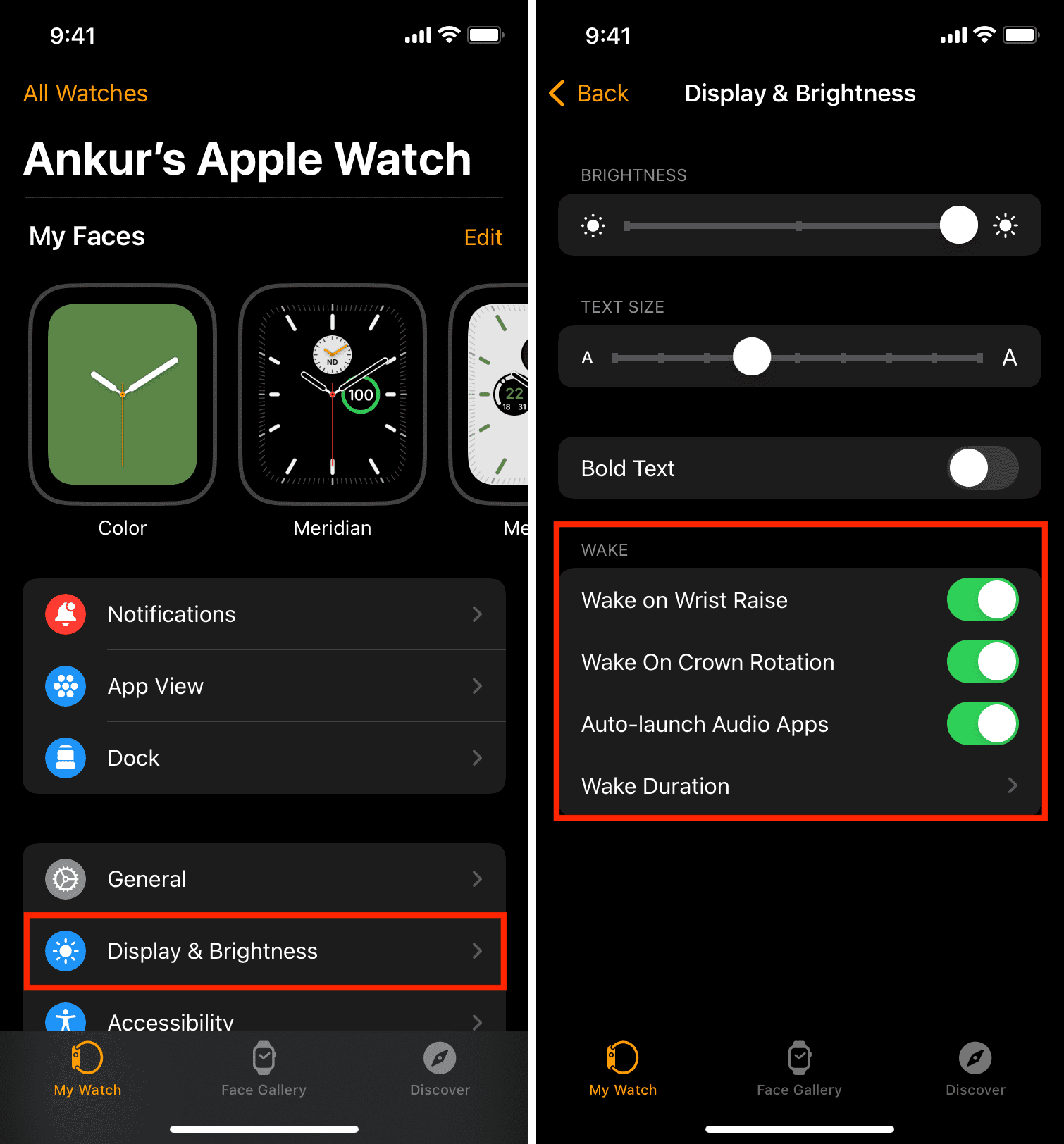
The most common reason for a smartwatch screen not waking is the wrist raise feature is off. Each brand calls this feature something a little different. On Apple, it’s “Wake on Wrist Raise.” On Samsung, it might be “Raise to Wake.” On Fitbit, it’s “Screen Wake.”
How To Enable Wrist Raise
- Open the settings menu on your smartwatch.
- Look for Display or Gestures.
- Find “Wake on Wrist Raise,” “Raise to Wake,” or “Screen Wake.”
- Make sure the feature is turned on.
Example
On an Apple Watch:
- Press the digital crown, go to Settings.
- Tap Display & Brightness.
- Tap “Wake on Wrist Raise” and make sure it’s on.
On a Samsung Galaxy Watch:
- Swipe up, go to Settings.
- Tap Advanced.
- Tap “Wake-up gesture” and turn it on.
This simple setting is often overlooked. Many users switch it off by accident to save battery, then forget to turn it back on.
Charge Your Smartwatch And Disable Power Saving Modes
A low battery will often turn off extra features to help your watch last longer. Sometimes, the “raise to wake” feature is disabled when power is low. If your watch is in power saving mode or low power mode, the screen might not respond to your wrist movement.
What To Do
- Put your smartwatch on its charger. Wait for the battery to reach at least 50%.
- Check if Power Saving Mode, Theater Mode, or Sleep Mode is on. Turn it off.
On an Apple Watch, swipe up to access Control Center. Make sure the Theater Masks icon is not orange. On Fitbit, check for a crescent moon icon.
Quick Tip
If you’re unsure, restart your watch after charging. This often resets small bugs related to battery and power settings.
Clean The Sensors
Your smartwatch uses sensors to detect movement. If these sensors are dirty, covered, or blocked, the watch might not recognize your wrist movement.
How To Clean
- Take off your watch.
- Find the small sensors on the back (usually small glass or black dots).
- Use a soft, dry cloth to gently wipe the sensors. Avoid water or cleaning sprays.
- Check that nothing is stuck on the sensors—like dust, lotion, or sweat.
Common Mistake
Don’t cover the sensors with thick bands or stickers. I once used a sweatband during exercise and forgot to remove it. My smartwatch stopped waking the screen because the sensors couldn’t “see” my skin.

Credit: www.reddit.com
Check Watch Orientation And Wrist Placement
Smartwatches have an orientation setting. This tells the device if you wear it on your left or right wrist. If the setting is wrong, the sensors may not work as expected.
How To Fix Orientation
- Open the Settings app on your smartwatch.
- Go to General or Orientation.
- Choose Left or Right wrist to match how you wear it.
Also, make sure your watch isn’t too loose or too tight. The sensors need to touch your skin, but not press too hard.
Example
Once, I wore my watch very loose while running. The screen didn’t wake up because the sensors were not close to my skin. Adjusting the strap made a big difference.
Update Your Smartwatch Software
Outdated software can cause many small bugs, including screen wake problems. Brands release updates to fix these issues.
How To Update
- Connect your watch to Wi-Fi and make sure it’s charged.
- Open the Watch app on your phone, or use the watch’s settings.
- Look for Software Update or System Update.
- Download and install any available updates.
Why Updates Matter
A recent update fixed a “raise to wake” problem on my friend’s Galaxy Watch. If you ignore updates, you miss out on these fixes.
Here’s a quick comparison of how to update the main smartwatch brands:
| Brand | How to Update | Requires Phone? |
|---|---|---|
| Apple Watch | Watch app → General → Software Update | Yes |
| Samsung Galaxy Watch | Galaxy Wearable app → Watch settings → Update Watch Software | Yes |
| Fitbit | Fitbit app → Today tab → Profile → Device Image → Update | Yes |
| Garmin | Settings → System → Software Update | No |
Restart Or Reset Your Smartwatch
Sometimes, a simple restart fixes the problem. If restarting doesn’t work, you may need to reset your watch.
How To Restart
- Hold down the power button on your watch.
- Select Restart or Power Off.
- Wait a few seconds, then turn it back on.
How To Reset (factory Reset)
Warning: This will erase your data. Do this only if other steps fail.
- Go to Settings → System → Reset or Erase All Content.
- Follow the instructions.
Practical Example
I had to factory reset my watch once when nothing else worked. After resetting, the screen started waking again. But remember to back up your data first if you can.
Test The Motion Sensor
The “raise to wake” feature uses the accelerometer, a sensor that detects movement. If your watch is dropped or hit, this sensor can be damaged.
How To Check
- Try other gesture controls, like flicking your wrist to change screens.
- Use any “test” app or diagnostics mode your watch offers (search the brand’s support site).
- If gestures don’t work, your sensor may be broken.
If you suspect hardware damage, you might need professional help.
Disable Bedtime, Theater, Or Do Not Disturb Modes
Many smartwatches have special modes that block the screen from waking. These modes are useful at night or in the cinema, but can cause confusion.
How To Find And Turn Off
- Look for icons like a crescent moon (Sleep or Bedtime), masks (Theater), or a circle with a line (Do Not Disturb).
- Turn off these modes in the quick settings or control panel.
Non-obvious Insight
Some watches stay in these modes even after a restart, so check again after turning your watch back on.
Check For App Conflicts Or Third-party Watch Faces
Custom watch faces and third-party apps can sometimes interfere with basic functions. Not all apps are well-coded.
How To Test
- Switch to a default watch face.
- Remove recent apps or watch face downloads.
- Restart your watch and test the wrist raise feature.
If the problem goes away, you’ve found the cause.
Adjust Sensitivity Settings
Some smartwatches let you control how sensitive the raise-to-wake gesture is. If it’s set too low, your screen might not wake easily.
How To Adjust
- Check the Display or Gestures section in settings.
- Look for “Screen Wake Sensitivity” or “Raise to Wake Sensitivity.”
- Increase the sensitivity and test again.
Not all brands offer this option, but it’s worth checking.
Remove Protective Cases Or Covers
Cases and screen protectors are useful, but sometimes they block sensors or stop your wrist movement from being detected.
What To Do
- Remove any case or cover.
- Test the raise-to-wake feature.
- If it works, try a different brand of cover.
Credit: www.idownloadblog.com
Test In Different Light Conditions
Some smartwatches use a combination of sensors, including light sensors, to decide when to wake the screen. Very bright or very dark environments can affect this.
What To Try
- Test the wrist raise in normal indoor light.
- Try again in bright sunlight or in a dark room.
- If it only works sometimes, the light sensor may be too sensitive or faulty.
Pair Your Watch Again With Your Phone
A poor connection between your watch and phone can cause features to stop working.
How To Re-pair
- Unpair the watch from your phone using the watch app.
- Restart both devices.
- Pair the watch again.
This will refresh the connection and often solves small bugs.
Check For Latest Brand-specific Fixes
Some issues are brand-specific. Watch brands often post updates and tips on their support pages.
- Search the official support site for your smartwatch.
- Look for “raise to wake not working” or similar topics.
- Follow any brand-specific advice.
For example, Apple sometimes suggests recalibrating the watch, while Fitbit may recommend a full app reinstall.
When To Seek Professional Repair
If you’ve tried all the steps above and your screen still won’t wake, the problem may be hardware-related. The accelerometer, gyroscope, or other internal part may be damaged.
Signs You Need Professional Help
- The watch doesn’t respond to any movement.
- Touch screen or other features are also not working.
- You see cracks, dents, or signs of physical damage.
Contact your manufacturer’s service center or a trusted repair shop. Most smartwatches have a one-year warranty.
How To Prevent Wrist Raise Problems In The Future
Once you’ve fixed your smartwatch, you’ll want to avoid this problem happening again. Here are some tips:
- Keep sensors clean. Wipe your watch after workouts or outdoor activities.
- Avoid third-party accessories that cover sensors or are too thick.
- Update software regularly.
- Wear your watch snugly (but not too tight) so sensors touch your skin.
- Be careful with custom watch faces; stick to official ones if possible.
- Charge your watch before the battery gets too low.
- Restart your watch weekly to clear small bugs.
Smartwatch Feature Comparison
If you’re curious about which smartwatches have the best “raise to wake” features, here’s a quick overview:
| Smartwatch | Raise to Wake | Sensitivity Adjustment | Common Issues |
|---|---|---|---|
| Apple Watch | Yes | No | Blocked by Theater/Sleep Mode |
| Samsung Galaxy Watch | Yes | Yes | Needs software update |
| Fitbit Versa/Sense | Yes | No | App conflicts |
| Garmin Venu | Yes | Limited | Sensitivity issues |
This table can help you compare features if you’re considering a new watch, or want to know what to expect from your current device.

Credit: www.youtube.com
Non-obvious Insights
Let me share two things I learned the hard way:
- Wearing the watch upside down can confuse the sensors. If your watch is designed for the crown to be on the right, but you wear it with the crown on the left, gestures might not register.
- Fast arm movements can sometimes be too quick for the sensor to detect. Try raising your wrist slowly and naturally, as you would when checking the time.
Both of these points are easy to miss but can save you a lot of time troubleshooting.
Frequently Asked Questions
Why Does My Smartwatch Screen Wake Sometimes, But Not Always, When I Raise My Wrist?
This can happen if your wrist movement is too fast or too slow, your watch is loose, or the sensors are dirty. Also, special modes like Theater or Sleep can block the feature at certain times.
Can A Software Update Really Fix The Raise-to-wake Feature?
Yes! Many brands fix small bugs with updates. Always install the latest update. If you’re not sure, check your brand’s official update guide at Apple Support.
Is The Raise-to-wake Feature A Big Battery Drain?
It uses a small amount of extra battery, but on most modern watches, it’s not a major drain. If you’re worried about battery, turn it off at night or when you don’t need it.
What Should I Do If The Problem Started After Installing A New Watch Face?
Switch back to a default or official watch face. Some third-party faces are not optimized for gestures, which can break the feature.
My Watch Is Still Under Warranty. Will Fixing The Raise-to-wake Feature Void My Warranty?
No. Following the steps in this guide won’t void your warranty. But if you open the watch or use unofficial repair shops, your warranty could be affected. Always check with your manufacturer first.
Getting your smartwatch screen to wake when you raise your wrist should be simple. With the tips above, you can fix most problems at home, often in just a few minutes. If you’re still stuck, reach out to your smartwatch’s support team.
Remember, you’re not alone—many people face this issue, and there’s almost always a solution. Enjoy your smartwatch, and check the time with a quick flick of your wrist again!

Rubel Miah is the Senior Editor at MyStyleGrid.com, where he brings a sharp editorial eye and an unshakable love for fashion to everything he does. A true style addict, Rubel lives and breathes trends, from streetwear to high fashion, and has a knack for turning inspiration into impactful stories. With years of experience in fashion journalism and digital media, he curates content that empowers readers to express themselves through style. When he’s not editing features or forecasting the next big thing, you’ll find him hunting down vintage pieces or capturing street style moments around the city.