Introduction
For people in the United States, the short answer is no: Apple Watch models do not have a built-in camera. You cannot take a photo or record a video directly from the watch itself.
However, Apple Watch includes a Camera Remote app. This app lets you use the watch screen to preview and control the camera on a paired iPhone. The iPhone takes the photo; the Apple Watch works as a remote control and viewfinder.

Does the Apple Watch Have a Built-In Camera?
No Apple Watch model currently includes a built-in camera. This includes standard Apple Watch models and Apple Watch Ultra models sold in the United States.
The watch has sensors for health, motion, location, and other features. It also has a microphone and speaker on many models. But it does not have a camera lens or image sensor for taking photos.
That means an Apple Watch cannot:
- Take photos by itself
- Record videos by itself
- Make FaceTime video calls from the watch
- Scan QR codes with its own camera
- Send a photo that the watch captured independently
- Work as a stand-alone camera when the iPhone is not nearby
Apple Watch can still show photos that sync from your iPhone. You may also see images in Messages or other supported apps. Viewing an image is not the same as capturing one.
Apple’s official Camera Remote feature is the key source of confusion. The app appears on the watch, but it controls the camera on your iPhone. The phone does the actual work of capturing and saving the image.
How Apple Watch Camera Remote Works
Camera Remote turns your Apple Watch into a wireless shutter button and small viewfinder for your iPhone.
When you open Camera Remote, the watch connects to the camera app on the paired iPhone. You can then frame the shot on the Apple Watch display and press the shutter button on the watch.
The process works like this:
- The iPhone camera remains active.
- The Apple Watch shows a live preview from the iPhone.
- You tap the shutter button on the watch.
- The iPhone captures and saves the photo.
- You can review the image on the iPhone.
This setup helps when the iPhone is placed on a desk, tripod, shelf, or other stable surface. It can also help you join a group photo without rushing back to the phone after starting a timer.
The watch is not replacing the iPhone camera. It is acting more like a remote control with a screen.
What Camera Remote Can Do
Depending on your Apple Watch and iPhone software, Camera Remote can offer useful controls such as:
- A live view of the iPhone camera
- A shutter button
- A three-second timer
- Switching between available iPhone cameras
- Zoom control on supported versions
- Reviewing the most recent photo
- Changing some camera settings from the iPhone
The exact controls can change with updates to iOS and watchOS. Apple may also limit some options based on the iPhone model.
What Camera Remote Cannot Do
Camera Remote does not let the Apple Watch:
- Take a picture if the iPhone is not present
– Save a photo to the watch as a camera capture - Use an Apple Watch camera lens
- Replace the iPhone for video recording
- Give the watch independent camera hardware
The watch must communicate with the iPhone. If the connection is lost, the remote feature may stop working.
How to Take a Photo With Apple Watch
To take a photo with Apple Watch, place your iPhone, open Camera Remote on the watch, frame the image, and tap the shutter button.
Before You Start
You need:
- An Apple Watch paired with an iPhone
- The iPhone camera app available
- The Apple Watch and iPhone close enough to communicate
- Enough battery on both devices
- A stable place for the iPhone if you are taking a group photo
Apple Watch Camera Remote is designed to work with the iPhone paired to the watch. It is not a general remote for another person’s iPhone.
Step-by-Step Instructions
-
Place your iPhone.
Set it on a stable surface or mount it on a tripod. -
Open the Camera app on the iPhone.
You can also open Camera Remote on the watch first. The watch may prompt the iPhone camera to open. -
Open Camera Remote on Apple Watch.
Find the app with the camera icon in the app list or app view. -
Check the preview.
The Apple Watch should show what the iPhone camera sees. -
Adjust the phone if needed.
Move the iPhone until the people or objects are in the frame. -
Tap the shutter button on the watch.
The iPhone takes the photo. -
Use the timer when you need time to move.
A short delay can help you lower your arm or join the group before the photo is taken. -
Check the image on the iPhone.
The iPhone stores the photo in the Photos app.
Signs It Is Working
The feature is working when:
- The watch shows a camera preview
- The shutter button responds
- The iPhone camera takes the photo
- The image appears in the iPhone Photos app
If the watch shows a connection error or a blank preview, check the troubleshooting steps below.
Apple Watch Camera Remote Troubleshooting
Most Camera Remote problems come from a weak connection, an inactive iPhone camera, or software that needs an update.
Try these checks in order:
1. Keep the Devices Close
Move the Apple Watch and iPhone closer together. Walls, distance, and wireless interference can affect the connection.
2. Unlock the iPhone
Unlock the iPhone and open the Camera app. Then open Camera Remote on the watch again.
3. Confirm You Are Using the Paired iPhone
Apple Watch Camera Remote is meant to control the iPhone paired with that watch. It generally will not control a nearby iPhone owned by someone else.
4. Close and Reopen the Apps
Close the Camera app on the iPhone. Open it again, then relaunch Camera Remote on the watch.
5. Check Wireless Connections
Make sure Bluetooth and Wi-Fi are enabled as needed. Apple Watch and iPhone use wireless connections to communicate.
6. Restart Both Devices
Restart the iPhone and Apple Watch if the preview remains blank or the shutter does not respond.
7. Install Available Updates
Update iOS and watchOS when possible. Camera features can depend on compatibility between both operating systems.
8. Check for Physical Obstructions
If the photo looks dark, blurry, or blocked, clean the iPhone camera lens. Also check that the phone case, mount, or cover is not in the frame.
A restart will not add camera hardware to the watch. It only helps when the remote connection or app is the problem.
Can You Make Video Calls From Apple Watch?
Apple Watch cannot make a normal video call from its own camera because it has no camera.
You can use the watch for some voice communication. Depending on the model, network plan, and settings, Apple Watch can support phone calls, FaceTime audio, messages, and other communication features.
FaceTime video calls require a camera on the device handling the video. Since Apple Watch has no built-in camera, it cannot act as a stand-alone FaceTime video device.
Some Apple Watch models support features that let you answer or manage calls. That does not mean the watch can send live video.
If you need a video call, use an iPhone, iPad, Mac, or another device with a camera.
Can You Add a Camera to an Apple Watch?
You cannot add a camera inside Apple Watch through software or a normal setting.
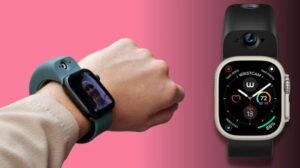
A separate accessory may offer camera hardware that attaches to clothing, a watch band, or another part of the body. Such products are not the same as a camera built into Apple Watch. Their availability, app support, privacy controls, and compatibility can change.
Before buying any third-party camera accessory, check:
- Whether it works with your Apple Watch model
- Whether it needs an iPhone app
- Where the camera stores photos
- How it charges
- Whether it records audio
- What permissions the app requests
- Whether the maker still supports the product
- The rules for recording people in your location
Do not assume that an accessory will work like Camera Remote. Camera Remote uses the iPhone camera. A third-party product may use separate camera hardware and a separate app.
Recording people without their knowledge may violate privacy rules or state law. In the United States, consent requirements can differ by state. Use visible recording devices in a lawful and respectful way.
Apple Watch Camera vs. iPhone Camera
The choice is simple: use the iPhone when you need to capture an image, and use Apple Watch when you need remote control.
| Feature | Apple Watch | iPhone |
|---|---|---|
| Built-in camera | No | Yes |
| Takes photos alone | No | Yes |
| Records video alone | No | Yes |
| Acts as a remote shutter | Yes, with a paired iPhone | Yes |
| Shows a camera preview | Yes, from the iPhone | Yes |
| Stores captured photos | No camera captures | Yes |
| Works without an iPhone nearby | No for Camera Remote | Yes, when charged and ready |
The Apple Watch is useful for hands-free control. The iPhone remains the better tool for photography because it has the camera hardware, larger screen, stronger processing, and more storage.
For a group photo, the best setup is often an iPhone on a stable stand and Apple Watch Camera Remote in your hand. For travel photos, portraits, video, or low-light scenes, use the iPhone directly.
Common Misunderstandings About Apple Watch and Cameras
“The Camera Remote app means the watch has a camera.”
It does not. The app controls the iPhone camera. The watch only displays a preview and sends commands.
“The red dot on the Apple Watch is a camera.”
The red dot that may appear on an Apple Watch face indicates an unread notification. It is not a camera lens.
“Apple Watch can scan a QR code.”
Apple Watch may display information from a QR-code app or show a code on its screen. But it cannot scan a QR code with its own camera because it has no camera.
“A cellular Apple Watch can take photos without an iPhone.”
Cellular service gives certain Apple Watch models a mobile data connection. It does not add a camera or allow Camera Remote to work as a stand-alone camera.
“A larger Apple Watch model has a camera.”
The Apple Watch Ultra has extra hardware and a larger case, but it does not include a built-in camera. Size does not change this limitation.
Key Takeaways
- Apple Watch does not have a built-in camera.
- The Camera Remote app controls the camera on a paired iPhone.
- The iPhone captures and stores the photo.
- Apple Watch can show a live view and trigger the shutter.
- Camera Remote is useful for group photos, portraits, and tripod shots.
- Apple Watch cannot take photos, record videos, or make video calls by itself.
- Third-party camera accessories are separate products and may have support or privacy limits.
FAQs
Does Apple Watch take pictures?
No. Apple Watch cannot take pictures by itself. It can trigger the camera on a paired iPhone through the Camera Remote app.
Can Apple Watch record video?
No. Apple Watch has no built-in camera, so it cannot record video independently. You can use the watch to control some camera actions on the iPhone, but the iPhone records the video.
Can I use Apple Watch as a selfie camera?
You can use Apple Watch as a remote viewfinder and shutter for an iPhone selfie. The iPhone camera takes the selfie.
Does Apple Watch have a hidden camera?
No. Current Apple Watch models do not have a hidden built-in camera. The camera-related feature is software that connects to the iPhone camera.
Can Apple Watch scan QR codes?
Not with its own hardware. Apple Watch has no camera for scanning. Use the iPhone camera or another device with a camera.
Which Apple device has a camera?
The iPhone, iPad, Mac, and some other Apple devices have cameras. Apple Watch does not. The exact camera features depend on the device model.
Conclusion
Apple Watch does not have a camera. Its Camera Remote app can make it seem as if it does, but the paired iPhone handles the preview, capture, and photo storage.
If you want to take a group photo or a hands-free portrait, place the iPhone where you want it and use Apple Watch as the remote shutter. If you need a stand-alone camera, video recorder, or video-calling device, use an iPhone or another device with built-in camera hardware.
Rubel Miah is the Senior Editor at MyStyleGrid.com, where he brings a sharp editorial eye and an unshakable love for fashion to everything he does. A true style addict, Rubel lives and breathes trends, from streetwear to high fashion, and has a knack for turning inspiration into impactful stories. With years of experience in fashion journalism and digital media, he curates content that empowers readers to express themselves through style. When he’s not editing features or forecasting the next big thing, you’ll find him hunting down vintage pieces or capturing street style moments around the city.