Connect your smartwatch to an iPhone by using Bluetooth and the watch maker’s official companion app.
Learning how to connect smartwatch with iPhone is usually simple, but the exact steps depend on the watch brand. Apple Watch uses the Watch app, while Garmin, Fitbit, Samsung, and other watches often require their own iPhone app. This guide explains the full setup, fixes common problems, and helps you avoid mistakes that can make pairing feel harder than it is.
Check smartwatch and iPhone compatibility
Before you try to connect a smartwatch with iPhone, check whether both devices can work together. Compatibility is the most important step because not every smartwatch supports iOS.
Apple Watch works only with an iPhone. Most newer Apple Watch models also need a recent iOS version. Other brands may support iPhone through an app, but some features may be limited.
Check these details:
• Your iPhone model and iOS version
• Your smartwatch model and software version
• Whether the watch supports iPhone or iOS
• The required companion app
• Whether Bluetooth, Wi-Fi, and location access are available
Many watches can show notifications on an iPhone but cannot offer every feature. For example, replying to messages, using voice assistants, making calls, or installing apps may work better with an Android phone or may not work at all on iOS.
Apple provides current compatibility details for Apple Watch models and iPhone software. Watch makers such as Garmin, Fitbit, and Samsung also list supported iPhone versions in their official apps and help pages. Always check these details before buying a watch.
Prepare your iPhone and smartwatch
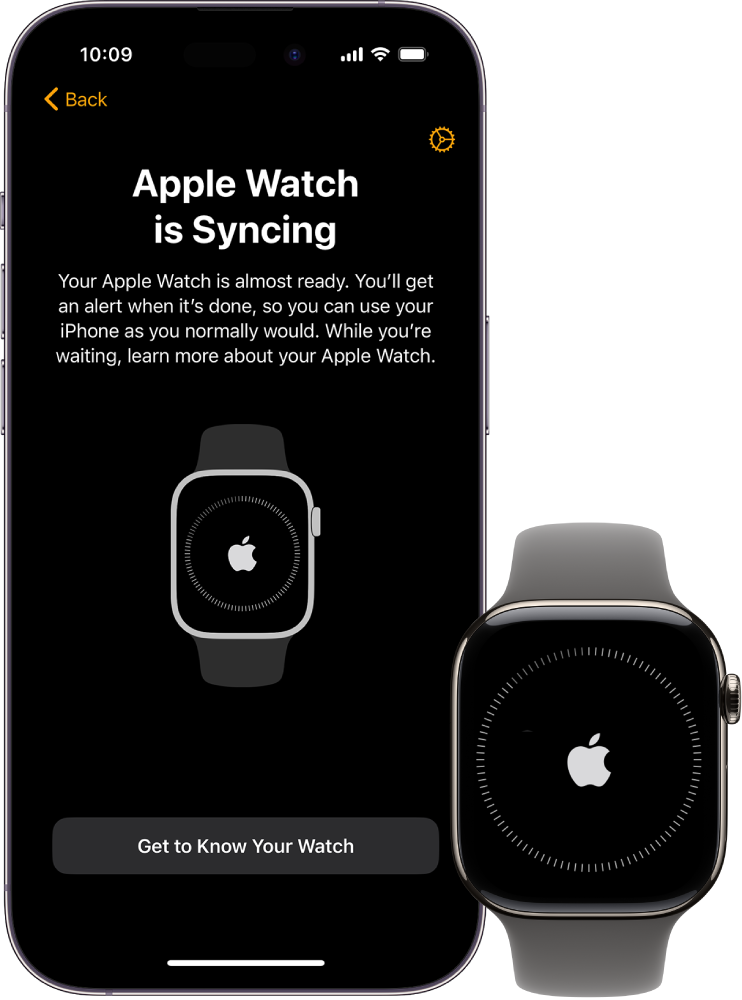
Good preparation makes it easier to connect a smartwatch with iPhone on the first try. Think of Bluetooth as a short-range bridge between the two devices. Both sides must be ready before the bridge can open.
Follow these steps:
- Charge the smartwatch to at least 50 percent.
- Charge your iPhone or connect it to power.
- Turn on Bluetooth in Settings > Bluetooth.
- Turn on Wi-Fi or cellular data.
- Update the iPhone to the latest supported iOS version.
- Update the smartwatch if it has already been used.
- Keep the watch and iPhone close together.
- Remove any old connection from another phone if needed.
Do not pair the watch from the Bluetooth menu alone unless the manufacturer specifically tells you to do so. Most smartwatches need to be paired inside their official app. Pairing through the wrong screen can create a partial connection, where notifications work but health data or setup tools do not.
I have found that low battery is one of the most common causes of failed setup. A watch may appear to turn on, but its Bluetooth service can shut down during pairing. Charging both devices first saves time.
How to connect Apple Watch with iPhone
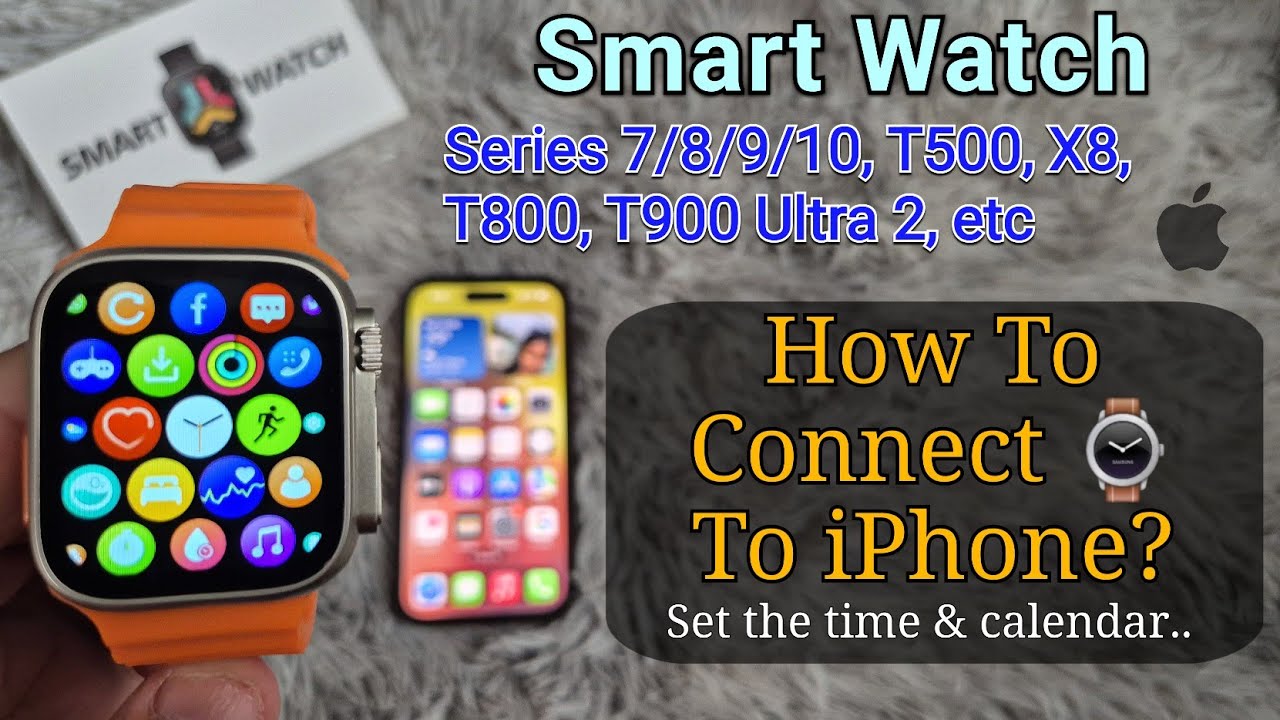
The process for an Apple Watch is controlled by Apple’s Watch app. You do not normally need to search for the watch in the iPhone Bluetooth settings.
Use the automatic setup option
- Turn on the Apple Watch by pressing and holding the side button.
- Bring the watch close to the unlocked iPhone.
- Wait for the Apple Watch pairing message to appear.
- Tap Continue.
- Select Set Up for Myself.
- Center the watch face inside the animation on the iPhone screen.
- Choose Set Up as New Apple Watch or restore from a backup.
- Sign in with your Apple Account if asked.
- Create a passcode for the watch.
- Review health, privacy, location, and notification settings.
- Wait for the sync to finish.
The animation acts like a visual key. If the camera cannot read it, tap Pair Apple Watch Manually and follow the instructions on the screen.
You may need to enter your Apple Account password to disable Activation Lock or finish setup. This security feature helps prevent someone else from using a lost or stolen Apple Watch.
Set up cellular service
If your Apple Watch supports cellular service, you can add a mobile plan during setup. The watch and iPhone usually need to use the same carrier, although supported family setups can vary.
Cellular service is optional. The watch can still use Bluetooth and Wi-Fi without a cellular plan. Review the monthly cost before activating it.
Allow important permissions
During setup, the iPhone may request access to:
• Contacts
• Calendar
• Location
• Health data
• Notifications
• Photos
• Microphone
Allow only the access you need. Health and fitness features often require permission in the Health app. If you deny access during setup, you can change it later in Settings > Privacy & Security or inside the Watch app.
How to connect a non-Apple smartwatch with iPhone
The steps are different for Garmin, Fitbit, Samsung Galaxy Watch, Amazfit, Huawei, and other brands. The main rule is simple: download the official companion app before you begin.
Common examples include:
• Garmin Connect for Garmin watches
• Fitbit for Fitbit devices
• Zepp for many Amazfit watches
• Galaxy Wearable for compatible Samsung watches
• Polar Flow for Polar watches
• Suunto for Suunto watches
• COROS for COROS watches
After installing the correct app, use this general process:
- Open the companion app.
- Create an account or sign in.
- Allow Bluetooth access when requested.
- Allow notifications if you want alerts on the watch.
- Tap Add Device, Pair Device, or a similar option.
- Select your smartwatch from the list.
- Confirm the matching code on both devices.
- Complete the setup instructions.
- Install available firmware updates.
- Choose which alerts and health features you want to use.
Some watches show a pairing code. Others require you to scan a QR code or press a button on the watch. Follow the app rather than guessing, because each brand uses a slightly different setup method.
Samsung Galaxy Watch support on iPhone depends on the model. Some older Galaxy Watch devices work with iOS, while many newer Wear OS models do not. Check the exact model before trying to pair it.
Connect a Wear OS smartwatch to an iPhone
Wear OS compatibility can be confusing. Some older Wear OS watches connect to iPhones through a Wear OS app, but newer models may require Android.
If your model supports iPhone:
- Install the official Wear OS or brand companion app.
- Turn on Bluetooth.
- Open the app and select Set Up a New Watch.
- Choose your watch.
- Confirm the pairing code.
- Allow notifications and other requested permissions.
- Finish the account and software setup.
Expect limits when using some Wear OS watches with an iPhone. You may not be able to reply to messages, use every Google service, install all apps, or manage the watch as fully as you could with Android.
This is not always a fault with the watch. It is often caused by differences between Apple’s software rules and the watch maker’s operating system. A watch can support basic iPhone notifications while still lacking deeper integration.

Pair a Fitbit, Garmin, or fitness watch with iPhone
Fitness watches often connect through their own apps rather than Apple’s Watch app. These apps manage workouts, sleep records, heart rate data, GPS routes, and firmware updates.
To connect one:
- Download the official app from the App Store.
- Sign in or create an account.
- Turn on the watch.
- Open the app and select the device setup option.
- Keep the watch close to the iPhone.
- Confirm the pairing request.
- Allow health and notification permissions.
- Sync the watch after setup.
Garmin and Fitbit devices may ask for access to Apple Health. You can choose which data types the app may read or write. Review these settings carefully if you use more than one health app, since duplicate steps or workouts can sometimes appear.
A practical tip is to use only one app as the main source for each type of health data. For example, allow one app to write step data to Apple Health. This can reduce duplicate records.
Fix common smartwatch pairing problems
Even when you follow the correct steps, pairing can fail. Most problems come from Bluetooth conflicts, outdated software, weak battery power, or an old connection stored on one of the devices.
Try these solutions in order:
• Move the watch within a few inches of the iPhone.
• Turn Bluetooth off, wait 10 seconds, and turn it on again.
• Restart both the iPhone and the smartwatch.
• Close and reopen the companion app.
• Check that Airplane Mode is off.
• Update the iPhone and watch software.
• Remove the watch from the companion app and pair it again.
• Forget the watch in Settings > Bluetooth if an old record remains.
• Reset the smartwatch only as a final step.
If the watch appears in Bluetooth settings but not in the companion app, remove the Bluetooth connection and start again inside the official app. This often fixes incomplete pairing.
If the pairing code does not match, cancel the request and restart setup. Never approve a code that appears on only one device. The matching code helps confirm that the correct watch is connecting to the correct iPhone.
What to do when notifications do not work
A successful connection does not always mean notifications are ready. The iPhone must allow alerts, and the companion app must be allowed to send them to the watch.
Check these settings:
- Open Settings on the iPhone.
- Tap Notifications.
- Select the app you want to use.
- Turn on Allow Notifications.
- Choose Lock Screen, Notification Center, or Banners.
- Open the watch companion app.
- Turn on notification sharing or app alerts.
- Check Do Not Disturb and Focus settings.
Some notifications appear only when the iPhone is locked. Others may be muted when the watch is being worn or when a Focus mode is active.
Messages can also behave differently from email or social media alerts. The watch may mirror the iPhone notification without offering a reply option. This depends on the watch, the app, and iOS support.

Sync health, fitness, and location data
Most modern watches can track steps, heart rate, sleep, workouts, or GPS routes. However, data sharing depends on the brand app and the permissions you approve.
To improve health data syncing:
• Open the companion app once after pairing.
• Keep Bluetooth enabled.
• Allow background app refresh if the app needs it.
• Approve Apple Health permissions for selected data.
• Wear the watch correctly during workouts.
• Open the app after a workout to start a manual sync.
• Keep the watch software updated.
A watch is not a medical diagnosis tool. Heart rate, sleep, blood oxygen, and similar readings can be useful for trends, but they may not be accurate enough for medical decisions. Contact a health professional if you have symptoms or concerns.
Location features also require permission. Choose While Using the App or Always only when the feature needs it. GPS tracking can use more battery, especially during long outdoor workouts.

Disconnect, reset, or change the iPhone
You may need to disconnect a smartwatch before selling it, giving it to another person, or moving it to a new iPhone. Simply turning off Bluetooth is not enough.
For Apple Watch:
- Open the Watch app on the iPhone.
- Tap All Watches.
- Tap the information button beside the watch.
- Select Unpair Apple Watch.
- Enter your Apple Account password if requested.
- Wait for the backup and unpairing process to finish.
For other brands, open the companion app and remove the device from your account. Then reset the watch through its settings menu if another person will use it.
Unpairing helps remove personal data and may disable Activation Lock. It also creates a cleaner setup on the new iPhone.
When I test a watch with a different phone, I always remove the old connection first. Skipping this step can make the new phone see the watch but fail to complete setup. It is like trying to give a new driver a car that still recognizes the old key.
Improve battery life after pairing
A smartwatch uses more power when it constantly checks notifications, tracks location, streams music, or measures health data. A few changes can extend battery life without removing its main features.
Try these adjustments:
• Reduce screen brightness.
• Shorten the screen timeout.
• Turn off alerts you do not need.
• Limit continuous GPS use.
• Disable always-on display if battery life matters more than quick viewing.
• Use a simple watch face.
• Turn off background features that you never use.
• Keep the watch software updated.
Poor battery life can also result from a failed sync loop. If the watch repeatedly tries to pair or update, restart both devices and check the companion app. A clean re-pair may solve the problem.
Battery performance varies by model, display type, cellular use, GPS activity, and health tracking settings. Manufacturer estimates are often based on controlled testing, so everyday use may produce different results.
Smartwatch connection mistakes to avoid
The fastest way to connect a smartwatch with iPhone is to use the correct app and give both devices time to finish setup. Rushing through the process can cause missing features later.
Avoid these mistakes:
• Pairing only through iPhone Bluetooth settings
• Using an unofficial companion app
• Pairing while the watch battery is nearly empty
• Ignoring software updates
• Denying all permissions without checking what each one controls
• Resetting the watch before removing it from the old phone
• Assuming every watch supports iPhone
• Expecting Android-only features to work on iOS
• Keeping several old Bluetooth records for the same watch
One setup mistake I see often is tapping through permission screens without reading them. People then wonder why health data or notifications do not appear. Take one extra minute to review each permission. That small pause often prevents a long troubleshooting session.
Frequently Asked Questions About How to Connect Smartwatch With iPhone
Can any smartwatch connect to an iPhone?
No. The watch must support iOS, and some features may still be limited. Check the exact model on the manufacturer’s compatibility page before buying or pairing it.
How do I connect an Apple Watch with an iPhone?
Turn on the Apple Watch and place it near the iPhone. Use the Apple Watch app, tap Continue, scan the watch animation, and follow the setup instructions.
Why is my smartwatch not showing up on my iPhone?
The watch may be too far away, out of battery, already linked to another phone, or incompatible with iOS. Restart both devices, update their software, and try pairing through the official companion app.
Can I connect a Samsung smartwatch to an iPhone?
Some older Samsung watches support iPhone through a companion app. Many newer Galaxy Watch models use Wear OS and may require an Android phone, so check the exact model first.
Do I need Wi-Fi to connect a smartwatch with iPhone?
Bluetooth is usually required for the first connection, while Wi-Fi or cellular data may help download apps and updates. Some watches can complete basic pairing without Wi-Fi, but setup features may be limited.
Why are my smartwatch notifications not working?
Check notification permissions on the iPhone and inside the watch app. Also review Focus modes, Do Not Disturb, Bluetooth, and whether the watch is currently connected.
Can I connect one smartwatch to two iPhones?
Most watches are designed to connect to one primary phone at a time. To change phones, you may need to unpair, back up, reset, and set up the watch again.
How do I reconnect my smartwatch after losing the connection?
Keep the watch near the iPhone, turn Bluetooth off and on, and restart both devices. If that fails, remove the old connection from the companion app and pair the watch again.
Conclusion
To connect a smartwatch with iPhone, first confirm compatibility, charge both devices, turn on Bluetooth, and use the watch maker’s official app. Apple Watch uses the Watch app, while Garmin, Fitbit, Samsung, and other brands may need separate companion apps.
Keep the devices close, install updates, review permissions, and avoid pairing only through Bluetooth settings. If notifications or health data fail, check app permissions and Focus settings before resetting the watch.
Use these steps to set up your watch with confidence, then explore its fitness, health, and notification tools. Share your smartwatch model or setup experience in the comments, and explore more practical iPhone guides for help with your connected devices.

Rubel Miah is the Senior Editor at MyStyleGrid.com, where he brings a sharp editorial eye and an unshakable love for fashion to everything he does. A true style addict, Rubel lives and breathes trends, from streetwear to high fashion, and has a knack for turning inspiration into impactful stories. With years of experience in fashion journalism and digital media, he curates content that empowers readers to express themselves through style. When he’s not editing features or forecasting the next big thing, you’ll find him hunting down vintage pieces or capturing street style moments around the city.