
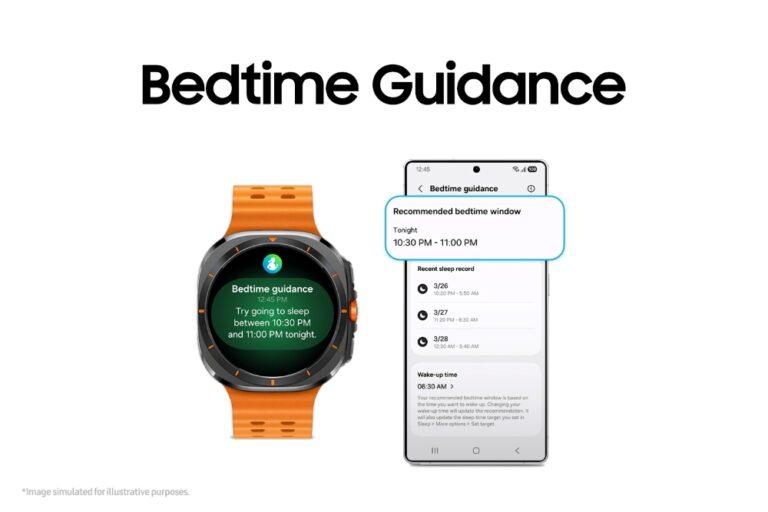
To set up Galaxy Watch 8, install Galaxy Wearable, pair the watch, update it, and follow the on-screen steps.
Learning how to set up Galaxy Watch 8 is simple when you use the right order. This guide covers pairing, Samsung account access, LTE activation, health features, battery tips, and common setup problems so your watch is ready for daily use.
What You Need Before Setting Up Galaxy Watch 8
Before you set up Galaxy Watch 8, gather the items below:
- A compatible Android phone
- The Galaxy Watch 8
- The watch band and charging cradle
- A stable Wi-Fi or mobile data connection
- Your Samsung account details
- Your Google account details, if requested
- Your carrier information if you have an LTE model
Galaxy Watch 8 is designed for Android phones. The exact features can vary by phone model, Android version, region, and software version. iPhone users should check compatibility before buying because Galaxy Watch models do not offer the same full experience with iOS.
Charge the watch before you begin. A battery level of at least 30 percent is helpful. The first setup can include software downloads, account syncing, and app installation, so a low battery may interrupt the process.
You should also update your phone before you set up Galaxy Watch 8. Install the latest Android updates and leave enough storage for the Galaxy Wearable app and related services.

How to Set Up Galaxy Watch 8 Step by Step
The main setup process takes about 10 to 20 minutes. It may take longer if the watch needs a large software update or if you are restoring data from another Galaxy Watch.
1. Turn on Galaxy Watch 8
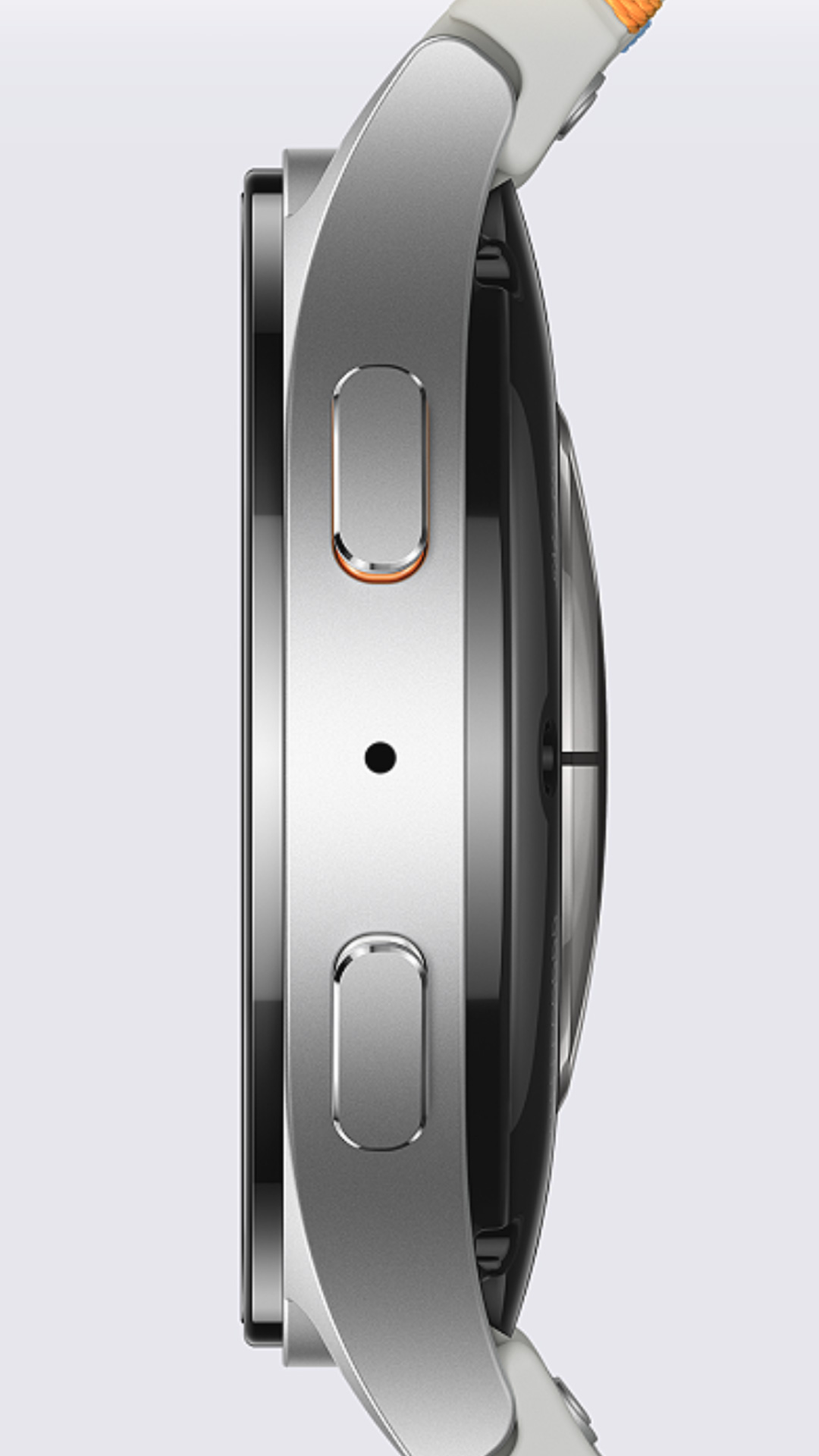
Press and hold the Home key on the side of the watch. Release it when the Samsung logo appears.
Choose your language and region when prompted. If the screen does not turn on, place the watch on its charger for a few minutes and try again.
2. Install the Galaxy Wearable app
On your Android phone, open the Google Play Store. Search for the official Galaxy Wearable app and install it.
Open the app after installation. Allow the permissions it needs for Bluetooth, nearby devices, notifications, contacts, and location. Some permissions support watch pairing, call features, and device discovery.
3. Start device pairing
In Galaxy Wearable, tap Add device. Select Galaxy Watch 8 from the list.
A pairing code should appear on both the phone and watch. Confirm that the codes match, then tap Pair on your phone.
Keep the phone and watch close together. Avoid starting setup near many Bluetooth devices, routers, or other electronics if pairing keeps failing.
4. Accept the required permissions
The app will show several permissions and terms. Read them, then accept the items you need.
Some permissions are optional. For example, you can deny access to contacts if you do not want to use watch-based calling. However, denying certain permissions may limit notifications, health tracking, or voice features.
5. Sign in to your Samsung account
Sign in to your Samsung account when asked. This account supports services such as Samsung Health, backups, Find My Mobile features, and some watch apps.
If you do not have an account, create one with an email address you can access. Use a strong password and enable two-step verification when available.
6. Sign in to your Google account
Galaxy Watch 8 may ask for a Google account during setup. This helps you download apps, use Google services, and restore some settings.
Use the same Google account you plan to use for the Play Store. This avoids confusion when you install watch apps later.
7. Choose your wrist and watch settings
Select whether you wear the watch on your left or right wrist. Then choose your preferred time format, notification settings, and display options.
You can change most of these settings later. Do not worry about making every choice perfect during the first setup.
8. Install available updates
Allow Galaxy Watch 8 to download and install firmware updates. Keep the watch on its charger if the update takes a long time.
Do not restart the watch or close the phone app during an update. A stable Wi-Fi connection can make this step faster and more reliable.

How to Set Up Galaxy Watch 8 With an LTE Plan
If you own the LTE version, you can use cellular service without keeping your phone nearby. You still need to complete phone pairing first.
To set up Galaxy Watch 8 with LTE, follow these steps:
- Open Galaxy Wearable on your paired phone.
- Tap Watch settings.
- Select Mobile plans or Mobile networks.
- Follow the carrier activation instructions.
- Confirm your billing and plan details.
- Wait for the eSIM profile to download.
- Test a call with the phone turned off or outside Bluetooth range.
LTE activation depends on your carrier. The watch and phone may also need to use compatible carrier services. Some carriers require a separate wearable line, while others offer number sharing.
If activation fails, restart both devices and check your carrier account. Do not repeatedly delete the mobile plan unless the carrier tells you to do so. Removing an eSIM profile can make activation harder.

How to Set Up Galaxy Watch 8 Health Features
Health tools are a major reason people set up Galaxy Watch 8. These tools can track activity, heart rate, sleep, workouts, and other wellness data.
Open Samsung Health on your phone and complete the profile questions. Add your age, height, weight, sex, and activity goals as accurately as possible. These details help the app estimate calories and fitness targets.
Set up the following features based on your needs:
- Daily activity goals
- Step tracking
- Heart rate monitoring
- Sleep tracking
- Workout shortcuts
- Water and food tracking
- Stress monitoring
- Blood oxygen tracking during supported measurements
Some health features may require a compatible Samsung phone. Certain measurements may also depend on local approval, software version, or regional availability.
Health readings are useful for trends, but they are not a medical diagnosis. If a reading concerns you, repeat the measurement while resting and speak with a health professional when needed.
A common setup mistake is selecting unrealistic activity goals. Start with a goal you can meet most days. A small, steady target works better than a difficult goal that quickly becomes discouraging.

How to Customize Galaxy Watch 8
After you set up Galaxy Watch 8, make it fit your routine. Customization can improve battery life and make important information easier to see.
Change the watch face
Touch and hold the current watch face. Swipe through the available designs and tap Customize when you find one you like.
Choose a face that shows useful details at a glance. Weather, battery level, steps, calendar events, and heart rate are popular choices.
Avoid using too many animated effects if battery life is important. A simple watch face often uses less power.
Adjust notifications
Open Galaxy Wearable and select Watch settings. Tap Notifications, then choose which phone apps can send alerts to the watch.
Keep only useful alerts. If every social app sends notifications, the watch can become noisy rather than helpful.
For work, you may want calls, messages, calendars, and reminders. For exercise, you might prefer only calls and safety alerts.
Set up quick controls
Swipe down from the top of the watch screen to open quick settings. You can adjust sound, vibration, Wi-Fi, Bluetooth, airplane mode, and power options.
Place the controls you use most near the front of the panel. This saves time when you need to silence the watch during a meeting or turn on a connection quickly.
Install useful apps
Open the Play Store on the watch or use the phone version of Galaxy Wearable. Consider installing only the apps you will use.
Good starting choices may include:
- Weather
- Calendar
- Maps
- Music controls
- A fitness app
- A timer
- A note or reminder app
Too many apps can create extra notifications and reduce available storage. Add new apps slowly as you learn what you need.

How to Improve Galaxy Watch 8 Battery Life
Battery life depends on the display, workouts, GPS, LTE use, notifications, and health tracking. A few small changes can make a clear difference.
Try these steps:
- Lower screen brightness slightly.
- Use a shorter screen timeout.
- Turn off always-on display if you do not need it.
- Reduce unnecessary notifications.
- Turn off LTE when you are near your phone.
- Use power-saving mode during long days.
- Keep software updated.
- Avoid repeated GPS use when it is not needed.
Do not judge battery life during the first day. Setup, updates, account syncing, and app downloads can use more power than normal. Give the watch a few days to settle into your routine.
Use the official charger or a compatible charging accessory. Wireless charging performance can vary, and some phone-based reverse charging features may not work as expected with every watch model.

How to Transfer Data From an Older Galaxy Watch
If you are moving from an older watch, open Galaxy Wearable and begin pairing Galaxy Watch 8. The app may offer a restore option during setup.
Choose the backup linked to your Samsung account. Depending on the old watch and software version, you may restore settings, apps, watch faces, and some health data.
Not every item transfers. Some app data, payment cards, downloaded music, and security settings may need to be added again.
Before resetting the old watch, confirm that important data has synced. Keep the old watch charged and connected to your phone until the backup finishes.
This is one of the most important lessons in any device upgrade: never erase the old device first. A few extra minutes of checking can prevent hours of lost setup work.

Common Galaxy Watch 8 Setup Problems
Galaxy Watch 8 will not pair
Restart both devices first. Then turn Bluetooth off and on, keep the devices close, and reopen Galaxy Wearable.
If the watch was paired with another phone, it may need to be reset before it can connect to a new phone. A reset erases watch data, so back up anything important first.
The watch does not appear in Galaxy Wearable
Check that Bluetooth and nearby-device permissions are enabled. Also make sure you are using the official Galaxy Wearable app rather than trying to pair through the regular Bluetooth menu.
Pairing through the app is important because the app installs the required watch plug-in and manages updates.
Setup is stuck during an update
Place the watch on its charger and connect your phone to a strong Wi-Fi network. Give the update time to finish.
If nothing changes after a long period, restart the phone and watch. Check available storage and try again. Avoid resetting the watch until basic troubleshooting has failed.
Notifications are not showing
Open Galaxy Wearable and check notification access. Then confirm that the specific app is allowed to send notifications on your phone.
Also check Do Not Disturb, sleep mode, theater mode, and mute settings. These modes can block alerts even when the app appears correctly configured.
Calls do not work
Confirm that Bluetooth calling permissions are enabled. If you use an LTE model, check that the mobile plan is active and that the watch has a cellular signal.
Some phones require the watch app and phone app to have permission to access contacts and calls. Update both devices before testing again.

Privacy and Security Settings to Review
Once you set up Galaxy Watch 8, review privacy settings instead of accepting every option automatically.
Check these areas:
- App permissions
- Health data sharing
- Location access
- Contact access
- Notification previews
- Voice assistant permissions
- Samsung account security
- Google account security
Use a screen lock if you store payment cards or personal health information on the watch. A PIN also helps protect your data if the watch is lost.
Turn on device-finding features through your Samsung account. These services may help locate the watch, lock it, or erase data remotely, depending on the connection and account settings.
Be careful with notification previews. A watch can show private messages on your wrist in public. You can hide sensitive content while still receiving an alert.
Practical Setup Tips That Save Time
The best way to set up Galaxy Watch 8 is to complete the basic connection first and customize it later. Trying to install every app and change every setting at once makes troubleshooting harder.
Use these practical tips:
- Keep the phone unlocked during the first pairing.
- Charge both devices before starting.
- Use one Samsung account across your phone and watch.
- Install updates before adding many apps.
- Set notification limits early.
- Test calls, messages, GPS, and workouts before relying on them.
- Back up an old watch before replacing it.
- Record your LTE account details in a secure place.
In real-world setup sessions, notification overload is one of the first problems people notice. The watch feels much better when it delivers only alerts that deserve immediate attention.
Another useful habit is to test the watch in the places where you will use it. Try a short walk, check GPS near your home, test sleep tracking overnight, and make a call from another room. Small tests reveal issues before they matter.
How to Reset Galaxy Watch 8
You may need to reset Galaxy Watch 8 before selling it, giving it to someone else, or fixing a serious software problem.
To reset it from the watch:
- Open Settings.
- Tap General.
- Select Reset.
- Review the warning.
- Confirm the reset.
You can also find reset options through Galaxy Wearable. Back up your data first because a factory reset removes apps, settings, accounts, and stored content.
If the watch is linked to an LTE plan, check whether the mobile plan should be removed or transferred. Your carrier may provide specific instructions for moving the number to another device.
After the reset, the watch returns to its first-use state. You can then set up Galaxy Watch 8 again as a new device.
Frequently Asked Questions About How to Set Up Galaxy Watch 8
Can I set up Galaxy Watch 8 without a Samsung phone?
Yes, you can pair Galaxy Watch 8 with many compatible Android phones. However, some Samsung-only health features may require a compatible Galaxy phone, and feature support can vary by region and software version.
Does Galaxy Watch 8 work with an iPhone?
Galaxy Watch 8 is intended for Android phones and does not provide the full Galaxy Watch experience on iPhone. Check current compatibility details before purchasing if you use iOS.
How long does it take to set up Galaxy Watch 8?
Basic setup often takes 10 to 20 minutes. Updates, data restoration, LTE activation, and app downloads can make the process take longer.
Do I need Wi-Fi to set up Galaxy Watch 8?
Wi-Fi is not always required if your phone has mobile data, but it is strongly recommended. A stable Wi-Fi connection makes updates, app downloads, and account syncing more reliable.
Why is Galaxy Watch 8 asking for a Samsung account?
A Samsung account supports backups, Samsung Health data, device-finding tools, and other connected services. You can create one during setup if you do not already have it.
Can I use Galaxy Watch 8 without a phone nearby?
Yes, some features work independently when the watch is connected to Wi-Fi or has an active LTE plan. Bluetooth calls, phone notifications, and some synced features may still require the phone nearby.
How do I connect Galaxy Watch 8 to a new phone?
Back up the watch, then open Galaxy Wearable on the new phone and select Add device. If the watch cannot connect, you may need to reset it before pairing it with the new phone.
Conclusion
Setting up Galaxy Watch 8 is mostly a matter of installing Galaxy Wearable, pairing the devices, signing in to your accounts, applying updates, and choosing the features you need. LTE activation, health tools, notifications, privacy controls, and battery settings deserve extra attention.
Start with a charged watch and phone. Complete the basic setup first, then test calls, notifications, workouts, and health tracking before adding more apps. Take a few minutes to limit alerts and review permissions, and the watch will feel more useful from day one.
Use this guide as you set up Galaxy Watch 8, and explore the official support tools for your phone, carrier, and region when a feature behaves differently. Share your setup experience or favorite Galaxy Watch 8 tip in the comments.

Rubel Miah is the Senior Editor at MyStyleGrid.com, where he brings a sharp editorial eye and an unshakable love for fashion to everything he does. A true style addict, Rubel lives and breathes trends, from streetwear to high fashion, and has a knack for turning inspiration into impactful stories. With years of experience in fashion journalism and digital media, he curates content that empowers readers to express themselves through style. When he’s not editing features or forecasting the next big thing, you’ll find him hunting down vintage pieces or capturing street style moments around the city.



One Response