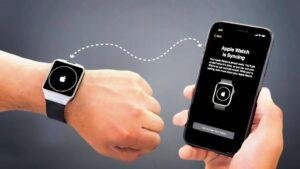
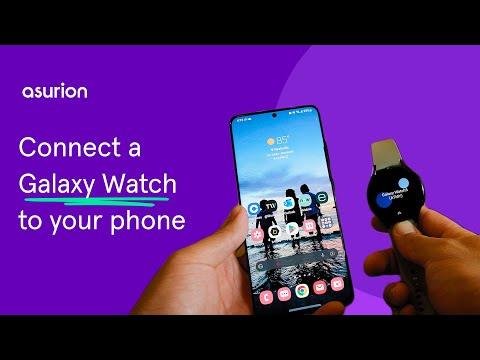
Connect a Samsung watch by installing Galaxy Wearable, turning on Bluetooth, and following the on-screen pairing steps.
Learning how to connect Samsung watch devices is simple once you know which app, phone settings, and account details matter. This guide explains the full process for Galaxy Watch models, including setup, compatibility, common errors, and practical tips that help you get connected without frustration.
What you need before connecting a Samsung watch
Before you connect a Samsung watch, check a few basic details. A smooth setup depends on your phone, watch model, software version, and internet connection.
You will usually need:
• A compatible Android phone
• The Galaxy Wearable app from the Google Play Store or Galaxy Store
• Bluetooth turned on
• A stable Wi-Fi or mobile data connection
• Your Samsung account login details
• A charged Samsung watch and phone
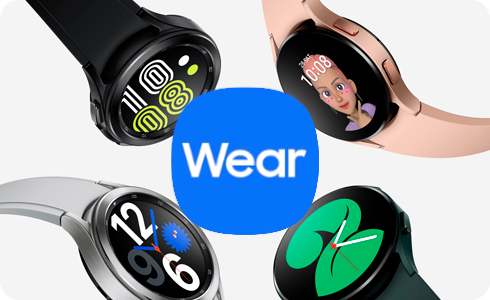
Most newer Galaxy Watch models use Wear OS with Samsung’s interface. These include the Galaxy Watch4, Watch5, Watch6, Watch7, Galaxy Watch Ultra, and newer models. They generally require an Android phone and do not support iPhone pairing.
Older models, such as some Galaxy Watch, Gear Sport, and Gear S3 versions, may work with iPhones. However, features can be limited. Health tools, apps, messaging, and Samsung account services may not work as fully as they do on Android.
Charge both devices to at least 30 percent before you start. A low battery can interrupt setup and make the watch appear to be stuck during pairing.

How to connect Samsung watch to an Android phone
The easiest way to connect Samsung watch devices is through the Galaxy Wearable app. Do not try to pair the watch only from the Bluetooth menu. The app installs the right plugins and manages the setup process.
Follow these steps:
-
Turn on your Samsung watch by pressing and holding the Home or Power button.
-
Unlock your Android phone.
-
Open the Google Play Store or Galaxy Store.
-
Search for Galaxy Wearable.
-
Install or update the app.
-
Open Galaxy Wearable and tap Start or Continue.
-
Choose your watch model from the list.
-
Confirm that the number shown on your phone matches the number on your watch.
-
Tap Pair or Confirm on both devices.
-
Read the permissions and allow access when requested.
-
Sign in to your Samsung account if asked.
-
Follow the prompts to finish setup.
The watch may download software during this process. Keep the phone and watch close together. Do not close the app or turn off Bluetooth while the update runs.
After pairing, Galaxy Wearable may ask you to choose notification settings, health permissions, location access, and backup options. These settings help your watch work as expected, but you can change most of them later.
The first connection can take several minutes. This is normal, especially when the watch needs a firmware update or must restore data from a previous device.
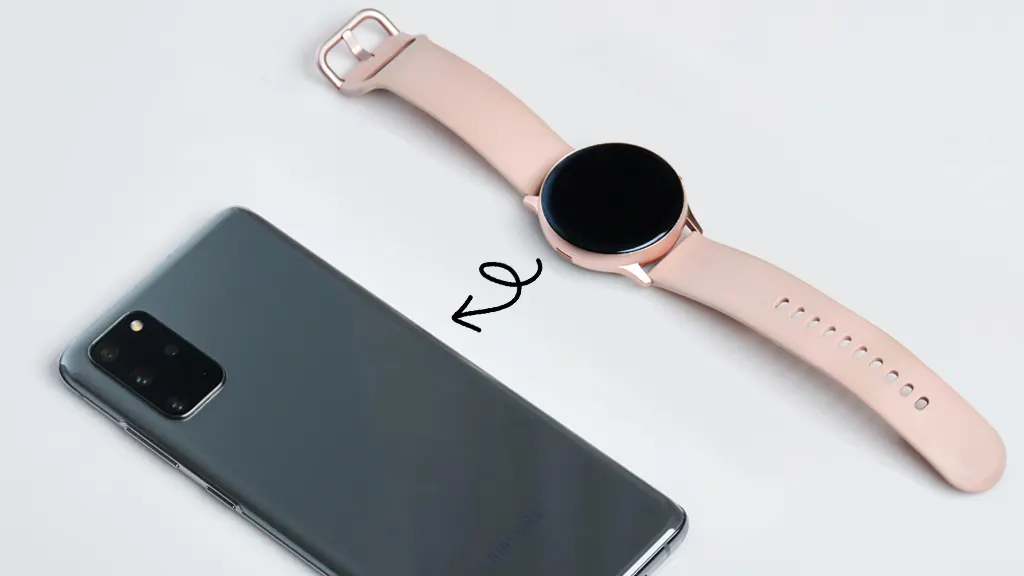
How to connect Samsung watch using Bluetooth
Bluetooth is important, but it is only one part of the setup. Galaxy Watch devices normally use Bluetooth for calls, alerts, music control, and other nearby features.
To prepare Bluetooth:
• Open Settings on your phone.
• Tap connections or Connected devices.
• Turn on Bluetooth.
• Keep the phone within a few feet of the watch.
• Do not select a random watch name from the Bluetooth device list.
Instead, start the connection in Galaxy Wearable. The app creates the correct link between your phone and watch. Pairing from the phone’s Bluetooth page first can cause errors, duplicate connections, or missing watch features.
If you already paired the watch through Bluetooth settings, remove it first:
-
Open your phone’s Bluetooth settings.
-
Tap the gear icon beside the watch name.
-
Choose Unpair or Forget.
-
Restart both devices.
-
Open Galaxy Wearable and try again.
This method often fixes a watch that appears connected but does not show notifications or sync health data.

How to connect Samsung watch to a new phone
A Samsung watch can normally connect to only one main phone at a time. When you move to a new phone, you may need to back up the watch and reset its connection.
First, install Galaxy Wearable on the new phone. Sign in with the same Samsung account and Google account used on the old phone when possible.
On the watch, open:
-
Settings
-
General
-
Connect to new phone
-
Continue or check mark
The exact wording can vary by watch model and software version. Some models show this option under General, while others place it under About watch or Transfer watch to new phone.
The watch may reset during this process. A reset can remove apps, watch faces, messages, and settings stored on the watch. Back up your data before starting if the option is available.
Samsung Health data usually syncs through your account when you use the same login. Still, not every setting transfers perfectly. I recommend taking a quick screenshot of your favorite watch face, alarm times, and notification settings before changing phones. This small step can save time later.

How to connect Samsung watch to Wi-Fi
Your Samsung watch can use Wi-Fi when it is away from your phone, depending on the model and settings. Wi-Fi may support syncing, updates, apps, and some remote features.
To connect a Samsung watch to Wi-Fi:
-
Swipe up on the watch screen to open the app list.
-
Open Settings.
-
Tap Connections.
-
Tap Wi-Fi.
-
Turn Wi-Fi on.
-
Select a network.
-
Enter the password if needed.
Some watches use automatic Wi-Fi settings. You may see options such as Always on, Auto, or Off. Auto is a good choice for most people because the watch can use Wi-Fi when a Bluetooth connection is unavailable.
Public networks that require a web page sign-in may not work well on a watch. Networks with complex business security can also block connection. A home network with a standard password is usually the easiest choice.
Wi-Fi does not replace the first phone setup. You still need to connect Samsung watch devices to the Galaxy Wearable app before using most features.

How to connect Samsung watch for calls and texts
To make and answer calls from your watch, you need a compatible model and the right permissions. Bluetooth models usually need the phone nearby. LTE models can use mobile service after you activate a separate watch plan with your carrier.
For Bluetooth calling:
• Open Galaxy Wearable.
• Tap Watch settings.
• Choose Phone or Calls.
• Allow call permissions.
• Turn on Bluetooth calling if shown.
Some watches ask you to approve contacts, microphone, and call log access. These permissions allow the watch to display contacts and handle calls.
For text messages, open Galaxy Wearable and check Notifications. Turn on notifications for your messaging app. On the watch, you can often reply with a quick response, voice input, keyboard, or emoji.
If calls work but text alerts do not, check notification permissions on both the phone and watch. Also check whether Do Not Disturb, Sleep mode, or notification muting is active.
LTE models may require carrier activation. Buying an LTE watch does not automatically turn on cellular service. Your carrier must support the model and plan in your area.

How to connect Samsung watch with Samsung Health
Samsung Health helps track steps, workouts, heart rate, sleep, and other measurements. The watch sends this data to the phone through Galaxy Wearable and Samsung Health.
To connect the services:
-
Install Samsung Health on your phone.
-
Open the app and sign in.
-
Open Galaxy Wearable.
-
Tap Samsung Health or Health settings.
-
Allow the requested permissions.
-
Wear the watch snugly above your wrist bone during measurements.
Health readings can vary. A watch is useful for general wellness and fitness trends, but it is not a medical device. Do not use a watch reading to diagnose a condition or replace professional medical care.
For better results, keep the watch clean and wear it in the same position during workouts. Loose bands, heavy movement, tattoos, and poor skin contact can affect some readings.

Samsung watch connection problems and fixes
Even when you follow the correct steps, pairing can fail. Most problems come from outdated software, weak Bluetooth connections, old pairing data, or phone compatibility.
Try these fixes in order:
• Move the watch and phone close together.
• Turn Bluetooth off, wait ten seconds, and turn it back on.
• Restart both devices.
• Update Galaxy Wearable.
• Update the phone’s operating system.
• Charge the watch.
• Remove old Bluetooth pairings.
• Make sure airplane mode is off.
• Turn off battery saver during setup.
• Open Galaxy Wearable and try pairing again.
If the watch was connected to another phone, it may need to be reset or transferred first. A watch that is still linked to an old phone can reject a new connection.
If the app cannot find the watch, check location permission. Some Android phones use location access to scan for nearby Bluetooth devices. You can turn the permission off after setup if your phone allows it, but some features may work better when it remains enabled.
As a last resort, back up your watch and perform a factory reset. Do this only after trying the simpler steps because a reset removes data stored on the watch.

Common mistakes to avoid when pairing a Galaxy Watch
Small setup mistakes can create big problems. Avoid these common errors when you connect Samsung watch devices.
• Pairing from Bluetooth settings instead of Galaxy Wearable: Use the app as the main setup tool.
• Ignoring software updates: Old software can prevent the phone and watch from communicating.
• Starting with a low battery: The watch may shut down during setup or updating.
• Using the wrong app: Galaxy Wearable is the standard app for modern Galaxy Watch models.
• Resetting too soon: Try restarting, updating, and removing old pairings first.
• Forgetting account details: Samsung and Google account access may be needed to restore services.
• Expecting every phone to work: Newer Wear OS Galaxy Watch models generally require Android.
One practical lesson is to avoid changing several settings at once. Test the basic connection first. Then enable calls, health tools, notifications, and Wi-Fi one by one. This makes it much easier to identify the setting that causes trouble.
Tips for a reliable Samsung watch connection
A stable connection depends on more than the first pairing. These habits can help your watch stay connected each day.
Keep Galaxy Wearable and Samsung Health updated. App updates often improve compatibility and fix connection bugs. You should also install watch software updates when the phone offers them.
Keep Bluetooth enabled if you rely on phone notifications or calls. When the phone is far away, the watch may disconnect unless it has Wi-Fi or LTE service.
You can improve battery life by turning off features you do not need. For example, reduce screen brightness, limit always-on display use, and disable unnecessary notifications. A longer battery life means fewer interruptions to syncing.
If the watch disconnects in one room but works in another, the issue may be Bluetooth range or interference. Walls, wireless devices, and crowded public areas can weaken the signal. Keeping the phone on your body or nearby usually solves this problem.
Frequently Asked Questions About How to Connect Samsung Watch
Can I connect a Samsung watch to an iPhone?
Some older Samsung watches can connect to an iPhone through a compatible app. Newer Galaxy Watch models that use Wear OS generally require an Android phone, so check your exact model before buying or pairing.
Why is my Samsung watch not showing in Galaxy Wearable?
Make sure Bluetooth is on, the watch is charged, and both devices are close together. If the watch was paired with another phone, remove the old connection or use the watch’s transfer-to-new-phone option.
Do I need a Samsung phone to connect Samsung watch devices?
No. Many Galaxy Watch models work with compatible Android phones from other brands. Some Samsung-only features may be limited, and newer watches may require specific Android versions.
How do I connect Samsung watch after changing phones?
Install Galaxy Wearable on the new phone and sign in with your existing accounts. On the watch, open Settings, tap General, choose Connect to new phone, and follow the instructions.
Can I connect Samsung watch without Bluetooth?
A watch may use Wi-Fi or LTE for some remote functions, but Bluetooth is normally used for the first setup and nearby communication. You still need a compatible phone and Galaxy Wearable for most features.
Why does my Samsung watch keep disconnecting?
The cause may be distance, battery saver settings, outdated software, or a damaged pairing record. Restart both devices, update the apps, remove the old Bluetooth pairing, and reconnect through Galaxy Wearable.
Can I connect Samsung watch to two phones at the same time?
Most Samsung watches are designed for one primary phone connection. You can move the watch to another phone, but the process may require a transfer or factory reset.
Conclusion
Learning how to connect Samsung watch devices takes only a few steps: install Galaxy Wearable, turn on Bluetooth, choose the correct watch, and follow the pairing prompts. Keep both devices charged, updated, and close together during setup.
For connection problems, restart the devices, remove old Bluetooth records, check permissions, and confirm phone compatibility before resetting the watch. Once your Galaxy Watch is paired, explore notifications, Samsung Health, calls, Wi-Fi, and battery settings to make it fit your daily routine.
Try the steps in this guide today, and share your experience or question in the comments.

Rubel Miah is the Senior Editor at MyStyleGrid.com, where he brings a sharp editorial eye and an unshakable love for fashion to everything he does. A true style addict, Rubel lives and breathes trends, from streetwear to high fashion, and has a knack for turning inspiration into impactful stories. With years of experience in fashion journalism and digital media, he curates content that empowers readers to express themselves through style. When he’s not editing features or forecasting the next big thing, you’ll find him hunting down vintage pieces or capturing street style moments around the city.