If your Apple Watch is not connecting to your iPhone, keep both devices close, turn off Airplane Mode, restart them, and check bluetooth and Wi-Fi. If the watch has been unpaired, use the Apple Watch app on the iPhone to pair it again.
This guide uses the current Apple Watch and iPhone setup process for users in the United States. The menu names may vary slightly by iOS or watchOS version, so check Apple’s official support pages if your screen looks different.
Introduction
Apple Watch usually reconnects on its own when it is near its paired iPhone. A red iPhone icon, a red “X,” or a message that says “Disconnected” means the watch cannot reach the iPhone through Bluetooth or Wi-Fi.
The fix depends on what happened:
- The watch is still paired: Check settings, move the devices closer, and restart them.
- The watch was unpaired: Pair it again through the Apple Watch app.
- You replaced your iPhone: Transfer or pair the watch with the new iPhone.
- The watch is locked to another Apple Account: The original account owner must remove Activation Lock.

Before You Reconnect Apple Watch
Check these basic requirements before changing settings or erasing anything:
- Keep the iPhone and Apple Watch close together. Place them within a few feet of each other.
- Charge both devices. A very low battery can interrupt setup.
- Turn off Airplane Mode on both devices.
- Turn on Bluetooth on the iPhone. Go to Settings > Bluetooth.
- Turn on Wi-Fi on the iPhone. Go to Settings > Wi-Fi.
- Make sure the iPhone is unlocked.
- Know the iPhone passcode and Apple Account password. You may need both during setup.
- Update the iPhone if possible. Apple Watch setup may require a compatible version of iOS.
Your Apple Watch does not need to stay on the same Wi-Fi network at all times. Bluetooth is normally the first connection method when the watch is near the iPhone. Wi-Fi can help the devices communicate when they are farther apart, if the watch and iPhone support the needed features.
Do not erase the watch as a first step. Erasing removes local content and settings. Try the less disruptive fixes first.
How to Reconnect a Paired Apple Watch
Use this sequence when the watch still shows your normal watch face but displays a red iPhone icon or says it is disconnected.
1. Move the devices closer
Place the Apple Watch and iPhone next to each other. Wait about a minute and check the watch face.
If the red connection icon disappears, the watch has reconnected. If nothing changes, continue.
2. Check Airplane Mode
On the Apple Watch:
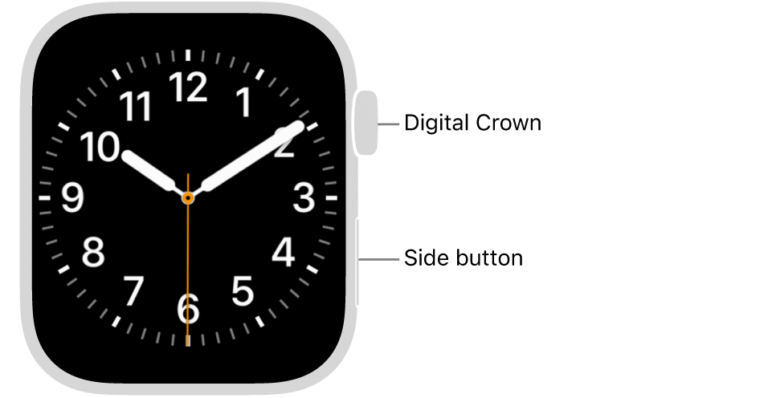
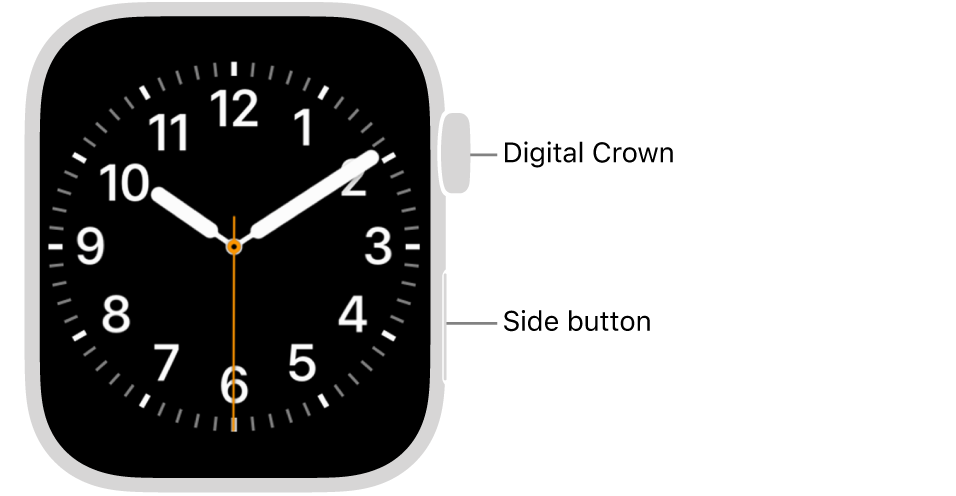
- Press the side button to open Control Center.
- Look for the airplane icon.
- If Airplane Mode is on, tap it to turn it off.
On the iPhone:
- Open Control Center.
- Make sure Airplane Mode is off.
- Confirm that Bluetooth and Wi-Fi are on.
If Airplane Mode is already off, turn it on for a few seconds, then turn it off again. This can refresh the wireless connection.


3. Check Bluetooth and Wi-Fi on the iPhone
Open Settings on the iPhone and confirm:
- Bluetooth is on.
- Wi-Fi is on.
- The iPhone is not in Low Power Mode if setup or updates are failing.
- The iPhone has an internet connection.
Do not use Control Center as the only way to check Bluetooth. Tapping the Bluetooth button in Control Center can disconnect accessories without fully turning Bluetooth off. Open Settings > Bluetooth to confirm its actual status.
4. Restart both devices
Restart the iPhone first:
- Hold the side button and either volume button.
- Drag the power-off slider.
- Wait about 30 seconds.
- Hold the side button until the Apple logo appears.
Then restart the Apple Watch:
- Hold the side button.
- Tap the power icon if it appears.
- Drag the power-off slider.
- Wait about 30 seconds.
- Hold the side button until the Apple logo appears.
If the Apple Watch is frozen, force restart it only when a normal restart does not work:
- Hold the side button and Digital Crown together.
- Keep holding for about 10 seconds.
- Release both buttons when the Apple logo appears.
Avoid force restarting during a watchOS update. Interrupting an update can create additional problems.
5. Check the Apple Watch app
Open the Watch app on the iPhone. Tap My Watch and then All Watches.
Look for your Apple Watch:
- If it appears as connected, the problem may be limited to one feature.
- If it appears but shows a warning, follow the message in the app.
- If it does not appear, the watch may have been unpaired or reset.
You can also check whether the iPhone detects the watch by opening the Watch app and viewing its device list.
6. Update the iPhone and Apple Watch
Software updates often include fixes for connection and pairing problems. Before updating, connect the iPhone to power and place the Apple Watch on its charger.
Apple Watch updates generally require:
- The watch to be on its charger.
- The watch battery to meet Apple’s minimum charge requirement.
- The paired iPhone to have a compatible version of iOS.
- Wi-Fi access during the update.
The exact compatibility rules can change with new iPhone and Apple Watch releases. Check Apple’s official Apple Watch compatibility page and Apple Watch update instructions for the current requirements.
How to Pair Apple Watch Again
If the watch was unpaired, or if the iPhone no longer recognizes it, pair it again through the Watch app.
Pair the watch with the iPhone
- Turn on the Apple Watch by holding the side button.
- Unlock the iPhone and keep it near the watch.
- Open the Watch app on the iPhone.
- Tap All Watches.
- Tap Add Watch.
- Follow the instructions on the screen.
- When asked, tap Set Up for Myself or choose the option for a family member.
- Scan the animation on the Apple Watch with the iPhone camera.
If the camera cannot scan the animation, tap Pair Apple Watch Manually. Then follow the prompts to select the watch and enter the code shown on its display.


Restore from a backup
During setup, the iPhone may offer a backup of the Apple Watch. Choose a backup if you want to restore settings, apps, and other supported data.
If no backup appears, set up the watch as new. This does not mean the watch is defective. It may mean that no usable backup is available on the iPhone or in iCloud.
Health and activity data may depend on iPhone backup settings and iCloud syncing. To protect this data in the future, keep the iPhone backed up and use the same Apple Account that was used with the watch.
Confirm that pairing worked
Pairing is complete when:
- The iPhone shows the watch in the Watch app.
- The watch displays its normal watch face.
- The red iPhone icon disappears.
- Notifications begin appearing on the watch.
- The Watch app shows watch settings and installed apps.
A first-time setup can take several minutes. Keep both devices close and connected to power if the iPhone asks you to install an update.
How to Connect Apple Watch to a New iPhone
If you bought a new iPhone, use Apple’s transfer process instead of erasing the watch right away.
If you still have the old iPhone
- Update the old iPhone and Apple Watch.
- Back up the old iPhone.
- Set up the new iPhone from the backup or use Apple’s device-to-device transfer.
- Keep the Apple Watch near the new iPhone.
- Open the Watch app on the new iPhone.
- Follow the pairing instructions.
- Restore the watch from the available backup if prompted.
The old iPhone should remain available until the transfer finishes. If you erase or trade in the old phone too early, you may lose the simplest path to the watch’s previous settings and data.
If you no longer have the old iPhone
You can erase the Apple Watch and pair it with the new iPhone, but the watch may ask for the Apple Account used before the erase. This is Activation Lock.
On the Apple Watch, you may be able to erase it from:
Settings > General > Reset > Erase All Content and Settings
The exact menu name can vary by watchOS version. After the erase, open the Watch app on the new iPhone and pair the watch.
If the watch asks for another person’s Apple Account, the previous owner must remove it from their account. Apple cannot remove Activation Lock without the required account information and proof of ownership under its support process.
What to Do When Apple Watch Still Will Not Connect
If the basic steps fail, identify the symptom before choosing a more serious fix.
| What you see | Likely cause | Best next step |
|---|---|---|
| Red iPhone icon | Temporary wireless connection problem | Move devices closer, check Bluetooth, and restart both |
| Watch does not appear in the Watch app | It may be unpaired or erased | Start pairing from Watch > All Watches > Add Watch |
| Pairing animation will not scan | Camera or pairing display issue | Use Pair Apple Watch Manually |
| “Unable to Pair” message | Software, compatibility, or setup problem | Update the iPhone, restart both devices, and try again |
| Activation Lock screen | The watch is linked to an Apple Account | Enter the correct account or ask the previous owner to remove it |
| Setup keeps asking for an update | iOS and watchOS may not meet compatibility needs | Update the iPhone and charge the watch during setup |
| Watch turns off during setup | Low battery or hardware problem | Charge it and try again; seek Apple support if it will not stay on |
Reset network settings only when needed
If the iPhone has broader Bluetooth or Wi-Fi problems, resetting network settings may help. On current iPhone software, the path is usually:


Settings > General > Transfer or Reset iPhone > Reset > Reset Network Settings
This removes saved Wi-Fi networks, passwords, VPN settings, and other network information. It does not erase photos, apps, or personal files, but you will need to reconnect to Wi-Fi networks afterward.
Use this step only after simpler fixes fail.
Erase and pair the watch again
Erasing the Apple Watch is a last-resort software fix. It may remove local settings and content, and it can trigger Activation Lock.
Before erasing:
- Confirm that you know the Apple Account password.
- Check whether a recent watch backup exists.
- Keep the iPhone connected to the internet.
- Make sure the watch has enough battery.
- Do not erase a watch that belongs to someone else unless the owner is present.
If the watch cannot be erased normally, Apple Support may provide the correct recovery steps for the model and software version.
Contact Apple Support
Contact Apple Support or visit an Apple Store if:
- The watch will not turn on after charging.
- The display stays frozen after a force restart.
- The watch repeatedly fails during setup.
- You see an Activation Lock message and have proof of purchase.
- The iPhone cannot detect the watch after updates and resets.
- The watch has been exposed to water, impact, heat, or another possible source of hardware damage.
Apple’s official Apple Watch support page provides model-specific help and service options in the United States.
Common Mistakes to Avoid
Erasing the watch too soon
A disconnected watch is not always an unpaired watch. Restarting both devices and checking Bluetooth can fix the issue without removing your data.
Turning off Bluetooth from the wrong menu
Control Center may disconnect accessories without fully disabling Bluetooth. Use Settings > Bluetooth when you need to check or change the real Bluetooth setting.
Pairing with the wrong Apple Account
Activation Lock is designed to prevent unauthorized use of a lost or stolen Apple Watch. Do not try to bypass it. Use the Apple Account that was linked to the watch or ask the prior owner to remove it.
Updating only one device
A new watchOS version may require a compatible iOS version. Update the iPhone first when possible, then update the watch while it is charging.
Using an unsuitable charger
Use an Apple Watch charger that is compatible with your model or an Apple-authorized charging accessory. If the watch does not show a charging symbol, clean and dry the back of the watch and charger, then try a known-good power source.
Frequently Asked Questions
Why did my Apple Watch disconnect from my iPhone?
The devices may be too far apart, Bluetooth may be off, Airplane Mode may be enabled, or one device may need a restart. Software updates, low battery, and wireless interference can also interrupt the connection.
Can I reconnect Apple Watch without erasing it?
Yes. If the watch is still paired, move it near the iPhone, check Bluetooth and Wi-Fi, turn off Airplane Mode, and restart both devices. Erasing is usually needed only when the watch has been unpaired, reset, or transferred to another iPhone.


How do I know whether my Apple Watch is paired?
Open the Watch app on the iPhone and tap All Watches. If the watch appears there with its settings, it is paired with that iPhone. A red iPhone icon on the watch means it is not currently connected, but it may still be paired.
Can I pair an Apple Watch with an Android phone?
No. Apple Watch requires an iPhone for pairing and setup. An Android phone cannot replace the paired iPhone for normal Apple Watch use.
What should I do if I forgot my Apple Account password?
Use Apple’s official account recovery page to reset the password. Do not erase the watch repeatedly, because erasing does not remove Activation Lock.
Conclusion
To reconnect Apple Watch to iPhone, first keep the devices close and check Airplane Mode, Bluetooth, Wi-Fi, and battery level. Restart both devices before trying more advanced steps.
If the watch no longer appears in the Watch app, pair it again through Watch > All Watches > Add Watch. Erase the watch only when necessary, and make sure you know the linked Apple Account password before doing so.

Rubel Miah is the Senior Editor at MyStyleGrid.com, where he brings a sharp editorial eye and an unshakable love for fashion to everything he does. A true style addict, Rubel lives and breathes trends, from streetwear to high fashion, and has a knack for turning inspiration into impactful stories. With years of experience in fashion journalism and digital media, he curates content that empowers readers to express themselves through style. When he’s not editing features or forecasting the next big thing, you’ll find him hunting down vintage pieces or capturing street style moments around the city.