Open the Watch app on your iPhone, tap Pair New Watch, and follow the on-screen setup steps.
Learning how do I connect my phone to my Apple Watch is simple once you know the correct order. This guide explains pairing, setup, common errors, cellular activation, and what to do if your Apple Watch was linked to another iPhone. The steps reflect Apple’s current setup process and practical troubleshooting methods that work well in everyday use.
What you need before pairing an Apple Watch
Before you ask, “How do I connect my phone to my Apple Watch?” check that both devices are ready. Pairing works best when your iPhone and Apple Watch have enough battery and the latest compatible software.
You will usually need:
- An iPhone XS or later, depending on your Apple Watch model and watchOS version
- The latest available iOS update
- At least 50% battery on the Apple Watch
- Wi-Fi or cellular service on the iPhone
- Your Apple Account password
- The iPhone passcode
- The Apple Watch passcode, if one already exists
- Bluetooth turned on
Keep the iPhone and Apple Watch close together. Think of pairing like introducing two devices in the same room. A strong connection between them makes setup faster and reduces errors.
Apple Watch models may require different iPhone versions. For that reason, check Apple’s official compatibility information if your iPhone is older or your Apple Watch is a newer model.

How do I connect my phone to my Apple Watch for the first time?
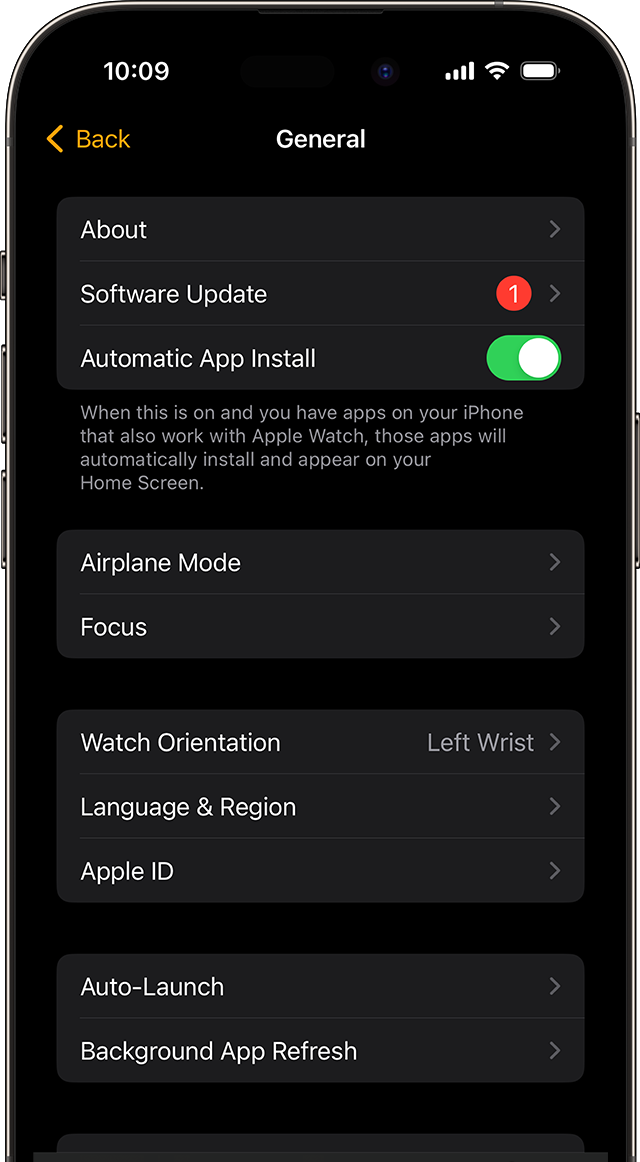
The easiest method uses the Apple Watch app built into your iPhone. Do not open Bluetooth settings and try to pair the watch manually. Apple Watch pairing starts inside the Watch app.
Follow these steps:
- Turn on your Apple Watch by pressing and holding the side button.
- Wait for the Apple logo to appear.
- Place the watch near your unlocked iPhone.
- Wait for the “Use your iPhone to set up this Apple Watch” message.
- Tap Continue.
- Tap Set Up for Myself.
- Hold the Apple Watch animation in view of your iPhone camera.
- If the camera does not recognize the animation, tap Pair Apple Watch Manually.
- Choose whether to restore from a backup or set up the watch as new.
- Sign in with your Apple Account if asked.
- Create a passcode for the watch.
- Review features such as Location Services, Siri, Apple Pay, and automatic updates.
- Wait for the sync to finish.
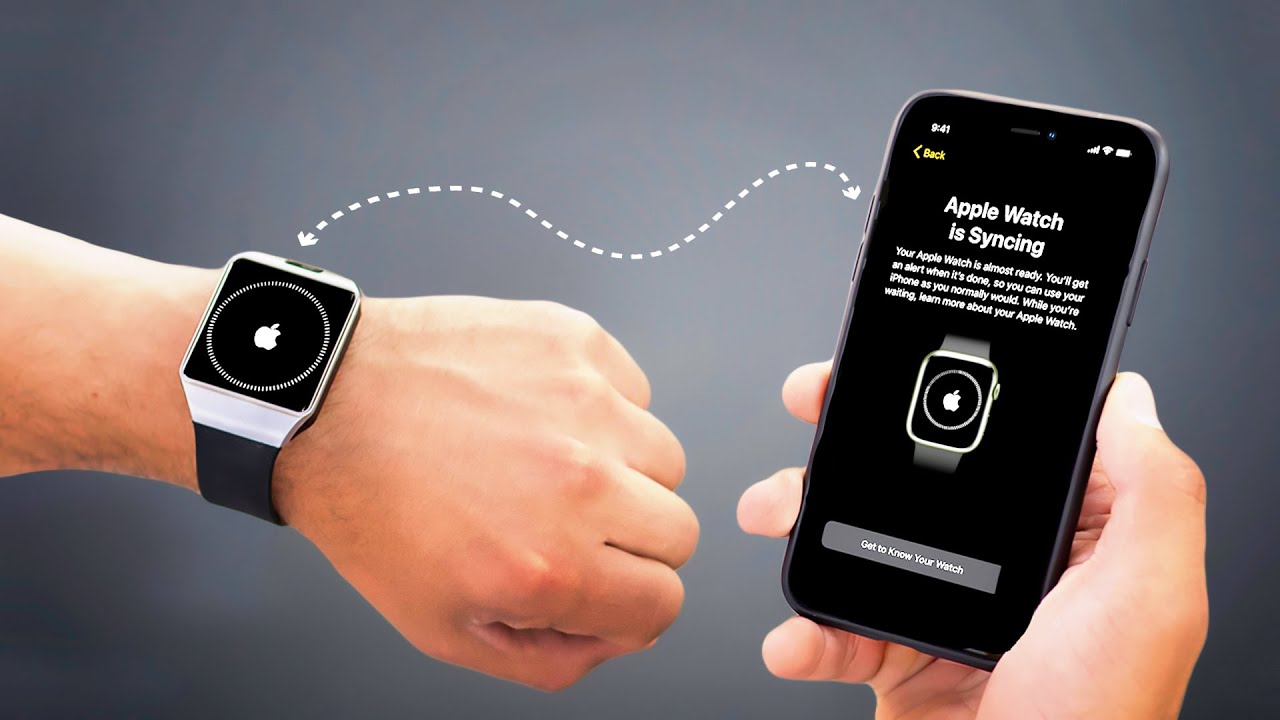
The watch may show a spinning circle or progress screen during setup. Keep both devices nearby and connected to power if the process takes a while.
If you are still wondering how do I connect my phone to my Apple Watch after seeing the pairing animation, the key step is to use the Watch app. The camera animation confirms that your iPhone is pairing with the correct watch.
How do I connect my phone to my Apple Watch manually?
Sometimes the camera pairing option does not work. The animation may be blurry, the room may be too dark, or the camera may not recognize the watch. Manual pairing is a reliable backup.
To pair manually:
- Open the Watch app on your iPhone.
- Tap All Watches at the top left.
- Tap Add Watch.
- Choose Pair Apple Watch Manually.
- Tap the information icon on the Apple Watch.
- Find the six digit code shown on the watch.
- Enter that code on your iPhone.
- Follow the remaining setup instructions.
Manual pairing can take a little longer, but it connects the same way. In my experience, moving away from bright sunlight and cleaning the iPhone camera lens often fixes failed camera pairing.
If your iPhone cannot find the watch, keep the devices within a few inches of each other. Also confirm that Airplane Mode is off and Bluetooth is enabled.

How do I connect my phone to my Apple Watch after an update?
An iPhone or Apple Watch update can change setup screens, but the overall process stays similar. First, unlock your iPhone and open the Watch app. If the watch appears under All Watches, tap it and check its connection status.
Try these steps:
- Restart the iPhone.
- Restart the Apple Watch.
- Turn Bluetooth off and on again.
- Connect the iPhone to Wi-Fi.
- Keep both devices close together.
- Install any pending iOS or watchOS update.
- Open the Watch app and look for a pairing prompt.
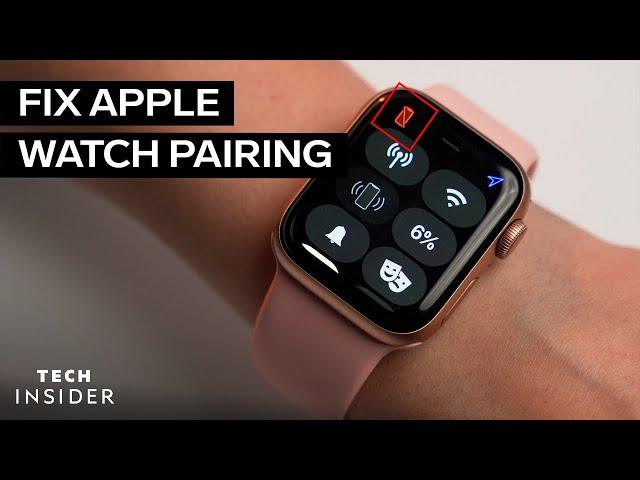
A green iPhone icon on the Apple Watch usually means the devices are connected. A red iPhone icon or a red X means the watch has lost contact with the iPhone.
One mistake I often see is starting setup while the iPhone has low battery or weak Wi-Fi. Charging both devices first saves time and prevents the update stage from stopping halfway through.

How do I connect my phone to my Apple Watch with cellular service?
A cellular Apple Watch can use mobile data without your iPhone nearby. However, cellular service is optional. You can pair the watch and use Bluetooth or Wi-Fi without activating a cellular plan.
During setup, the Watch app may show a Set Up Cellular option. Tap it and follow your carrier’s instructions. You may need to sign in to your carrier account and choose a plan that supports Apple Watch service.
Important points include:
- Your iPhone and Apple Watch usually need to use the same carrier.
- Prepaid and some business plans may not support Apple Watch cellular service.
- Cellular activation can involve an extra monthly charge.
- GPS-only Apple Watch models do not support cellular service.
- The watch may show a cellular signal only when it is away from the iPhone or known Wi-Fi networks.
If you skip cellular setup, you can usually return to the Watch app later. Tap My Watch, choose Cellular, and look for the setup option.
How do I connect my phone to my Apple Watch when it was used before?
A previously owned Apple Watch may still be linked to its former owner’s Apple Account. This security feature is called Activation Lock. You cannot remove it without the previous owner’s password.
Ask the former owner to do the following:
- Open the Find My app.
- Select the Devices tab.
- Choose the Apple Watch.
- Tap Erase This Device.
- After the erase finishes, tap Remove This Device.
The previous owner can also remove the watch through their Apple Account device list. If the watch asks for someone else’s Apple Account during setup, do not try to bypass the screen. Contact the seller and request proper removal.
When you buy a used Apple Watch, confirm that it reaches the normal pairing screen before paying. This simple check can prevent a costly problem.

How do I connect my phone to my Apple Watch after replacing my iPhone?
If you bought a new iPhone, you may not need to erase your Apple Watch. First, back up the old iPhone and transfer its data to the new one. Then open the Watch app on the new iPhone.
Try this process:
- Set up the new iPhone from an iCloud or computer backup.
- Sign in with the same Apple Account.
- Open the Watch app.
- Follow the prompt to finish pairing.
- Restore the Apple Watch from the latest backup if offered.
- Enter the watch passcode when requested.
If the old iPhone is available, unpair the watch from it before switching. Open the Watch app, tap All Watches, tap the information icon, and choose Unpair Apple Watch.
Unpairing creates a backup of the watch data and removes the Activation Lock link when completed correctly. If the old iPhone is lost, use the Find My app or erase the watch directly, then pair it with the new iPhone.

Common Apple Watch pairing problems and solutions
Even when you follow the right steps, pairing may fail. Most problems come from software, distance, account security, or a previous connection.
The pairing animation will not scan
Clean the iPhone camera lens and place the watch in better light. If scanning still fails, choose Pair Apple Watch Manually.
The iPhone says the watch cannot connect
Restart both devices. Make sure Bluetooth and Wi-Fi are on, then open the Watch app again. Keeping the devices close is important during software checks.
The Apple Watch shows a red iPhone icon
This means the watch is not communicating with the iPhone. Move closer, turn off Airplane Mode, and restart both devices if the icon remains.
The watch is stuck on the Apple logo
Place it on its charger and allow several minutes for startup. If it remains stuck, force restart it by holding the side button and Digital Crown together until the Apple logo appears.
The watch asks for a passcode you do not know
You may need to erase the watch. This removes its content and settings, so use this option only when you cannot recover the passcode or access the old iPhone.
The watch says it needs an update
Install the required iPhone update first. The Apple Watch may also need to be charged and connected to Wi-Fi before the update can continue.
The Watch app cannot open
Update iOS, restart the iPhone, and check available storage. If the issue continues, Apple Support can help identify a compatibility or account problem.
How to check whether your iPhone and Apple Watch are connected
After learning how do I connect my phone to my Apple Watch, check the connection before leaving home. The fastest method is to look at the Apple Watch Control Center.
Press the side button to open Control Center. A green iPhone icon means the watch is connected. A blue Wi-Fi symbol may mean the watch is using Wi-Fi instead of a direct Bluetooth connection.
You can also check from the iPhone:
- Open the Watch app.
- Tap All Watches.
- Look for your watch under the connected devices list.
- Tap the information icon for battery and connection details.
Test a basic feature, such as opening the Weather app or sending a message. If information updates quickly, the connection is working.
Remember that a GPS Apple Watch depends more heavily on the iPhone, Wi-Fi, and stored features. A cellular Apple Watch can do more when the iPhone is far away, but it still needs an active plan and a supported carrier.
What happens after you pair an Apple Watch?
Pairing is only the first step. You can customize the watch so it fits your daily routine instead of showing every alert your iPhone receives.
Useful settings include:
- Notifications for calls, messages, and selected apps
- Watch faces and complications
- Apple Pay cards
- Emergency SOS and Medical ID
- Activity and workout goals
- Sleep tracking
- Siri
- App installation
- Do Not Disturb and Focus modes
Open the Watch app and explore the My Watch tab. You can change most settings there without touching the watch.
I recommend starting with fewer notifications. When every app sends an alert, the watch feels noisy. Choose only alerts that save time, such as calls, calendar reminders, navigation, and important messages.
Privacy and security tips for Apple Watch pairing
Apple Watch uses your Apple Account, passcode, and device security features to protect personal information. Treat the watch like a small computer on your wrist.
Use these safety habits:
- Create a passcode that others cannot guess.
- Turn on Wrist Detection.
- Keep your iPhone protected with a passcode or Face ID.
- Do not share your Apple Account password.
- Remove the watch from your account before selling it.
- Review Apple Pay cards after restoring from a backup.
- Install official software updates.
Apple’s Activation Lock helps prevent someone else from pairing a lost or stolen watch. It also means that used watches must be properly removed from the former owner’s account.
There are limits to troubleshooting. Hardware damage, account problems, carrier restrictions, and unusual software errors may need Apple Support or an authorized service provider.
Frequently asked questions about how do I connect my phone to my Apple Watch
Can I connect an Apple Watch to an Android phone?
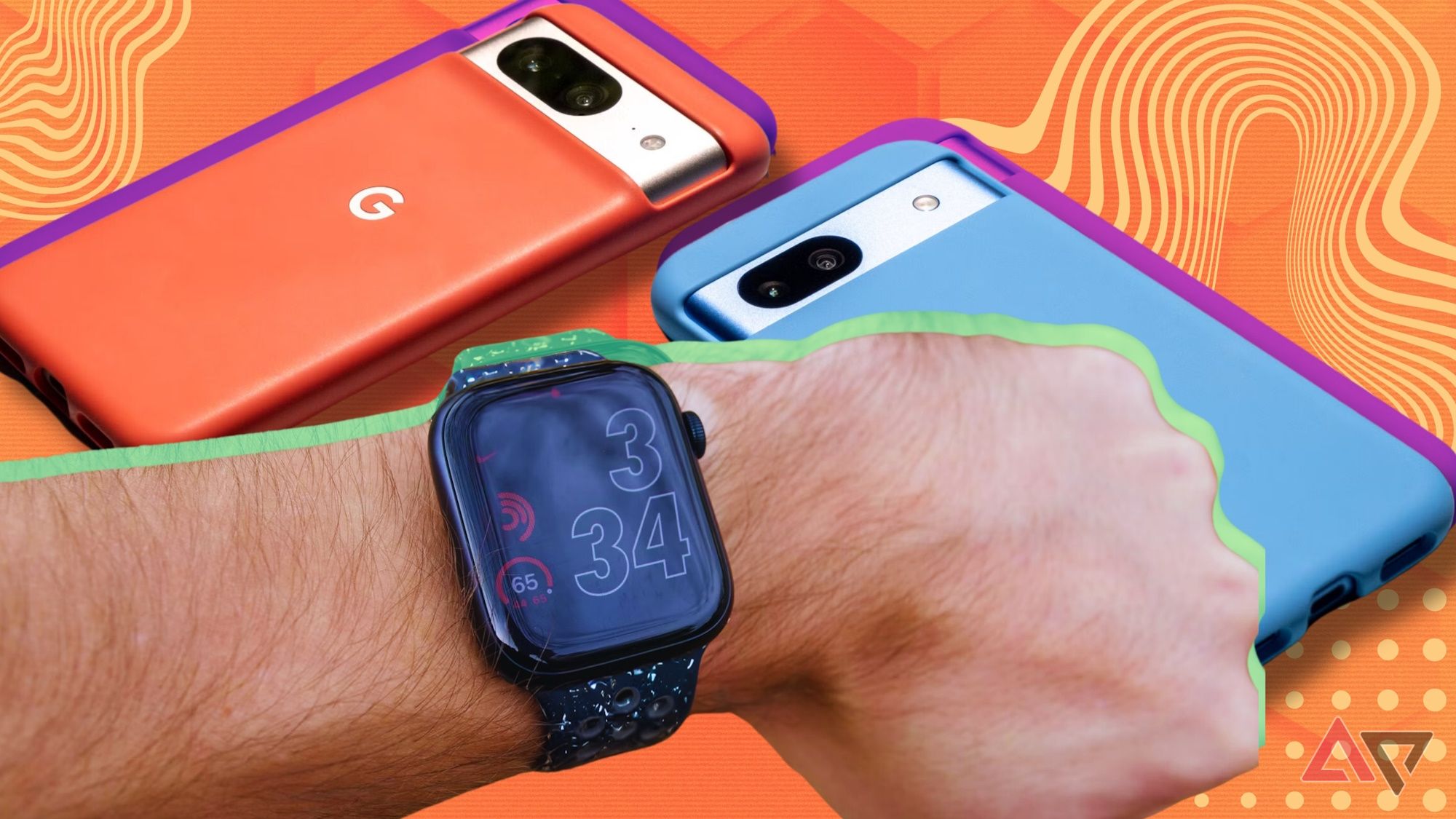
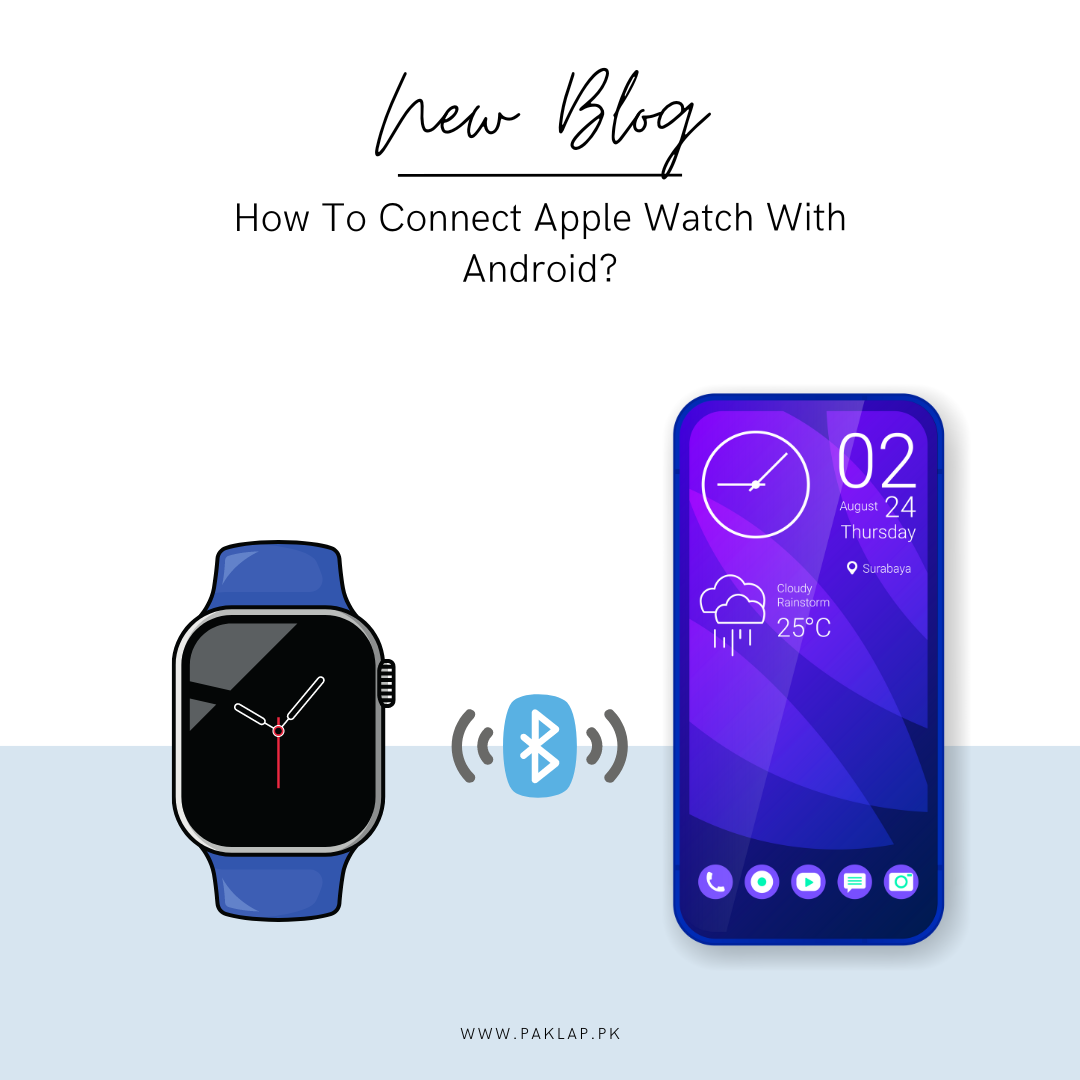
No. Apple Watch requires an iPhone for setup and full management. Android phones cannot officially pair with Apple Watch.
Why will my iPhone not find my Apple Watch?
Keep both devices close, unlock the iPhone, and confirm that Bluetooth and Wi-Fi are on. Restart both devices and update iOS if the watch still does not appear.
Do I need Wi-Fi to pair my Apple Watch?
Wi-Fi is strongly recommended during setup, especially when the watch needs an update or backup restore. The initial connection mainly uses Bluetooth, but Wi-Fi helps the process finish smoothly.
Can I pair one Apple Watch with two iPhones?
An Apple Watch is normally paired with one iPhone at a time. You can switch it to another iPhone, but you may need to unpair, erase, and restore the watch.
How long does Apple Watch pairing take?
Basic pairing may take a few minutes, while updates and backup restoration can take much longer. Keep both devices charged, nearby, and connected to Wi-Fi until setup is complete.
Can I use my Apple Watch without my iPhone nearby?
Yes, but the available features depend on the model. A cellular Apple Watch can make calls and use data away from the iPhone, while a GPS model has fewer offline and cellular options.
What should I do if my Apple Watch is already paired to another phone?
Unpair it from the old iPhone or erase it from the watch. If Activation Lock appears, the previous owner must remove the device from their Apple Account.
Conclusion
The answer to how do I connect my phone to my Apple Watch is usually simple: open the Watch app, place both devices nearby, choose Pair New Watch, and follow the setup prompts. Manual pairing, software updates, restarts, and proper account removal can solve most problems.
Take a few minutes to set up notifications, security, cellular service, and health features to match your needs. If you run into Activation Lock or a hardware issue, use Apple’s official support options rather than risky bypass tools. Try the steps today, and share your experience or questions in the comments.

Rubel Miah is the Senior Editor at MyStyleGrid.com, where he brings a sharp editorial eye and an unshakable love for fashion to everything he does. A true style addict, Rubel lives and breathes trends, from streetwear to high fashion, and has a knack for turning inspiration into impactful stories. With years of experience in fashion journalism and digital media, he curates content that empowers readers to express themselves through style. When he’s not editing features or forecasting the next big thing, you’ll find him hunting down vintage pieces or capturing street style moments around the city.