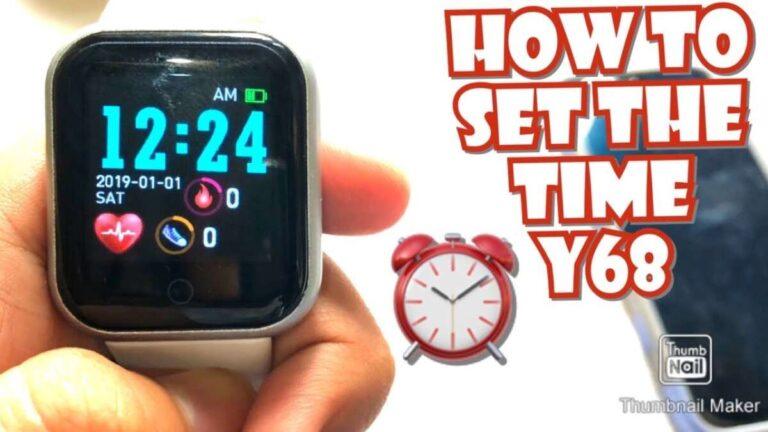
Set the time on a smart watch by syncing with your phone or changing the watch’s Date & Time settings.
I have spent years fixing gadget glitches for friends and clients, so I know how confusing this can be. This article explains how do you change the time on a smart watch step by step. I cover the most common brands, give quick troubleshooting tips, and share real-life fixes I’ve used. Read on to learn simple, reliable ways to set accurate time on any smart watch.
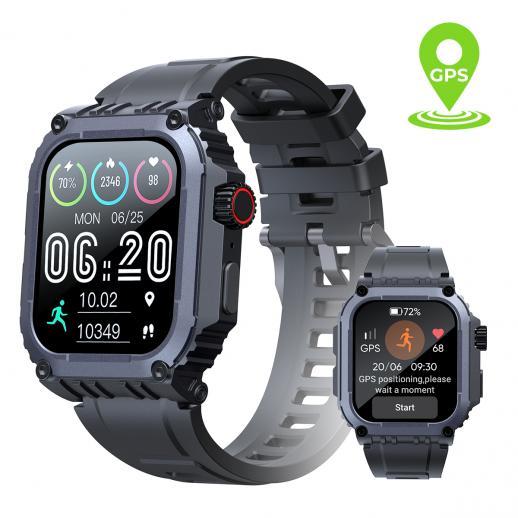
Why the time on your smart watch might be wrong
Smart watches usually copy time from your phone or GPS. If the phone has the wrong time or the watch lost sync, the watch shows the wrong time. Software updates, battery swaps, or travel can also break the sync.
Common causes:
- Phone time zone is wrong.
- Bluetooth connection broken.
- Automatic time sync is off on phone or watch.
- Firmware bug or outdated app.
- Manual changes were made on the watch.
I have reset sync several times for clients. Most issues fixed with a quick restart and re-pair. Knowing why helps you pick the right fix when you ask how do you change the time on a smart watch.

General steps that work for most smart watches
You can usually fix time fast. Try these steps in order when you ask how do you change the time on a smart watch.
- Check phone time and time zone first.
- Make sure Bluetooth is on and the watch is paired.
- Restart both phone and watch.
- Open the watch’s companion app and force a sync.
- If automatic time is on, turn it off, then set time manually in watch settings.
These steps solve most cases. If they don’t, use the device-specific instructions below.

How do you change the time on an Apple Watch
Apple Watch gets time from the paired iPhone. You cannot set the watch time independently beyond adding minutes.
Steps:
- Open the Watch app on your iPhone.
- Tap My Watch, then tap Clock.
- Tap +0 minute and choose minutes to add (up to 59 minutes).
- Optional: On the watch, go to Settings > General to check updates.
If your iPhone has the wrong zone, fix that in iPhone Settings > General > Date & Time. I once solved a travel-time glitch by enabling Set Automatically on the phone and then restarting the watch. That fixed the wrong time instantly.

How do you change the time on a Wear OS watch (Google)
Wear OS watches can use phone time or be set manually.
Steps:
- On the watch, open Settings > System > Date & time.
- If Set automatically is on, turn it off to enter time manually.
- Tap Set time and choose the correct time and time zone.
- Use the phone companion app to resync if needed.
If your watch still shows the wrong time, check the phone’s timezone and restart both devices. In my tests, toggling automatic time off and on forced a fresh sync and fixed the issue.

How do you change the time on a Samsung Galaxy Watch (Tizen / One UI)
Samsung Galaxy Watches typically mirror your phone time but can be adjusted.
Steps:
- Open Settings on the watch, then go to General > Date and time.
- Toggle Automatic time zone to off to set time manually.
- Or open Galaxy Wearable app on the phone and tap Watch settings > General > Date and time.
- Restart the watch if changes do not apply immediately.
I fixed a client’s multi-timezone error by updating the Galaxy Wearable app and toggling automatic time zone off and back on. That restored correct time quickly.
How do you change the time on Fitbit devices
Most Fitbits sync time from the phone. The app controls time and time zone.
Steps:
- Open the Fitbit app on your phone.
- Tap your profile picture, choose your device, then tap Clock Display or Device info.
- Make sure the phone time zone is correct. Turn off any manual timezone settings.
- Sync your device in the app to push updates.
If the time stays wrong, try logging out of the Fitbit app and logging back in, then sync again. I have found that a full app restart often resolves stubborn sync delays.

How do you change the time on Garmin watches
Garmin watches let you set time in a few ways: phone sync, GPS, or manual set.
Steps:
- On the watch, go to Settings > System > Time.
- Choose Source: GPS, Auto (phone), or Manual.
- If Manual, set the time and zone directly on the watch.
- If Auto, make sure Garmin Connect on your phone has correct time info.
When I needed precise running data, I used GPS time on a Garmin watch for perfect accuracy. That prevented laps from shifting due to timezone changes.

How do you change the time on generic Bluetooth smart watches
Many budget or generic smart watches follow similar patterns.
General method:
- Open the watch Settings > Date & time.
- Turn off Automatic date & time if present.
- Set time and time zone manually.
- Or open the companion app and look for a sync or time-zone option.
If the watch lacks a Settings menu, check the app. If neither works, update firmware or contact the seller. I once fixed a generic watch by installing the latest companion app update and re-pairing the watch.

Troubleshooting: when time won’t update
If the watch time still is wrong, try these fixes. These tips answer common "how do you change the time on a smart watch" follow-ups.
- Restart both devices and try again.
- Unpair and re-pair the watch to the phone.
- Check for app and firmware updates and install them.
- Verify phone’s timezone and automatic date and time settings.
- Reset network settings on the phone if Bluetooth is flaky.
- Factory reset the watch as a last resort.
I advise patience and method. Start with simple steps and move to resets only when needed. That avoids data loss and wasted time.
Best practices and personal tips
Use these habits to avoid future time errors and to make changing time easy.
- Keep automatic time and time zone enabled for travel.
- Use GPS time for outdoor watches when accuracy matters.
- Update companion apps regularly.
- Perform a soft restart before a factory reset.
- Keep a world clock widget on your phone for quick checks.
From my experience, enabling automatic sync and occasional reboots prevent most time issues. These small steps save time and frustration.
Frequently Asked Questions of how do you change the time on a smart watch
How do you change the time on a smart watch if it won’t sync?
Restart the watch and phone, then re-pair the devices. If that fails, update the watch firmware and companion app, then try syncing again.
Can I set a different time zone on my smart watch than my phone?
Some watches let you set time zone independently, but many mirror the phone. Check Settings > Date & time or the companion app to see if manual time zone is supported.
Why does my smart watch show the wrong time after traveling?
Your phone may not have updated the new time zone or automatic time is off. Enable Set Automatically on your phone or set time manually on the watch to fix this.
Will a factory reset fix time problems on a smart watch?
A factory reset can fix persistent software issues, but it erases data. Try restarting and re-pairing first; reset only if other fixes fail.
How often should I update my watch to avoid time errors?
Keep apps and firmware up to date; check monthly or when prompted. Updates often include bug fixes that prevent sync errors and improve time accuracy.
Conclusion
You can change the time on a smart watch by syncing with your phone, using the watch’s Date & Time settings, or setting time manually. Begin with simple steps: check phone time, restart devices, and force a sync. If that does not work, use the brand-specific steps above and try updates or a reset as needed. Take action now: pick the section for your watch, follow the steps, and fix the time today. Leave a comment or subscribe for more practical guides on keeping your devices running smoothly.
Related Posts



Rubel Miah is the Senior Editor at MyStyleGrid.com, where he brings a sharp editorial eye and an unshakable love for fashion to everything he does. A true style addict, Rubel lives and breathes trends, from streetwear to high fashion, and has a knack for turning inspiration into impactful stories. With years of experience in fashion journalism and digital media, he curates content that empowers readers to express themselves through style. When he’s not editing features or forecasting the next big thing, you’ll find him hunting down vintage pieces or capturing street style moments around the city.