Setting your own custom ringtone or vibration pattern on a smartwatch can make daily life much easier. You get to know when a call, message, or important alert is just for you—even in a crowd. Maybe you want your watch to buzz in a special way for your family, or play a cool song when your boss calls. Many people buy smartwatches for these features, but find out it’s not as simple as they hoped. I’ve been there myself, struggling to make my own ringtone play on my wrist. It took me a few tries, but once I got it, I never went back. If you want to do the same, this guide is for you.
You do not need to be a tech expert. I’ll show you easy steps to set your own sounds or vibration patterns, no matter which smartwatch or phone you use. Whether you have an Apple Watch, Samsung Galaxy Watch, Fitbit, or another brand, you’ll find clear instructions here.
I’ll also share tips that most guides miss—like how to avoid common mistakes and how to test your new settings. By the end, you’ll be able to spot your call or message right away, with your own style.
Why Custom Ringtones And Vibration Patterns Matter
Most people use the default alerts on their smartwatch. These are fine at first, but soon you notice everyone has the same tone. In a busy office or on a train, it’s easy to miss your own alert. With a custom ringtone or a special vibration pattern, you’ll know when your device is talking to you. This can save time, stop confusion, and add a little fun to your day.
For example, I once missed a very important call from my doctor because my watch’s vibration was too soft and felt like every other alert. After that, I set a strong double-buzz for health calls. I never missed one again.
What You Need Before You Start
Before you begin, check these things:
- Your smartwatch model
- Your phone (Android or iPhone)
- The latest version of the watch’s app
- A ringtone or vibration file (or a way to make one)
Some smartwatches let you do this on the watch itself. Others need you to use the phone app first. If your device does not support custom ringtones, there are still ways to get close—such as using special apps or tools.
I’ll cover all the main brands and options.
How To Add A Custom Ringtone On Apple Watch
The Apple Watch is popular, but it does not let you set a true custom ringtone for calls or texts. Instead, you can change the sounds on your iPhone, and your watch will follow. Here’s how you can make it your own:
Change Ringtone On Iphone
- Open Settings on your iPhone.
- Tap Sounds & Haptics.
- Tap Ringtone.
- Pick a ringtone. You can buy new ones from the Tone Store.
- Set it for calls or alerts.
Your Apple Watch uses your iPhone’s sound for calls. For messages, you can pick a different tone.
Custom Vibration On Apple Watch
Apple gives you control over vibration patterns:
- Go to Settings on your Apple Watch.
- Tap Sounds & Haptics.
- Scroll to Haptic Strength. Move the slider to make it stronger.
- For custom vibration, go to your iPhone’s Contacts app.
- Choose a contact, tap Edit, then tap Text Tone or Ringtone.
- Tap Vibration, then Create New Vibration.
- Tap out your pattern—short, long, or a mix.
- Save and assign it.
Your watch will use this custom vibration when that contact calls or texts.
Apple Watch: Supported File Types
Apple only supports. m4r (ringtone) files. If you want a song, use iTunes to make a 30-second clip.
| Step | Apple Watch Option | Notes |
|---|---|---|
| Change Ringtone | iPhone only | Watch mirrors iPhone |
| Custom Vibration | Via Contacts app | Works for calls and texts |
| File Types | .m4r | 30 seconds max |
Pro Tip
If your Apple Watch feels weak on the wrist, try the Prominent Haptic setting. It gives a sharp tap before the main vibration.
How To Add A Custom Ringtone Or Vibration On Samsung Galaxy Watch
The Samsung Galaxy Watch series is more flexible than Apple. You can add your own ringtones and set unique vibration patterns.
Add A Custom Ringtone
- Open the Galaxy Wearable app on your phone.
- Tap Watch settings.
- Tap Sounds and vibration.
- Tap Ringtone.
- If you want your own sound, scroll down and tap Add from phone.
- Choose a music file (MP3, WAV, M4A, etc. ).
- Save and set as default.
You can also add ringtones by copying files to the watch via Bluetooth or Wi-Fi. Use the Files app or a file manager.
Set A Custom Vibration Pattern
- In the Galaxy Wearable app, go to Sounds and vibration.
- Tap Vibration pattern.
- Pick from several built-in options, like Heartbeat, Ticktock, or Zigzag.
Samsung does not let you tap out your own pattern yet, but you can pick one that stands out.
Supported File Types For Ringtones
Samsung supports MP3, WAV, and M4A files. Keep them short (less than 30 seconds) for best results.
Assign To Specific Contacts
You can set custom ringtones for contacts:
- Open the Contacts app on your watch.
- Pick a contact.
- Tap Edit.
- Set a ringtone.
This works for calls, but not for notifications.
Example
I once set a “Star Wars” theme for my family group. Every time they called, I smiled—even when busy.
| Feature | Samsung Galaxy Watch | Apple Watch |
|---|---|---|
| Custom Ringtone | Yes, any MP3/WAV/M4A | Only via iPhone, .m4r |
| Custom Vibration | Pick from patterns | Create your own |
| Contact-Specific | Yes (calls only) | Yes (calls and texts) |
Pro Tip
Pick a vibration pattern that matches your daily habits. “Heartbeat” is sharp and easy to notice during meetings.
How To Add A Custom Ringtone Or Vibration On Fitbit And Other Brands
Fitbit and many other brands, like Garmin or Amazfit, have limited support for custom ringtones. Most use simple beeps or buzzes. But you can still get creative.
Fitbit
Fitbit watches do not support custom ringtones. All alerts are set by the app. But you can change vibration strength:
- Open the Fitbit app.
- Tap your device image.
- Tap Notifications.
- For each app (calls, texts, calendar), pick the alert style.
- Change vibration to Strong or Normal.
Fitbit lets you set Do Not Disturb or Sleep Mode for quiet times.
Garmin
Garmin watches let you pick from a few built-in tones and vibration patterns:
- On your watch, open Settings.
- Go to System > Sounds.
- Pick a tone for alerts, alarms, and calls.
- Pick a vibration pattern (if supported).
You can’t add your own sound file, but you can change the feel.
Amazfit, Huawei, And Others
Many other smartwatches offer similar steps:
- Go to the watch’s settings or use the phone app.
- Look for Sound or Notification options.
- Pick from built-in sounds or patterns.
Some brands, like Amazfit, let you install third-party apps to add more tones.
| Brand | Custom Ringtone | Custom Vibration | Third-Party Support |
|---|---|---|---|
| Fitbit | No | Yes (strength only) | Limited |
| Garmin | No | Yes (patterns) | No |
| Amazfit | With apps | Yes | Yes |
| Huawei | With apps | Yes | Yes |
| Samsung | Yes | Yes | Yes |
| Apple | Via iPhone | Yes | Yes |
Third-party Apps
If your watch does not support custom sounds, try a third-party app. For example:
- Buzzkill for Android (creates custom vibration patterns)
- IFTTT (connects triggers to your watch)
You may need to give more permissions. Always check app reviews for safety.
Step-by-step Guide: Making Your Own Ringtone Or Vibration
Let’s walk through the process from scratch. This works for most smartwatches that allow custom files.
1. Pick Or Make A Sound File
You can use a song, a recording, or a sound effect. Most watches need a file less than 30 seconds. Use an editor like Audacity or your phone’s built-in tools.
- Save as MP3 (Samsung), M4A, or M4R (Apple).
- Keep the volume high, but not too loud.
2. Send The File To Your Watch
You can use Bluetooth, Wi-Fi, or a USB cable. On Samsung, for example:
- Open the Galaxy Wearable app.
- Tap Add content to your watch.
- Choose Add tracks.
- Pick your file.
On Apple, you must add it to your iPhone first, then sync.
3. Set As Ringtone Or Alert
On your watch or in the app, find the Sounds or Notifications setting. Pick your new file.
4. Create A Custom Vibration
For Apple:
- Go to Contacts > pick contact > Vibration > Create New.
- Tap your pattern.
For Android:
- Use an app like Buzzkill or Good Vibrations.
5. Assign To Contacts Or Apps
Set your new sound or buzz for calls, texts, or any app. Some watches let you pick for each contact.
6. Test Your Settings
Ask a friend to call or text. Feel the watch. If it’s not strong enough, change the pattern.
What Most People Forget
- Restart your watch after changing sounds.
- Not all apps support custom alerts—test with a call first.
- Some watches lower sound in Silent Mode—check your settings.
Credit: www.att.com
Troubleshooting: If Custom Ringtone Or Vibration Isn’t Working
Here are some common problems and simple fixes:
- Sound not playing: Make sure the file type is supported. Reboot your watch.
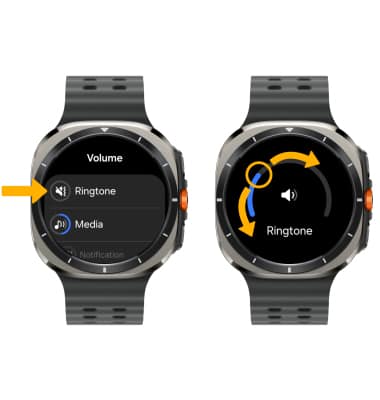
- Vibration weak or missing: Turn up haptic strength in settings.
- No option for custom file: Update your watch’s software. Try a third-party app.
- Contact setting not working: Assign on both phone and watch.
- Too many notifications: Use Do Not Disturb or set quiet hours.
If your watch is older, it may not support these features. You can always check with the maker’s support page or forums for updates.
Customization Tips For Best Results
- Pick a unique sound that stands out in a crowd.
- Keep vibration patterns simple and easy to notice.
- For work, use a gentle buzz. For emergencies, use a strong, fast pattern.
- Update your smartwatch and phone apps often.
- Back up your custom files in case you reset your watch.
One time, I used a long song as a ringtone, but it drained my watch’s battery fast. Shorter sounds work better.
Privacy And Safety
Be careful when using custom sounds in public. Loud ringtones can disturb others. If you use a special pattern for private messages, pick something only you will notice.
Also, only use apps from trusted sources. Some apps may ask for too many permissions.
How Custom Ringtones And Vibrations Help Daily Life
A good custom alert can make life smoother:
- You know if a call is important without looking.
- You can tell family from work calls by the sound.
- No more guessing if the buzz is your watch or someone else’s.
I once set up a special buzz for my child’s school. When I felt that pattern, I knew to check right away—even in a noisy place.

Credit: www.youtube.com
Keeping Your Smartwatch Updated
Smartwatch makers add new features often. Check for updates in your app. New updates may let you add more ringtones or patterns, or fix old bugs.
Common Mistakes To Avoid
- Using very long sound files (drains battery)
- Picking a vibration that is too gentle (easy to miss)
- Forgetting to test after changing settings
- Using unsafe apps
A little time spent setting up your watch can save you hours of confusion later.
Credit: fotoenigma.com
When You Can’t Add Custom Alerts
Some watches have locked systems. If yours does, try these:
- Use the strongest built-in vibration
- Set your phone to forward alerts to your watch
- Use third-party apps for more options
You can also give feedback to the maker—they sometimes add features people ask for.
The Future Of Custom Ringtones And Vibrations
More smartwatches are adding support for custom alerts. Some now let you record your own voice or tap out a special pattern. This trend will grow as people ask for more control.
If you want the latest, choose a watch with strong support for custom sounds. Check reviews and forums before buying.
Frequently Asked Questions
How Do I Know If My Smartwatch Supports Custom Ringtones?
Check your watch’s manual or support website. Most Samsung and some Android watches allow custom ringtones. Apple Watch uses your iPhone’s sound settings.
Can I Set Different Ringtones For Each App?
Some watches let you do this in their app settings. On Samsung, you can pick sounds for calls, texts, and alarms. On Apple, your iPhone controls the sounds.
What File Type Should I Use For Custom Ringtones?
Samsung supports MP3, WAV, and M4A. Apple uses .m4r files. Keep your sound less than 30 seconds for best results.
Are Third-party Apps Safe For Adding Ringtones?
Most are safe if downloaded from the Google Play Store or Apple App Store. Check reviews and permissions. For more info, see Google Play Help.
Will Custom Vibrations Work When My Watch Is In Silent Mode?
No, most watches turn off both sound and vibration in Silent Mode. Check your settings if you want to get alerts at all times.
Adding your own custom ringtone or vibration pattern makes your smartwatch truly yours. It only takes a few minutes and can change how you use your device every day. Try out different sounds and patterns until you find what fits you best. With a bit of setup, you’ll never miss an alert again—and your watch will feel like it was made just for you.

Rubel Miah is the Senior Editor at MyStyleGrid.com, where he brings a sharp editorial eye and an unshakable love for fashion to everything he does. A true style addict, Rubel lives and breathes trends, from streetwear to high fashion, and has a knack for turning inspiration into impactful stories. With years of experience in fashion journalism and digital media, he curates content that empowers readers to express themselves through style. When he’s not editing features or forecasting the next big thing, you’ll find him hunting down vintage pieces or capturing street style moments around the city.