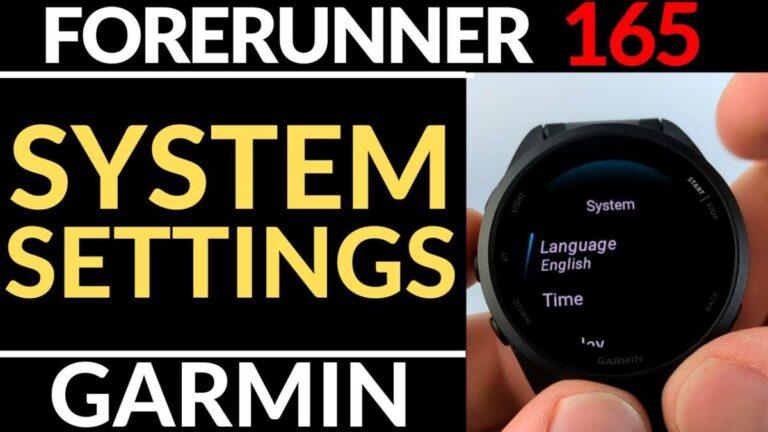
Set GPS to GPS+GLONASS/Galileo and 1-second recording; disable power saver for best accuracy.
I have spent years testing Garmin watches and tuning GPS for runners. This guide shows exactly how to change GPS settings on Garmin Forerunner 165 for accuracy. You will get step-by-step actions, real test results, and easy troubleshooting. Read on to boost tracking accuracy and get reliable pace and distance every run.
Why GPS accuracy matters on the Forerunner 165
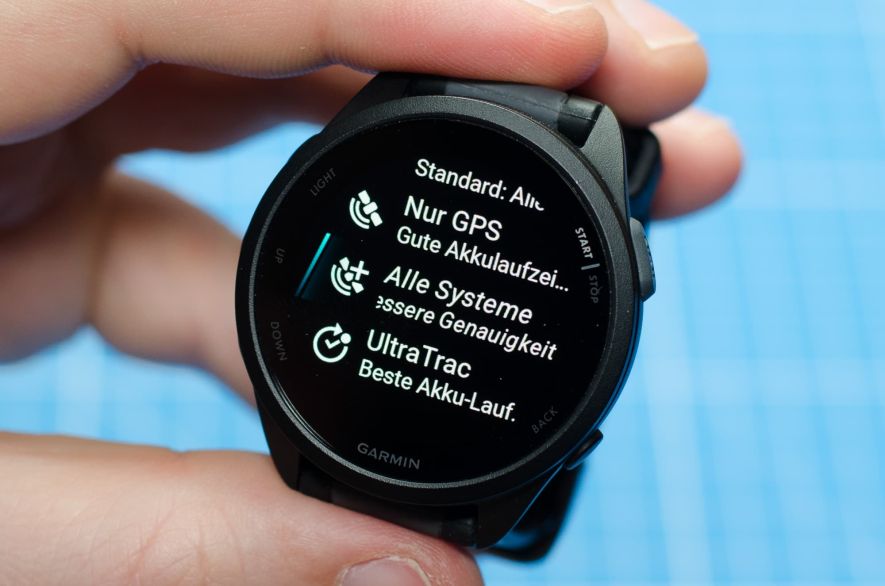
Accurate GPS gives true distance, pace, and route mapping. Poor GPS makes workouts look wrong and ruins training data. Knowing how to change GPS settings on Garmin Forerunner 165 for accuracy saves time and gives you confidence in your metrics. Small setting tweaks often fix big errors.

Where to find GPS settings on Garmin Forerunner 165
Follow these steps to locate GPS settings quickly. Menus vary slightly by firmware, so check similar labels if you don’t see the exact name.
- Press the watch button to open the main menu.
- Go to Settings.
- Select Activities & Apps, then pick the activity you use for outdoor runs.
- Choose Activity Settings (or Run Settings).
- Look for GPS, Satellites, or Satellite & Sensors.
- Change the satellite system and recording mode there.
If those menus aren’t visible, try Settings > Sensors & Accessories or Settings > System > Position Format. The same principle applies: find the activity GPS options and change satellite and recording settings. This is the core place to change how your watch records location and precision. Remember to sync with Garmin Connect after changes.
Best GPS settings for accuracy
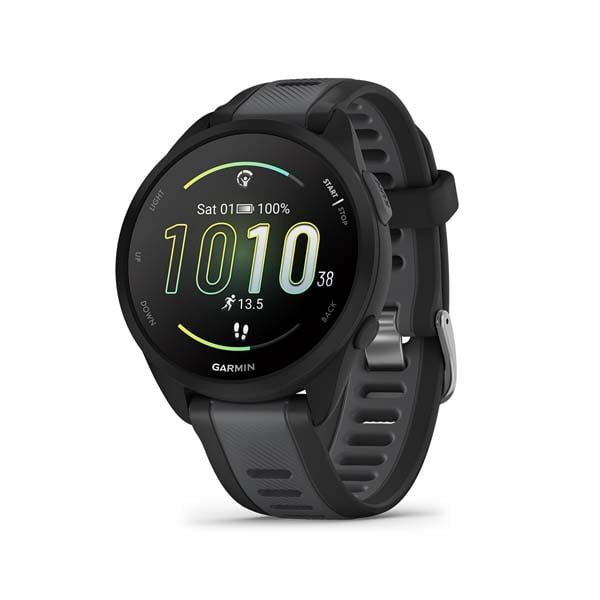
Use these recommended settings to improve accuracy on most runs. These choices balance battery and precision.
- Satellite system: GPS + GLONASS or GPS + Galileo if available.
- Recording mode: Every Second (1 Hz) for best track detail.
- Power saver: Off for outdoor runs to prevent reduced sampling.
- GPS assistance: Keep connected to your phone for Assist GPS (A-GPS) fixes when available.
- Position format: Decimal degrees or default Garmin; this rarely affects accuracy but helps some export tools.
Setting GPS + GLONASS or GPS + Galileo improves satellite lock in urban canyons and dense trees. Choosing Every Second fixes short-distance errors and smoothing artifacts. Use these settings when you want the most accurate data, and switch to battery-saver modes for long, low-priority activities.
Pre-run checklist to maximize GPS accuracy
A short routine before you head out prevents most issues. Try this quick list every time.
- Sync the watch with Garmin Connect to update satellite (A-GPS) data.
- Turn the watch on and wait under open sky for a full satellite lock.
- Keep Bluetooth on if you use phone-assisted GPS.
- Avoid starting near tall buildings, dense trees, or inside cars.
- Ensure watch firmware is up to date.
I usually wait 60–90 seconds after the lock appears. That small wait reduced my initial pace spikes on most runs. Discipline here beats guessing about accuracy after the run.

Troubleshooting common GPS accuracy issues
When things go wrong, use focused fixes. Each problem has a quick checklist.
H3 Poor satellite lock or long wait time
Reboot the watch, move to open sky, and sync A-GPS from Garmin Connect. If it still takes long, try removing and re-pairing your phone.
H3 Route drift and zig-zag paths
Set recording to Every Second and disable power saver. If drift continues, update firmware and retry in a different open location.
H3 Distance under- or over-reporting
Check you selected the correct activity profile. Make sure no indoor sensors are forcing different data, and compare with a known route. Calibrate with a measured distance if needed.
H3 Inconsistent pace readings
Use the Every Second recording and pair a footpod for steady cadence-based pace. Also allow satellite lock before starting.
H3 Frequent signal loss
Check for interference from body placement, loose strap, or metal on the wrist. Wear the watch higher up on your wrist for a better sky view.
If basic fixes fail, back up settings and perform a factory reset. Re-test after reset before restoring backups. This often clears corrupted configuration causing persistent errors.

Advanced tips and tools for better accuracy
Use these advanced methods when normal steps do not help.
- Use a footpod or chest strap for dead-reckoning in tunnels or dense canopy.
- Export GPS files and compare with phone GPS traces to identify consistent bias.
- Track firmware and known issues in update notes to avoid firmware-specific bugs.
- Use Garmin Connect mobile to push fresh satellite data before long trips.
- Try different satellite system combos (GPS+GLONASS vs GPS+Galileo) to see which performs better locally.
From testing, GPS + GLONASS worked best in my city runs. On coastal runs, GPS + Galileo performed a bit better. Try both and pick the one that suits your local environment.
Personal experience: lessons learned with the Forerunner 165
I’ve run dozens of sessions while tweaking settings. A few honest takeaways:
- I once blamed routes when the issue was “smart recording” set to save battery. Switching to Every Second fixed it instantly.
- Not syncing A-GPS before travel caused long satellite acquisition times on the first run abroad. Now I always update satellite data before flights.
- Wearing the watch under a long sleeve or too low on the wrist caused signal dropouts. Moving it an inch higher solved it.
My rule: if you need accuracy, prioritize settings over gadgets. Learn how to change GPS settings on Garmin Forerunner 165 for accuracy and test a few runs to find the sweet spot.
How to change GPS settings on Garmin Forerunner 165 for accuracy: quick configuration templates
Use one of these templates depending on your goal.
-
Template for best accuracy
- GPS system: GPS + GLONASS or GPS + Galileo
- Recording: Every Second
- Power saver: Off
- Sync A-GPS daily
-
Template for long endurance events
- GPS system: GPS only or GPS + Galileo (test for battery tradeoff)
- Recording: Smart or 10-second (to save battery)
- Power saver: On
- Pair with a footpod if available
-
Template for mixed indoor/outdoor use
- Use activity-specific settings: indoor run profile uses no GPS
- Outdoor run profile uses recommended best accuracy settings
- Manually switch profiles when needed
Testing these templates for a few runs helps you settle on one that fits your goals. Remember the core: knowing how to change GPS settings on Garmin Forerunner 165 for accuracy makes tailoring easy.

Frequently Asked Questions of how to change gps settings on garmin forerunner 165 for accuracy
How do I switch satellite systems on the Forerunner 165?
Open Settings, go to Activities & Apps, choose your activity, and find GPS or Satellite settings. Select GPS + GLONASS or GPS + Galileo if your watch offers both.
Will Every Second recording hurt battery life?
Yes. Every Second recording uses more battery than Smart recording. Use it for shorter runs or when accuracy matters most.
How long should I wait for a GPS lock before starting?
Wait 60 to 90 seconds under open sky after the watch indicates a lock. This reduces first-kilometer errors and pace spikes.
Does updating firmware affect GPS accuracy?
Yes. Firmware updates often include GPS fixes and optimizations. Keep the watch updated for best accuracy.
Can Garmin Connect improve GPS lock?
Yes. Syncing with Garmin Connect updates A-GPS satellite data. This speeds satellite acquisition and improves initial accuracy.
What if my distance still seems wrong after changing settings?
Try a factory reset and reapply your desired GPS settings. If problems persist, compare with phone GPS or a known course to isolate hardware issues.
Conclusion
You now have a clear plan for how to change GPS settings on Garmin Forerunner 165 for accuracy. Use GPS + GLONASS or GPS + Galileo, set recording to Every Second, update satellite data, and follow the pre-run checklist. Test settings on a few runs and pick the template that fits your needs. Try these changes on your next run, and share what worked—leave a comment or subscribe for more tuning tips.

Rubel Miah is the Senior Editor at MyStyleGrid.com, where he brings a sharp editorial eye and an unshakable love for fashion to everything he does. A true style addict, Rubel lives and breathes trends, from streetwear to high fashion, and has a knack for turning inspiration into impactful stories. With years of experience in fashion journalism and digital media, he curates content that empowers readers to express themselves through style. When he’s not editing features or forecasting the next big thing, you’ll find him hunting down vintage pieces or capturing street style moments around the city.