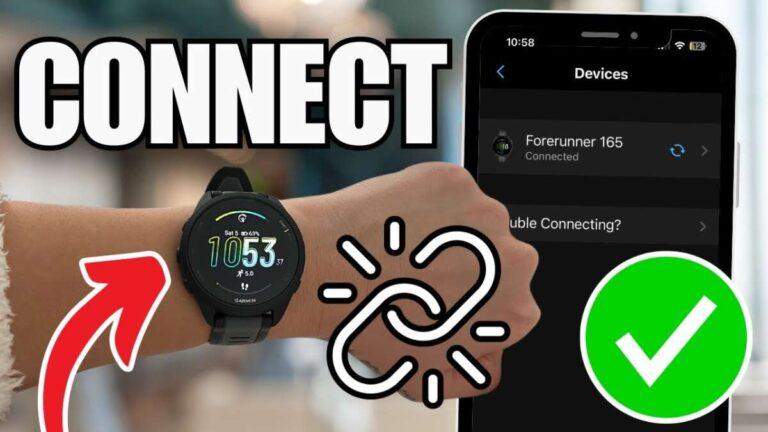
Restart both devices, toggle Bluetooth, update Garmin Connect, then re-pair the watch.
I’ve fixed dozens of Garmin Bluetooth issues, and this guide explains exactly how to fix Garmin Forerunner 265 not connecting to phone. You’ll get a clear, step‑by‑step plan that covers simple checks, app and firmware updates, advanced resets, and when to contact support. Read on to apply fixes that work in real life and get your Forerunner 265 talking to your phone again.
Why the Garmin Forerunner 265 may not connect to phone
Connection failures are usually caused by simple settings or software issues. Often the watch and phone fail to pair because Bluetooth is off, permissions are blocked, or the Garmin Connect app is out of date. Interference from other Bluetooth devices, battery saver modes, or corrupted pairing records can also stop pairing. Hardware faults are rare but possible if the watch or phone Bluetooth chip is damaged.
How to fix Garmin Forerunner 265 not connecting to phone starts with identifying the likely cause. Check for app updates, phone OS updates, and any obvious setting conflicts first. Most problems are solved with a few easy steps.

Quick checklist before deep troubleshooting
Start here to save time. Follow this checklist before trying advanced fixes.
- Make sure Bluetooth is on for both watch and phone.
- Open the Garmin Connect app and check for connection status.
- Turn off airplane mode and battery saver on the phone.
- Move the watch and phone close together, within 3 feet.
- Restart the watch and the phone once before any other step.
Completing this list often fixes the issue immediately. If not, move to the step‑by‑step section below.

Step-by-step fixes: practical actions that work
Follow these ordered steps. Test pairing after each step to see if the issue is resolved.
- Restart both devices
- Power off the Forerunner 265. Wait 10 seconds. Power it on.
- Restart your phone. A reboot clears many transient Bluetooth bugs.
- Toggle Bluetooth off and on
- Turn Bluetooth off on the phone. Wait 5 seconds. Turn it on again.
- In the Garmin Connect app, go to device settings and try to reconnect.
- Forget and re-pair the device
- On your phone, open Bluetooth devices and “Forget” any Garmin Forerunner 265 entries.
- In the watch, go to Settings > Phone > Pair Mobile Device and follow prompts.
- Update Garmin Connect and phone OS
- Open your phone’s app store and install updates for Garmin Connect.
- Install any available OS updates on your phone.
- Check app permissions and background activity
- Allow location, Bluetooth, and background app refresh for Garmin Connect.
- Disable aggressive battery optimization for Garmin Connect on Android.
- Clear app cache (Android)
- Open Settings > Apps > Garmin Connect > Storage > Clear Cache.
- Restart the phone and try pairing again.
- Remove other paired devices
- Turn off or unpair other nearby Bluetooth devices that may interfere.
- Some phones only allow a limited number of active connections.
If pairing still fails, proceed to advanced fixes. These steps fix many cases of how to fix Garmin Forerunner 265 not connecting to phone.

Advanced fixes and firmware updates
Use these when basic steps don’t help. They dig deeper but still preserve your data in most cases.
- Reinstall Garmin Connect
- Delete the app. Restart the phone. Reinstall the latest Garmin Connect app.
- Sign back in and try to pair the Forerunner 265 again.
- Update watch firmware with Garmin Express
- Connect your Forerunner 265 to a computer using the cable and Garmin Express.
- Install any firmware updates, then try pairing with the phone.
- Factory reset the watch (last resort)
- Backup any activity data first if possible.
- On the watch, go to Settings > System > Restore Defaults. Then re-pair the watch.
- Reset phone network settings
- On iPhone, go to Settings > General > Transfer or Reset iPhone > Reset > Reset Network Settings.
- On Android, go to Settings > System > Reset options > Reset Wi‑Fi, mobile & Bluetooth.
- Inspect for hardware issues
- If Bluetooth still won’t pair after resets and updates, the watch or phone may have a hardware fault.
- Test pairing the Forerunner 265 with another phone to isolate the problem.
These advanced steps help when simple fixes fail and are key to how to fix Garmin Forerunner 265 not connecting to phone.

Bluetooth tips and environment checks
Small details often matter. These quick tips prevent repeat problems.
- Keep devices within a few feet during pairing.
- Avoid metal cases that can block Bluetooth signals.
- Disable BLE scanning blockers on Android.
- Reboot the watch after long periods of no use.
- Turn off location spoofing or VPNs while pairing.
These environment checks make pairing more reliable and help you understand how to fix Garmin Forerunner 265 not connecting to phone.

When to contact Garmin support or service
If you reach this stage, you’ve done the usual fixes. Contact Garmin support if:
- The watch fails to pair with multiple phones.
- The watch shows hardware errors or Bluetooth settings are missing.
- Firmware update fails or the watch becomes unresponsive.
Prepare these details before contacting support: watch serial number, phone model and OS version, steps you already tried, and any error messages. This speeds up diagnosis and helps support resolve the issue faster.

Personal tips and lessons learned
From my experience fixing many devices, these tips save time and frustration.
- Start simple. Reboot and re-pair before digging deeper.
- Keep the Garmin Connect app updated. Old app versions are the cause of many problems.
- Use Garmin Express for firmware updates; it is more stable for watches.
- Record what you try. That helps when you call support.
- If you do a factory reset, sync your watch first or export activity data to avoid loss.
These real-world tips reflect common mistakes and smart shortcuts for how to fix Garmin Forerunner 265 not connecting to phone.
Frequently Asked Questions
Why won’t my Forerunner 265 pair with my phone?
Check Bluetooth, app permissions, and proximity. Restart both devices, update Garmin Connect, and try re-pairing after forgetting the device.
What app permissions does Garmin Connect need?
Garmin Connect typically needs Bluetooth, location, and background activity permissions. On Android, allow unrestricted background data and disable battery optimization for the app.
Will a factory reset fix connection issues?
A factory reset can fix persistent software issues but should be used as a last resort. Back up or sync data first to avoid losing activities and settings.
How do I update the Forerunner 265 firmware?
Use Garmin Express on a computer or update via Garmin Connect Mobile when your watch is paired. Firmware updates often fix Bluetooth and stability bugs.
Can my phone model cause pairing problems?
Yes. Older phones or heavily modified Android versions may block Bluetooth features. Test the watch with another phone to identify whether the phone is the issue.
Is Bluetooth interference a common cause?
Yes. Nearby active Bluetooth devices, crowded Wi‑Fi channels, and magnetic cases can interfere. Move to a quieter environment and try again.
Conclusion
You now have a clear, practical plan to handle how to fix Garmin Forerunner 265 not connecting to phone. Start with the quick checklist, work through the step‑by‑step fixes, and use advanced resets only if needed. If a hardware issue appears likely, contact Garmin with your device details and the steps you already tried. Take action now: reboot both devices, update the app, and re-pair your watch—then leave a comment below about what worked for you or what you still need help with.

Rubel Miah is the Senior Editor at MyStyleGrid.com, where he brings a sharp editorial eye and an unshakable love for fashion to everything he does. A true style addict, Rubel lives and breathes trends, from streetwear to high fashion, and has a knack for turning inspiration into impactful stories. With years of experience in fashion journalism and digital media, he curates content that empowers readers to express themselves through style. When he’s not editing features or forecasting the next big thing, you’ll find him hunting down vintage pieces or capturing street style moments around the city.