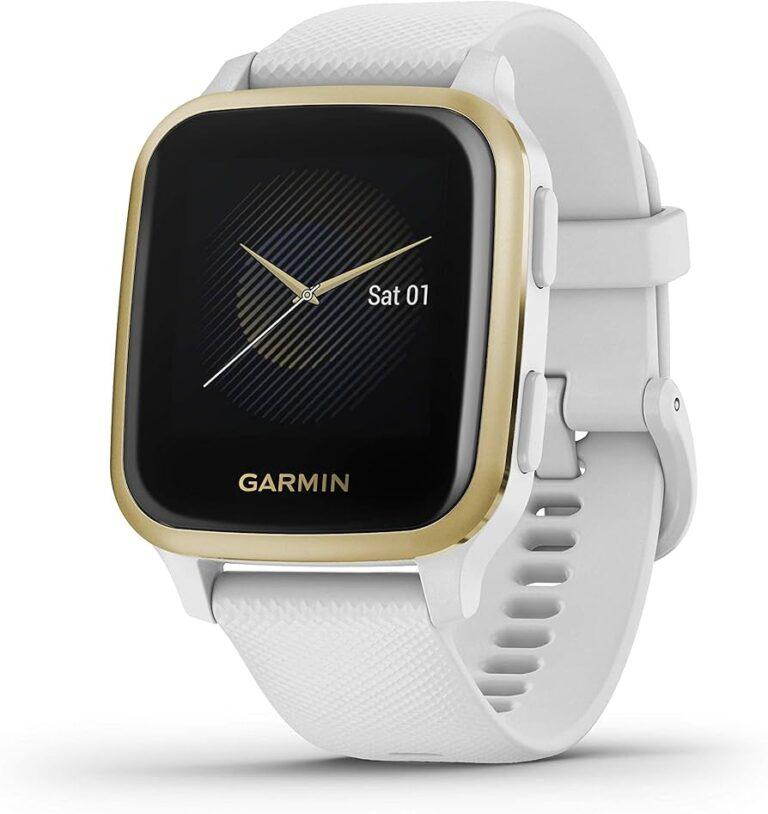
Restart, clean, update firmware, remove screen protector, and factory reset if needed to fix the Venu Sq 2 touch screen unresponsive.
I have spent years repairing and troubleshooting wearable devices, and I know how frustrating a Venu Sq 2 touch screen unresponsive can be. This guide walks you through clear, tested steps — from quick checks and safe resets to firmware fixes and when to seek warranty service — so you can get your Venu Sq 2 working again with confidence.

Common causes of Venu Sq 2 touch screen unresponsive
A touchscreen can stop responding for many small reasons. Software bugs are the top cause. Dirt, moisture, or a worn screen protector also block touch input. Physical impact or swelling battery can cause real hardware failure. Low battery states or stuck app processes may freeze the screen.
- Software glitches after an update can make the Venu Sq 2 touch screen unresponsive.
- Dirty screen, oily fingers, or a poor screen protector may block touch input.
- Water exposure or condensation can cause temporary or permanent issues.
- Third-party watch faces or apps can freeze the UI.
- Physical damage or battery issues can cause permanent unresponsiveness.

Quick checks before deeper fixes
Always start with quick, safe steps. These often resolve the issue fast.
- Restart the watch. Hold the power button for 15 seconds to force a reboot.
- Clean the screen. Use a soft microfiber cloth and dry it well.
- Remove any screen protector. A worn or bubbled protector can stop touch detection.
- Dry your hands and the watch. Moisture stops capacitive touch.
- Check battery level. Charge the watch fully and test again.
- Update the app. Open Garmin Connect Mobile and check for firmware updates.
- Unpair and pair again. Remove the device from the phone and re-pair it.

Step-by-step guide: how to fix venu sq 2 touch screen unresponsive
Below are step-by-step fixes. Try them in order from least invasive to most.
Step 1 — Force restart
A force restart clears temporary software hangs.
- Hold the watch power button for 15 to 30 seconds until it powers off.
- Wait 10 seconds, then press the power button to turn it back on.
This often resolves a Venu Sq 2 touch screen unresponsive state.
Step 2 — Clean and inspect the screen
Dirt or damage is common.
- Wipe with a clean microfiber cloth.
- Inspect for cracks, lifting edges, or moisture under the glass.
If you find debris under a screen protector, remove the protector.
Step 3 — Remove third-party watch faces and apps
Third-party modules can crash the UI.
- Open Garmin Connect Mobile and remove any recently added faces or apps.
- If the watch is unresponsive, use Garmin Express on a PC to manage apps.
This can fix a Venu Sq 2 touch screen unresponsive issue caused by software conflicts.
Step 4 — Update firmware using Garmin Connect or Garmin Express
Firmware fixes many bugs.
- Connect the watch to Garmin Connect Mobile and check for updates.
- If mobile update fails, use Garmin Express on a computer for a more stable update.
Updating often cures persistent Venu Sq 2 touch screen unresponsive problems.
Step 5 — Soft reset (Settings > System > Reset)
If the screen responds enough to navigate, do a soft reset first.
- Go to Settings > System > Reset > Reset Settings.
- This keeps your activity data but clears some settings.
Soft reset may solve odd UI behavior without wiping data.
Step 6 — Factory reset (when necessary)
A factory reset clears everything. Use this when other steps fail.
- Backup needed data to Garmin Connect first.
- Go to Settings > System > Reset > Delete Data and Reset Settings.
- If the touchscreen is fully unresponsive, perform the reset via Garmin Express or contact support for steps.
Factory reset can fix severe software corruption that makes the Venu Sq 2 touch screen unresponsive.
Step 7 — Check for hardware problems
If software steps fail, hardware may be the cause.
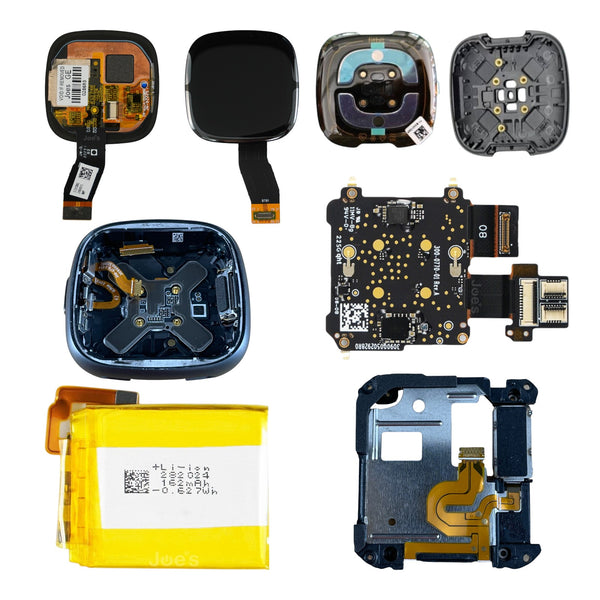
- Look for screen cracks or swelling under the case.
- Check for signs of water damage.
If any hardware signs appear, proceed to professional repair or warranty service.

When to seek professional repair or warranty service
If the watch fails after the above steps, get help. Do not try to open the device yourself unless you are trained.
- If the Venu Sq 2 touch screen unresponsive persists after a factory reset, contact Garmin support.
- If you see battery swelling, stop using the watch and seek a certified repair.
- If the watch is under warranty, document the issue and request warranty service.
- For out-of-warranty devices, get a quote from an authorized repair center to compare replacement costs.
Preventive maintenance to avoid future touch issues
Simple habits reduce the chance your Venu Sq 2 touch screen unresponsive returns.
- Keep firmware updated to get bug fixes.
- Clean the screen weekly with a microfiber cloth.
- Avoid cheap screen protectors that trap debris.
- Remove the watch before heavy water exposure and let it dry fully.
- Limit third-party apps and heavy watch faces that tax the system.
- Restart the watch once a week to clear temporary glitches.

Frequently Asked Questions of how to fix venu sq 2 touch screen unresponsive
How long should I hold the power button to force restart the Venu Sq 2?
Hold the power button for about 15 to 30 seconds until the watch powers off. Wait a few seconds, then press it again to restart.
Will a factory reset fix a Venu Sq 2 touch screen unresponsive issue?
A factory reset often fixes deep software corruption. Back up data first because a factory reset erases settings and stored data.
Can moisture make the Venu Sq 2 touch screen unresponsive temporarily?
Yes. Moisture or condensation can block the capacitive touch. Dry the watch and let it rest in a dry area before trying again.
Should I remove the screen protector to fix touch issues?
If the protector is old, bubbled, or misaligned, removing it can restore touch sensitivity. Try cleaning the screen first.
Is it safe to open the Venu Sq 2 to fix touch problems myself?
Opening the watch risks warranty loss and further damage. Seek an authorized repair center or contact support if hardware is suspected.
Conclusion
You can solve most Venu Sq 2 touch screen unresponsive problems with simple steps. Start with a restart, clean the screen, update firmware, and remove suspect apps. If those fail, back up your data and perform a factory reset or contact Garmin for repair. Take action now by trying the quick checks and updates, and leave a comment if you need help with a specific step or error.

Rubel Miah is the Senior Editor at MyStyleGrid.com, where he brings a sharp editorial eye and an unshakable love for fashion to everything he does. A true style addict, Rubel lives and breathes trends, from streetwear to high fashion, and has a knack for turning inspiration into impactful stories. With years of experience in fashion journalism and digital media, he curates content that empowers readers to express themselves through style. When he’s not editing features or forecasting the next big thing, you’ll find him hunting down vintage pieces or capturing street style moments around the city.