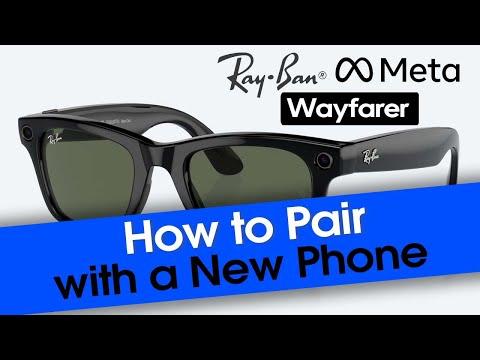
Pair Ray-Ban Meta glasses through the Meta View app, then follow the Bluetooth and Wi-Fi setup steps.
Learning how to pair Ray-Ban Meta glasses is simple once you use the correct app and keep the glasses in their charging case. I have seen most setup problems come from skipped permissions, low battery, or an old Bluetooth connection. This guide explains the full process, common errors, privacy settings, and practical tips for a smooth first connection.

What You Need Before Pairing Ray-Ban Meta Glasses
Before you begin, check that your phone and glasses are ready. Pairing Ray-Ban Meta glasses works best when both devices have enough power and the latest software.
You will need:
• Ray-Ban Meta smart glasses
• A compatible iPhone or Android phone
• The official Meta View app, or the current Meta app shown for your region
• A Meta account
• Bluetooth turned on
• Wi-Fi access for setup, updates, and some smart features
Charge the glasses in their case for at least 30 minutes if they are new or have not been used recently. Also charge the case itself. A weak battery can interrupt setup and make the glasses appear invisible in the app.
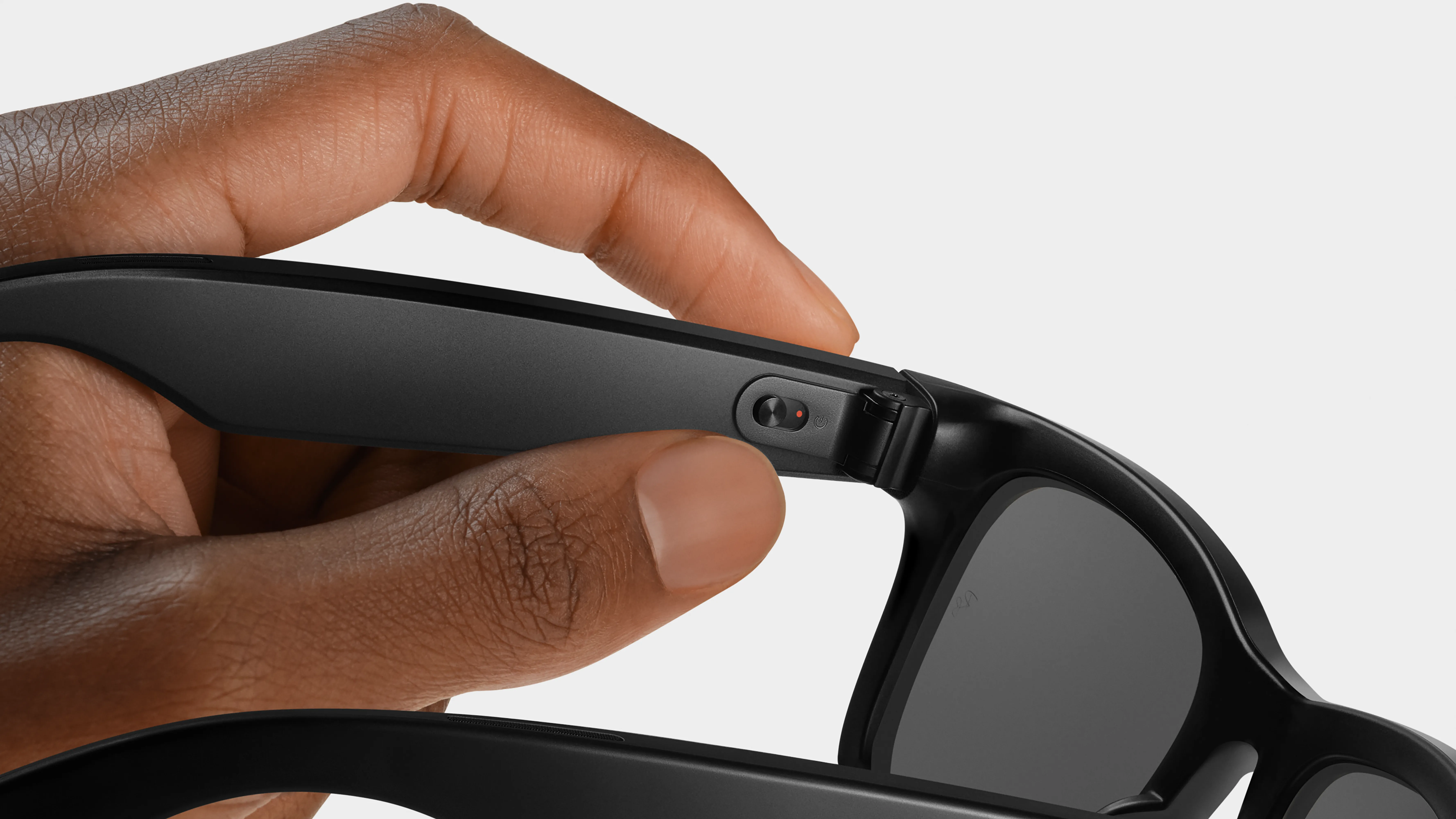
Remove the glasses from the case and turn them on with the power switch inside the left temple. Keep them close to your phone. A distance of a few feet is best during the first connection.

How to Pair Ray-Ban Meta Glasses Step by Step
The official app handles most of the setup. Do not begin by pairing the glasses only through your phone’s Bluetooth menu. That method may connect basic audio, but it does not complete the smart glasses setup.
1. Install the correct app
Download the Meta View app from the Apple App Store or Google Play Store. In some areas, Meta may direct users to a newer Meta app for setup and control. Use the app listed in the official instructions for your glasses and region.
Open the app and sign in to your Meta account. If you do not have one, create an account with an email address you can access. The account helps manage device settings, updates, media imports, and connected features.
2. Turn on Bluetooth
Open your phone’s settings and turn on Bluetooth. Keep the Meta View app open while you do this.
On Android phones, you may also need to allow nearby-device access. On iPhone, allow Bluetooth access when the app requests it. Without this permission, the app may not find the glasses.
3. Add the glasses in the app
In the app, choose the option to add or connect a new device. Select Ray-Ban Meta glasses when prompted.
The app may ask you to confirm the model, scan a code, or follow an on-screen animation. Follow each step in order. The exact screens can change after an app update, but the process remains similar.
4. Put the glasses into pairing mode
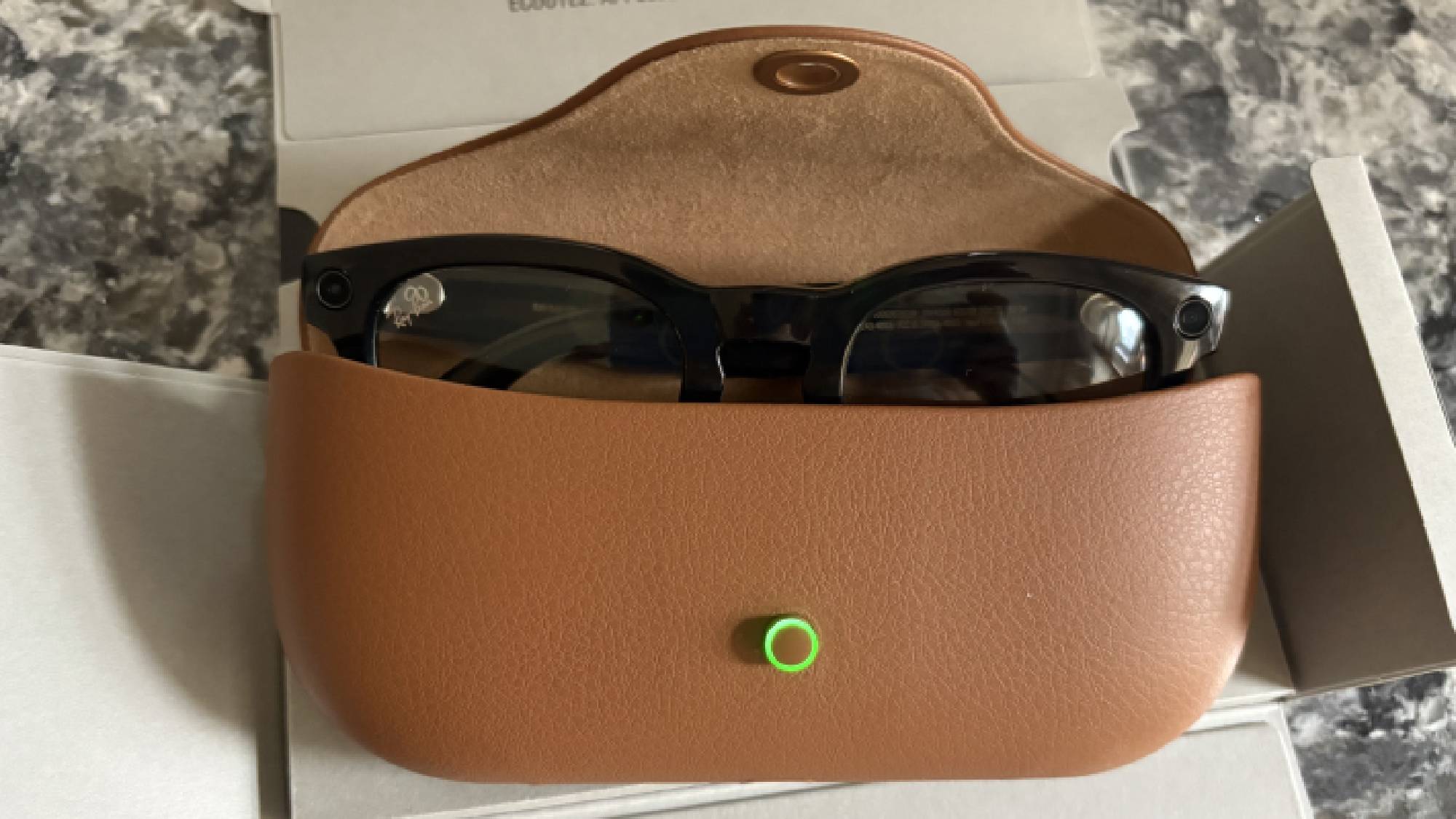
If the app asks you to do so, place the glasses in the charging case and open the case. Then remove them again.
You may also need to press and hold the pairing button on the charging case. Keep holding it until the case light flashes or the app confirms pairing mode. Do not press random buttons repeatedly, as this can restart the process.
5. Accept the connection request
Your phone may display a Bluetooth pairing request. Tap Pair or Allow.
The glasses may connect more than once during setup. One connection supports audio and control, while the app may create another link for device management. This is normal.
6. Complete the setup
The app may ask for permission to access:
• Bluetooth and nearby devices
• Photos and media
• Notifications
• Microphone
• Location services
• Contacts, if you want calling features
You can review each permission. Some features will not work without certain access. For example, importing photos requires photo access, while voice commands need microphone access.
7. Install available updates
After you pair Ray-Ban Meta glasses, the app may offer a firmware update. Install it while the glasses have a strong battery level and your phone has a stable internet connection.
Keep the glasses near the phone during the update. Do not close the app, turn off Bluetooth, or place the glasses far away. An interrupted update can cause connection problems.

How to Pair Ray-Ban Meta With a New Phone
You can connect Ray-Ban Meta glasses to another phone, but moving between phones may require extra steps. The glasses are usually managed through one primary app setup at a time.
Start by installing the official app on the new phone. Sign in with the same Meta account used on the first phone. Then turn on Bluetooth and choose the option to add the glasses.
If the new phone cannot find them, remove the glasses from the old phone’s Bluetooth settings. You may also need to sign out of the app on the old phone or reset the glasses.
Before switching phones, make sure important photos and videos have finished importing. Media stored on the glasses may not transfer automatically to the new phone.
A useful rule is to change one thing at a time. First disconnect the old phone. Then restart the glasses. Finally, connect them to the new phone through the app.

How to Pair Ray-Ban Meta After a Factory Reset
A factory reset removes the glasses’ saved connections and returns them to a fresh setup state. Use it when the app cannot find the glasses, pairing fails repeatedly, or the device belonged to another person.
The reset process can change with firmware versions. Check the in-app help instructions for the exact button sequence. In general, the glasses must be powered on, placed in the case, and reset through the case button or app instructions.
After the reset:
-
Charge the glasses and case.
-
Restart your phone.
-
Turn Bluetooth on.
-
Open the Meta View app.
-
Choose to add a new pair of glasses.
-
Follow the pairing instructions on screen.
A reset should be your last major step, not your first. It can remove saved settings and may require you to repeat the full setup process.
How to Pair Ray-Ban Meta for Calls and Music
Once you pair Ray-Ban Meta glasses, they can work as a Bluetooth audio device for calls, podcasts, music, and other media. The glasses use built-in speakers and microphones, so sound stays close to your ears.
Open the Bluetooth settings on your phone and confirm that the glasses show as connected. Then play a short audio clip. If sound comes from the phone instead, open the audio output menu and select the glasses.
For calls, check that the glasses are selected for both audio output and microphone input. Some phones let you choose this during a call. You can also check the phone’s Bluetooth device settings.
Call quality depends on several factors:
• Distance between the glasses and phone
• Phone signal and internet quality
• Background noise
• Microphone position
• Battery level
The glasses are useful for quick calls, but they are not a replacement for noise-canceling headphones in a loud airport or busy street.

How to Pair Ray-Ban Meta With the Meta AI Features
Ray-Ban Meta glasses can support voice controls and Meta AI features where available. Availability depends on your country, language, account type, app version, and device software.
After pairing, open the app and review the voice assistant settings. You may need to choose a wake word, language, or voice control option. Speak clearly and use a normal volume.
For example, you might ask the glasses to take a photo, provide information, or control media. Some requests need an internet connection because they are processed through cloud services.
Remember that AI answers can be wrong or incomplete. Do not rely on the glasses for urgent medical, legal, or safety decisions. Treat the feature as a helpful assistant, not an expert replacement.
How to Pair Ray-Ban Meta When the App Cannot Find Them
The most common pairing problem is simple: the glasses are not in pairing mode, or the phone has saved an old connection.
Try these steps in order:
• Confirm the glasses are powered on.
• Place them in the case, close the case, and open it again.
• Charge both the glasses and case.
• Turn Bluetooth off, wait ten seconds, and turn it on again.