Press and hold the Home/Power button for seven to ten seconds to restart the watch.
I have worked with Samsung watches for years and tested many resets and reboots. This guide explains in plain steps exactly how to restart samsung galaxy smart watch ultra, when to use each method, and what to do if a restart does not fix the problem. Read on to master quick restarts, forced restarts, and safe recovery tips for your Samsung Galaxy Smart Watch Ultra.

Quick steps to restart your watch
If your watch is responsive, use the Settings menu to restart. If it is frozen, use the forced restart method by holding the Home/Power button until the screen reboots. For routine restarts, a single restart takes a few seconds and often fixes notifications and slow apps.
- Normal restart: Settings > General > Restart.
- Forced restart: Press and hold the Home/Power button for seven to ten seconds.
- After a restart check: Verify time, notifications, and Bluetooth connection.

Step-by-step: normal restart
- Wake the watch and swipe to open the app list.
- Tap Settings.
- Tap General or Device.
- Tap Restart, then confirm.
- Wait for the watch to power off and start again.
A normal restart is safe and keeps all your data. Use this when apps lag or after installing small updates.
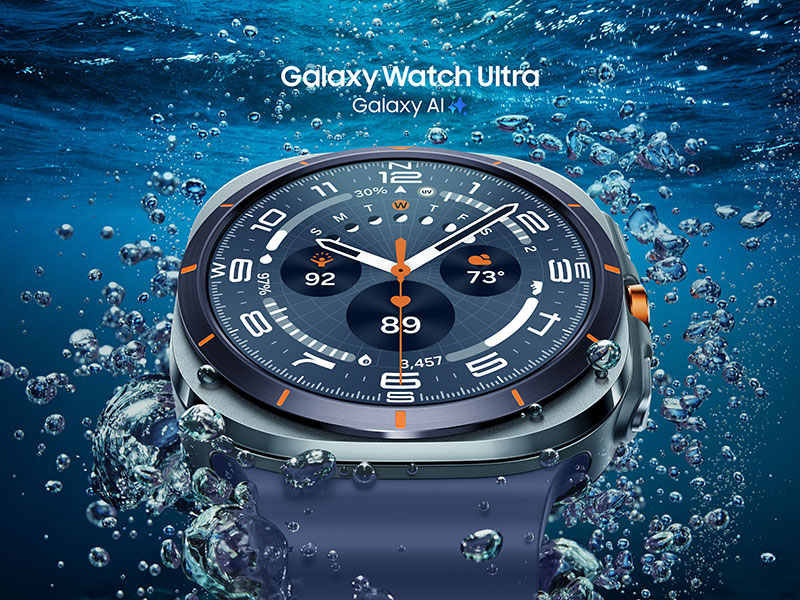
Step-by-step: forced restart (when frozen)
- Press and hold the Home/Power button.
- Keep holding for seven to ten seconds.
- Release when the Samsung logo appears.
- Wait for the watch to boot fully.
Forced restart clears a frozen state without erasing data. I used this method when an app crashed and the watch stopped responding; it restarted cleanly and resumed normal function.

If the watch won’t restart or is unresponsive
Try these checks in order:
- Charge the watch for at least 15 minutes and then attempt a forced restart.
- Remove any third-party charger and use the original charger to rule out power issues.
- If the screen shows nothing but the logo, leave it on charge for 30 minutes and retry the forced restart.
- If none of these work, consider a factory reset or contact support.
I once fixed a non-booting watch by swapping the charger and doing a forced restart after a 20-minute charge. Simple power issues are common.

When to use a restart versus a factory reset
- Use restart for slow performance, missed notifications, or app freezes.
- Use factory reset only if a restart and updates fail, or if you plan to sell or hand off the watch.
- Back up your data before a factory reset to save settings and watch faces.
Restart solves most issues. A factory reset erases data and settings. I recommend restart first and reset only when necessary.

Best practices and tips
- Restart your watch weekly to keep it running smoothly.
- Keep watchOS and apps updated to reduce crashes.
- Close unused apps to improve performance.
- Avoid force restarts unless needed; frequent forced restarts can mask deeper issues.
From experience, a quick restart after heavy app use restores battery life and speed. Regular restarts and updates prevent small problems from growing.

Troubleshooting: restart failed or problems persist
If restarting did not work, try these steps:
- Update the firmware via the Galaxy Wearable app on your phone.
- Unpair and then re-pair the watch with your phone.
- Try a factory reset from Settings > General > Reset, after backing up data.
- Contact Samsung support if the watch still does not boot.
When I faced a persistent sync error, updating firmware and re-pairing fixed it. These steps usually restore full function.

Personal notes and common mistakes to avoid
I have seen users try a factory reset before simple fixes. That erases valuable data. Always try a normal restart and forced restart first. Use the original charger for power issues. Keep a short log of problems and steps taken so you can describe the issue to support if needed.

Frequently Asked Questions of how to restart samsung galaxy smart watch ultra
How long do I hold the button to restart my watch?
Hold the Home/Power button for seven to ten seconds for a forced restart. Release when the Samsung logo appears.
Can I restart the watch from my phone?
You can update and manage settings from the Galaxy Wearable app, but a direct restart is best done on the watch itself. Unpairing and re-pairing from the app can resolve some issues.
Will restarting delete my data?
No. Restarting does not erase data. Only a factory reset will remove your apps, settings, and stored data.
What if the watch is stuck on the logo after restart?
Charge the watch for at least 30 minutes and attempt a forced restart again. If the issue remains, consider a factory reset or contact support.
Is it safe to restart during an update?
Avoid restarting during an active firmware update. Interrupting an update can cause software problems. Wait for the update to finish.
How often should I restart my Galaxy Smart Watch Ultra?
A weekly restart helps maintain performance and battery life. Restart when you notice lag, missed notifications, or slow apps.
Conclusion
A quick restart fixes most performance issues on the Galaxy Smart Watch Ultra. Use a normal restart first, and use a forced restart when the watch is unresponsive. Only factory reset as a last step and always back up your data. Try the steps above, keep your watch updated, and reach out for support if problems persist. Share your experience or questions below, subscribe for more tips, or leave a comment about what worked for you.
Related Posts




Rubel Miah is the Senior Editor at MyStyleGrid.com, where he brings a sharp editorial eye and an unshakable love for fashion to everything he does. A true style addict, Rubel lives and breathes trends, from streetwear to high fashion, and has a knack for turning inspiration into impactful stories. With years of experience in fashion journalism and digital media, he curates content that empowers readers to express themselves through style. When he’s not editing features or forecasting the next big thing, you’ll find him hunting down vintage pieces or capturing street style moments around the city.