Securing Your Smartwatch With Two Factor Authentication: A Complete Guide
================================================================================
Your smartwatch is more than just a gadget. It holds your messages, health data, payment cards, and sometimes even your location. But have you ever thought about how easy it can be for someone to access all this if your watch is not protected? I once lost my smartwatch while traveling, and that experience showed me how much personal information was just one swipe away from a stranger. Today, I want to help you avoid that risk by showing you how to secure your smartwatch using two factor authentication (2FA).
Let’s walk through everything you need to know, step by step, using clear words and practical tips. You don’t need to be a tech expert to follow this guide. By the end, you’ll be ready to protect your device and your privacy with confidence.
Why Smartwatch Security Matters
Many people don’t realize how much sensitive information sits on their wrist. Smartwatches sync with your phone, collect fitness data, store contacts, and often let you pay at stores. If someone gets access, it’s not just about losing the watch—it’s about losing your privacy and maybe your money.
A recent report showed that over 30% of wearable device owners have never changed their security settings. Even more concerning, 20% don’t use any kind of screen lock. That means millions of people are at risk every day.
I once helped a friend who had his smartwatch stolen at the gym. Because he used only a simple PIN, the thief reset the watch and connected it to another phone. He lost not only the watch but also access to his calendar and personal notes.
This can happen to anyone.
What Is Two Factor Authentication?
Two factor authentication (2FA) is an extra security layer. Instead of just a password or PIN, you need a second code or confirmation, often sent to your phone or generated by an app. Even if someone guesses your password, they can’t get in without this second step.
Think of it like locking your front door and also setting an alarm. It makes your smartwatch much harder to break into.
How Does Two Factor Authentication Work On Smartwatches?
Most smartwatches use 2FA through their paired phone or account. Here’s how it usually works:
- You enter your main password or PIN on your smartwatch.
- The watch sends a code to your phone or email.
- You enter this code to finish logging in or making changes.
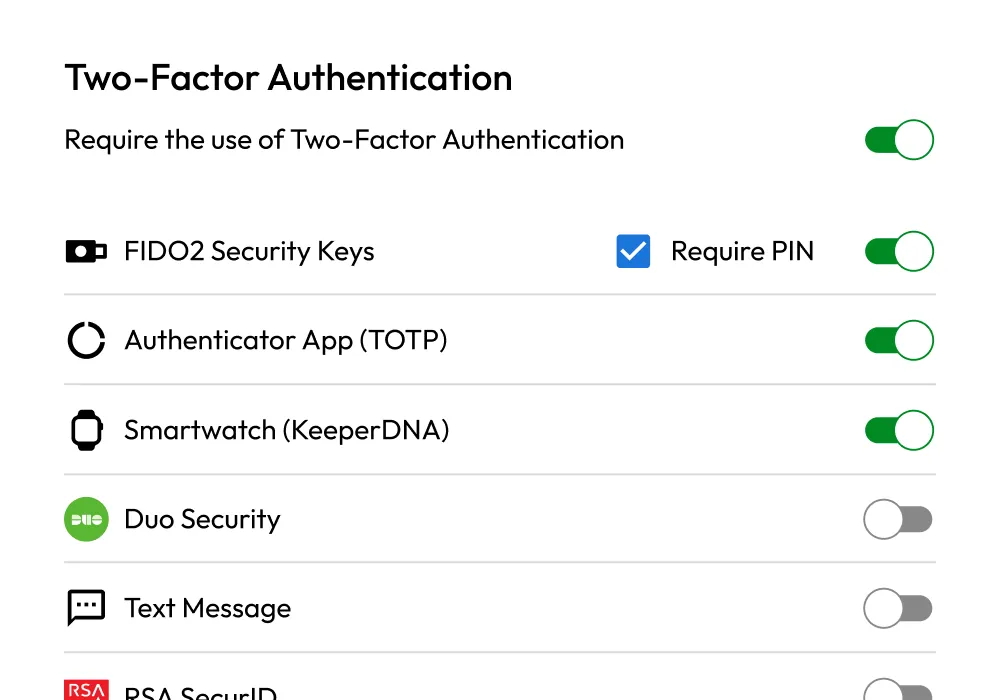
Some smartwatches even use fingerprint or face unlock as the second factor. This means you need both your code and your fingerprint to get access.
Let’s get into the details for different smartwatch brands and how you can set up 2FA on each.
Setting Up Two Factor Authentication: Step-by-step
Every brand does things a bit differently. Below, I’ll guide you through the setup for the most popular smartwatches: Apple Watch, Samsung Galaxy Watch, and Wear OS (Google-based) watches.
Apple Watch
Apple Watch is tightly linked to your iPhone. 2FA for your watch is managed through your Apple ID.
- Open Settings on your iPhone.
- Tap your name at the top, then Password & Security.
- Tap Turn On Two-Factor Authentication.
- Follow the prompts. You may need to answer security questions.
- Once 2FA is on, every time you log in to your Apple ID or set up a new device (including your Apple Watch), you’ll get a code sent to your trusted device or phone number.
Tip: Make sure your trusted phone number is up to date. If you lose your phone or switch numbers, update this right away.
Samsung Galaxy Watch
Samsung uses your Samsung Account for 2FA.
- On your phone, open the Settings app.
- Scroll to Accounts and Backup > Accounts.
- Tap your Samsung account, then Password and Security.
- Select Two-step verification.
- Choose your method: Text message, email, or an authentication app.
- Follow the steps to verify and finish setup.
Insight: For Samsung, using an authentication app like Google Authenticator is safer than just SMS codes. SMS can be intercepted.
Wear Os (google) Watches
Wear OS watches connect to your Google Account.
- Go to your Google Account on your phone or at Google Account Security.
- Find the 2-Step Verification section and click Get started.
- Choose your second step: Google prompt, text message, or authenticator app.
- Complete the setup and confirm the code.
Non-obvious tip: If you use Google Prompt, your phone will show a message for approval each time you log in. This is easier and faster than entering a code.
Fitbit, Garmin, And Other Brands
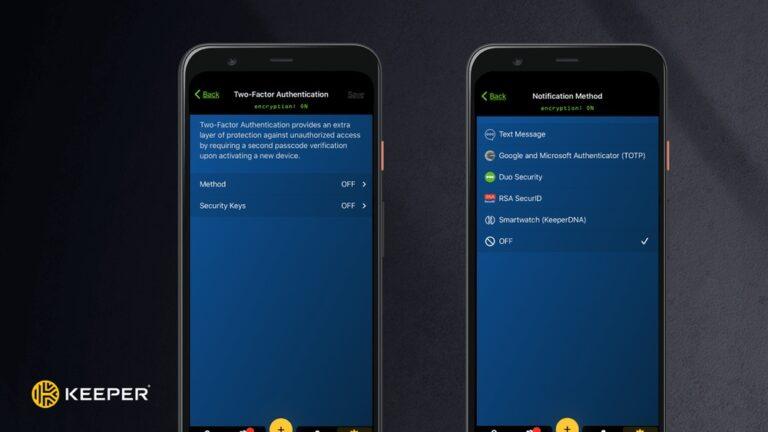
Some brands don’t offer 2FA directly on the device but support it for their online accounts. Always enable 2FA for your main account—even if the watch itself doesn’t prompt for it.
Fitbit: Enable 2FA in the Fitbit app under Account Settings > Security.
Garmin: Go to your Garmin account on the web, look for Security options, and turn on 2FA.
Credit: www.keepersecurity.com
Common Two Factor Authentication Methods
Let’s compare the main types of 2FA you might use for your smartwatch. The table below shows the pros and cons of each method.
| Method | How It Works | Pros | Cons |
|---|---|---|---|
| SMS Code | Code sent to your phone by text | Easy, fast | Can be intercepted by hackers |
| Authenticator App | App generates time-based codes | More secure, works offline | Lose access if you lose your phone |
| Push Notification | App sends a prompt to approve login | Quick, no code to enter | Needs internet, device must be nearby |
| Biometrics | Fingerprint or face scan | Very secure, no code to remember | Not always supported |
Pro tip: Use an authenticator app if possible. It’s safer than SMS, and it works even if you have no signal.
Why Two Factor Authentication Is So Effective
You might wonder if 2FA is really worth the extra step. Here’s why it matters:
- Over 80% of data breaches involve weak or stolen passwords.
- With 2FA, even if someone knows your password, they still need your second factor.
- Most hackers give up if they hit a 2FA wall because it’s too much trouble.
A study by Microsoft found that 2FA stops over 99% of automated attacks. That’s a huge boost for just a few minutes of setup.
What Happens If You Lose Your Phone Or Backup Device?
This is a common fear. If you lose your main phone, how can you get your 2FA code?
- Most services let you add a backup phone number or email.
- Some give you backup codes you can print or save. Keep these in a safe place—not on your phone!
- If you get locked out, you may need to contact customer support and prove your identity.
I once switched phones and forgot to move my authenticator app. I couldn’t log in to my account for two days! Since then, I always keep backup codes in my wallet, just in case.
Real-world Example: Securing A Smartwatch Step By Step
Let’s walk through a real setup. Imagine you have a Samsung Galaxy Watch.
- On your phone, open Settings.
- Go to Accounts and Backup > Accounts > your Samsung account.
- Tap Password and Security > Two-step verification.
- Pick Authenticator App. Download Google Authenticator if you don’t have it.
- Scan the QR code shown on your phone.
- Enter the code from the app to confirm.
- Done! Now, even if someone guesses your password, they can’t log in without your app.
Extra advice: Write down the recovery codes Samsung gives you. If you ever reset your phone, you’ll need these codes.

Credit: docs.keeper.io
How To Make Two Factor Authentication Even Stronger
Just turning on 2FA is a big step, but you can do more:
- Use a strong, unique password for your account. Don’t reuse passwords.
- Update your smartwatch and phone software often. Updates fix security holes.
- If your watch supports biometrics, use fingerprint or face unlock as your second factor.
- Don’t share your codes with anyone—not even tech support.
Comparison: Smartwatch Security With And Without 2fa
Let’s see how the risk changes with and without 2FA.
| Feature | With Only PIN/Password | With 2FA |
|---|---|---|
| Chance of Data Theft | High | Very Low |
| Protection Against Stolen Device | Weak | Strong |
| Login From New Device | Easy for thief | Needs code or approval |
| Resetting Password | Possible with email access | Needs second factor |
Key takeaway: 2FA adds a strong barrier against most kinds of attacks.
Practical Tips For Everyday Use
Here are some tips from my own experience that can save you trouble:
- Set reminders to review your security settings every few months.
- Test your 2FA: Log out and log in to make sure you know the steps.
- If you get a new phone, transfer your authenticator app before erasing the old one.
- Write down backup codes and keep them somewhere safe.
- Show family members how to use 2FA. If they use smartwatches, help them set it up.
Common Mistakes People Make
Even with 2FA, people sometimes slip up:
- Using the same password everywhere. If one account is hacked, all are at risk.
- Ignoring backup codes. Without these, you can be locked out if you lose your phone.
- Not updating software. Old apps can have security bugs.
- Sharing codes with others. Even tech support should never ask for your code.
How To Check If Your Smartwatch Is Secure
Take a minute to check:
- Is your account using 2FA?
- Is your software up to date?
- Are your backup options set?
- Did you test logging in with 2FA?
If you answer “no” to any, fix it today. It doesn’t take long, and you’ll feel safer.
What To Do If You Think Someone Accessed Your Watch
If you think someone else used your smartwatch:
- Change your account password right away.
- Sign out from all devices in your account settings.
- Turn on or review 2FA.
- Check for strange activity—messages, payments, or apps you don’t know.
- Contact customer support if you see anything wrong.
Act fast. The sooner you lock things down, the less damage can happen.
Credit: www.keepersecurity.com
Smartwatch Security: Looking Ahead
Security is always changing. In the future, smartwatches will get even better at protecting you. Some brands are adding features like:
- Physical security keys: Small devices you tap to approve logins.
- More biometric options: Iris or voice recognition.
- Automatic threat alerts: Your watch will warn you if someone tries to break in.
Stay alert for updates and new features. The best protection is always up to date.
Frequently Asked Questions
What If My Smartwatch Doesn’t Support Two Factor Authentication Directly?
Most smartwatches use your main account (like Apple ID or Google Account) for 2FA. Even if the watch itself doesn’t ask for a code, turning on 2FA for your account adds a strong layer of safety.
Can Someone Bypass 2fa If They Have My Smartwatch?
It’s very difficult. With 2FA, even if someone has your device, they need your second code, your fingerprint, or access to your phone. This stops most attacks.
Is Using Sms For 2fa Safe?
SMS is better than nothing, but not the safest. Hackers can sometimes steal SMS codes. If possible, use an authenticator app or biometrics instead.
What Should I Do If I Lose My Backup Codes Or My Phone?
Contact customer support for your account (Apple, Google, Samsung, etc. ). Be ready to prove your identity. Try to set up backup options before you lose access.
Do All Smartwatches Have The Same Security Features?
No, features vary by brand and model. High-end watches like Apple Watch and Samsung Galaxy Watch have more options. Always check your user manual or the official website for details.
—
Securing your smartwatch with two factor authentication is one of the smartest moves you can make for your privacy. It takes just a few minutes to set up, but can save you from weeks of stress if your watch is lost or stolen.
I’ve learned this firsthand, and I encourage you to take action today. Stay safe, keep your data private, and enjoy all the benefits your smartwatch brings—without worry.
For more details on two factor authentication, visit the Wikipedia page on Multi-Factor Authentication.

Rubel Miah is the Senior Editor at MyStyleGrid.com, where he brings a sharp editorial eye and an unshakable love for fashion to everything he does. A true style addict, Rubel lives and breathes trends, from streetwear to high fashion, and has a knack for turning inspiration into impactful stories. With years of experience in fashion journalism and digital media, he curates content that empowers readers to express themselves through style. When he’s not editing features or forecasting the next big thing, you’ll find him hunting down vintage pieces or capturing street style moments around the city.