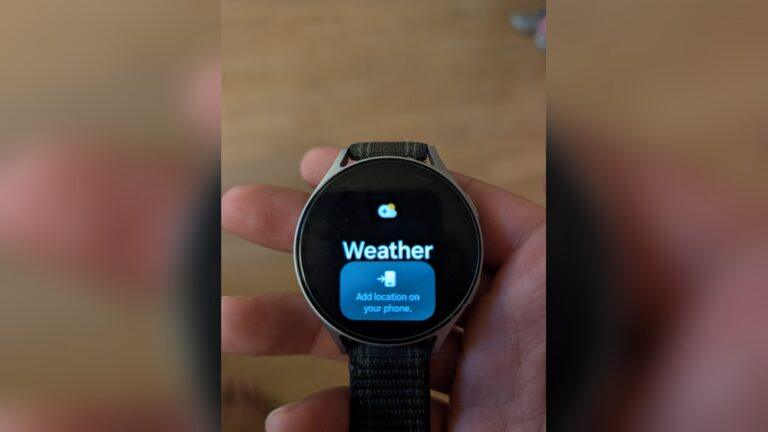
Many smartwatch users love the weather widget. It helps you plan your day, dress right, and avoid surprises. But what happens when the weather widget stops updating automatically? It’s annoying, and it can even make your smartwatch less useful. I’ve been there myself, checking my wrist for the weather, only to see yesterday’s forecast. So, let’s dig into the reasons why this happens and, more importantly, how to fix it—step by step.
Why Does The Weather Widget Stop Updating?
Before jumping into solutions, it’s good to know why the problem starts. The weather widget depends on several things: your smartwatch’s connection, the weather app, your phone’s settings, and sometimes the weather provider’s servers. Any weak link can cause your widget to show old data or stop refreshing. In my own experience, a simple change in phone settings once made my watch show the same weather for days. Now, I always check a few basics before worrying about complex fixes.
Common reasons include:
- Lost connection between watch and phone
- Disabled location services
- Battery-saving features blocking updates
- App or system bugs
- Outdated software
Let’s go through each possible fix, from simple to advanced. I’ll also share some tips I wish I had known earlier.
Check Your Internet Connection
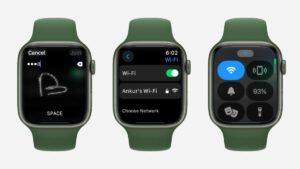
Your smartwatch needs an internet connection to pull fresh weather data. Some watches connect directly to Wi-Fi, while most use your phone’s data through Bluetooth.
Steps To Check Connectivity
- Test your phone’s internet: Open a website or another app that needs data. If it loads, your internet is fine.
- Check Bluetooth: Is your watch showing as connected in your phone’s Bluetooth settings? If not, reconnect it.
- Try Wi-Fi (if supported): Some smartwatches can use Wi-Fi independently. Make sure Wi-Fi is on and connected.
If your connection is weak or lost, your weather widget will not update. When I travel, this is the first thing I check. Airplane mode or weak signals often block updates.
Enable Location Services
The weather widget needs your location to show local weather. If location is off, you may get old data or nothing at all.
How To Enable Location
- On your phone: Go to Settings > Location. Turn it on.
- On your smartwatch: Some watches let you turn location on or off separately.
- Check app permissions: Make sure the weather app on both devices can access your location.
Many people forget app permissions. I once turned off location for all apps to save battery, but then my weather widget stopped working. Allowing location for just the weather app fixed it.
Turn Off Battery Saver And Power Management
Battery-saving settings are helpful, but they can block background updates. This is a common but often missed reason why weather widgets stop updating.
What To Do
- Disable battery saver: On your phone, turn off battery saver mode. On Android, go to Settings > Battery. On iPhone, go to Settings > Battery > Low Power Mode.
- Check app-specific settings: Look for any “restrict background activity” or “optimize battery usage” settings for your weather app or smartwatch app.
- On your watch: Some watches have their own battery saver or power-saving modes. Make sure these are off.
Power management can be tricky. I once set my smartwatch to a power-saving mode before a long hike, and my weather widget stayed frozen until I switched the mode off.

Credit: www.samsung.com
Refresh The Weather Widget Manually
Sometimes, the widget just needs a push. Try refreshing or reloading it.
How To Refresh
- On most smartwatches: Tap the weather widget. Look for a refresh symbol or swipe down to update.
- From your phone: Open the companion app. Find the weather section and refresh from there.
If the widget updates, your settings are probably fine. If not, keep reading.
Update The Weather App And Smartwatch Software
Outdated apps and firmware can cause many issues, including weather widgets not updating.
Steps To Update
- Update the weather app: Go to the app store on your phone. Check for updates for your weather app and the smartwatch companion app.
- Update smartwatch firmware: Use the official smartwatch app to check for firmware updates.
- Restart both devices: After updating, restart your phone and smartwatch.
I once left my watch un-updated for months. When I finally installed the latest software, not only did the weather widget work again, but battery life improved too.
Re-add The Weather Widget
Sometimes, removing and re-adding the widget can fix hidden bugs.
How To Do It
- On your watch: Tap and hold the weather widget, then choose “remove.” Add it back from the widget list.
- On your phone: Open the smartwatch companion app, find the widget settings, and re-add weather.
This simple step has helped many users fix update problems.
Check The Weather Service Provider
Most weather widgets rely on third-party services like Weather.com or AccuWeather. Sometimes, these services have outages or slowdowns.
What You Can Do
- Try a different weather app: If your main app isn’t updating, install another weather app as a test.
- Check service status: Visit the weather provider’s website to see if they report problems.
- Change provider (if possible): Some smartwatches let you pick the data source.
Switching providers fixed the problem for me when my usual app was slow one weekend.
Adjust Sync Settings
Smartwatches often have sync settings that control how often data updates.
How To Adjust
- Find sync settings: In your smartwatch app on your phone, look for “sync” or “data refresh” options.
- Set to frequent updates: If set to manual or rare updates, choose more frequent syncing.
- Save changes and restart: After changing, restart your watch to apply.
Setting sync to automatic is usually best. Rare updates save battery but make weather info old.
Reset Network Settings
If nothing works, a network reset can clear hidden problems with Bluetooth, Wi-Fi, or mobile data.
How To Reset
- On your phone: Go to Settings > System > Reset options > Reset Wi-Fi, mobile & Bluetooth.
- On your smartwatch: Some watches have similar options in settings.
After reset, you’ll need to reconnect your devices, but this can fix stubborn update problems.
Unpair And Re-pair Your Devices
Sometimes, the connection between your phone and smartwatch becomes buggy. Unpairing and then pairing again refreshes the link.
Steps
- Unpair your watch: In your phone’s Bluetooth settings, remove (forget) your smartwatch.
- Restart both devices: Turn both off and back on.
- Re-pair: Follow the setup instructions from your smartwatch brand.
This step fixed my weather widget once when nothing else worked.
Factory Reset As A Last Resort
A factory reset erases all data and settings on your watch. This is a last resort, but it can fix deep software bugs.
How To Factory Reset
- On your watch: Go to Settings > System > Reset > Factory reset. Confirm your choice.
- Backup data first: Save anything important, as this erases everything.
After reset, set up your watch again and test the weather widget. Only do this if all other steps fail.
Compare Common Smartwatch Brands And Weather Widget Issues
If you want to see how different brands handle weather widgets, here’s a summary:
| Brand | Weather Widget Reliability | Common Issues | Ease of Fix |
|---|---|---|---|
| Apple Watch | Very Reliable | Location, app permissions | Easy to Moderate |
| Samsung Galaxy Watch | Reliable | Sync settings, outdated app | Easy |
| Garmin | Moderate | App sync, firmware updates | Moderate |
| Fitbit | Good | Bluetooth, permissions | Easy |
How Often Should The Weather Widget Update?
Most weather widgets update at set intervals. Some update every 15 minutes, others every hour. The update rate depends on your watch, app settings, and battery-saving modes.
Here’s a quick comparison:
| Watch Brand | Default Update Interval | Can You Change It? |
|---|---|---|
| Apple Watch | 15-30 minutes | Yes (somewhat) |
| Samsung Galaxy Watch | Hourly | Yes |
| Fitbit | Hourly | No |
| Garmin | 30-60 minutes | Yes |
If your widget is not updating often enough, check for settings to increase the refresh rate. Keep in mind, more frequent updates use more battery.
Practical Tips For Reliable Weather Updates
Let me share some tips I’ve learned over years of using smartwatches, plus what I hear from other users:
- Keep apps updated: Old apps often have bugs that stop updates.
- Restart your devices weekly. This clears hidden memory issues.
- Avoid using multiple weather apps at once. They can fight for control.
- Charge your watch regularly. Low battery can block updates.
- Check for region restrictions. Some weather data doesn’t work in all countries.
- Don’t overload your watch with widgets. Too many can slow updates.
One insight: Many users forget that smartwatch and phone settings both matter. It’s not always a watch problem—sometimes your phone blocks updates.
What Not To Do
Some people try risky or unnecessary things when their weather widget stops working. Avoid:
- Installing unofficial apps: These can bring bugs or security issues.
- Resetting too quickly: Try simple fixes first.
- Using task killers or cleaners: These often stop background updates.
Focus on simple, smart steps. Most problems don’t need advanced fixes.
How To Contact Support
If you’ve tried everything and your weather widget still won’t update, it’s time to contact support.
- Find your watch brand’s official support page.
- Prepare details: Your watch model, app version, phone model, and a step-by-step list of what you’ve tried.
- Use community forums: Other users may have the same problem.
For example, the Apple Support website has many guides and a live chat option.
Frequently Asked Questions

Credit: www.reddit.com
What If My Smartwatch Weather Widget Updates Only When I Open The App?
This usually means your app is set to update manually, or background refresh is blocked. Check your phone’s settings for “background app refresh” and set it to automatic. Also, make sure battery saver is off and location is on.
Does Turning On Airplane Mode Affect The Weather Widget?
Yes, airplane mode turns off Bluetooth and Wi-Fi, so your watch cannot update weather data. Turn airplane mode off and reconnect for automatic updates.

Credit: www.reddit.com
Can Changing The Weather Provider Help?
Sometimes, yes. If your current provider has outages or slow data, switching to another provider can restore updates. Check if your smartwatch lets you pick a different weather source in settings.
Why Does My Weather Widget Show The Wrong City?
This usually happens when location services are off, or the app has permission only for a fixed city. Turn on location for your weather app, and check if your watch is set to use your current location.
Will A Factory Reset Always Fix The Weather Widget?
A factory reset can fix deep software bugs, but it’s not always needed. Try all other solutions first, as a reset erases all your data and settings.
When your smartwatch weather widget stops updating, it can be frustrating. But with the right steps, you can solve the problem and enjoy up-to-date weather on your wrist. Start with simple solutions, like checking connections and permissions, and only use advanced fixes if needed. I hope these tips and my own experiences save you time and headaches. With a bit of patience, your weather widget will be working smoothly again.

Rubel Miah is the Senior Editor at MyStyleGrid.com, where he brings a sharp editorial eye and an unshakable love for fashion to everything he does. A true style addict, Rubel lives and breathes trends, from streetwear to high fashion, and has a knack for turning inspiration into impactful stories. With years of experience in fashion journalism and digital media, he curates content that empowers readers to express themselves through style. When he’s not editing features or forecasting the next big thing, you’ll find him hunting down vintage pieces or capturing street style moments around the city.