Transferring Music Files To Your Smartwatch For Offline Listening
Music is a big part of daily life. Many of us want to enjoy our favorite songs while running, walking, or relaxing—without always needing our phones. Smartwatches make this easy. You can listen to music on the go, even if your phone is at home.
But moving music files to your smartwatch can feel confusing, especially if you’re new to these devices. I’ve learned from my own mistakes and successes, so I’ll walk you through every step. You’ll find simple instructions, clear tips, and a few insights people often miss.
Why Transfer Music To Your Smartwatch?
Having music on your smartwatch brings real freedom. You can leave your phone behind and still have your playlist with you. This is helpful during workouts, outdoor adventures, or even while traveling. Also, offline music means you don’t need Wi-Fi or mobile data.
Your smartwatch becomes a true music player.
Some people only use streaming apps like Spotify or Apple Music. But what if you want to listen where there is no internet? Or maybe you have your own music collection with special tracks. Transferring music files gives you control.
You can pick any song, album, or playlist you like.
What You Need Before You Start
Before you move music files, make sure you have:
- A compatible smartwatch. Not all watches support offline music. Popular choices are Apple Watch, Samsung Galaxy Watch, Garmin, Fitbit, and some Wear OS models.
- Music files. These are usually in MP3 or AAC format. Some watches may support other types, but MP3 works almost everywhere.
- A computer or phone. You will often need a laptop or a phone to transfer the files.
- A music app. Many smartwatches need a special app to manage music. For example, Apple Music, Samsung Music, or third-party apps.
- Bluetooth headphones. You need these for listening, since most watches don’t have speakers for music.
Different Ways To Transfer Music
Smartwatches are all a bit different. The process depends on your brand and model. Let’s look at the main methods.
1. Using Manufacturer’s Music App
Most top smartwatches have their own way to add music. Here’s how you can do it with some popular brands.
Apple Watch
- Open the Apple Watch app on your iPhone.
- Go to “My Watch,” then “Music.”
- Tap “Add Music.” You can choose albums, playlists, or artists from your Apple Music library.
- The watch will sync music when it charges and is near your iPhone.
Tip: Only music in your Apple Music library can be transferred. If you have MP3 files on your computer, add them to your library first.
Samsung Galaxy Watch
- Open the Galaxy Wearable app on your phone.
- Tap “Add content to your watch,” then “Add tracks.”
- Select songs from your phone and tap “Done.”
- The files will transfer over Bluetooth.
Note: Transfer speed can be slow if you send many files at once. For me, sending 100 songs took over 15 minutes.
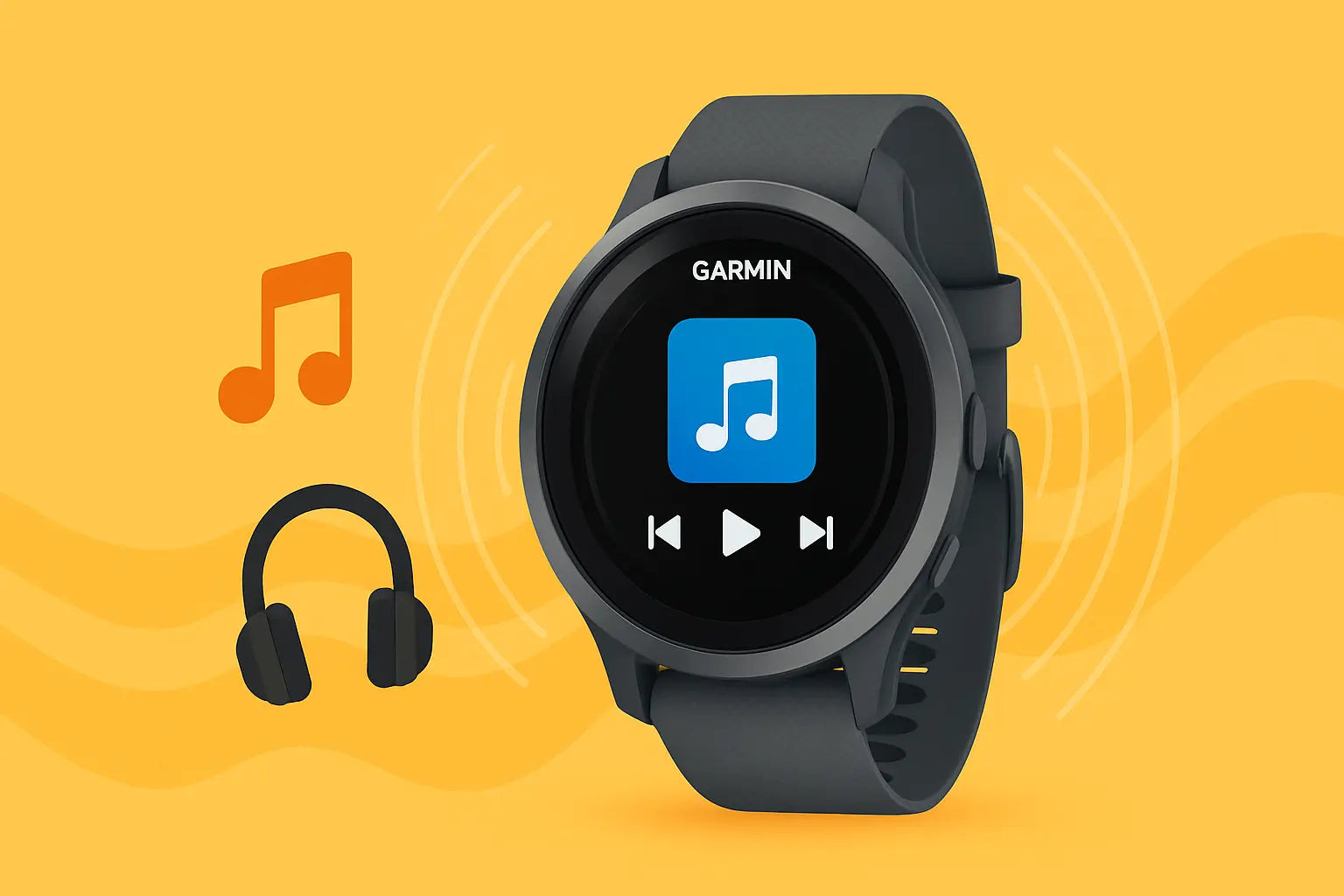
Garmin Watches
- Connect your watch to your computer with the USB cable.
- Open Garmin Express on your computer.
- Click your device, then “Music.”
- Drag and drop music files into the app. Sync to finish.
Insight: Garmin supports files from many sources, but playlists must be in certain formats like M3U.
Fitbit Devices
- Open the Fitbit app on your computer.
- Connect your watch to Wi-Fi and your computer.
- Go to “Personal Music,” then add files or folders.
- Sync to your device.
Common Mistake: Fitbit only supports local music files, not streaming services.
2. Using Third-party Apps
Some smartwatches let you use apps like Spotify, Deezer, or YouTube Music. These apps have an offline mode. Here’s a quick look:
- Open the music app on your watch.
- Log in to your account.
- Download playlists or albums for offline listening. Most apps require a paid subscription for this feature.
Example: On my Samsung Watch, I use Spotify Premium. I download my running playlist at home, then leave my phone behind.
Non-Obvious Insight: Not all music is available for offline download due to copyright or app limits. Check your app’s details.
3. Manual File Transfer (drag And Drop)
Some Wear OS and a few other watches allow simple drag and drop transfer.
- Connect your watch to your computer using a USB cable.
- The watch shows up like a USB drive.
- Copy and paste music files into the “Music” folder.
Important: Not all watches support this. Always use the official method if you’re unsure.
4. Using Cloud Services
A few smartwatches let you sync files from the cloud, such as Google Drive or Dropbox.
- Upload music to your cloud account.
- Install the cloud app on your watch, if available.
- Download the files to your watch’s local storage.
Limitation: Cloud apps may not let you play music directly. You may still need a music player app.
Step-by-step Example: Transferring Music To A Samsung Galaxy Watch
Let’s walk through a real example.
- Make sure your music files are saved on your phone. If not, transfer them from your computer first.
- Open the Galaxy Wearable app.
- Tap “Add content to your watch.”
- Choose “Add tracks.” Browse and pick your favorite songs.
- Tap “Done.” The watch will start syncing.
- When finished, open the “Music” app on your watch to see your songs.
Personal Experience: The first time I tried this, I forgot to charge my watch. The transfer stopped halfway. Always check battery level before starting.
Credit: smartwatch-straps.co.uk
Supported File Formats And Storage Limits
Smartwatches support different music file formats and have different storage sizes.
Here’s a comparison of common formats and limits:
| Smartwatch Brand | Supported Formats | Typical Storage (Music) |
|---|---|---|
| Apple Watch | AAC, MP3, ALAC | 2-8 GB |
| Samsung Galaxy Watch | MP3, M4A, AAC | 4-8 GB |
| Garmin | MP3, M4A, AAC, WAV | 3-8 GB |
| Fitbit | MP3, WAV | 2-4 GB |
| Wear OS | MP3, AAC | Varies (up to 8 GB) |
Non-Obvious Insight: Even if your watch says “8 GB storage,” some space is for apps and the system. You may only have 2-4 GB for music.
Choosing The Best Method For Your Device
The best way depends on your watch and your needs.
| Method | Best For | Speed | Ease of Use |
|---|---|---|---|
| Manufacturer’s App | Most users | Medium | Easy |
| Third-Party App | Streaming users | Fast (Wi-Fi) | Very Easy |
| Manual Transfer | Tech-savvy users | Fast (USB) | Medium |
| Cloud Services | Cloud fans | Slow | Medium |
If you want the simplest way, the manufacturer’s app is often best. For quick changes, third-party streaming apps work well.

Credit: www.youtube.com
Common Problems And How To Fix Them
Even with clear steps, things can go wrong. Here are some common problems and what you can do:
- Music won’t transfer – Check if your files are in a supported format. Convert them to MP3 if not.
- Not enough space – Delete old music or apps from your watch to free up space.
- Files not showing on watch – Restart your watch and resync.
- Transfer is slow or fails – Use Wi-Fi or USB if possible, instead of Bluetooth.
- Songs are missing – If you use playlists, make sure all songs are in the playlist and in your library.
Personal Experience: I once tried to transfer a large album in FLAC format to my Garmin. It didn’t play because the watch only supports MP3 and AAC. Double-check file types before you transfer.
Tips For Organizing Your Music Library
A little planning makes your music easier to find and play.
- Create playlists before transferring. This lets you pick moods or activities (like “Workout” or “Relax”).
- Keep file names simple. Some watches may not show long or special characters.
- Group songs into folders if possible. This helps with navigation.
- Don’t overload storage. Leave some space for apps and updates.
How Many Songs Can You Store?
People often ask, “How many songs can I fit on my smartwatch? ” It depends on file size and your watch’s storage.
- 1 GB holds about 200-250 songs (MP3, average 4 MB per song).
- If your watch has 4 GB free, you can store about 800-1,000 songs.
- High-quality files (like WAV or ALAC) use more space. You’ll fit fewer songs.
Using Bluetooth Headphones With Your Smartwatch
To listen to music, you need Bluetooth headphones or earbuds. Here’s how to connect:
- Put your headphones in pairing mode.
- Open the Bluetooth settings on your watch.
- Select your headphones from the list.
- Once paired, play music from your watch.
Tip: Some watches remember your headphones. Others need you to reconnect each time.
Pros And Cons Of Offline Music On Smartwatch
Here’s a quick look at the benefits and limits:
Pros:
- No need for a phone during workouts
- No mobile data or Wi-Fi needed
- Instant access to favorite tracks
Cons:
- Limited storage space
- Transferring music takes time
- Not all music apps support offline files
Security And Copyright Notes
Only transfer music you own or have the right to use. Downloading music from illegal sources can bring risks. Most streaming apps let you download for offline use if you pay for a premium account.
Non-Obvious Insight: Some apps may remove offline tracks if your subscription ends or if you switch devices.
Keeping Your Music Updated
Don’t forget to update your playlists. Add new songs, remove old ones, and resync your watch every few weeks. This keeps your music fresh and your device running well.
Personal Experience: I update my running playlist every month. It keeps my workouts fun and I never get bored with the same songs.
When To Use Streaming Instead
If you have a smartwatch with LTE (cellular), you can stream music directly. But streaming uses battery and mobile data. Offline music is better if you want longer battery life or will be in places with no signal.

Credit: sammyguru.com
Helpful Resources
If you want more details, check the official support pages for your smartwatch brand. You’ll find guides, video tutorials, and troubleshooting advice. For example, the Apple Support page covers Apple Watch music syncing in depth.
Frequently Asked Questions
How Do I Know If My Smartwatch Supports Offline Music?
Check your watch’s manual or the official website. Look for “offline music” or “local music storage” in the features. Most recent Apple, Samsung, Garmin, and Wear OS watches support it.
Can I Transfer Music From Any Streaming Service?
Not all streaming services allow offline downloads on smartwatches. Spotify, Deezer, and YouTube Music do, but you need a paid account. Apple Music works with Apple Watch. Always check your app’s details.
Why Won’t My Smartwatch Show My Transferred Songs?
This could be due to unsupported file formats, incomplete transfers, or not syncing playlists. Try restarting your watch, checking file types, and syncing again.
How Do I Delete Music From My Smartwatch?
Open your watch’s music app or use the companion app on your phone. Select the music or playlist you want to remove and tap “delete” or “remove. ” Freeing up space helps your watch run better.
Is There A Risk Of Viruses When Transferring Music Files?
If you download music from trusted sources, the risk is very low. Avoid unknown websites or files. Most smartwatches do not run standard apps or files, so viruses are rare.
Transferring music to your smartwatch may take a little time at first, but once you set it up, you’ll enjoy the freedom of music anywhere. With the right steps, you’ll never miss a beat—even when your phone stays at home.

Rubel Miah is the Senior Editor at MyStyleGrid.com, where he brings a sharp editorial eye and an unshakable love for fashion to everything he does. A true style addict, Rubel lives and breathes trends, from streetwear to high fashion, and has a knack for turning inspiration into impactful stories. With years of experience in fashion journalism and digital media, he curates content that empowers readers to express themselves through style. When he’s not editing features or forecasting the next big thing, you’ll find him hunting down vintage pieces or capturing street style moments around the city.