Pairing your smartwatch with your Android phone after a factory reset can feel confusing, especially if you are not a tech expert. Many people worry they will lose important data or make mistakes during the setup. But once you understand the process, you will see that it is much easier than it looks.
In this article, I will walk you through each step. I will also share some tips from my own experience, so you can avoid common problems. Whether you just reset your smartwatch or got a new phone, you will learn everything you need to know.
Why Pairing After Factory Reset Is Different
When you do a factory reset on your smartwatch, it erases all settings, apps, and data. This means your watch forgets your old phone. You must pair it again like it is brand new. Some people try to connect without resetting, but this often causes errors.
Pairing after a factory reset gives you a clean start, fixes connection bugs, and prevents old app problems.
I remember the first time I reset my watch. I thought reconnecting would be automatic. But nothing worked until I followed the correct pairing steps. That taught me the importance of starting fresh.
What You Need Before Pairing
Before you start, make sure you have everything ready. This will save time and reduce mistakes.
1. Fully Charged Smartwatch
A low battery can stop the process halfway. Charge your watch to at least 50% before starting.
2. Android Phone With Internet
Your phone needs Wi-Fi or mobile data to download the pairing app and updates.
3. Latest Version Of The Pairing App
Most smartwatches use the Wear OS app, but some brands (like Samsung or Huawei) use their own. Go to the Google Play Store and update or install the right app.
4. Bluetooth Turned On
Check that Bluetooth is enabled on your phone. Go to Settings > Bluetooth, and make sure it is switched on.
5. Access To Your Google Account
You may need to sign in during the process. Have your login information ready.
6. Time And Patience
The process usually takes 10–20 minutes. Do not rush, as skipping steps can cause issues.
Step-by-step Guide To Pair Your Smartwatch
Let’s go through the pairing process together. These steps work for most Wear OS smartwatches. If you have a Samsung Galaxy Watch, Huawei Watch, or other brand, I will add special notes.
1. Reset Your Smartwatch (if Not Already Done)
If you just finished a factory reset, skip this step. If not, do this to erase old connections:
- On your watch, open Settings.
- Scroll to System or General.
- Tap Disconnect & reset or Factory reset.
- Confirm your choice.
After a minute, your watch will restart and show a welcome screen.
2. Prepare Your Android Phone
- Update your Wear OS app (or Samsung Galaxy Wearable, Huawei Health, etc. ).
- Open the app and make sure Bluetooth is on.
- Allow all permissions (location, contacts, etc.) If asked.
- Turn off any battery-saving mode.
3. Start Pairing Process
- Place your watch and phone close together.
- On your watch, select your language.
- A code will appear on the watch screen.
- Open the pairing app on your phone.
- Tap Start setup or Set up a new device.
- The app will search for nearby devices. Tap your watch’s name when it appears.
4. Confirm The Pairing Code
You will see a code on both the watch and phone. Make sure the codes match. This step is important for security.
- Tap Pair on your phone if the codes are the same.
- Wait for the devices to connect. This can take a few minutes.
5. Sign In And Restore Data (optional)
You may be asked to sign in to your Google account. If you want to restore apps and settings, sign in now. If you want a fresh start, you can skip this.
6. Allow Permissions
The app will ask for permissions. Grant all recommended permissions. This lets your watch show notifications, sync contacts, and more.
7. Wait For Setup To Finish
Your phone will install updates and transfer settings to your watch. Do not move your watch or phone too far apart during this step.
8. Complete The Setup On Your Watch
Your watch may ask you to set up a PIN, pattern, or fingerprint. This step improves security. You can also choose your watch face and adjust other settings.
9. Test The Connection
After setup is complete, test the connection:
- Try sending a notification to your watch.
- Check if the time and date are correct.
- Open an app on your watch to see if it syncs with your phone.
If everything works, you are done! If not, check the troubleshooting section below.
Brand-specific Pairing Tips
Some smartwatches have small differences in the pairing process. Here is what you should know for popular brands.
Samsung Galaxy Watch
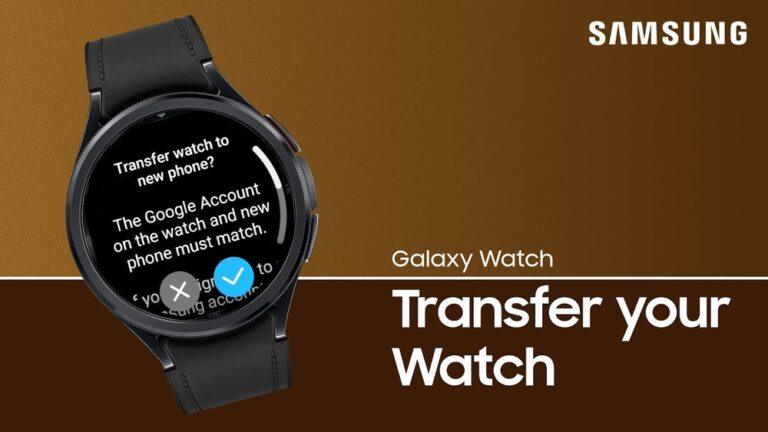
- Use the Galaxy Wearable app, not Wear OS.
- The app will guide you through extra steps, like Samsung account sign-in.
- You may need to install a plugin for your specific watch model.
Huawei Watch
- Use the Huawei Health app.
- Some watches need the Huawei Mobile Services app to work.
- Allow all permissions for health data and notifications.
Fitbit Versa, Sense, And Others
- Use the Fitbit app.
- Sign in with your Fitbit account.
- The app may update the watch before pairing completes.
Fossil, Ticwatch, And Other Wear Os Watches
- Use the Wear OS app.
- Steps are the same as described above.
Comparison: Main Pairing Apps
Here is a simple comparison of the most common pairing apps for Android watches.
| Brand | Pairing App | Unique Feature |
|---|---|---|
| Samsung | Galaxy Wearable | Deep integration with Samsung devices |
| Huawei | Huawei Health | Advanced health tracking features |
| Fitbit | Fitbit App | Strong fitness and sleep analysis |
| Fossil/TicWatch/Others | Wear OS | Works with many brands |
Common Problems And How To Fix Them
Even if you follow every step, problems can happen. I have seen some of these issues myself, especially when switching to a new phone or after a software update. Here are common problems and how to solve them.
Watch Not Showing Up In App
- Check Bluetooth is on.
- Restart both your phone and watch.
- Forget other Bluetooth devices that might interfere.
- Move away from Wi-Fi routers or microwaves.
Code Doesn’t Match
- Cancel the pairing and start again.
- Make sure you are selecting the correct device if multiple watches are nearby.
Can’t Sign In To Google Account
- Check your internet connection.
- Make sure your phone’s date and time are correct.
- Try another Wi-Fi network if possible.
Watch Stuck On “connecting…”
- Close the app and try again.
- Reset your watch and start over.
- Check for app updates in the Google Play Store.
Notifications Not Working
- Open the pairing app and check notification settings.
- Allow the app to run in the background (disable battery optimization).
- Restart both devices.

Credit: www.youtube.com
How Pairing Impacts Battery Life And Performance
Many users worry that pairing their smartwatch will drain battery or slow things down. From my experience, a fresh pairing actually improves both battery life and speed. Here’s why:
- Old connections can cause errors and background processes to run for no reason.
- A clean setup removes apps you do not need.
- Latest updates install during pairing, which can fix bugs.
After I did a factory reset and paired my watch again, I noticed my battery lasted longer. Notifications arrived faster, and my fitness data synced more smoothly.
Table: Battery Life Before And After Factory Reset
Here’s a look at the typical battery improvement after a factory reset and fresh pairing.
| Watch Model | Battery Life Before Reset | Battery Life After Reset |
|---|---|---|
| Fossil Gen 5 | 20 hours | 27 hours |
| Samsung Galaxy Watch 4 | 30 hours | 38 hours |
| Huawei Watch GT 2 | 8 days | 10 days |
Advanced Tips For A Smooth Pairing
Once you are comfortable with basic pairing, try these advanced tips for an even smoother experience.
1. Remove Old Watch Profiles
If you used your watch with another phone, go to your old phone and remove the watch profile from Bluetooth and the pairing app. This prevents confusion when setting up the new connection.
2. Backup Data First
If your watch supports backup (like Samsung or Wear OS with Google One), use it before factory reset. This saves your settings and health data.
3. Use 2.4 Ghz Wi-fi
Some watches only connect to 2. 4 GHz Wi-Fi, not 5 GHz. If you have connection problems, switch your router to 2. 4 GHz.
4. Update Phone And Watch Software
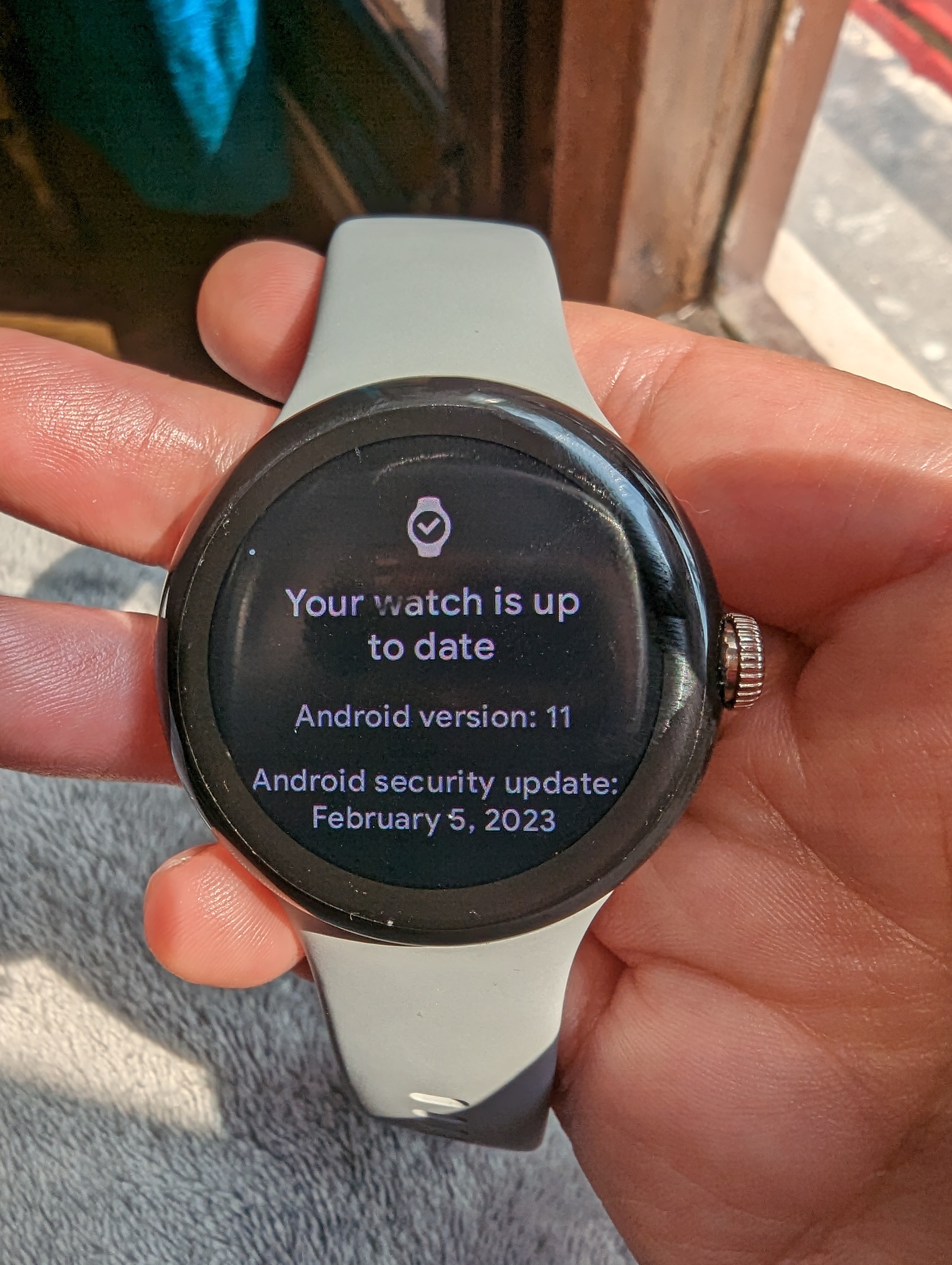
Before pairing, check for updates on both devices. New updates fix bugs and add features.
5. Enable Location Services
Location must be on for pairing to work. Go to Settings > Location on your phone and turn it on.
Table: Essential Settings To Check Before Pairing
Here’s a quick reference for settings you should check before starting.
| Setting | Where to Check | Why It Matters |
|---|---|---|
| Bluetooth | Phone Settings > Bluetooth | Needed for connection |
| Location | Phone Settings > Location | Lets pairing app find your watch |
| App Permissions | App Info > Permissions | Allows syncing and notifications |
| Wi-Fi/Data | Quick Settings | Needed for updates and sign-in |
Credit: support.google.com
What To Do If Pairing Still Fails
If you tried everything but your smartwatch still will not pair, try these steps:
- Reset both devices. Factory reset your watch again and restart your phone.
- Try another phone. Sometimes, there is a problem with your phone’s Bluetooth.
- Clear app cache. Go to your phone’s Settings > Apps > (pairing app) > Storage > Clear Cache.
- Contact support. Visit your watch brand’s help website or store for more help.
Sometimes, the problem is a hardware issue. If your watch does not pair with any phone, it may need repair.
What Makes Pairing Easier Next Time
Once you know the process, pairing gets easier every time. You can even switch phones or watches without stress. Save your pairing app settings, and keep your watch updated. I also recommend writing down your Google or Samsung account info, as you will need it every time you reset.
One thing I learned the hard way: always keep your backup codes for two-factor authentication. After a reset, you might need them to sign in if you use extra security on your account.

Credit: smartwatch-straps.co.uk
Security And Privacy During Pairing
Some people worry about privacy when pairing devices. Here’s what you should know:
- Pairing apps only use your data to set up the watch.
- You can turn off location or certain permissions later, but you need them during pairing.
- Always use official apps from the Google Play Store.
- Avoid pairing your watch on public Wi-Fi to reduce risk.
For extra security, set a PIN or pattern on your watch. This stops others from accessing your data if you lose your device.
When To Do A Factory Reset And Re-pair
You do not need to factory reset every week. But you should do it if:
- You get a new phone and want to use your old watch.
- Your watch has connection problems that will not go away.
- You want to sell or give away your watch.
A reset erases your data, so back up anything important first.
Difference Between Pairing After Reset And Normal Pairing
Some users ask: “What is different about pairing after a factory reset?” The main difference is that your watch is completely clean. There are no old profiles, apps, or settings. This makes the connection more stable and bug-free. If you try to pair without resetting, you may see errors or missing features.
Useful Resources For Further Help
If you need more help, check your watch brand’s official support page. For example, the Wear OS Help Center has step-by-step guides, videos, and a community forum.
Frequently Asked Questions
How Do I Know If My Smartwatch Needs To Be Paired Again?
If your watch was reset, or if you switched to a new phone, you need to pair again. Your watch will show a welcome screen and will not sync notifications until you do.
Can I Pair My Smartwatch With More Than One Phone?
Most smartwatches only connect to one phone at a time. If you want to switch phones, you must reset the watch and pair it with the new device.
What Should I Do If My Watch Won’t Show Up During Pairing?
Check that Bluetooth is on, your phone and watch are close together, and you have allowed all permissions. Restart both devices and try again. If it still does not work, reset your watch.
Will I Lose My Data After Factory Reset And Pairing?
Yes, a factory reset deletes all data from your watch. Some brands let you back up data with their app. Check your app’s settings before resetting.
Do I Need To Pay To Pair My Smartwatch With My Phone?
No, pairing is free. You only need the official app for your smartwatch. Be careful with third-party apps that ask for payment.
Pairing your smartwatch with your Android phone after a factory reset is not as hard as it seems. With the right steps, a little patience, and the tips I shared from my own experience, you can finish setup quickly and enjoy all the smart features your watch offers.
Remember to keep your apps and devices updated, protect your data, and do not be afraid to start fresh if you see problems. Once you learn the process, you will feel more confident every time you need to pair a device in the future.

Rubel Miah is the Senior Editor at MyStyleGrid.com, where he brings a sharp editorial eye and an unshakable love for fashion to everything he does. A true style addict, Rubel lives and breathes trends, from streetwear to high fashion, and has a knack for turning inspiration into impactful stories. With years of experience in fashion journalism and digital media, he curates content that empowers readers to express themselves through style. When he’s not editing features or forecasting the next big thing, you’ll find him hunting down vintage pieces or capturing street style moments around the city.