Smart home technology is changing how we live. You can turn off your lights, set your thermostat, or even lock your doors without lifting more than a finger. But what if you could do all of this from your wrist? Today, I want to talk about how to control smart home devices using smartwatch apps—a topic I’ve explored in my own daily life, and one that is becoming more important as our homes get smarter.
Imagine walking into your house after a long day. With a tap on your smartwatch, the lights turn on, your favorite playlist starts, and the temperature is just right. There’s no need to search for your phone or shout at your smart speaker.
It’s all right there on your wrist. I remember the first time I used my smartwatch to turn on my porch light from the driveway—it felt like I was living in the future.
Let’s dive into how this all works, what you need to get started, and what you can really do with a smartwatch and smart home devices. By the end of this guide, you’ll know how to set things up, avoid common mistakes, and use these tools to make your life easier.
Why Use A Smartwatch For Smart Home Control?
Many people already use their smartphones or voice assistants to control smart home devices. So, why add a smartwatch to the mix? There are a few big reasons.
First, convenience. Your smartwatch is always on your wrist. It’s quicker to raise your wrist and tap a button than to unlock your phone or find your voice assistant. I often use my smartwatch to control the thermostat when I’m in bed or to open the garage door when my hands are full.
Second, speed. Many smartwatch apps offer quick actions or widgets. You can add shortcuts to your watch face for things you use most, like lights or locks.
Third, privacy. Sometimes you don’t want to talk to your speaker or pull out your phone. A smartwatch is silent and personal.
Finally, accessibility. For people with disabilities or mobility challenges, a smartwatch can be much easier to use than a phone or wall switch.
What Do You Need To Get Started?
Before you can control smart home devices with your smartwatch, you need a few things:
- A compatible smartwatch. Most modern smartwatches can do this. The most common are the Apple Watch, Wear OS watches (like Samsung Galaxy Watch or Fossil), and some Fitbit models.
- A smartphone paired with your smartwatch. The watch often needs your phone to run apps and connect to the internet.
- Smart home devices. These can be smart lights, plugs, thermostats, locks, cameras, or speakers. Popular brands include Philips Hue, Nest, Ecobee, August, Wyze, and TP-Link.
- Smart home platforms or hubs. These bring your devices together. The most common are Apple HomeKit, Google Home, Samsung SmartThings, and Amazon Alexa.
- The right apps. You need smartwatch apps that work with your devices and platform.
Here’s a quick look at which smartwatches work with which platforms:
| Smartwatch | Main Platforms | Example Apps |
|---|---|---|
| Apple Watch | HomeKit, Alexa, Google Home | Apple Home, Alexa, HomeDash |
| Wear OS | Google Home, SmartThings, Alexa | Google Home, SmartThings, Home Connect |
| Fitbit | Alexa (limited), IFTTT | Alexa, IFTTT |
| Samsung Tizen | SmartThings, Alexa | SmartThings, Alexa |
If you’re not sure which devices and apps work together, check the brand’s website or search for compatibility lists. Some brands, like Philips Hue, work with almost every platform.
How To Set Up Your Smartwatch For Smart Home Control
Setting up your smartwatch to control your smart home devices is easier than you might think. I’ll walk you through the general process. The steps may vary a bit depending on your devices, but the core ideas are the same.
1. Connect Your Smart Home Devices
First, make sure your smart home devices are installed and connected to your home Wi-Fi. Follow the instructions that come with each device. For example, you might use the Philips Hue app to set up your smart bulbs or the Nest app for your thermostat.
2. Choose Your Smart Home Platform
Pick a platform that works with your devices and your smartwatch. For Apple Watch, HomeKit is the default, but you can also use Alexa or Google Home apps. For Wear OS, Google Home and SmartThings are the most common.
Set up your devices in the platform’s mobile app. For example, add your smart lights to the Apple Home app or Google Home app.
3. Install Smart Home Apps On Your Smartwatch
Open the app store on your smartwatch or paired smartphone. Search for apps like “Home,” “Alexa,” “Google Home,” or “SmartThings. ”
Download the app and sign in with your account. You may need to give the app permission to access your devices.
4. Add Shortcuts And Widgets
Most smartwatch apps let you add shortcuts or widgets. For example, you can add a “Turn off all lights” button to your Apple Watch face. On Wear OS, you can add a Google Home shortcut to your Tiles.
Think about which actions you use most. For me, I set up shortcuts for my bedroom lights and front door lock.
5. Test And Customize
Try out your new setup. Turn on a light, change the thermostat, or run a scene. If something doesn’t work, check the app settings or device compatibility.
Customize your watch face with the most useful controls. Move them around until you find what works best.
What Can You Control With Smartwatch Apps?
You might be surprised at how many things you can control. Here are some of the most common:
- Lights: Turn lights on or off, change colors, or dim them.
- Thermostats: Adjust the temperature or switch modes (heat/cool).
- Smart plugs: Turn appliances on or off.
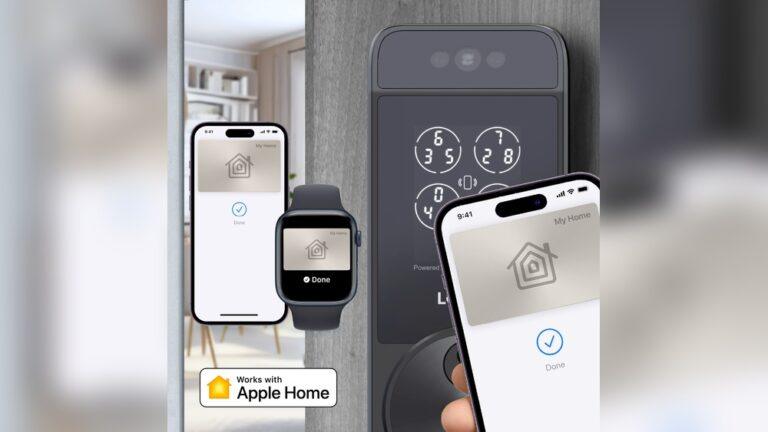
- Locks: Lock or unlock your doors.
- Cameras: View camera feeds or get alerts (some watches show images, some just notifications).
- Scenes: Run a group of actions, like “Movie Night” or “Good Morning.”
- Garage doors: Open or close the garage.
- Speakers: Play, pause, or skip music.
Some apps also let you check the status of devices. For example, you can see if a window is open or if your alarm is armed.

Credit: www.beyondkey.com
The Best Smartwatch Apps For Smart Home Control
There are many apps to choose from. Here are some of the most popular and reliable options. I’ve tried most of these myself and found them easy to use.
- Apple Home: Works with all HomeKit devices. Simple interface, runs scenes, and controls devices from your wrist.
- Google Home: Controls all devices linked to your Google account. Great for Wear OS watches.
- Amazon Alexa: Lets you use Alexa skills and routines. Useful for controlling lights, locks, and more.
- SmartThings: Samsung’s platform is powerful and works with many third-party devices.
- HomeDash: Advanced HomeKit dashboard for Apple Watch.
- IFTTT: Use applets to create custom automations. Works on some watches for extra flexibility.
Here’s a quick app comparison to help you decide:
| App | Platforms | Main Features | Ease of Use |
|---|---|---|---|
| Apple Home | Apple Watch | Scenes, device control, notifications | Very Easy |
| Google Home | Wear OS | Device control, routines | Easy |
| Amazon Alexa | Apple Watch, Wear OS | Skills, device control, routines | Medium |
| SmartThings | Wear OS, Samsung Tizen | Scenes, device control, automations | Easy |
| HomeDash | Apple Watch | Custom dashboard, advanced controls | Medium |
| IFTTT | Wear OS, Apple Watch (limited) | Custom automations, cross-platform | Medium |
When picking an app, look for one that matches your devices and your skill level. If you want something simple, stick with the official Home or Google Home apps.
Common Mistakes And How To Avoid Them
It’s easy to get excited and set things up quickly, but there are a few mistakes many people make.
1. Ignoring Compatibility
Not all smartwatches work with all smart home devices. Before buying new devices, check that they work with your smartwatch and chosen app. I once bought a smart plug that didn’t work with my platform—it ended up in a drawer.
2. Overloading With Too Many Devices
Start small. Add a few devices and get used to the controls. If you add too many at once, it’s easy to get confused or frustrated.
3. Forgetting Security
Smart home devices can be hacked if not set up correctly. Always use strong passwords and enable two-factor authentication when possible. Keep your apps and firmware updated.
4. Not Using Scenes Or Routines
Controlling one device at a time can be slow. Most platforms let you group actions into scenes or routines. For example, a “Good Night” scene can turn off all lights and lock the doors with one tap.
5. Relying On Wi-fi Alone
If your Wi-Fi is slow or goes down, your smart home might stop working. Consider adding devices that work with Bluetooth or Zigbee for more reliability.

Credit: us.amazon.com
Tips For Getting The Most Out Of Your Smartwatch And Smart Home
You can do more than just turn on lights. Here are a few advanced tips:
- Use voice control on your watch. Many smartwatches let you use Siri, Google Assistant, or Alexa by speaking to your wrist. This is great for hands-free control.
- Set up geofencing. Some platforms let you trigger actions when you arrive home or leave. For example, the lights can turn on when you’re close to home.
- Create custom notifications. Get alerts on your watch if a door opens or if there’s motion detected. I get an alert if my garage door is left open for more than 10 minutes.
- Automate your routines. Set your lights to turn on at sunset or your thermostat to lower at bedtime.
- Share access. If you live with family, teach them how to use the smartwatch controls. This way, everyone benefits.
Troubleshooting Smartwatch Smart Home Control
Sometimes things don’t work as expected. Here are some steps to fix common issues:
- Devices not responding: Check your Wi-Fi and make sure your watch and phone are connected.
- App not showing devices: Refresh the app or restart your smartwatch.
- Slow response: Move closer to your Wi-Fi router or upgrade your network.
- Missing features: Some apps have limited features on smartwatches. Use the mobile app for setup and advanced controls.
- Notifications not working: Check your phone and watch notification settings.
If you’re still having trouble, check the support pages for your app or device. Most brands have detailed help guides.
Real-world Examples
Let me share a couple of real examples from my own home:
- I use my Apple Watch to turn on my porch light when I’m carrying groceries at night. I set up a shortcut on my watch face for quick access.
- On weekends, I run a “Movie Night” scene from my watch. It dims the living room lights, closes the blinds, and starts Netflix on the TV. My family loves how easy it is.
- When I leave home, I use my smartwatch to lock the doors and turn off all lights. It gives me peace of mind, especially when I’m in a hurry.
These small actions save time and make daily life smoother. Once you get used to it, you’ll wonder how you lived without it.
Security And Privacy: What You Need To Know
Smart home devices can make life easier, but they also collect data about your habits and routines. Here are a few ways to stay safe:
- Only use trusted apps from major brands or the official app store.
- Keep your devices updated. Check for software updates regularly.
- Use secure passwords and don’t reuse passwords across devices.
- Enable two-factor authentication on your accounts.
- Check app permissions. Only give apps the access they need.
For more tips on smart home security, see this guide from the Federal Trade Commission.
Future Of Smartwatch Smart Home Control
Smartwatch and smart home tech are growing fast. In the next few years, we’ll see:
- More device compatibility. New standards like Matter will make it easier to connect all your devices, no matter the brand.
- Better voice assistants. Voice recognition will get smarter and more accurate, even in noisy rooms.
- Improved health integration. Smartwatches will help you control your home based on your health data, like lowering the blinds when you’re sleeping or adjusting the air quality if you have allergies.
- Faster performance. New chips and better apps will make everything smoother.
If you start now, you’ll be ready to take advantage of these new features as they roll out.
Frequently Asked Questions
How Do I Know If My Smartwatch Can Control My Smart Home Devices?
Most modern smartwatches like the Apple Watch, Wear OS watches, and some Fitbit and Samsung models can control smart home devices. Check the app store on your watch or the device’s website to see if there’s a compatible app.
Is It Safe To Control My Home Devices From My Smartwatch?
Yes, it’s safe if you use secure passwords, keep your devices updated, and only use trusted apps. Enable two-factor authentication for extra security.
Can I Control All My Devices, Or Are There Limits?
You can control most major smart home devices, like lights, thermostats, and locks. However, some advanced features or devices may only be available through the mobile app.
Do I Need My Phone Nearby For The Smartwatch To Work?
In most cases, yes. Your smartwatch often uses your phone’s internet connection and apps to control devices. Some watches with built-in cellular can work without the phone, but features may be limited.
What Should I Do If My Smartwatch App Stops Working With My Devices?
Try restarting your watch and phone, updating your apps, and checking your Wi-Fi connection. If that doesn’t work, look for help on the brand’s support page or try reinstalling the app.
Smartwatches are more than just fitness trackers—they’re powerful tools for home automation. With the right setup, you can control your whole house from your wrist. Start simple, learn what works for you, and soon you’ll enjoy the comfort and control that smartwatches and smart homes can bring.

Credit: homematic-ip.com

Rubel Miah is the Senior Editor at MyStyleGrid.com, where he brings a sharp editorial eye and an unshakable love for fashion to everything he does. A true style addict, Rubel lives and breathes trends, from streetwear to high fashion, and has a knack for turning inspiration into impactful stories. With years of experience in fashion journalism and digital media, he curates content that empowers readers to express themselves through style. When he’s not editing features or forecasting the next big thing, you’ll find him hunting down vintage pieces or capturing street style moments around the city.