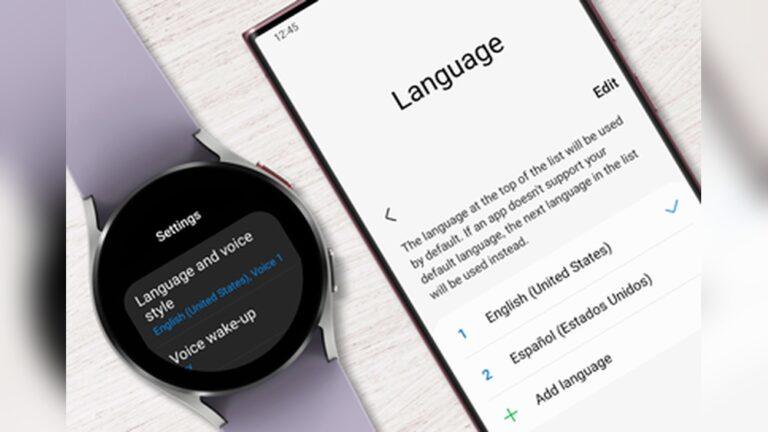
Changing the language on your smartwatch can make a big difference in how you use it every day. Maybe you set up your device in a hurry, or perhaps you received it as a gift with the language already set.
Sometimes, software updates or trips abroad can also change your smartwatch language by accident. No matter the reason, it’s important to know how to switch languages, so you can understand notifications, menus, and settings.
I know how confusing it feels when your smartwatch suddenly shows everything in a language you don’t speak. Once, while visiting my family abroad, my watch switched to a local language after a software update. It took me a while to figure out how to change it back, and I realized many people face the same issue.
In this guide, I’ll walk you through the steps for changing language settings on most smartwatches, no matter the brand or operating system. You’ll learn what to do if the menus are hard to read, common mistakes to avoid, and a few expert tricks that can save you time.
By the end, you’ll feel confident handling language changes on your own device.
Why Change Your Smartwatch Language?
Your smartwatch should make life easier, not harder. If you can’t read the text, you might miss important alerts, mess up workout tracking, or even send the wrong message. Here are some common reasons people want to change their smartwatch language:
- You bought the watch in another country
- You set it up in a rush and picked the wrong language
- Someone else used your watch before you
- A software update changed the language by mistake
- You want to practice a new language
Changing the language can also help if you’re learning a new language. Setting your smartwatch to that language gives you daily practice in a simple, low-pressure way.
Key Things To Know Before Changing Language
Before you start, there are a few important things that can affect the process:
- Watch Model and Brand: Each smartwatch brand has its own way of handling language settings. For example, Apple Watch, Samsung Galaxy Watch, Fitbit, and Garmin have different menu structures.
- Connected Phone: Some smartwatches sync with your phone’s language. Changing your phone’s language may change the watch’s language, too.
- Software Version: Newer software versions sometimes add or remove language options.
- Backup: If you are worried about losing data, it’s smart to back up your watch before making changes.
- Voice Commands: Some watches let you change language using voice assistants like Siri or Google Assistant.
General Steps To Change Language On Most Smartwatches
While each smartwatch is unique, most follow a similar process. Here’s a simple path you can try on almost any device:
- Wake up your smartwatch by tapping the screen or pressing a button.
- Open the Settings menu. Look for a gear icon or something similar.
- Scroll to ‘General’ or ‘System’ settings.
- Find the ‘Language’ or ‘Language & Input’ option.
- Select your preferred language from the list.
- Confirm and restart if asked.
If the language is hard to read, use icons as your guide. Most brands use the same icons for settings, system, and language menus.
How To Change Language On Popular Smartwatch Brands
Each smartwatch brand has its own way of managing language settings. I’ll cover the most common brands, so you can find steps that match your device.
Apple Watch
Apple Watch links its language to your iPhone. Here’s how you can change it:
- Open the Apple Watch app on your iPhone.
- Tap My Watch at the bottom.
- Tap General.
- Select Language & Region.
- Tap Watch Language.
- Choose your new language and tap Done.
- Your Apple Watch will restart and switch to the new language.
Tip: If you change your iPhone’s language, your Apple Watch may also change.
Samsung Galaxy Watch (wear Os)
Samsung watches use either Tizen or Wear OS. For Wear OS, follow these steps:
- On your watch, press the Home button.
- Tap Settings (gear icon).
- Scroll to System.
- Tap Languages & input.
- Select Languages.
- Choose your preferred language.
Extra Insight: If you can’t find the exact menu, try using the Wear OS app on your phone.
Fitbit
Fitbit watches use a different method. Here’s what you do:
- Open the Fitbit app on your phone.
- Tap your profile picture (top left).
- Tap your device image.
- Scroll to Device Settings.
- Tap Language.
- Choose your language and sync your Fitbit.
Note: The change takes effect after syncing.
Garmin
On most Garmin smartwatches:
- Press and hold the Menu button.
- Scroll to Settings.
- Find System and tap it.
- Select Language.
- Pick your new language.
Personal Experience: I once changed my Garmin’s language by mistake and had to use icon shapes to guide me back to English. The gear icon (settings) and globe icon (language) are your friends here.
Huawei And Other Brands
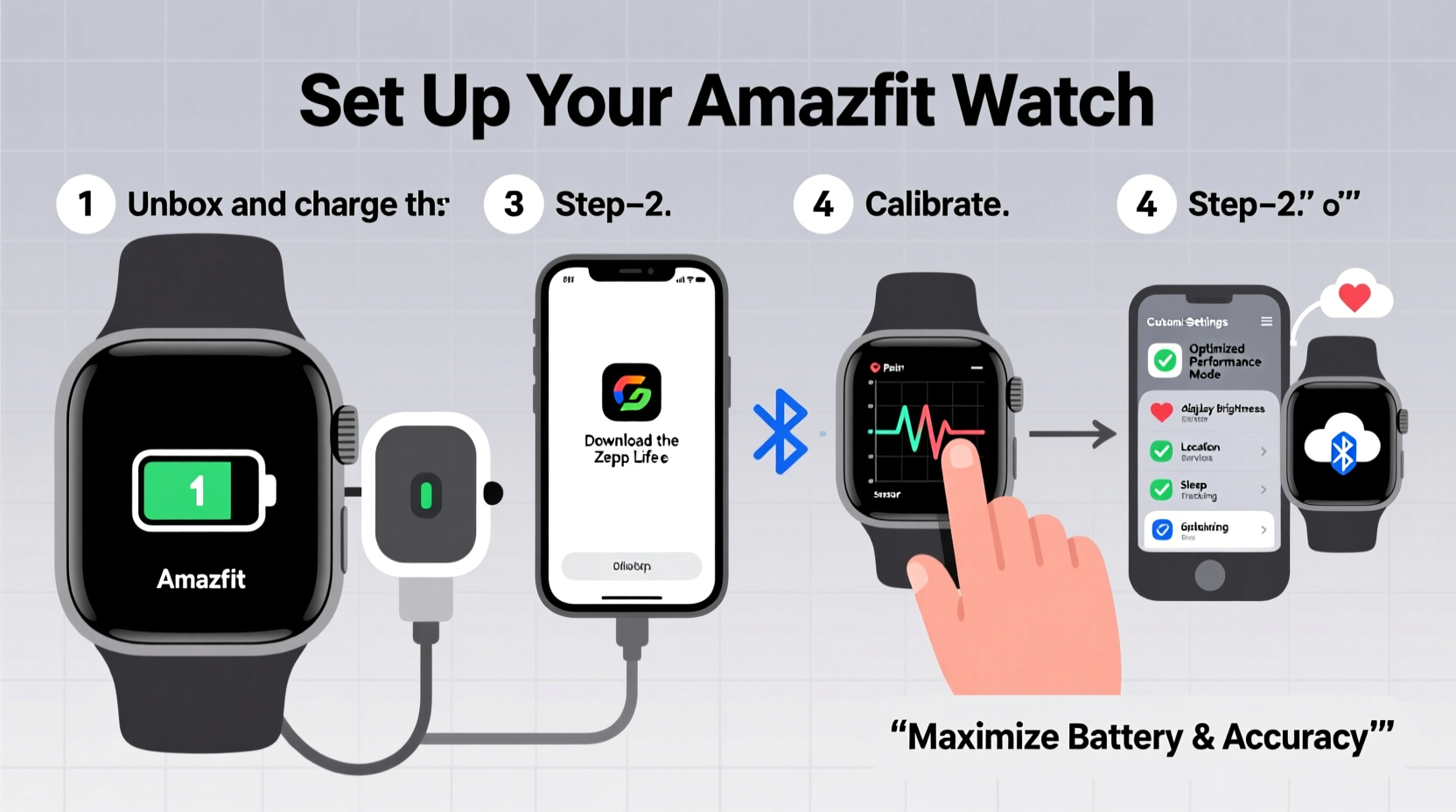
Most other brands (like Huawei, Amazfit, or TicWatch) follow a similar pattern:
- Go to Settings.
- Find System or Device.
- Select Language.
- Pick your language and confirm.
If you ever get stuck, check the watch’s official support page or use the companion phone app.
What To Do If Menus Are In A Language You Don’t Understand
This is a common problem, especially after buying a watch from another country. Here’s how to solve it:
- Use icons: Most settings have universal icons. The gear means settings, the globe means language, and a checkmark means confirm.
- Use your phone: Many watches let you change language from the companion app.
- Ask for help: Search for a video guide in your language. Many YouTube videos show step-by-step visuals.
- Reset as a last resort: If you can’t change the language, consider a factory reset. This will let you pick the language during setup, but you may lose data.
Pro tip: Take a photo of the menu before you start. That way, you can compare with guides online.
How Phone Language Affects Your Smartwatch
Many smartwatches, especially Apple Watch and Wear OS devices, mirror your phone’s language. Here’s what that means:
- If you change your phone’s language, the watch may switch too.
- If you want the watch in a different language, you may need to set it separately.
- Some watches only support languages that are also on the phone.
Example: I once wanted to practice Spanish, so I set my phone to Spanish. My smartwatch changed too, and I got daily reminders and alerts in Spanish. It was a fun way to learn!
Credit: www.alibaba.com
Common Problems And How To Fix Them
Changing the language is usually easy, but sometimes things go wrong. Here are some common issues and solutions:
The New Language Won’t Apply
- Make sure your watch is synced to your phone.
- Restart both devices.
- Update the watch software.
The Language List Is Missing Your Choice
- Some watches only offer certain languages based on the region.
- Check for software updates to unlock more options.
The Watch Crashes After Changing Language
- Restart the watch.
- If it keeps happening, reset to factory settings and set up again.
The Companion App Shows A Different Language
- Go to the app’s settings and pick your preferred language.
- Make sure the app and watch software are both updated.
Step-by-step: Changing Language On Different Operating Systems
Smartwatches use different operating systems (OS). Here’s how language changes work for each major OS.
Wear Os (google)
- Open Settings on your watch.
- Tap System.
- Tap Languages & input.
- Tap Languages.
- Select your language.
Some Wear OS watches let you add multiple languages.
Watchos (apple)
Changing language on Apple Watch always goes through the iPhone. The Apple Watch app is your main tool.
Tizen Os (older Samsung Watches)
- Press the Home button.
- Go to Settings.
- Scroll to General.
- Tap Language.
- Choose your language and confirm.
Fitbit Os
Everything happens inside the Fitbit app on your smartphone.
Garmin Os
All changes happen directly on the watch. Use the gear and globe icons to guide you.
Proprietary Systems
Some brands use their own OS. The process is usually similar but may need the phone app.
Language Support: Which Watches Support More Languages?
Not all smartwatches support every language. Here’s a quick comparison of language support on popular brands:
| Brand | Approx. Number of Supported Languages | Notes |
|---|---|---|
| Apple Watch | 40+ | Follows iPhone language list |
| Samsung Galaxy Watch | 30+ | Wear OS adds more choices |
| Fitbit | 20+ | Limited compared to others |
| Garmin | 15-30 | Depends on model |
| Huawei | 25+ | Good for Asian languages |
If you need a less common language, check the device’s official website before buying.
How Changing Language Affects Other Features
Switching the language can do more than just translate menus. Here’s what else can change:
- Voice Assistant: Siri, Google Assistant, or Bixby will speak and listen in the new language.
- Notifications: Messages, calendar entries, and alerts will show in the selected language.
- Apps: Some third-party apps may not support all languages.
- Units & Date Format: Changing language can also change time, date, and unit formats (e.g., 24-hour clock, metric/imperial).
Non-obvious insight: If you use health or fitness features, some terms might be different in other languages. For example, “steps” could appear as “pasos” in Spanish or “pas” in French. This can be confusing at first.
How To Practice Language Learning With Your Smartwatch
Smartwatches are a fun tool for learning new languages. Here’s how you can use yours:
- Set the watch to your target language.
- Use voice commands to practice speaking.
- Read notifications in the new language for daily exposure.
- Try simple tasks like setting alarms or timers to learn common words.
- Switch back to your main language if you get stuck.
I improved my French by setting my smartwatch to French for a month. At first, it felt strange, but soon, I learned words like “réveil” (alarm) and “activité” (activity) without even trying.
Tips For Navigating Menus In An Unknown Language
If you’re stuck in a language you don’t understand, here are tricks that work:
- Use a second device: Open a guide or YouTube video on your phone and match the icons step by step.
- Find the gear icon: This always leads to settings.
- Look for the globe icon: This usually means language or region.
- Try Google Translate: Use your phone’s camera to translate menus live.
- Count menu positions: Guides often say, “third item down”—count the number of taps to reach it.
Extra tip: If you know the menu order in your language, you can use muscle memory to navigate back even if you can’t read the text.
Credit: www.walmart.com
What To Do If You Get Stuck
Sometimes, even with all these tips, you might still feel lost. Here’s what you can do:
- Ask for help: Contact the device’s customer support.
- Visit a store: Staff at an official store can help you change settings.
- Check the manual: Most manuals have a section for changing language.
- Reset the watch: As a last resort, a factory reset will let you pick the language from scratch.
For official help, you can visit the Apple Support page for detailed guides and troubleshooting.
Table: Quick Reference For Changing Language On Popular Smartwatches
Here’s a simple reference for the fastest way to change the language on top smartwatch brands:
| Brand | How to Change Language | Can Change on Watch? | Needs Phone App? |
|---|---|---|---|
| Apple Watch | Apple Watch app > General > Language & Region | No | Yes |
| Samsung Galaxy Watch | Settings > System > Language | Yes | No |
| Fitbit | Fitbit app > Device Settings > Language | No | Yes |
| Garmin | Settings > System > Language | Yes | No |
| Huawei | Settings > System > Language | Yes | No |
Credit: www.att.com
Avoiding Common Mistakes When Changing Language
It’s easy to make mistakes if you rush through the process. Here’s how to avoid them:
- Don’t reset unless needed: A factory reset erases all data.
- Check for software updates: Some new languages only appear after updating.
- Sync devices: Changes may not show until the watch and phone sync.
- Remember menu paths: Write down or memorize the steps in your main language before switching.
- Avoid changing region unless needed: Region settings can affect more than just language—like payment apps or weather.
Non-obvious insight: Sometimes, changing the language will affect the keyboard layout. If you type messages on your smartwatch, double-check the new keyboard.
Should You Change Language On The Watch Or Phone?
Whether to change the language on your watch or phone depends on your smartwatch brand and needs.
- Change on phone if your watch mirrors phone settings (Apple, Fitbit).
- Change on watch if you want different languages on each device (Samsung, Garmin).
Tip: If you’re testing a new language, try it on the watch only first. That way, your phone remains easy to use.
Security And Privacy Considerations
Switching languages does not affect your data, but it can change how privacy messages appear. Always read pop-ups carefully after switching. If you see an unknown warning, use Google Translate to check it.
Extra note: If you use payment or health features, changing the region (not just language) might affect access to these services.
How To Revert To Your Original Language
If you want to switch back, just follow the same steps and pick your main language. If you forget the steps, use icons or ask for help from a friend who knows the current language. Keeping a backup of your watch settings can save you time if you change languages often.
When To Ask For Professional Help
If you try everything and still can’t get your language right, don’t stress. There’s no shame in getting help. Visit an official store, call customer support, or ask a tech-savvy friend. It’s better to get it right than get stuck in menus you can’t read.
Frequently Asked Questions
How Do I Change The Language If I Can’t Read The Current One?
Use icon shapes to guide you to settings, then language. You can also use your phone’s camera and Google Translate to read the menus live. If you’re still stuck, search for a video guide that matches your watch’s menus.
Will I Lose Data If I Change The Language?
No, changing the language does not delete your data. However, if you do a factory reset to change the language, you may lose your apps, settings, and saved data.
Can I Set Different Languages On My Phone And Smartwatch?
On some watches (like Samsung and Garmin), yes. On others (like Apple Watch), the watch follows the phone’s language. Check your model’s features before you try.
Why Isn’t My Preferred Language Available?
Some watches support only a few languages, or limit language choices based on region. Updating the software can help, but not all models offer every language.
What If Changing The Language Changes The Keyboard Too?
This is normal. The keyboard switches to match the new language. If you type a lot, you may need to relearn the keyboard layout or switch back to your main language.
Switching the language on your smartwatch isn’t just a technical step—it’s a way to make your daily life smoother and more personal. With the right approach, you can handle language settings with confidence. If you run into trouble, remember that help is just a step away—whether from official support or a friend.
Now you’re ready to take control of your smartwatch, no matter what language it speaks.

Rubel Miah is the Senior Editor at MyStyleGrid.com, where he brings a sharp editorial eye and an unshakable love for fashion to everything he does. A true style addict, Rubel lives and breathes trends, from streetwear to high fashion, and has a knack for turning inspiration into impactful stories. With years of experience in fashion journalism and digital media, he curates content that empowers readers to express themselves through style. When he’s not editing features or forecasting the next big thing, you’ll find him hunting down vintage pieces or capturing street style moments around the city.