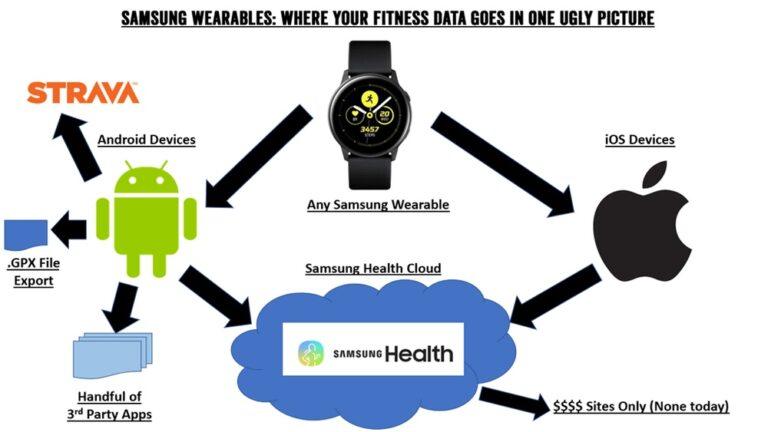
Many people love using smartwatches to track their health. Steps, heart rate, sleep, and workouts can all be measured with just a tap on your wrist. But what if you want to see your fitness data on your computer? Maybe you want to keep a backup, do more analysis, or share it with your doctor.
Exporting your smartwatch fitness data manually might seem hard, but it is possible. With the right steps and a bit of patience, you can do it yourself.
I remember when I first started running. I used a simple smartwatch and wanted to see all my runs in one place on my laptop. At first, I got stuck because the app only showed weekly stats. But after some trial and error, I found ways to move my data to my computer.
I learned that different watch brands need different steps. In this guide, I will walk you through all the main ways to export your fitness data manually, with clear instructions for beginners and practical tips from my own experience.
Why Export Smartwatch Fitness Data Manually?
There are many reasons why you might want to export your fitness data to your computer:
- Data backup: Sometimes apps lose data during updates or phone changes.
- Advanced analysis: You can use spreadsheet tools to check your progress in detail.
- Health sharing: Doctors or trainers often need your raw data.
- Switching devices: Exporting helps you move data between different brands.
- Personal records: Some people like to keep a copy for years.
Manual exporting gives you full control. You do not have to depend on a single app or cloud service. It also makes you more aware of your health trends. Plus, you often find hidden details in the raw files that apps do not show.
What You Need Before Exporting
Before you start, make sure you have:
- Your smartwatch and charging cable: Some watches need to be connected by cable.
- A computer (Windows or Mac): Any modern PC or laptop will work.
- The official app: Most smartwatches sync with an app (like Fitbit, Garmin Connect, or Samsung Health).
- Internet connection: Needed for downloading files or syncing data.
- Enough storage: Fitness data files are small, but videos and GPS tracks can take more space.
You do not need any special skills. Just be ready to follow step-by-step instructions. If you get stuck, check the support site for your watch or ask in online forums. With a bit of patience, you will succeed.
Understanding Fitness Data File Types
When you export data from your smartwatch, you will often see file types like CSV, GPX, or TCX. Here is what they mean:
- CSV (Comma Separated Values): A simple spreadsheet file. Easy to open in Excel or Google Sheets.
- GPX (GPS Exchange Format): For routes and tracks, often used for running or cycling.
- TCX (Training Center XML): Stores more details like heart rate and laps.
- FIT (Flexible and Interoperable Data Transfer): Used by Garmin and some others for detailed data.
Some watches let you choose the file type. Others only give you one option. Most computers can open these files with free software.
Here is a quick look at common file types and uses:
| File Type | Main Use | Can Open With |
|---|---|---|
| CSV | Steps, heart rate | Excel, Google Sheets |
| GPX | GPS tracks | Map apps, Strava |
| TCX | Training data | Garmin Connect, TrainingPeaks |
| FIT | Advanced metrics | Garmin tools |
If you do not know which file you need, start with CSV. It is the easiest for beginners.
Common Methods To Export Fitness Data
Not all smartwatches work the same way. The right method depends on your watch and app. Below are the main ways you can export fitness data manually:
- Export from the official app
- Export from the cloud account
- Direct file transfer from watch to computer
- Third-party export tools
- Using email or share options
- Manual logging
Let’s go through each method in detail.
Credit: setgraph.app
1. Export From The Official App
Most smartwatches sync with an official app on your phone or computer. Some apps let you export data directly.
Steps For Popular Brands
Fitbit:
- Open the Fitbit dashboard in a web browser (not the mobile app).
- Click the gear icon and choose Settings.
- Go to Data Export.
- Choose the date range and file type (CSV is best for beginners).
- Click Download.
Garmin:
- Go to the Garmin Connect website.
- Log in and select Activities.
- Click on the activity you want.
- Click the gear icon, then Export as Original, TCX, or CSV.
- Save the file to your computer.
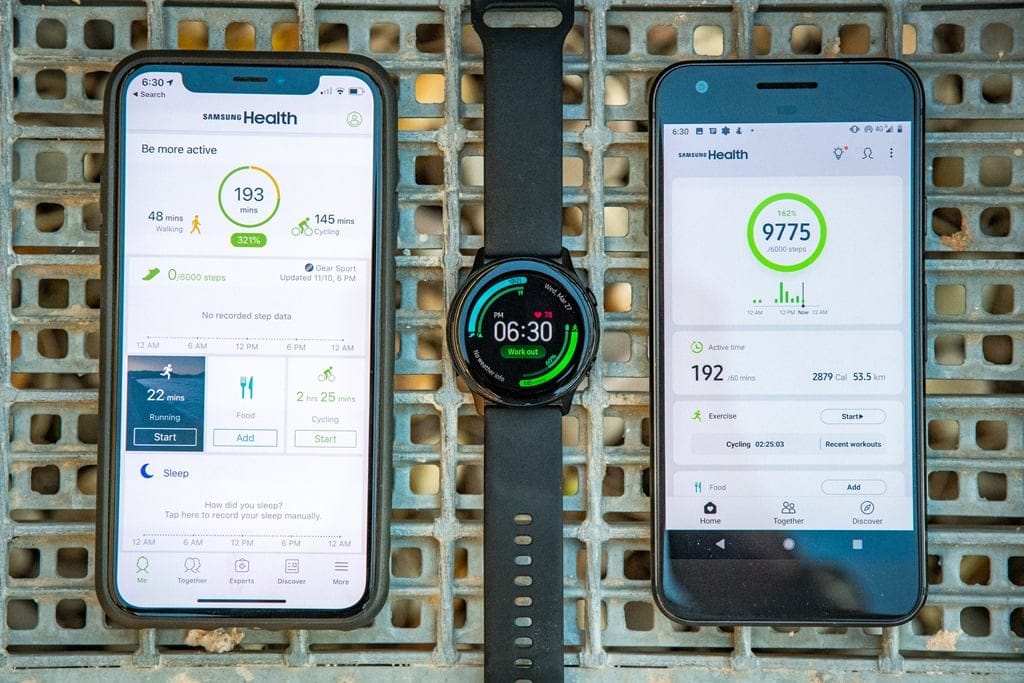
Samsung Health:
- Open Samsung Health on your phone.
- Go to More > Settings > Data management.
- Tap Export data.
- Send the file to yourself by email, Bluetooth, or save to cloud storage.
Amazfit or Zepp:
- Open the app and go to the activity list.
- Tap the share or export icon.
- Choose Export as GPX or TCX.
- Send or save the file.
Apple Watch:
- Open the Health app on your iPhone.
- Tap your profile picture, then Export All Health Data.
- Email the file or save it to your computer.
Tips
- Always check the file type before downloading.
- Export a small date range first to test if it works.
- Some apps limit downloads to one month or one year at a time.
- If you cannot find export options, search for “export data” in the app’s help section.
2. Export From The Cloud Account
Many smartwatches back up data to the cloud. This is helpful if you lost your phone or need to export a large amount of data.
How To Export From Cloud Accounts
- Log in to your account on the brand’s official website (like fitbit.com or garmin.com).
- Look for Data Export, Download Data, or Account Settings.
- Choose the data range and file type.
- Download the file to your computer.
Here is a comparison of a few popular cloud export options:
| Brand | Supports Cloud Export? | File Types | Date Range Limits |
|---|---|---|---|
| Fitbit | Yes | CSV | Up to 31 days per file |
| Garmin | Yes | CSV, TCX, GPX, FIT | Single activity or all |
| Samsung | Yes | XML | All data |
| Apple | Yes | XML | All data |
Extra Advice
- Back up your files after download.
- Some cloud exports can take hours if you have a lot of data.
- If you change your password, you may need to log in again.
3. Direct File Transfer From Watch To Computer
Some smartwatches let you connect by USB and transfer files directly. This method is common with older or advanced sports watches.
Step-by-step Guide
- Turn off the watch.
- Connect your watch to the computer with a USB cable.
- Wait for the watch to show up as a storage device.
- Open the watch folder.
- Look for folders called “Activities” or “Workouts.”
- Copy GPX, TCX, or FIT files to your computer.
Example:
I once used an older Garmin Forerunner. It worked like a USB stick. I could see all my runs in the “Activities” folder. I copied them to my desktop, then opened them in a free mapping tool. This method is simple, but not all watches support it.
Things To Watch Out For
- Do not disconnect the cable while copying files.
- Some watches need to be set to “data transfer” mode.
- If nothing shows up, install the official watch software.
4. Third-party Export Tools
If the official app does not let you export, third-party tools can help. These tools connect to your account and download data for you.
Popular Tools
- Tapiriik: Syncs data between many fitness apps.
- FitnessSyncer: Exports and combines data from several sources.
- Strava Export: Lets you export all Strava activities at once.
How To Use Them
- Sign up on the tool’s website.
- Link your smartwatch account.
- Select the data you want to export.
- Download files to your computer.
Warning: Only use tools from trusted sources. Never share your password with unknown sites.
Real-world Insight
I once tried exporting all my cycling data from Strava. The built-in exporter limited me to one file at a time. When I used FitnessSyncer, I could get all activities as CSVs in one zip file. It saved me hours.
Credit: www.dcrainmaker.com
5. Using Email Or Share Options
Some apps let you send data by email or share it with other apps.
How It Works
- Select an activity in your app.
- Tap the share or export button.
- Choose Email, Drive, or Dropbox.
- Open the file on your computer.
This method is good for one or two activities, not for large exports. But it is fast and does not need any extra software.
6. Manual Logging
If all else fails, you can write your data down by hand or type it into a spreadsheet. This is slow, but it works for basic stats like steps or sleep.
How to do it:
- Open your app and go to the day or activity you want.
- Write down the numbers (steps, distance, calories).
- Type them into Excel or Google Sheets.
Manual logging is best for people who want to track only a few metrics or keep a daily summary.
Opening And Using Exported Fitness Data
Once you have exported your fitness data, you need to open it and make sense of it.
Opening Csv Files
- Use Excel, Google Sheets, or LibreOffice.
- Import the CSV file.
- Check columns for date, steps, heart rate, and more.
Opening Gpx/tcx/fit Files
- Use free tools like GPS Visualizer or Garmin BaseCamp.
- You can also use online mapping services to view your routes.
- Some websites let you convert files to other formats.
Making Sense Of The Data
- Look for trends: Are you getting more active over time?
- Spot problems: Is your heart rate too high during walks?
- Share with your doctor: Bring the files on a USB drive or email them.
Tip: Save your files in a folder with clear names, like “2024_Fitness_Exports.”
Troubleshooting Common Problems
Manual exporting is not always smooth. Here are some issues you might face and how to fix them.
Problem: No Export Option In The App
- Solution: Try exporting from the web dashboard or use a third-party tool.
Problem: File Will Not Open
- Solution: Make sure you have the right program (Excel for CSV, GPS tools for GPX).
- If the file is too big, try opening it in a free online viewer.
Problem: Data Looks Strange
- Solution: Check if your app uses commas or semicolons in CSV files.
- Try importing with different settings.
Problem: Usb Not Detected
- Solution: Change the USB cable or port.
- Restart your watch and computer.
Problem: Export Fails With Error
- Solution: Export a smaller date range.
- Clear your browser cache or update the app.
If you get stuck, visit the official help section or try asking in smartwatch forums. Often, other users have faced the same problem and can help.
Privacy And Security Tips
When handling health data, your privacy matters. Here are some important tips:
- Use strong passwords for cloud accounts.
- Back up files on a secure drive.
- Do not share files with untrusted sources.
- Delete old exports if you no longer need them.
Remember, fitness files can contain location data and personal info. Keep them safe, especially if you share your computer with others.
Making The Most Of Your Exported Data
Now that you have your fitness data on your computer, what can you do with it?
- Create charts: Track your progress in Excel or Google Sheets.
- Analyze sleep: See patterns over months.
- Compare workouts: Find your best and worst days.
- Share with health experts: Make your doctor visits more productive.
- Plan new goals: Use your data to set realistic targets.
You can also try uploading your data to other apps or services. For example, some people export from Fitbit and upload to Strava or Google Fit. This lets you combine data from different devices.
If you are interested in more advanced analysis, read about data science for fitness. Many free guides are available online, for example on Wikipedia.
Advanced Tips And Non-obvious Insights
Here are two things many beginners miss when exporting fitness data:
1. Time Zones Matter:
If you travel or change time zones, your exported data may show unexpected times. Double-check start and end times in your spreadsheet. This can affect sleep and workout records.
2. Not All Metrics Export:
Some apps do not export all the data you see in the app. For example, you might see “active minutes” on your watch but not in the CSV file. If you need a specific metric, check before exporting large batches.
3. Automation Is Possible:
If you export data often, you can automate the process with scripts or tools like IFTTT. This is more advanced but can save time.
4. App Updates Can Change Export Options:
Sometimes, a feature you used last month is missing after an update. Export your data regularly to avoid surprises.
Frequently Asked Questions
What File Type Should I Export For Simple Analysis?
CSV is best for beginners. You can open it in Excel or Google Sheets and easily see your steps, heart rate, or sleep data.
Can I Export All My Activities At Once?
It depends on your watch and app. Some apps let you export all data for a year or more at once. Others limit you to one activity or one month at a time. Check the export options in your app.
What Should I Do If My Exported File Will Not Open?
First, check the file type. Use Excel for CSV files, or try free tools for GPX and TCX files. If the file is too large, open it with Google Sheets or split it into smaller parts.
Is It Safe To Share My Fitness Data With Others?
Be careful. Fitness files can show your location and health info. Only share with trusted people, like your doctor. Avoid posting raw data on public forums.
How Often Should I Export My Smartwatch Data?
If you care about backups, export once a month or after big workouts. If you do lots of analysis, you may want to export every week. Regular exports prevent data loss if you switch devices or apps.

Credit: www.samsung.com
Wrapping Up
Exporting smartwatch fitness data to your computer is a smart move for anyone serious about health. It gives you control, insight, and peace of mind. With the right method—whether through the app, cloud, USB, or even by hand—you can keep your health story safe and ready to use.
I know that the first time you try, it might be confusing. But with practice, it becomes easy. Soon, you will see patterns and progress you never noticed on your watch screen.
If you ever get stuck, remember that help is available in official guides and user forums. Take your time, protect your privacy, and enjoy making the most of your fitness journey.

Rubel Miah is the Senior Editor at MyStyleGrid.com, where he brings a sharp editorial eye and an unshakable love for fashion to everything he does. A true style addict, Rubel lives and breathes trends, from streetwear to high fashion, and has a knack for turning inspiration into impactful stories. With years of experience in fashion journalism and digital media, he curates content that empowers readers to express themselves through style. When he’s not editing features or forecasting the next big thing, you’ll find him hunting down vintage pieces or capturing street style moments around the city.