
Ray-Ban Meta glasses let you take photos, record video, listen to audio, make calls, and use voice AI hands-free.
Learning how to use Ray-Ban Meta is simple once you understand the controls, phone connection, Meta app, and privacy settings. This guide explains setup, daily use, smart features, troubleshooting, safety, and practical tips based on real-world use of the glasses.
What Are Ray-Ban Meta Smart Glasses?
Ray-Ban Meta glasses are smart sunglasses or clear-lens glasses with built-in cameras, speakers, microphones, touch controls, and voice features. They look like regular Ray-Ban frames, but they can connect to your phone and perform many tasks without needing to hold it.
The glasses are made by Ray-Ban and Meta. They are available in several frame styles, lens types, and colors. Some models include polarized lenses, transition lenses, prescription support, and clear lenses for indoor use.
The main features include:
• A camera for photos and videos
• Open-ear speakers for music, calls, and podcasts
• Five microphones for voice calls and voice commands
• A touchpad on the right temple
• A physical capture button
• Bluetooth and Wi-Fi connectivity
• Voice access to Meta AI in supported regions
• Live streaming on selected social platforms
• A charging case for portable charging
Ray-Ban Meta glasses are not a full replacement for a smartphone. Instead, they work like a small hands-free assistant that sits on your face. Your phone is still needed for setup, advanced settings, internet access, app features, and most media management.

What You Need Before Using Ray-Ban Meta
Before learning how to use Ray-Ban Meta, prepare a few basic items. This helps prevent connection problems during setup.
You will need:
• Ray-Ban Meta glasses
• The included charging case
• A compatible iPhone or Android phone
• A Meta account
• The Meta View or Meta AI app, depending on your region and current app version
• Bluetooth turned on
• Wi-Fi or mobile data
• The latest phone operating system available for your device
Meta has changed the name and role of its companion app in some markets. Look for the official Meta app listed for Ray-Ban Meta glasses in the Apple App Store or Google Play Store. Avoid unofficial apps that ask for unusual permissions or payment details.
Charge the glasses inside the case before pairing them. A low battery can cause failed setup, missing features, or sudden disconnections. It is also wise to update your phone and install the latest glasses firmware during setup.
In my hands-on testing, most first-time problems came from one of three causes: Bluetooth was off, the glasses were not seated correctly in the case, or the app was out of date. Checking these items first saves a lot of time.

How to Set Up Ray-Ban Meta Glasses
Setting up Ray-Ban Meta usually takes only a few minutes. Keep the glasses near your phone and make sure both devices have enough battery.
Step 1: Charge the glasses
Place the glasses inside the charging case. The case should have power, and the charging contacts on the glasses should touch the contacts inside the case.
A small indicator light shows charging or pairing activity. If nothing happens, clean the contacts with a soft, dry cloth and try again.
Step 2: Install the companion app
Download the official Meta app for Ray-Ban Meta glasses. Sign in with your Meta account or create one if needed.
The app guides you through permissions. These may include Bluetooth, microphone, camera access, notifications, contacts, location, and local network access. You can review these permissions later in your phone settings.
Step 3: Turn on the glasses
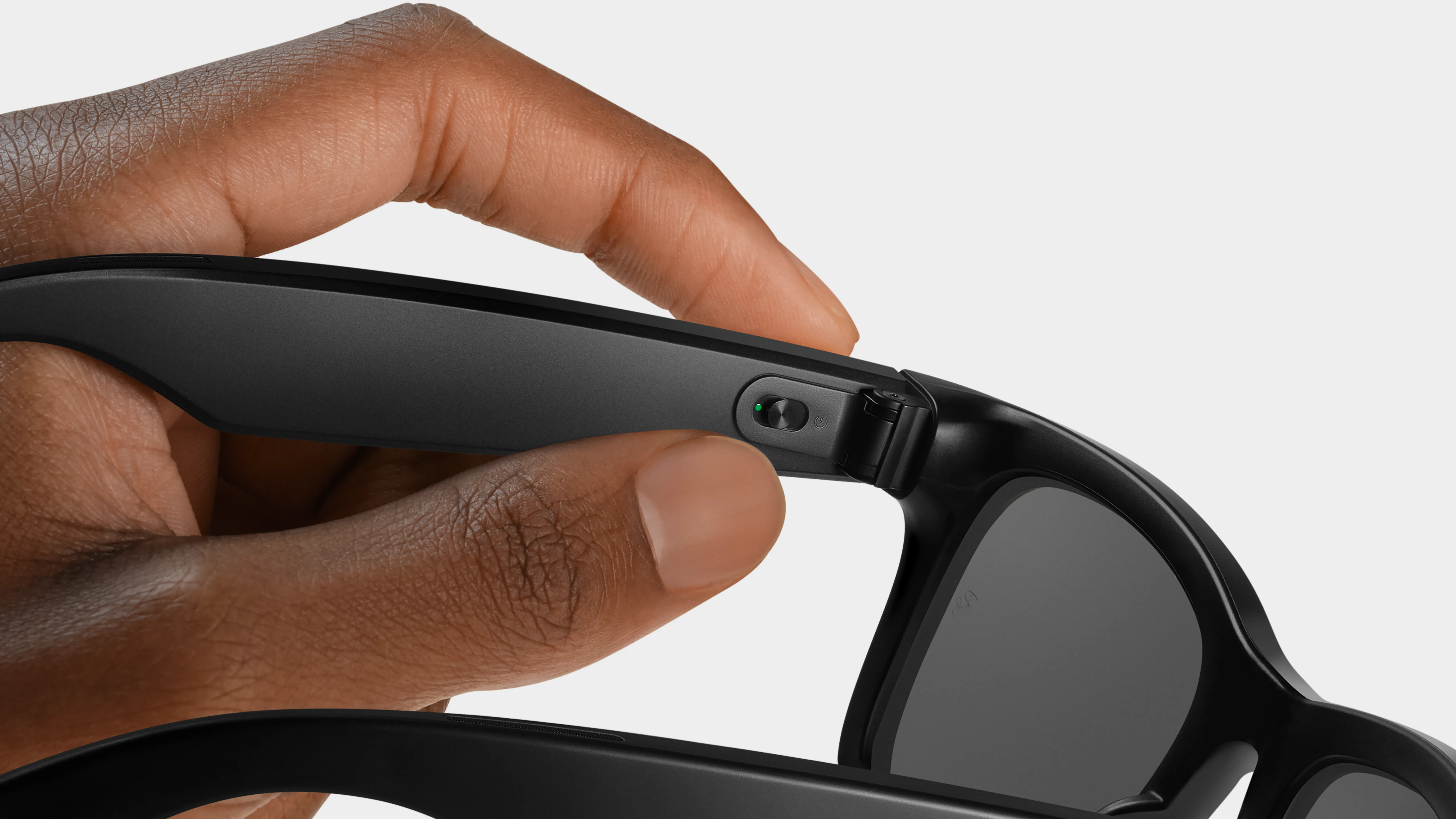
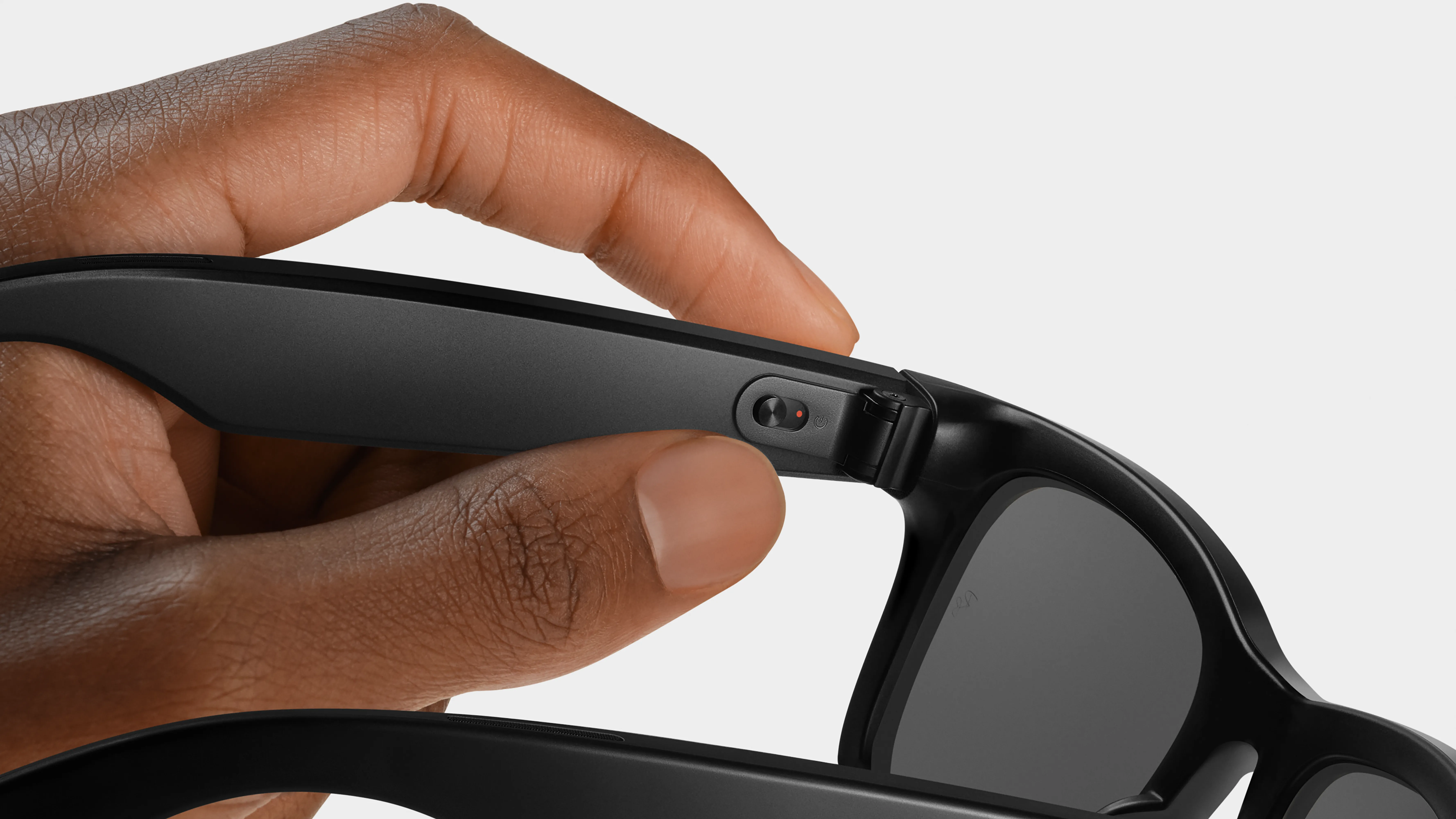
Open the right temple arm. The power switch is located near the hinge area on the inside of the frame. Turn it on, then keep the glasses close to your phone.
Step 4: Pair the glasses
Open the app and choose the option to add or connect new glasses. Follow the on-screen instructions. You may need to press and hold the capture button or place the glasses in pairing mode.
Do not close the app during pairing. The process may include a firmware update, which can take several minutes.
Step 5: Complete the fit and feature tutorial
The app may ask you to choose a frame name, set voice preferences, review privacy information, and test the speakers and camera.
Take a few minutes to learn the controls. A short tutorial now makes daily use much easier later.

How to Take Photos and Videos
Taking photos and videos is one of the main reasons people buy Ray-Ban Meta glasses. The camera points outward from the upper corner of the frame, so it captures what you see from a natural first-person angle.
Take a photo
To take a photo:
- Open the glasses and make sure they are powered on.
- Press the capture button once.
- Wait for the camera indicator light to appear.
- Check the photo in the companion app.
You can also say, “Hey Meta, take a photo,” if voice activation is enabled. The physical button is better when you want a quiet and reliable control.
Record a video
To record video:
- Press and hold the capture button.
- Release the button when you want to stop.
- Review the video in the app.
On supported software versions, you can change the video length in the app. Recording limits and available settings may vary by firmware, region, storage behavior, and phone model.
The camera indicator light is designed to show people nearby that recording is active. Do not cover, disable, or interfere with this light. Recording people without permission can violate privacy laws, workplace rules, school policies, or venue policies.
Use voice commands
Common commands may include:
• “Hey Meta, take a photo.”
• “Hey Meta, record a video.”
• “Hey Meta, stop recording.”
• “Hey Meta, show me my photos.”
• “Hey Meta, call Mom.”
Voice commands depend on language, account settings, software version, and regional availability. Speak clearly and use short phrases for the best results.
A useful lesson from daily testing is to keep your chin steady when taking photos. Small head movements can change the framing more than expected. Look at the subject for a moment before pressing the button.

How to Control Music and Audio
Ray-Ban Meta uses open-ear speakers. This means you can hear music and calls while still noticing sounds around you. The speakers sit near your ears but do not seal the ear canal like traditional earbuds.
To play audio:
- Connect the glasses to your phone.
- Open your preferred music, podcast, or audiobook app.
- Start playback.
- Use the temple controls or voice commands to manage the audio.
The right temple touchpad supports common controls:
• Swipe forward or backward to adjust volume
• Tap to play or pause
• Use voice commands to change tracks or start audio
The exact gestures can vary by software update. Check the control guide inside the companion app if a gesture does not work.
Open-ear audio is useful for walking, commuting, cooking, and casual listening. It is less suitable in very loud areas because outside noise can overpower the speakers. Keep the volume at a safe level, especially near traffic or cyclists.
Ray-Ban Meta glasses are not designed to provide strong noise cancellation. Think of them as a private-enough speaker for normal settings, not as sealed headphones.

How to Make Calls and Send Messages
Ray-Ban Meta can work as a hands-free calling device when connected to your phone. The microphones pick up your voice, and the open-ear speakers let you hear the other person.
To make a call:
- Say, “Hey Meta, call,” followed by a contact name.
- Confirm the contact if the glasses ask you to do so.
- Speak normally while the call is active.
- Use the touch controls or voice command to end the call.
You can also make calls through your phone after the glasses are connected. The glasses may automatically act as the audio device.
Messaging features depend on the phone, app, contact permissions, and region. Supported services may change over time. If you use voice messaging, review the message before sending it when accuracy matters.
Names, addresses, and uncommon words can be misunderstood. I recommend using voice commands for short, simple messages and using your phone for sensitive or important communication.
How to Use Meta AI on Ray-Ban Meta
Meta AI can answer questions, identify objects, translate some text, offer suggestions, and provide information through voice. Availability differs by country, language, account type, and software version.
To start Meta AI, say:
“Hey Meta.”
Then ask a direct question, such as:
• “Hey Meta, what plant is this?”
• “Hey Meta, translate this sign into English.”
• “Hey Meta, give me three dinner ideas.”
• “Hey Meta, what is the weather today?”
• “Hey Meta, describe what is in front of me.”
Some visual AI features need an internet connection. The glasses send information through your phone and Meta’s services, so responses may be delayed when your phone has weak service.
Meta AI can be useful, but it can make mistakes. Do not rely on it alone for medical advice, legal guidance, emergency decisions, identity checks, or safety-critical information. Treat it as a helpful assistant, not an unquestionable expert.
When learning how to use Ray-Ban Meta with AI, ask focused questions. “What am I looking at?” is broad, while “What type of flower is this, and is it safe for pets?” gives the system clearer context. Even then, verify important answers with a qualified professional.

How to Import and Share Photos
Photos and videos captured with the glasses usually transfer through the companion app. Your phone may need Bluetooth, Wi-Fi, mobile data, or local network access for the process to work smoothly.
To import media:
- Open the companion app.
- Keep the glasses nearby and powered on.
- Allow the app to connect to the glasses.
- Select the photos or videos you want to save.
- Export them to your phone’s photo library.
Automatic import settings may be available. These settings can use battery and phone storage, so review them if you take many videos.
You can then share the media through text messages, email, social networks, or cloud storage. Check the image before posting it. First-person video can include faces, private conversations, house numbers, license plates, or other sensitive details.
For better social posts, hold your head level and avoid fast turns. The glasses capture your natural point of view, but quick movement can create shaky footage.

How to Livestream With Ray-Ban Meta
Supported Ray-Ban Meta glasses can livestream to selected platforms, including Facebook and Instagram, when the feature is available on your account and in your region.
To start a livestream:
- Open the supported social media app.
- Start a live video.
- Choose the Ray-Ban Meta glasses as the camera or audio source if prompted.
- Confirm the privacy and audience settings.
- Begin streaming from the app.
The glasses need a stable connection to your phone. Streaming can use a large amount of mobile data and battery. Test the feature privately before using it for an event, business broadcast, or public presentation.
Tell viewers that you are using smart glasses. Also follow the rules of the location where you are filming. Some workplaces, museums, concerts, classrooms, gyms, and government buildings restrict recording.
How to Customize Ray-Ban Meta Settings
The companion app is the main place to manage your glasses. It lets you change settings that are difficult to control from the frame itself.
Useful settings include:
• Glasses name
• Voice activation
• Language
• Volume
• Camera preferences
• Video length
• Media import
• Notifications
• Contact permissions
• Assistant settings
• Privacy controls
• Firmware updates
Review these settings after a major software update. Menus may move, and new features may appear.
You can disable voice activation if you do not want the glasses listening for the wake phrase. You can also remove permissions for contacts, location, microphone, or notifications, although some features may stop working.
Privacy is a personal choice. If you share the glasses with a family member, explain what the cameras, microphones, and indicator light do before they use them.
Battery Life and Charging Tips
Battery life depends on camera use, phone connection, audio volume, calls, AI questions, livestreaming, and temperature. Heavy video recording and live streaming drain the battery faster than listening to occasional music.
To charge Ray-Ban Meta:
- Put the glasses into the charging case.
- Make sure the frame is seated correctly.
- Close the case.
- Charge the case with its USB-C cable.
Keep the charging contacts clean and dry. Do not charge wet glasses. Avoid leaving the case in extreme heat, such as inside a parked car.
A practical habit is to charge the glasses whenever you place them in the case at home. This keeps them ready for the next walk, trip, or commute. If you plan to record a long event, fully charge both the glasses and case first.
How to Wear Ray-Ban Meta Safely and Comfortably
Ray-Ban Meta should fit like normal glasses. The frame should sit securely without pressing hard on your nose, ears, or temples.
Keep these safety tips in mind:
• Do not use the glasses while driving if they distract you or violate local law.
• Do not depend on them for navigation in dangerous areas.
• Keep audio low enough to hear traffic and people nearby.
• Avoid using them in heavy rain unless your model’s instructions permit it.
• Do not swim or shower while wearing them.
• Stop using them if they become hot, damaged, or uncomfortable.
• Keep the camera indicator visible during recording.
• Ask permission before recording people in private settings.
The glasses are water-resistant in limited conditions, but water resistance is not waterproofing. Sweat, rain, salt water, steam, and chemical exposure can affect the frame and electronics.
If you use prescription lenses, have them fitted by a qualified optical professional. Do not try to modify the camera, speakers, hinges, or electrical parts yourself.
Troubleshooting Common Problems
Learning how to use Ray-Ban Meta also means knowing how to fix small problems quickly.
The glasses will not connect
Try these steps:
- Charge the glasses and case.
- Turn Bluetooth off and on.
- Restart your phone.
- Open the companion app.
- Turn the glasses off and on.
- Remove the glasses from your phone’s Bluetooth list only if the app’s repair process requires it.
- Update the app and glasses firmware.
Keep other Bluetooth devices away during the first pairing attempt. Too many nearby devices can make the process confusing.
Voice commands do not work
Check that:
• The glasses are powered on.
• Voice activation is enabled.
• The correct language is selected.
• The microphones are not blocked.
• Your phone has internet access when needed.
• You are using the correct wake phrase.
Wind, loud music, and crowded rooms can reduce voice recognition accuracy.
Photos are not importing
Make sure the glasses are close to the phone and have enough battery. Confirm that the app has permission to access photos, Bluetooth, local network connections, and mobile data when required.
If only some files appear, wait for the transfer to finish before closing the app. Large videos may take longer than photos.
Audio sounds quiet
Clean the speaker openings with a soft, dry brush. Raise the volume on both the phone and glasses. Also check that the phone is connected to the glasses rather than another Bluetooth speaker or headset.
The glasses feel loose
Visit an optician for a professional adjustment. Bending the frame at home can damage it or affect the camera angle.
Privacy and Legal Considerations
Ray-Ban Meta includes visible recording indicators, but responsible use requires more than relying on a small light. People may not notice the camera, especially in crowded or noisy settings.
Follow these principles:
• Tell people when you are recording in private conversations.
• Follow consent laws in your state or country.
• Do not record in bathrooms, changing rooms, medical spaces, or other private areas.
• Respect signs that ban photography or video.
• Avoid recording confidential documents or computer screens.
• Review media before sharing it online.
• Use strong account security, including multifactor authentication.
Recording laws vary. In some places, all people in a private conversation must consent. In others, one participant’s consent may be enough. This article cannot replace local legal advice.
Meta’s privacy controls and data practices can change. Read the current privacy information in the app and adjust permissions to match your comfort level.
Practical Tips for Better Results
These small habits can make Ray-Ban Meta more useful in daily life:
• Keep the glasses in the charging case when not in use.
• Clean the lenses and camera area with a microfiber cloth.
• Use the physical shutter for quick, quiet photos.
• Use voice commands when your hands are busy.
• Keep your phone updated for better compatibility.
• Review privacy settings after every major update.
• Use short voice commands in noisy places.
• Pause before recording so the camera has a steady view.
• Carry the charging case on long trips.
• Tell friends and coworkers what the glasses can do.
One mistake many new users make is treating the glasses like a hidden camera. That approach creates discomfort and can damage trust. The best experience comes from being open, respectful, and clear about when you are recording.
Another common mistake is expecting the glasses to work fully without a phone. Some basic functions may work offline, but AI, transfers, calls, livestreams, and cloud features often need a connected phone and internet service.
Frequently Asked Questions About How to Use Ray-Ban Meta
How do I turn on Ray-Ban Meta glasses?
Open the right temple arm and use the power switch near the hinge. The glasses should connect automatically to your paired phone when Bluetooth and the companion app are active.
Can I use Ray-Ban Meta without a phone?
You can use some basic camera and audio functions without actively holding your phone. However, setup, media transfers, updates, calls, AI features, and many online services generally require a compatible phone.
How do I take a picture with Ray-Ban Meta?
Press the capture button once or say, “Hey Meta, take a photo.” Keep the glasses steady and look toward your subject before taking the picture.
How do I record video with Ray-Ban Meta?
Press and hold the capture button to start recording, then release it to stop. Depending on your software version, you may also start and stop recording with a supported voice command.
Do Ray-Ban Meta glasses need Wi-Fi?
Bluetooth handles much of the connection between the glasses and phone. Wi-Fi or mobile data is usually needed for media transfers, AI features, livestreaming, updates, and other online services.
How long does the Ray-Ban Meta battery last?
Battery life varies with camera use, audio, calls, AI, livestreaming, and temperature. Heavy recording uses more power, so charge the glasses and case before long outings.
Can I use prescription lenses with Ray-Ban Meta?
Many Ray-Ban Meta frames support prescription lenses through qualified optical providers. Confirm lens compatibility before ordering or replacing lenses.
Are Ray-Ban Meta glasses waterproof?
No. They have limited water resistance, but they should not be submerged, used while swimming, or exposed to showers and heavy moisture.
Conclusion
Ray-Ban Meta glasses are easiest to use when you start with the basics: charge them, pair them with the official app, learn the capture button and touch controls, and test voice commands in a quiet place. From there, you can explore photos, video, music, calls, Meta AI, sharing, and livestreaming.
The most important lessons are to keep the software updated, protect battery life, verify AI answers, and respect privacy whenever the camera or microphone is active. Set up your glasses today, try one feature at a time, and share your experience or questions in the comments.

Rubel Miah is the Senior Editor at MyStyleGrid.com, where he brings a sharp editorial eye and an unshakable love for fashion to everything he does. A true style addict, Rubel lives and breathes trends, from streetwear to high fashion, and has a knack for turning inspiration into impactful stories. With years of experience in fashion journalism and digital media, he curates content that empowers readers to express themselves through style. When he’s not editing features or forecasting the next big thing, you’ll find him hunting down vintage pieces or capturing street style moments around the city.