Introduction
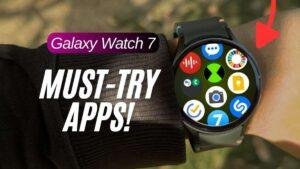
If you use a Samsung Galaxy Watch 7 in the United States, you can add apps through the Google Play Store on the watch or through the Galaxy wearable app on a paired Android phone. The watch must be set up, connected to your phone, and linked to a Google account before app downloads will work.
The fastest method is to open Play Store on your Galaxy Watch 7, search for an app, select Install, and wait for it to finish. You can also install compatible watch apps from your phone, which is often easier for typing and checking app details.

What You Need Before Adding Apps
Before you try to install an app, check these requirements:
- Your Galaxy Watch 7 is turned on and set up.
- The watch is paired with an Android phone.
- Your phone has the latest Galaxy Wearable app available for your device.
- The watch has a Wi-Fi or cellular data connection.
- A Google account is added to the watch.
- The watch has enough storage space.
- The app supports Wear OS and your watch model.
The Galaxy Watch 7 runs Wear OS powered by Samsung, so it uses the Google Play Store rather than the old Galaxy Store system used by some older Samsung watches. App availability can vary by country, developer support, watch model, and account settings.
Is an iPhone supported?
No. The Galaxy Watch 7 is designed to work with Android phones and does not support iPhone pairing. A compatible Samsung or other Android phone is required for normal setup and app management.
Samsung lists Android compatibility requirements that can vary by phone, region, and software version. For the most accurate details, check Samsung’s Galaxy Watch compatibility information.
How to Add Apps Directly on Galaxy Watch 7
Installing an app from the watch is useful when you already know what you want and do not want to reach for your phone.
- Press the Home button on your Galaxy Watch 7.
- Swipe up on the watch face to open the apps screen.
- Tap Play Store.
- Sign in to your Google account if the watch asks you to do so.
- Tap the search icon.
- Enter the app name using the on-screen keyboard, voice input, or handwriting input.
- Select the app from the search results.
- Tap Install.
- Wait for the download and installation to finish.
- Tap Open to launch the app, or find it later in the apps screen.
Some apps may show an Install on phone or phone-related option. This usually means the app requires a companion app on your Android phone before the watch feature can work.
How to find the new app
After installation, press the Home button and swipe up. The newest app may appear near the bottom of the apps list. You can also use the Play Store’s app page to open it immediately after installation.
If you cannot find the app, check whether the installation actually finished. A slow or interrupted connection may leave the app download pending.
How to Add Apps Using Your Android Phone
Adding apps from your phone is often easier because the phone has a larger screen and a full keyboard.
- Open the Galaxy Wearable app on your Android phone.
- Tap Watch settings if needed.
- Select Apps or Store, depending on the app version and phone model.
- Choose Get more apps or open the Google Play Store.
- Search for the app you want.
- Open the app’s listing.
- Check that the listing supports Wear OS or Galaxy Watch.
- Tap the install button or the device selector.
- Choose your Galaxy Watch 7.
- Confirm the installation.
You can also open the Google Play Store directly on your phone and search for a compatible watch app. Some listings let you select the watch as the installation device. Others first install the phone version and then offer the watch component.
The exact button names can change as Samsung, Google, and app developers update their software. The key step is to select the Galaxy Watch 7 as the target device when more than one device appears.
How to Install Apps From the Google Play Store on the Phone
If the Galaxy Wearable app does not show a clear app-store shortcut, use Google Play directly:
- Open Google Play Store on your Android phone.
- Search for the app.
- Look for wording such as Wear OS, Watch app, or Available on more devices.
- Tap the app listing.
- Tap the device menu beside the install button, if shown.
- Select your Galaxy Watch 7.
- Tap Install.
Not every phone app has a watch version. A regular Android app may install only on the phone even if its developer offers no watch app. Check the app description before downloading.
Some services use one app for both phone and watch. Others require separate installations. Messaging, fitness, music, maps, weather, and payment apps commonly use a phone app, a watch app, or both.
How to Check Whether an App Supports Galaxy Watch 7
The app listing is the best place to check compatibility before installation. Look for these signs:
| Listing detail | What it means |
|---|---|
| Wear OS support | The app is designed for compatible Wear OS watches |
| Install on watch | You can target the Galaxy Watch 7 directly |
| Phone and watch versions | The app may need both components |
| Phone only | The app may not work on the watch |
| Device unavailable | Your watch, account, region, or software may not meet the requirements |
| Requires an account | You must sign in before using the app |
| In-app purchases | Some features may cost extra |
A watch app may be compatible with Wear OS but still lack support for every feature on the Galaxy Watch 7. For example, an app may offer basic notifications but not full phone-like controls.
App support also depends on the developer. Google, Samsung, and third-party developers can change app availability, permissions, and device support over time.
How to Give an App the Permissions It Needs
Many apps need permission to use features such as location, sensors, contacts, notifications, or microphone access. The app may request permission during its first launch.
To review permissions:
- Open the watch’s Settings.
- Tap Apps.
- Choose App permissions or select the app.
- Review the permissions.
- Allow only the access the app needs.
For example, a navigation app may need location access. A workout app may need permission to read activity or sensor data. A watch face may need less access than a health or fitness app.
Denying a required permission can make part of an app stop working. If you later change your mind, return to the permission settings and allow access.
Avoid granting sensitive permissions without a clear reason. An app that does not need contacts or location should not require those permissions for its main function.
How to Add a Watch Face to Galaxy Watch 7
Watch faces are installed in much the same way as other apps.
- Open the Play Store on the Galaxy Watch 7 or your Android phone.
- Search for a Wear OS watch face.
- Select the watch face.
- Tap Install.
- Return to the watch face screen.
- Touch and hold the current watch face.
- Swipe through the available faces.
- Tap the new watch face to apply it.
You can also change watch faces from the Galaxy Wearable app:
- Open Galaxy Wearable.
- Tap Watch faces.
- Choose a face.
- Tap Apply or download it if necessary.
- Adjust its style or complications.
A complication is a small information panel on a watch face, such as weather, battery, steps, or calendar details. Some complications need a separate app or permission to display data.
How to Arrange or Remove Apps
You can make frequently used apps easier to find by changing their order or removing apps you no longer need.
To move or arrange apps
- Open the apps screen.
- Touch and hold an app icon.
- Drag it to a new position, if your current layout allows it.
- Release the icon.
On some software versions, app order is managed through the Galaxy Wearable app:
- Open Galaxy Wearable.
- Tap Watch settings.
- Tap Apps.
- Choose the app arrangement or edit option.
- Move apps into your preferred order.
- Save the changes if prompted.
To uninstall an app from the watch
- Open the apps screen.
- Touch and hold the app icon.
- Tap Uninstall or the trash icon.
- Confirm the removal.
You can also open Play Store, find the installed app, and tap Uninstall.
Removing a watch app may not remove its phone companion app. If you no longer want either version, check the phone separately.
What to Do If You Cannot Add an App
When an app will not install, start with the simplest checks. Most failures come from a connection problem, an account issue, low storage, or incompatibility.
1. Check the connection
Make sure the watch has a stable connection. If the watch is connected to the phone through Bluetooth, keep the devices close together. For direct downloads, connect the watch to a trusted Wi-Fi network.
If you use a cellular Galaxy Watch 7, confirm that its mobile service is active. Cellular service can vary by carrier and plan.
2. Restart the watch and phone
Restart both devices, then try the installation again. A restart can clear a stuck download or temporary connection error.
To restart the watch, press and hold the Home and Back buttons together until the watch restarts. Button behavior can vary by software version, so use Samsung’s support instructions if this shortcut does not work on your device.
3. Check the Google account
Open Play Store on the watch and confirm that the correct Google account is signed in. If the account is missing or restricted, the watch may not complete the download.
Parental controls, work accounts, payment settings, and country restrictions can also affect app availability.
4. Free storage space
If the watch has very little free storage, remove apps, downloads, or music that you no longer use. Then restart the installation.
You can review storage from the watch’s Settings or from the Galaxy Wearable app under watch settings. Menu names may vary by software version.
5. Update the software
Install available updates for:
- The Galaxy Watch 7
- The Galaxy Wearable app
- The Google Play Store
- Google Play services
- The Android phone
An old version can cause an app or device to appear incompatible.
6. Confirm app compatibility
If the Play Store says the app is unavailable, the developer may not support Galaxy Watch 7, Wear OS, your Android version, or your region. In that case, reinstalling the app usually will not help.
Do not download random APK files from unknown websites just to bypass the Play Store. Sideloaded software can create security, privacy, stability, and warranty concerns. Use the official Play Store unless you understand the risks and have a trusted reason to use another source.
Common Galaxy Watch 7 App Problems
The app installs but will not open
Restart the watch and check for updates. If the app still fails, it may need its phone companion app, an account sign-in, or a permission that was denied.
The app opens but shows no data
Check that the watch is connected to the phone or internet. Also review permissions and confirm that the phone version of the app is signed in.
Some apps do not sync instantly. Open the phone app and allow it time to complete setup.
Notifications do not appear
On the phone, open Galaxy Wearable and review notification settings. Make sure notifications are enabled for the app and that the watch is not in a mode that blocks alerts.
Battery-saving settings can also limit background activity. If an app must remain active for alerts or syncing, review its battery permissions on the phone.
The app is missing from the Play Store
The app may be phone-only, blocked in your region, unavailable for your account, or unsupported on your watch’s Wear OS version. Search the developer’s official support page for a confirmed compatibility list.
Installation stays on “Pending”
Check the watch connection, restart both devices, and try again. If several downloads are pending, cancel apps you do not need and install one app at a time.
Key Takeaways
- The quickest way to add an app is through Play Store on the Galaxy Watch 7.
- You can also install compatible apps from the Galaxy Wearable app or Google Play Store on an Android phone.
- Apps must support Wear OS and may require a phone companion app.
- The Galaxy Watch 7 does not pair with iPhone.
- Check permissions, storage, updates, and connection quality when an installation fails.
- Avoid unofficial APK downloads unless you fully understand the security and compatibility risks.
Frequently Asked Questions
Can I download apps to Galaxy Watch 7 without a phone?
You need an Android phone for the initial setup and pairing. After setup, you can install some apps directly from the watch if it has a Wi-Fi or cellular connection and a Google account.
Does Galaxy Watch 7 use the Galaxy Store?
Galaxy Watch 7 primarily uses the Google Play Store for Wear OS apps. The Galaxy Wearable app remains useful for watch settings, watch faces, notifications, and app management.
Why can I install an app on my phone but not my watch?
The developer may not offer a Wear OS version. A phone app and a watch app are separate software products, even when they belong to the same service.
Can I install any Android app on Galaxy Watch 7?
No. The watch supports apps made for Wear OS and its hardware. Standard phone apps may not have a watch version or may lack support for the watch’s smaller screen and controls.
How do I update apps on Galaxy Watch 7?
Open the Play Store on the watch, scroll to Manage apps, and check for updates. You can also use the Play Store on your Android phone to review updates for compatible watch apps.
Conclusion
To add apps to a Galaxy Watch 7, open the Play Store on the watch, search for a Wear OS-compatible app, and tap Install. For easier searching, use the Galaxy Wearable app or Google Play Store on your Android phone and select the watch as the installation device when available.
If an app will not install, check the connection, Google account, storage, software updates, permissions, and Wear OS compatibility. If the app still does not appear, the developer or regional Play Store may not support it on the Galaxy Watch 7.
Rubel Miah is the Senior Editor at MyStyleGrid.com, where he brings a sharp editorial eye and an unshakable love for fashion to everything he does. A true style addict, Rubel lives and breathes trends, from streetwear to high fashion, and has a knack for turning inspiration into impactful stories. With years of experience in fashion journalism and digital media, he curates content that empowers readers to express themselves through style. When he’s not editing features or forecasting the next big thing, you’ll find him hunting down vintage pieces or capturing street style moments around the city.