Sync your watch by pairing, granting contacts permission, and enabling contact sync in the companion app.
I have helped dozens of people set up contacts on wearables. This guide shows how to sync address book in smart watch step by step. You will learn what to prepare, exact steps for Android and iPhone, common fixes, security tips, and real-world tricks I use. Read on to get a reliable, working setup so your smartwatch shows contacts and lets you call or message fast.

Why sync your address book to your smartwatch
Syncing contacts brings quick access to people without your phone. A synced address book on your watch lets you call, message, or see caller names. It also makes voice dialing and emergency calls easier. Understanding how to sync address book in smart watch saves time and avoids frustration.
Benefits at a glance:
- See caller ID on the watch when your phone rings.
- Make and receive calls from the watch using saved contacts.
- Use voice commands to call a name from your address book.
- Access emergency contacts quickly.
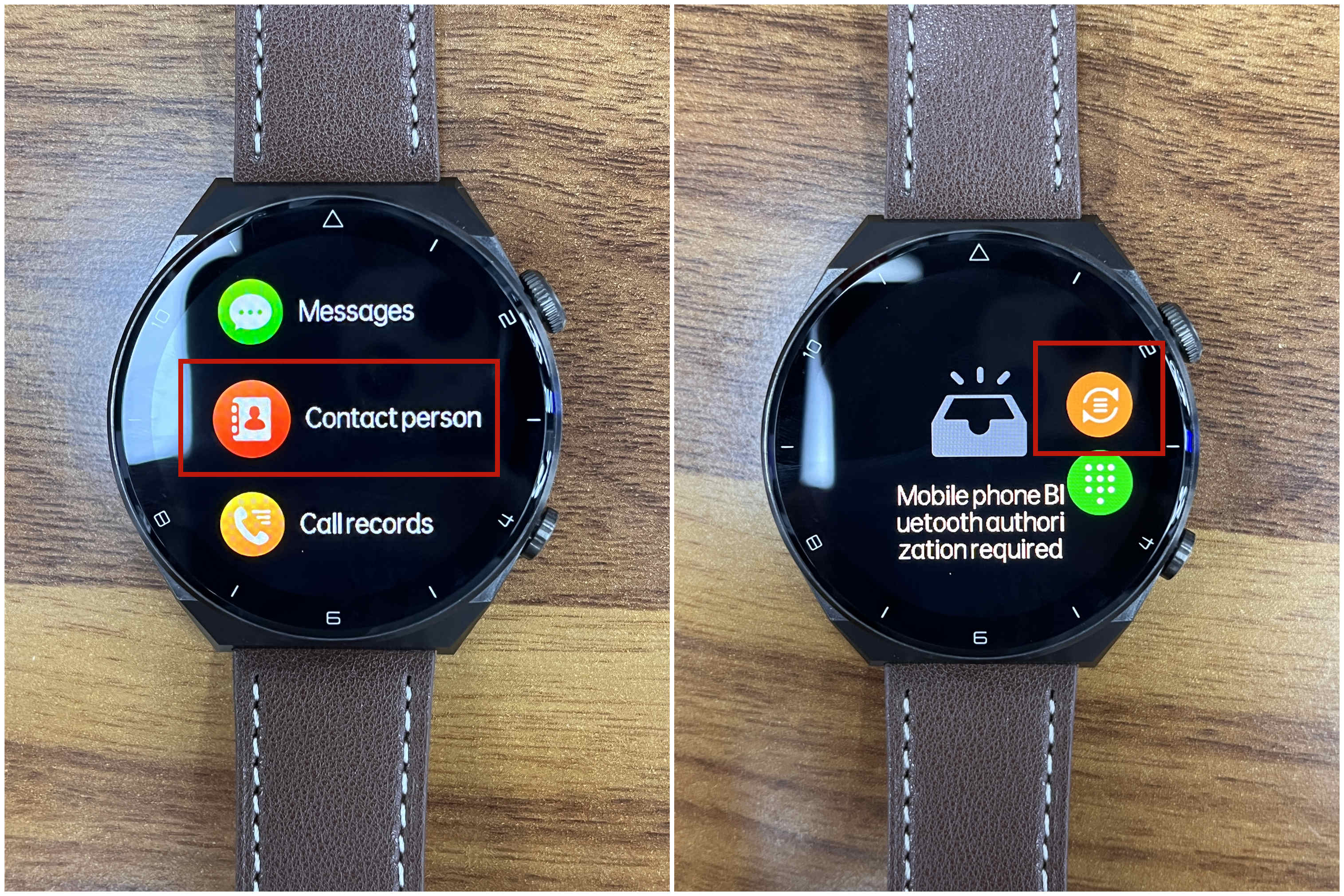
Preparation: what you need before syncing
A few checks make the sync smooth. Confirm these items before you try to sync address book in smart watch.
Checklist:
- A compatible smartwatch and phone paired via Bluetooth or account.
- The official companion app installed on your phone.
- Your phone’s contacts stored locally or in a cloud account the watch can access.
- Latest firmware and app updates on both devices.
- Good battery level and stable Bluetooth or Wi‑Fi connection.
Real-life tip: I always restart both devices and open the companion app first. That avoids many common hiccups.

Step-by-step: how to sync address book in smart watch
Follow the steps below for the most common smartwatch platforms. The exact labels vary by brand, but the flow stays the same.
Common preparation steps:
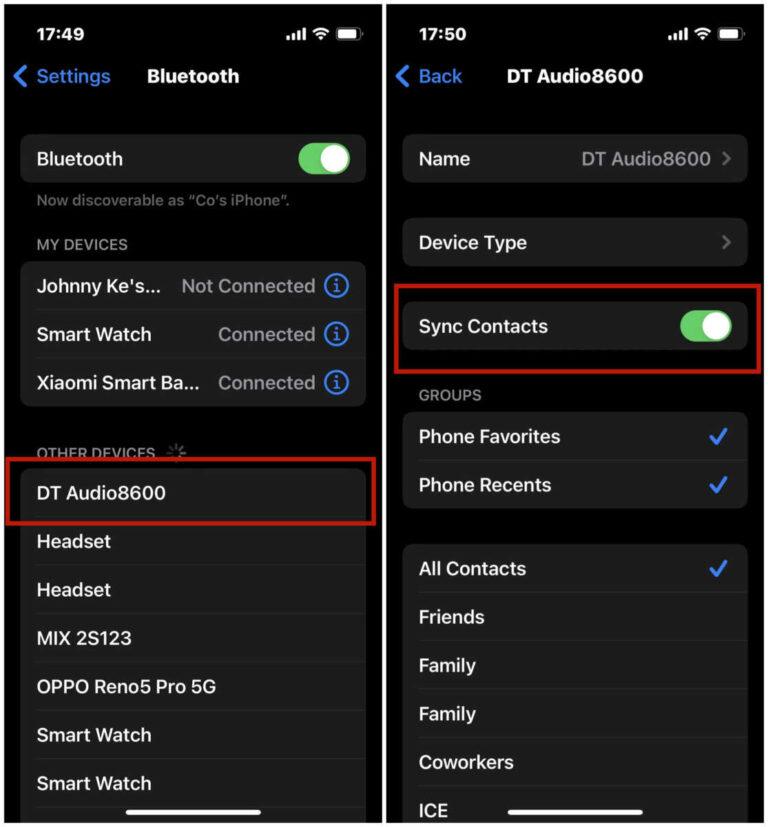
- Pair your watch with your phone using Bluetooth.
- Install and open the watch’s companion app on your phone.
- Sign into the same account used on the watch if required.
For Android phones (most Wear OS and many third‑party watches):
- Open the companion app on your phone.
- Go to Settings or Watch settings.
- Find Contacts or Sync settings.
- Enable Contact sync or Allow contacts access.
- Grant the app permission to read contacts when prompted.
- Wait a few minutes for sync to complete. You may see a progress indicator.
For iPhone and Apple Watch:
- Pair Apple Watch via the Watch app on iPhone.
- In the iPhone Watch app, open My Watch > General > Reset if you have issues.
- Contacts typically sync automatically from iCloud. Ensure iCloud Contacts is enabled: Settings > Your Name > iCloud > Contacts.
- If contacts do not appear, toggle Contacts off and on in iCloud settings and reboot devices.
For Samsung Galaxy Watch (Tizen or newer):
- Open Galaxy Wearable app.
- Tap Watch settings > Accounts and backup or Contacts.
- Enable Sync contacts and allow permissions.
- Choose which account’s contacts to sync if prompted.
When sync completes:
- Test by searching a contact on the watch.
- Try calling or sending a message to confirm.
How to sync address book in smart watch across multiple accounts:
- Use the companion app to select the account (Google, iCloud, Exchange).
- If needed, export contacts to a single account to keep things simple.

Troubleshooting common issues when syncing
If contacts won’t sync, try these focused fixes. I have used each of these methods during real setups.
Check permissions:
- Ensure the companion app has Contacts permission on the phone.
- Revoke and regrant permission to reset access.
Restart devices:
- Power off and on the watch and phone.
- Reopen the companion app and check sync status.
Update software:
- Update the watch firmware and the phone app to the latest version.
- Older versions sometimes block contact sync.
Clear cache and data:
- In Android, clear the companion app cache or app data if sync stalls.
- Re-pair the watch if required.
Sync conflicts:
- Remove duplicate or corrupt contacts on the phone.
- Merge or export contacts to a single cloud account and try again.
If nothing works:
- Unpair and repair the watch. This often resets sync settings.
- Reach out to support channels for brand-specific issues.

Best practices and tips
Adopt these habits to keep contact sync reliable and private.
Keep a single primary account:
- Use one cloud account (Google or iCloud) for contacts to avoid conflicts.
- Periodically clean up duplicates.
Regular updates:
- Install system and companion app updates promptly.
- Updates fix sync bugs and improve stability.
Backup before major changes:
- Export contacts to a VCF file before resetting or changing accounts.
- This prevents data loss.
Test after changes:
- Test contact lookup and calls after any sync or setting change.
- That confirms the sync worked.
Personal tip: I keep a short list of emergency contacts on both phone and watch. It saved time once when my phone battery died.

Security and privacy considerations
Syncing contacts shares personal data between devices. Follow these rules to protect your info.
Limit permissions:
- Only grant contact access to trusted companion apps.
- Revoke access when you stop using a watch.
Encrypt backups:
- Use encrypted backups for contacts where possible.
- Protect cloud accounts with strong passwords and two-factor authentication.
Mind public access:
- If your watch shows contacts on a screen others can see, consider locking the display.
- Use a PIN or passcode on the watch.
Be transparent:
- If syncing corporate contacts, follow your workplace policies and IT advice.

Frequently Asked Questions of how to sync address book in smart watch
How long does it take to sync contacts to a smartwatch?
Sync time varies by number of contacts and connection speed. Typically it finishes within a few minutes, but large address books may take longer.
Why aren’t my contacts showing on the watch after enabling sync?
Common causes include missing app permissions, outdated firmware, or account mismatches. Check permissions, update software, and ensure the same account is active on both devices.
Can I choose which contacts sync to my smartwatch?
Some companion apps let you select accounts or groups to sync. If not, move desired contacts into a chosen account or create a group and sync that account.
Will deleting a contact on my watch remove it from my phone?
Most watches mirror the phone’s address book, so deletions may sync both ways. To avoid accidental deletions, remove contacts from the phone or use view-only sync if available.
Is it safe to sync work contacts to my personal watch?
Only sync work contacts if your employer allows it. Check security policies and use device management tools when needed to protect corporate data.
What should I do if contacts sync but names are wrong or scrambled?
This often means duplicate or corrupt entries. Clean up duplicates on the phone, merge contacts, and then force a re-sync in the companion app.
Conclusion
Syncing your address book to a smartwatch makes daily tasks faster and safer. Follow the steps above on how to sync address book in smart watch, check permissions, update software, and test the sync. Use backups and strong security to protect your contacts. Try these steps now, and leave a comment if you need help with a specific watch model or account.

Rubel Miah is the Senior Editor at MyStyleGrid.com, where he brings a sharp editorial eye and an unshakable love for fashion to everything he does. A true style addict, Rubel lives and breathes trends, from streetwear to high fashion, and has a knack for turning inspiration into impactful stories. With years of experience in fashion journalism and digital media, he curates content that empowers readers to express themselves through style. When he’s not editing features or forecasting the next big thing, you’ll find him hunting down vintage pieces or capturing street style moments around the city.