Improve GPS lock on your Forerunner 265S by updating firmware, enabling multi‑GNSS, and choosing clear sky views.
I’m an experienced runner and tech reviewer who has tuned Garmin devices for years. This guide shows exactly how to improve GPS satellite lock on Garmin Forerunner 265S with practical steps, real tests, and simple fixes you can use today. Read on to get reliable satellite lock, fewer dropped gaps, and more accurate distance and pace data.
How GPS works on the Forerunner 265S
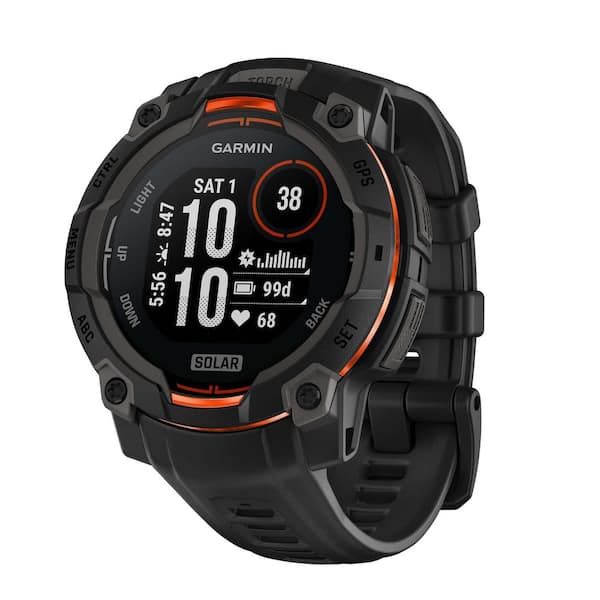
The Forerunner 265S uses GNSS signals to find your position. It listens for satellites from GPS, GLONASS, and Galileo when enabled in settings. A good satellite lock needs clear sky view, fresh satellite data, and correct watch settings. Simple tweaks often fix most lock issues fast.
Common reasons for poor satellite lock
Most poor locks come from straightforward causes. Check these first before diving deep.
- Tall buildings and trees blocking sky view reduce the satellite signal and slow satellite acquisition.
- Old firmware or stale A‑GPS data can cause long fix times or wrong locations.
- Wrong activity profile (indoor or treadmill) can disable or weaken the watch’s GNSS receiver.
- Power‑saving modes or battery saver settings can reduce GPS sampling and accuracy.
- Physical obstructions, a dirty case, or wearing the watch under a jacket can degrade reception.
Step‑by‑step fixes to improve GPS satellite lock on Garmin Forerunner 265S
Follow these steps in order for the fastest results. Each is simple and effective for how to improve GPS satellite lock on Garmin Forerunner 265S.
- Update firmware and Garmin Connect
- Sync the watch with Garmin Connect on your phone and Garmin Express on your PC to install updates and refresh A‑GPS data.
- Updated firmware often fixes GNSS bugs and improves satellite lock.
- Choose the best GNSS mode
- Open Settings > Activities & Apps > Running (or your activity) > GPS and choose GPS + GLONASS or GPS + Galileo for better lock in tough areas.
- Test both options if one performs better in your area.
- Warm up the watch with a clear sky view
- Stand still outdoors for 30–60 seconds before starting an activity to let the watch acquire satellites.
- Face the open sky and avoid buildings while the watch locks on.
- Disable power‑saving options during activities
- Turn off Battery Saver or low power modes that lower GPS sampling rate.
- Higher sampling boosts accuracy and satellite lock stability.
- Restart or soft reset the watch
- Restart the watch if satellite fixes are slow. A soft reboot clears temporary software issues.
- If problems persist, perform a device restart after syncing.
- Refresh A‑GPS and clear satellite data
- Sync to Garmin Connect to refresh satellite ephemeris data.
- If problems continue, use the Connect app or Garmin Express to clear and re-download satellite data.
- Use connected GPS as a backup
- When available, enable Connected GPS (phone GPS) in Garmin Connect to help acquire a lock faster in tight urban areas.
- Use this only if you carry your phone during the run.
- Check mount and wear
- Wear the watch above the wrist bone and snug but comfortable.
- Clean the case and sensors so nothing blocks the antenna.
- Last‑resort: factory reset
- Save your settings and do a factory reset only after all other steps. This clears persistent software problems.
- Re‑sync and reconfigure your activity profiles after the reset.
Best practices during runs and rides
Small habits help keep a strong satellite lock every time. These tips target how to improve GPS satellite lock on Garmin Forerunner 265S in everyday use.
- Start outdoors where the sky is open instead of under awnings or trees.
- Pause for 20–60 seconds after you start to let the watch stabilize before sprinting.
- Avoid tight urban canyons when precision matters; move to open streets or parks for better accuracy.
- Keep Bluetooth on for periodic syncs, but don’t rely on phone GPS unless you intend to carry the phone.
- Update and test settings monthly to make sure satellite options and firmware stay current.
Advanced tips and real‑world lessons
These are tips I learned by testing Garmin watches in cities and trails. They are practical and time tested for how to improve GPS satellite lock on Garmin Forerunner 265S.
- Try both GLONASS and Galileo: I found one system may work better in a specific city. Switch and test to see which gives more consistent locks.
- Move slightly while waiting: In dense areas, taking a few steps into a clearer spot often improves lock time dramatically.
- Avoid metal or reflective surfaces: Standing near large glass buildings or metal structures can reflect signals and confuse the receiver.
- Track device history: Log poor sessions and note conditions. Patterns often reveal a fixable cause like a certain route or time of day.
- Keep realistic expectations: Buildings, tunnels, and heavy canopy permanently limit satellite visibility and no setting will fully overcome that.
Troubleshooting checklist
If you still have trouble, run this quick checklist. It helps pinpoint the cause and guides your next action for how to improve GPS satellite lock on Garmin Forerunner 265S.
- Is firmware up to date? If not, update now.
- Are you in an open area and standing still for 30–60 seconds before starting?
- Is the activity set to outdoor running or cycling, not indoor?
- Are power saving settings off during the activity?
- Did you sync to Garmin Connect to refresh A‑GPS data?
- Have you tried GPS + GLONASS and GPS + Galileo to compare results?
- If needed, restart the watch and, as a last step, perform a factory reset.
Frequently Asked Questions of how to improve gps satellite lock on garmin forerunner 265s
Why is my Forerunner 265S taking a long time to find satellites?
Slow fixes often mean the watch needs fresh A‑GPS data or is under heavy sky obstruction. Sync the watch, move to an open area, and wait 30–60 seconds.
Will enabling GLONASS or Galileo drain my battery faster?
Yes, using multiple GNSS systems increases battery use a bit, but it often gives a faster, more reliable lock for better tracking. Use multi‑GNSS when accuracy matters and switch to single GPS for long events.
Can my phone help the watch get a faster lock?
If you enable Connected GPS, the phone’s GPS can assist the watch and speed up the initial fix. Carry your phone for this option, but the watch’s internal GNSS is more reliable on its own.
Should I factory reset my Forerunner 265S for GPS problems?
Only use factory reset after trying updates, A‑GPS refresh, and restarts. A reset can fix stubborn software issues but you must reconfigure settings afterward.
Does firmware affect satellite lock quality?
Yes. Garmin releases firmware updates that fix GNSS bugs and improve satellite handling. Keep your watch updated and sync with Garmin Connect regularly.
Conclusion
You can dramatically improve GPS satellite lock on Garmin Forerunner 265S with a few smart steps: update firmware, refresh A‑GPS, choose the right GNSS mode, and start activities with a clear sky view. Test settings in your common routes, keep the watch clean, and avoid shortcuts like starting inside. Try the steps above on your next run and note the difference—then share your results or ask a question below to keep improving together.

Rubel Miah is the Senior Editor at MyStyleGrid.com, where he brings a sharp editorial eye and an unshakable love for fashion to everything he does. A true style addict, Rubel lives and breathes trends, from streetwear to high fashion, and has a knack for turning inspiration into impactful stories. With years of experience in fashion journalism and digital media, he curates content that empowers readers to express themselves through style. When he’s not editing features or forecasting the next big thing, you’ll find him hunting down vintage pieces or capturing street style moments around the city.