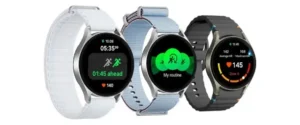
Restart your Sense 2, update the app and firmware, check sensor fit, then resync and allow permissions.
I’ve worked with many wearables and fixed sync and sensor issues dozens of times. This guide explains how to fix sense 2 stress score not updating. You’ll get clear steps, quick checks, and expert tips to restore accurate stress readings. Read on to learn safe fixes, what to try first, and when to escalate to support.
Why the Sense 2 stress score may not update
Many things can stop a stress score from updating. The watch and phone need to talk. Firmware or app bugs can stop calculations. Low battery, poor sensor contact, or missing app permissions also break updates. Data sync queues can delay the score. Knowing common causes helps you fix the issue fast.
Quick checklist before deeper fixes
Use this short checklist first. It often resolves the problem in minutes.
- Make sure your phone’s Bluetooth is on and paired.
- Confirm the Fitbit app (or manufacturer app) is open and allowed to run in the background.
- Check battery levels on the Sense 2 and charge if below 20%.
- Wear the watch snugly on the top of the wrist during stress scans.
- Force a manual sync in the app after a short walk or rest.
Step-by-step fixes to restore the stress score
Follow these steps in order. Test the score after each step to see if it updates.
-
Restart both devices
- Turn the Sense 2 off and on. Wait 10 seconds before turning on.
- Restart your phone. Then open the app and force a sync.
- Restart often clears minor software hitches that stop the stress score from updating.
-
Update app and firmware
- Open your phone’s app store. Update the app to the latest version.
- In the app, check for device firmware updates and install them.
- New firmware often fixes sensor and algorithm issues that stop stress updates.
-
Check permissions and background activity
- On iOS, allow Health and Bluetooth permissions. On Android, enable location and background activity for the app.
- Disable battery optimizer for the app so it can run in the background.
- Without these permissions, the watch may not send data needed to compute the stress score.
-
Confirm sensor contact and placement
- Wear the Sense 2 snugly, about a finger-width above the wrist bone.
- Clean the sensor and skin. Oil or sweat can block readings.
- If you have hair, push it aside. Good contact is essential for continuous heart data that feeds the stress score.
-
Force a sync and trigger a stress measure
- In the app, open device settings and use the manual sync button.
- Use the watch’s stress scan or take a 3–5 minute rest while wearing the device.
- A fresh measurement often forces the app to re-calculate and show an updated stress score.
-
Clear app cache or reinstall
- Clear the app cache in Android settings or delete and reinstall the app on iPhone.
- Log into your account after reinstall. Your cloud data will sync back.
- This removes corrupted temporary files that can stop the stress score from updating.
-
Soft reset or factory reset the watch (use with caution)
- Try a soft reset (restart) first. Use a factory reset only if other steps fail.
- Back up any settings if you can. Factory reset erases local data.
- After reset, pair the watch and let it sync fully before checking the stress score.
If these steps still don’t help, you’ve done the main fixes that solve most problems. If not, move to the advanced checks below.
Advanced troubleshooting and data checks
If basic steps fail, dig into logs and settings. These steps require time but can reveal hidden issues.
- Check log and sync history in the app to see recent data uploads.
- Try another phone to rule out phone-specific conflicts.
- Enable developer or diagnostic tools if the app offers them. Capture a session log before contacting support.
- Inspect for firmware beta programs. Beta builds can sometimes cause stress score issues. Opt out if needed.
- Test other health metrics, like heart rate and sleep. If heart rate is not updating, stress score won’t update.
Personal note: I once saw a Sense 2 fail to update stress scores because a third-party battery saver app blocked the background service. Removing that app fixed the issue in minutes.
Preventive tips to keep the stress score updating
Small habits prevent future problems. Try these tweaks.
- Keep the app and device firmware up to date.
- Charge the watch nightly to avoid low-battery behavior.
- Pair the watch to one phone only. Multiple pairings can cause sync confusion.
- Wear the watch consistently for a few days after updates to allow the algorithm to re-calibrate.
- Avoid aggressive battery savers or background restrictions on your phone.
When to contact support and what to provide
Contact support if the stress score remains stuck after all steps. Be ready with the right info.
- Provide device model, firmware version, and app version.
- Note the exact problem and the time it started.
- List steps you already tried, including resets and reinstalls.
- Attach app logs or screenshots showing the stuck score and any error messages.
- Ask about known issues or firmware rollbacks if a recent update preceded the problem.
Support teams can escalate device diagnostics or offer replacement if hardware is at fault.
Frequently Asked Questions of how to fix sense 2 stress score not updating
Why is my Sense 2 stress score not updating after a firmware update?
A firmware update can reset sensor settings or introduce bugs. Reboot the watch, update the app, and force a manual sync to prompt a recalculation.
Can low battery stop the stress score from updating?
Yes. Low battery mode can limit sensor sampling and background sync. Charge the Sense 2 above 50% and then sync or run a stress scan.
Will reinstalling the app fix the stress score not updating issue?
Reinstalling clears cached files and can fix corrupted app data. Log back in and force a full sync after reinstalling.
Does poor fit cause the stress score to stay the same?
Yes. A loose or dirty band reduces sensor contact, which prevents consistent heart rate data and stops the stress score from updating.
When should I factory reset my Sense 2 for stress score issues?
Use factory reset only after other steps fail. Reset when firmware or app reinstall does not work and you want to rule out a software corruption on the watch.
Conclusion
You can fix most cases of how to fix sense 2 stress score not updating by following clear steps: restart devices, update app and firmware, check permissions and fit, and force a sync. Try the checklist before advanced moves. If that still fails, collect app logs and contact support with clear details. Take action now: run the quick checklist, update firmware, and test a stress scan. If this helped, subscribe or leave a comment with your experience so others can learn from it.

Rubel Miah is the Senior Editor at MyStyleGrid.com, where he brings a sharp editorial eye and an unshakable love for fashion to everything he does. A true style addict, Rubel lives and breathes trends, from streetwear to high fashion, and has a knack for turning inspiration into impactful stories. With years of experience in fashion journalism and digital media, he curates content that empowers readers to express themselves through style. When he’s not editing features or forecasting the next big thing, you’ll find him hunting down vintage pieces or capturing street style moments around the city.