How To Check Smartwatch Battery Health And Charging Cycles
Smartwatches have become a part of daily life for many people. They tell you the time, help track your health, and keep you connected. But one thing can ruin the experience: battery problems. A smartwatch with poor battery health will not last long, even if you charge it often. If the battery dies fast, it is hard to trust your watch. That is why knowing how to check your smartwatch battery health and charging cycles is so important.
Many people buy a smartwatch, use it every day, and never think about the battery. But after a year or two, they notice the battery does not last as long. Maybe you have seen your watch go from 100% to 50% in just a few hours.
This is not just annoying; it means your battery could be wearing out. If you check battery health and charging cycles, you can act early. You might change the way you charge, update your watch, or even replace the battery before bigger problems start.
In this guide, I will show you how to check your smartwatch’s battery health and charging cycles. I have owned several smartwatches, from Apple to Samsung and Fitbit. I have seen how battery life changes over time. I once ignored these checks on my old watch and ended up with a dead battery in the middle of a trip.
Since then, I check battery health every few months. Let me help you avoid my mistake.
Why Battery Health Matters In Smartwatches
Every battery wears down with use. This is true for your phone, your laptop, and your smartwatch. But smartwatches have smaller batteries. This means you feel the effects of aging faster.
A healthy battery gives you:
- Longer use per charge
- More accurate tracking
- Better app performance
- Fewer charging interruptions
When battery health drops, you may miss alarms, lose fitness data, or even have your watch shut off during the day. It is not only about comfort; it is about reliability.
Battery health is the percentage of the original capacity your battery can still hold. For example, if your watch had a 300 mAh battery, but now it only holds 240 mAh, your battery health is 80%. Charging cycles tell you how many full charges your battery has completed.
Most smartwatch batteries are designed for 300 to 500 cycles. After that, health drops faster.
How Smartwatch Batteries Work
Smartwatches use lithium-ion or lithium-polymer batteries. These are safe and light, but they wear out with every charge. Each time you charge from 0% to 100%, that is one charge cycle. Even if you charge from 50% to 100% twice, that counts as one cycle.
These batteries:
- Lose a bit of capacity with each cycle
- Hate very hot or cold temperatures
- Last longer if you avoid full discharges
I once used my smartwatch in very cold weather for a week. The battery health dropped quickly. Extreme temperatures can hurt battery life even if your watch is new.
Signs Your Smartwatch Battery May Be Failing
You do not have to be an expert to spot battery problems. Here are some signs:
- Faster battery drain – Your watch used to last 2 days, now it lasts half a day.
- Slow charging – It takes much longer to reach 100%.
- Random shutdowns – The watch turns off even when the battery says 30%.
- Overheating – The back of the watch feels hot while charging or using GPS.
- Swollen case – The watch looks puffed up or the screen lifts (rare but serious).
If you notice any of these, check your battery health and charging cycles soon.
How To Check Battery Health On Popular Smartwatches
Every brand is a bit different. I will show you how to check battery health on the most popular smartwatches: Apple Watch, Samsung Galaxy Watch, and Fitbit. If you have a different brand, the steps may be similar.
Apple Watch
Apple makes it easy to check battery health.
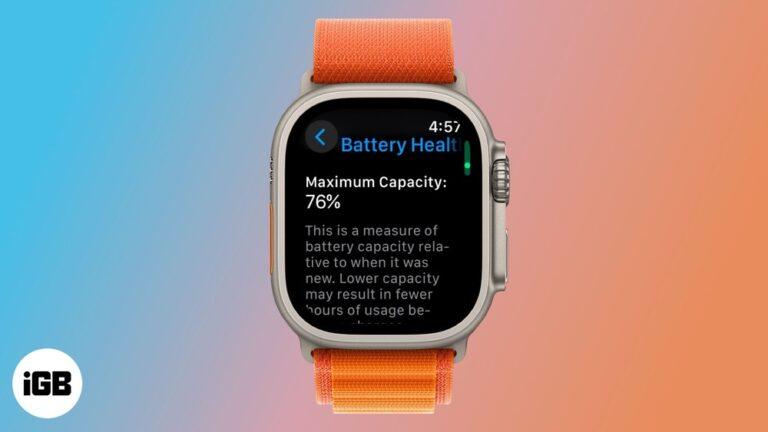
- Press the Digital Crown to open the app list.
- Tap Settings.
- Scroll down and tap Battery.
- Tap Battery Health.
Here you will see Maximum Capacity. A new watch should be close to 100%. If it is below 80%, the battery may need service. Apple also tells you if your battery is supporting “normal peak performance.”
Tip: Apple does not show charging cycles on the watch. But you can check this with your iPhone.
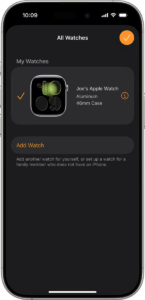
- Open the Watch app on your iPhone.
- Go to General > About.
- Scroll down to see more details. (Cycle count is not always shown, but you can get more with third-party apps like coconutBattery on Mac.)
Samsung Galaxy Watch
Samsung watches do not show battery health in the settings, but you can still check it.
- Download the Samsung Members app on your phone.
- Open the app, tap Get Help at the bottom.
- Tap Interactive checks.
- Tap Battery.
You will see battery status and sometimes cycle count. For more details, you can use third-party apps like AccuBattery (for Android).
Fitbit
Fitbit does not give battery health directly on the watch. But you can check clues.
- Open the Fitbit app on your phone.
- Tap your device image.
- Tap Battery or check the battery symbol.
For more details, connect your Fitbit to a PC and use Fitbit Web API or third-party tools. Some Fitbit devices can show battery voltage using Fitbit Studio.
Note: If your battery drains fast or shows odd numbers, it is a sign of poor health.
Other Brands (garmin, Amazfit, Huawei)
Most other brands do not show battery health directly. Here is what you can do:
- Check battery stats in the companion app.
- Look for “device info” or “battery status.”
- Use third-party apps for more data.
- If the watch is very old or drains fast, battery health is likely low.
How To Check Charging Cycles
Checking charging cycles is a bit harder. Most smartwatches do not show this in their menus. But you can still find out or estimate.
Apple Watch
Apple hides cycle count on the watch, but you can get it with help.
Using Iphone And A Mac
- Unpair your Apple Watch from your iPhone. This backs up data.
- Connect your iPhone to your Mac.
- Open the coconutBattery app (free for Mac, trusted by many users).
- Click the iOS Device tab. You will see your Apple Watch if paired.
- Look for “Cycle Count.”
This is the total number of charging cycles.
Using Third-party Apps
Some apps on the App Store can show battery details if you give permissions. Check reviews for safety.
Samsung Galaxy Watch
Samsung does not show charging cycles. But you can estimate:
- If you charge daily for a year, that’s about 365 cycles.
- If you charge every 2 days, it’s about 180 cycles per year.
The Samsung Members app may show “battery status” (Good, Normal, Poor), which is based on cycle count.
Fitbit
Fitbit does not show charging cycles. Use the same estimation method:
- How often do you fully charge your watch?
- Multiply by months or years.
If your watch lasts 4 days per charge, and you’ve had it a year, that’s about 90 cycles.
Third-party Tools
Some apps can read charging cycles if you give them permission. Examples:
- AccuBattery for Android (paired with your watch)
- Device Info apps on iOS or Android
Check privacy before using any third-party tool.
Using Data Tables To Track Battery Health And Charging Cycles
You might want to keep a record of your battery health and cycles. Here is a simple example of how you could track your data:
| Date | Battery Health (%) | Charging Cycles | Notes |
|---|---|---|---|
| 2024-01-01 | 98 | 45 | Normal use, charged every 2 days |
| 2024-04-01 | 95 | 90 | Noticed faster drain |
| 2024-07-01 | 92 | 135 | Used GPS often |
Recording these details helps you spot trends. If you see a big drop in battery health, you can act early.
How To Improve And Maintain Battery Health
Checking battery health is only the first step. Keeping your battery healthy means better smartwatch performance for longer. Here is what you should do:
- Avoid extreme temperatures – Do not leave your watch in a hot car or outside in the cold.
- Charge before 0% – Try to charge when the battery drops to 20-30%. Full discharges stress the battery.
- Remove from charger at 100% – Do not leave it plugged in all night if possible.
- Update software – Battery problems are sometimes fixed with updates.
- Turn off unused features – GPS, Wi-Fi, and always-on display use extra power.
- Use original chargers – Cheap chargers can damage the battery.
When I started following these tips, my newer smartwatch battery lasted almost twice as long as my old one. Small changes make a big difference.
Common Mistakes People Make
Even experienced users make mistakes that hurt battery health. Here are some to avoid:
- Charging overnight every night: This is not a big problem for modern batteries, but repeated overcharging can heat up the battery and cause wear.
- Letting battery drop to 0% often: Full discharges shorten battery life.
- Using third-party chargers: Low-quality chargers may send too much or too little power.
- Ignoring updates: Software updates often fix battery drain problems.
- Not cleaning charging contacts: Dirty contacts can cause slow or failed charging.
I once thought it was fine to let my battery reach 0% before every charge. After learning more, I stopped doing this and saw better battery life.
How Charging Cycles Affect Battery Health
Each charging cycle wears your battery a little. After 300–500 cycles, most smartwatch batteries drop below 80% health. This does not mean your watch is useless, but you will notice shorter use times.
Here is a simple table to show how battery health can change with cycles:
| Charging Cycles | Estimated Battery Health (%) | Expected Usage Time |
|---|---|---|
| 0 (New) | 100 | 2 days |
| 100 | 95 | 1.9 days |
| 300 | 85 | 1.6 days |
| 500 | 75 | 1.2 days |
If you notice your battery drops below 80% health, consider replacing it or using battery-saving modes.
Special Notes For Different Brands
Every smartwatch is a bit different. Here are a few brand notes:
- Apple Watch: Offers the best battery info. Apple can replace batteries for a fee.
- Samsung Galaxy Watch: Battery health info is harder to find. Use Samsung Members or third-party apps.
- Fitbit: Little battery info. If the battery drops fast, contact Fitbit support.
- Garmin, Amazfit, Huawei: Battery health and cycles not shown. Track charge times and usage for clues.
When you buy a new smartwatch, check if the brand offers battery health info. This helps you plan for the future.

Credit: www.amazon.com
How To Tell When It’s Time To Replace The Battery
You do not have to wait for your watch to die. Here are signs it is time for a new battery:
- Battery health below 80% and your watch cannot last a day.
- Sudden shutdowns even after a full charge.
- Swollen case or screen lifting (this is urgent).
- Battery won’t charge to 100% or drains in an hour.
If your watch is still under warranty, contact the brand. If not, check if they offer paid battery replacement. Some brands let you do it yourself, but this can be tricky and risky.
Practical Tips For Everyday Users
Here are some simple habits to keep your smartwatch battery healthy:
- Charge your watch while you shower or do chores, not overnight.
- Avoid apps or watch faces that use a lot of animation.
- Use power-saving mode if you do not need smart features all day.
- Turn off Wi-Fi, GPS, or Bluetooth if you are not using them.
- Clean the charging contacts with a dry cloth once a week.
I started charging my watch while cooking breakfast. This small change keeps my battery from sitting at 100% all night, and I have seen longer battery life.

Credit: houwhoekfarmstall.com
How Software Updates Can Help Or Hurt Battery Life
Updates can fix battery bugs, but sometimes they can also cause new issues. If you notice poor battery life after an update:
- Check the brand’s support page for news or fixes.
- Restart your watch.
- Wait a few days; sometimes, the watch needs time to adjust.
- If problems continue, contact support.
Many users reported better battery life after Apple’s watchOS updates. But once, a bad update caused my battery to drain in hours. I waited for a fix and learned to read update notes before installing.
Should You Use Battery Saver Or Power Saving Mode?
Most smartwatches have a battery saver mode. This turns off extra features and makes the battery last longer. Use it when:
- You are traveling and cannot charge soon.
- The battery is low and you need to make it through the day.
- You want to check battery health over time.
Remember, battery saver mode often turns off features like heart rate tracking or notifications. But if you need more time, it works well.
Example: Comparing Battery Health And Charging Cycles
Let’s compare two smartwatches after one year.
| Smartwatch | Days per Charge (New) | Current Days per Charge | Charging Cycles | Battery Health (%) |
|---|---|---|---|---|
| Apple Watch Series 7 | 1.5 | 1.2 | 250 | 90 |
| Samsung Galaxy Watch 5 | 2 | 1.6 | 180 | 92 |
You can see the effect of charging cycles on battery health. Fewer cycles mean better health, but usage habits matter too.
What To Do If You Cannot Check Battery Health Directly
Some watches do not show battery health or cycles. You can still watch for clues:
- Write down how many hours or days your watch lasts per charge.
- Notice if charging gets slower or the battery drains faster.
- If you see a big change in battery life, the battery health is dropping.
Keep a small notebook or use your phone to record this. Over time, you will see patterns.

Credit: www.youtube.com
When To Contact Support
If your battery drops very fast, or your watch shuts down often, contact support. Many brands have a 1-year warranty for battery problems.
- Apple: Offers battery service in and out of warranty.
- Samsung: Offers repairs and battery replacement.
- Fitbit: May offer replacement if under warranty.
If your watch is old, replacing the battery or buying a new watch may be the best option.
Final Thoughts
Checking your smartwatch battery health and charging cycles is not just for tech experts. It is for anyone who wants their watch to last longer and work better. Use the steps above to check your battery health, avoid common mistakes, and keep your watch running smoothly. Small changes, like charging before 0% or avoiding heat, can add months or even years to your battery life.
Smartwatches are a big investment. Taking care of the battery means you get more value and fewer headaches. If you are not sure about something, check your brand’s support page or ask for help.
For more detailed info on battery technology, you can visit the Wikipedia page on lithium-ion batteries.
Frequently Asked Questions
How Often Should I Check My Smartwatch Battery Health?
Check your battery health every 2–3 months, or if you notice your battery draining faster. This helps you spot problems early.
Does Charging My Watch Overnight Damage The Battery?
Occasional overnight charging is fine, but doing it every night can add stress. Try to unplug your watch when it reaches 100% to keep the battery healthy.
Can I Replace My Smartwatch Battery At Home?
Some watches allow self-replacement, but it can be hard and may void your warranty. It is safer to let the brand or a trusted repair shop do it.
What Is A Good Battery Health Percentage For A Smartwatch?
Above 80% is good. Below 80%, you may see shorter battery life and should consider a battery replacement.
Do Third-party Chargers Damage Smartwatch Batteries?
Low-quality chargers can damage your battery or cause slow charging. Always use the original charger or a certified replacement for safety.

Rubel Miah is the Senior Editor at MyStyleGrid.com, where he brings a sharp editorial eye and an unshakable love for fashion to everything he does. A true style addict, Rubel lives and breathes trends, from streetwear to high fashion, and has a knack for turning inspiration into impactful stories. With years of experience in fashion journalism and digital media, he curates content that empowers readers to express themselves through style. When he’s not editing features or forecasting the next big thing, you’ll find him hunting down vintage pieces or capturing street style moments around the city.