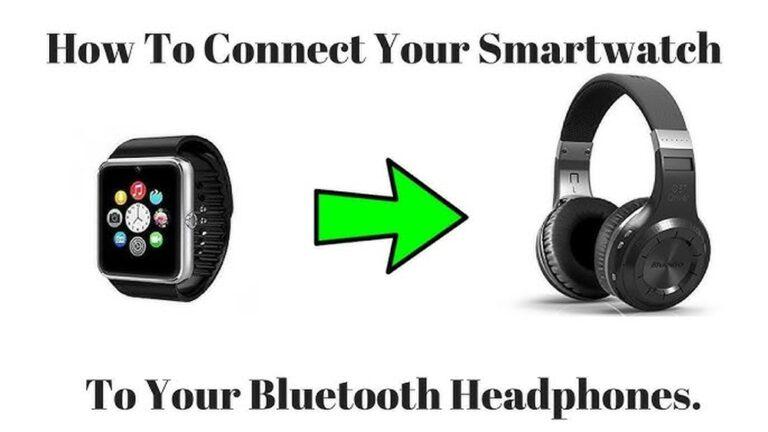
Connecting your smartwatch to Bluetooth earbuds for music can be life-changing. Imagine going for a run, leaving your phone at home, and still enjoying your favorite songs. Many people do not know this is possible. Even fewer know how to do it the right way. Let me walk you through this process step by step, so you can enjoy true wireless music freedom.
Why Connect Smartwatch To Bluetooth Earbuds?
Most people buy a smartwatch for tracking steps, checking notifications, or monitoring their heart rate. But music on the go is a big reason too. When you connect your Bluetooth earbuds to your smartwatch, you do not need your phone. This is perfect for the gym, running, or just walking around your house.
You can control songs, adjust the volume, and take calls (on some watches) from your wrist. It makes life easier and more fun. I remember the first time I went jogging with only my watch and earbuds. It felt so light and free.
No phone bouncing in my pocket—just music and movement.
What You Need Before You Start
Before we get into the steps, check a few things:
- Smartwatch with Bluetooth: Not all watches can play music directly. Make sure your watch supports music playback and Bluetooth audio.
- Bluetooth earbuds: These must be fully charged.
- Music on your watch: Some watches play music stored on them. Others stream from apps like Spotify or YouTube Music.
- Latest software: Update your watch and earbuds for best performance.
If you are not sure about your device, check the official website or manual. For example, the Apple Watch, Samsung Galaxy Watch, and Garmin Forerunner can all do this.
Credit: www.cinquequarti.com
How Bluetooth Works In Smartwatches
Bluetooth connects devices wirelessly over short distances. Your smartwatch sends a signal, and your earbuds receive it. The process is called “pairing.” When paired, the devices remember each other, so next time, they connect automatically.
It is important to know that many smartwatches can connect to only one audio device at a time. Some might disconnect from your phone to connect to your earbuds. This is normal and not a problem.
Step-by-step: Connect Your Smartwatch To Bluetooth Earbuds
Let me break down the steps for you. I will cover the most popular watches: Apple Watch, Samsung Galaxy Watch, and Garmin watches. The steps are similar for other brands too.
Apple Watch
- Open the case of your earbuds to start pairing mode. If they do not enter pairing mode, press and hold the button on the case.
- On your watch, press the Digital Crown to open the app menu.
- Go to Settings > Bluetooth.
- Wait for your earbuds to appear in the list.
- Tap on your earbuds’ name. Wait for “Connected” to show.
- Open the Music app on your watch. Play a song to test.
Samsung Galaxy Watch
- Put your Bluetooth earbuds in pairing mode.
- On your Galaxy Watch, press the Home button.
- Swipe to and tap Settings > Connections > Bluetooth Audio.
- Make sure Bluetooth is on.
- Select “Scan” or “Add new device.”
- Choose your earbuds from the list. Wait for “Connected.”
- Open the Music Player app to play music.
Garmin Watches
- Put your earbuds in pairing mode.
- On your Garmin, press the top button to open the menu.
- Scroll to Music > Music Providers > Headphones.
- Select “Add New.”
- Choose your earbuds. Wait for “Connected.”
- Test by playing a song.
Other Watches
The process is similar:
- Put earbuds in pairing mode.
- Go to Bluetooth settings on your watch.
- Search for new devices.
- Select your earbuds.
- Confirm the connection.
If you get stuck, check the manual or search your watch model online.
Playing Music From Your Smartwatch
Now that you are connected, you need music to play.
- Offline music: Some watches let you transfer songs from your computer or phone. Use apps like Apple Music, Spotify, or YouTube Music.
- Streaming music: If your watch has Wi-Fi or LTE, you can stream directly (needs a subscription in most cases).
- Local files: Garmin and some Samsung watches let you copy MP3 files from your computer.
How To Add Music To Your Smartwatch
Apple Watch
- Sync playlists using the Watch app on your iPhone.
- Go to Music > Add Music and pick your songs.
- Wait for syncing to finish (may take a few minutes).
Samsung Galaxy Watch
- Use the Galaxy Wearable app to add music files.
- You can also download playlists from streaming apps if supported.
Garmin Watches
- Use Garmin Express on your computer to transfer files.
- Or, connect to streaming services in the Music menu.
Common Problems And How To Fix Them
Sometimes, things do not go as planned. Here are some issues you might see, with solutions.
- Earbuds do not show up: Make sure they are in pairing mode. Restart the watch and earbuds.
- Connection drops: Move closer to your watch. Remove other Bluetooth devices nearby.
- Music does not play: Check if music is loaded on your watch. Some apps need an active subscription.
- Poor sound quality: Clean your earbuds. Update the software.
- Earbuds connect to phone instead: Turn off Bluetooth on your phone while pairing with the watch.
I once spent 15 minutes trying to connect my earbuds to my Garmin watch, only to realize my phone was grabbing the earbuds first. Turning off my phone’s Bluetooth solved it right away.
Real-life Example: Going Phone-free For A Run
Let’s say you want to run without your phone. Here’s how you would do it:
- Charge your smartwatch and earbuds fully.
- Pair your earbuds to your watch as shown above.
- Download your favorite songs or playlists to your watch.
- Put on your earbuds, press play, and go for your run.
You can skip tracks or pause music using your watch. Many runners love this setup because it is so light and simple.
Comparing Popular Smartwatches For Music And Bluetooth
Not all smartwatches are the same for music. Here’s a quick look at three popular models:
| Smartwatch | Music Storage | Streaming Apps | Bluetooth Earbud Support | Battery Life (Music) |
|---|---|---|---|---|
| Apple Watch Series 8 | Yes (up to 32GB) | Apple Music, Spotify | Yes | ~7 hours |
| Samsung Galaxy Watch 5 | Yes (up to 16GB) | Spotify, YouTube Music | Yes | ~8 hours |
| Garmin Forerunner 245 Music | Yes (up to 500 songs) | Spotify, Deezer, Amazon Music | Yes | ~6 hours |
Tips For A Smooth Experience
Making the connection is one thing. Keeping it stable and smooth is another. Here are some tips:
- Keep devices close: Bluetooth works best within 10 meters (about 30 feet).
- Charge before you go: Music playback can drain your battery fast.
- Update firmware: Always update both your watch and earbuds for better performance.
- Remove old devices: Delete old Bluetooth devices from your watch to avoid confusion.
- Test before you leave: Play a song and make sure it works before heading out.
Streaming Vs. Offline Music: Which Is Better?
You might wonder if you should stream music or play it offline. Let’s compare:
| Type | Pros | Cons |
|---|---|---|
| Streaming | Access to all your music, automatic updates | Needs Wi-Fi/LTE, uses more battery, may cost extra |
| Offline | No internet needed, saves battery, works anywhere | Limited storage, must sync music first |
For most people, offline music is best for running or working out. You avoid dropouts and save battery.
How To Fix Bluetooth Pairing Issues
Bluetooth can sometimes be tricky. Here’s how to fix common problems:
- Reset Bluetooth: Turn Bluetooth off and on again on your watch.
- Restart devices: Restart both your watch and earbuds.
- Forget device: If you paired before, “forget” the earbuds and pair again.
- Clear Bluetooth list: Too many saved devices can confuse your watch.
- Update firmware: Check for updates on both devices.
If nothing works, check the support page for your device. Sometimes, a factory reset is the last step, but this is rare.
Battery Life And Music Playback
Playing music from your smartwatch uses more battery than just tracking steps. Here’s what to expect:
- Apple Watch: About 7 hours with music playback and Bluetooth earbuds.
- Samsung Galaxy Watch: Around 8 hours.
- Garmin Forerunner: About 6 hours.
Tips to save battery:
- Lower the volume.
- Use offline music instead of streaming.
- Turn off Wi-Fi and GPS if not needed.
Using Voice Assistants With Earbuds And Smartwatch
Some smartwatches and earbuds support voice assistants like Siri, Google Assistant, or Bixby. You can change songs, set reminders, or ask questions without taking out your phone.
Example: With Apple Watch and AirPods, say “Hey Siri, play my workout playlist.” Your music starts right away.
Safety Tips When Using Smartwatch And Earbuds
Listening to music while outside can be fun but stay safe:
- Keep the volume low so you can hear cars and people.
- Use one earbud in busy areas.
- Stay aware of your surroundings.
- Do not use noise-canceling mode when running near traffic.
Cleaning And Caring For Your Devices
Sweat and dust can build up on your earbuds and watch. Clean them often:
- Wipe earbuds with a dry cloth.
- Clean charging contacts.
- Store earbuds in their case.
- Do not let water get inside the charging port.
This will keep your devices working longer and sounding better.
What If My Smartwatch Does Not Support Music?
If your smartwatch cannot store or play music, you have a few options:
- Use your phone to play music and control it from your watch (if supported).
- Upgrade to a music-capable smartwatch.
- Use an MP3 player with Bluetooth for music.
Check your watch’s specs online. Some cheaper fitness bands do not support music playback.
Advanced Tips For Power Users
If you want to get the most out of your setup:
- Create playlists for different workouts: Fast songs for running, slow songs for yoga.
- Use smart features like auto-pause or heart rate tracking with music.
- Try different music apps. Some support offline playback, others are better for streaming.
- Use equalizer settings (if available) to boost bass or treble.
I once discovered that changing the equalizer on my Samsung Galaxy Buds made podcasts sound much clearer during walks. Small tweaks can make a big difference.
Smartwatch And Bluetooth Earbud Compatibility
Not all earbuds work with every watch. Some things to check:
- Bluetooth version: Most watches use Bluetooth 4.0 or higher.
- Profiles supported: Look for “A2DP” and “AVRCP” profiles for music.
- Brand compatibility: Apple products work best with each other, but most earbuds are universal.
If you are buying new earbuds, check reviews online for smartwatch compatibility.

Credit: www.youtube.com
How To Disconnect And Reconnect Earbuds
Sometimes you want to switch from your watch to your phone or another device. Here’s how:
- Go to Bluetooth settings on your watch.
- Select your earbuds, then tap “Disconnect” or “Forget.”
- Put earbuds back in the case, then connect to your new device.
This is useful if you share earbuds with family or use them with your laptop too.
Privacy And Security When Using Smartwatch Music
Smartwatches can store personal data, including your music library and workout history. To keep your info safe:
- Use a PIN or password on your watch.
- Do not share your watch with others.
- Log out of music apps when selling or giving away your watch.
Comparing Bluetooth Earbuds For Smartwatches
Let’s look at some popular earbuds and how well they work with smartwatches:
| Earbuds | Compatible Watches | Battery Life | Water Resistance |
|---|---|---|---|
| Apple AirPods Pro | Apple Watch, Samsung, Garmin | ~4.5 hours | IPX4 (sweat/water) |
| Samsung Galaxy Buds 2 | Samsung, Apple, Garmin | ~5 hours | IPX2 |
| Jabra Elite 7 Active | All major brands | ~8 hours | IP57 |
Choose earbuds with good battery life and water resistance for workouts.
When To Seek Help
If you try everything and still cannot connect your devices, contact support. Brands like Apple, Samsung, and Garmin have support teams and online guides. You can also check forums or videos for help.
For more details on Bluetooth and smartwatches, you can read this Wikipedia article on smartwatches.

Credit: www.amazon.com
Frequently Asked Questions
Why Can’t My Smartwatch Find My Bluetooth Earbuds?
Make sure your earbuds are in pairing mode and close to your watch. If your phone is connected to the earbuds, disconnect it first. Restart both devices if needed.
Can I Use Any Bluetooth Earbuds With My Smartwatch?
Most smartwatches support standard Bluetooth earbuds, but some features (like auto-pause or voice assistant) may work best with the same brand.
How Much Music Can I Store On My Smartwatch?
This depends on your watch model. Apple Watch can hold up to 32GB, Samsung up to 16GB, and Garmin up to 500 songs. Streaming services do not use storage for offline music.
Will Listening To Music Drain My Smartwatch Battery Fast?
Yes, playing music uses more battery. Expect 5–8 hours of playback, depending on your watch and earbuds.
Is It Safe To Run Outside With Earbuds And A Smartwatch?
Yes, but keep the volume low so you hear your surroundings. Use one earbud in busy places for safety.
Connecting your smartwatch to Bluetooth earbuds for music is simple once you know the steps. It gives you freedom and convenience, letting you enjoy your workouts or walks without your phone. Remember to keep your devices updated, charged, and clean for the best experience. Try it out and feel the difference—you may never want to bring your phone along again!

Rubel Miah is the Senior Editor at MyStyleGrid.com, where he brings a sharp editorial eye and an unshakable love for fashion to everything he does. A true style addict, Rubel lives and breathes trends, from streetwear to high fashion, and has a knack for turning inspiration into impactful stories. With years of experience in fashion journalism and digital media, he curates content that empowers readers to express themselves through style. When he’s not editing features or forecasting the next big thing, you’ll find him hunting down vintage pieces or capturing street style moments around the city.