Many people buy a smartwatch for health tracking, quick messages, or hands-free calls. But after a few months, you might notice your smartwatch feels slower. Maybe the battery drains faster, or apps freeze for no reason. Does this sound familiar? You’re not alone. Most smartwatches run many background apps you don’t need. These extra apps drain power, eat up memory, and even send data you never asked for.
If you want your smartwatch to feel fast and last longer between charges, learning to disable unnecessary background apps is essential. I once had a busy week where my smartwatch died by lunchtime every day. I thought the battery was bad, but it was just too many apps running in the background. A few quick changes made a huge difference.
Let’s go step by step and make your smartwatch smarter—and your life easier.
Why Background Apps Matter
You might wonder, “If I don’t open an app, why does it matter? ” Many apps start by themselves. They update weather, check messages, or track steps even when you’re not using them. Each of these tasks uses a small bit of battery and processing power.
Over time, the effect adds up.
For example, a simple weather app may check for updates every 10 minutes. Add in social media, fitness, and news apps, and you could have over a dozen apps running in the background. This slows your watch and makes the battery drain much faster.
Here’s what background apps can do to your smartwatch:
- Shorten battery life
- Slow down performance
- Send personal data
- Fill up storage
- Show unwanted notifications
Understanding this is the first step in gaining control.
Types Of Smartwatches And Their Systems
Not all smartwatches are the same. Different brands use different systems. The most common are:
- Wear OS (Google): Used in Fossil, Mobvoi, and some Samsung watches.
- WatchOS (Apple): Used in Apple Watches.
- Tizen (Samsung, older models): Used in older Galaxy Watches.
- Proprietary systems: Used by Fitbit, Garmin, Huawei, and others.
Each system has its own way to handle background apps. Knowing your system helps you follow the right steps.
Here’s a quick look at the most popular systems:
| System | Brands | Background App Control |
|---|---|---|
| Wear OS | Fossil, Mobvoi, Samsung | Manual or Settings |
| watchOS | Apple | App Switcher or iPhone Settings |
| Tizen | Samsung (older) | Recent Apps, Settings |
| Fitbit OS | Fitbit | Mobile App Control |
Credit: www.alibaba.com
How To Find Unnecessary Background Apps
You might not even know which apps are running. Some apps don’t show notifications, but they still work in the background. Here’s how you can spot them:
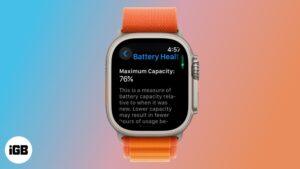
- Check battery usage: Most smartwatches show which apps use the most battery.
- Look for slowdowns: If your watch is slow after installing a new app, that app may be running in the background.
- See recent apps: Many systems let you view all open or recent apps.
- App permissions: Apps with location, Bluetooth, or background data access often run in the background.
For example, after installing a new messaging app, I noticed my watch battery dropped by 30% before lunch. Checking battery stats revealed the app was updating every few minutes. Removing it solved the problem.
Disabling Background Apps On Wear Os
Wear OS is common in many non-Apple smartwatches. Disabling background apps is straightforward. Here’s what to do:
Method 1: Use Recent Apps
- Press the main button to wake the screen.
- Swipe up or press the dedicated “Recent Apps” button.
- You’ll see a list of open apps. Swipe each app left or right to close it.
Method 2: Through Settings
- Open Settings.
- Tap Apps & notifications.
- Choose App info.
- Select the app you want to control.
- Tap Battery.
- Change Background restriction to “Restricted” or “Don’t allow.”
Method 3: Uninstall Or Disable
If you don’t use an app, uninstall it:
- Open the Play Store on your watch.
- Find the app.
- Tap Uninstall.
For system apps you cannot remove, use the Disable option in the app info screen.
Extra Tips For Wear Os
- Some watch faces act like apps and run in the background. Choose simpler watch faces to save battery.
- Turn off “Always-on display” to reduce background activity.
- Restart your watch every few days to clear stuck apps.
Disabling Background Apps On Apple Watch (watchos)
Apple Watch uses watchOS, which links closely with your iPhone. You control most apps through the watch itself or the Watch app on your iPhone.
Method 1: Close Apps On Watch
- Press the side button once.
- The Dock shows open apps.
- Swipe left on an app and tap the red “X” to close it.
Method 2: Manage Background Refresh
- Open the Watch app on your iPhone.
- Go to General > Background App Refresh.
- Turn off background refresh for apps you don’t need.
Method 3: Remove Unused Apps
- On your Apple Watch, find the app in the grid view.
- Press and hold the app until it jiggles.
- Tap the X to delete.
Or, use the Watch app on your iPhone:
- Go to My Watch > Installed on Apple Watch.
- Tap an app, then turn off Show App on Apple Watch.
Extra Tips For Apple Watch
- Disable background refresh for apps you rarely use. This gives a big battery boost.
- Some fitness and health apps need background refresh. Leave these on if you use them daily.
- Restart your watch after big updates to clear old processes.
Disabling Background Apps On Samsung Tizen Watches
Older Samsung watches use Tizen OS, which has different steps:
Method 1: Close Recent Apps
- Press the home button.
- Tap the “Recent Apps” icon.
- Swipe up to close each app.
Method 2: Manage App Permissions
- Go to Settings > Apps.
- Select the app.
- Adjust permissions like Location or Background Data. Turn off what you don’t need.
Method 3: Uninstall Or Disable
- Open Apps.
- Press and hold the app.
- Tap Uninstall or Disable.
Extra Tips For Tizen
- Use Battery settings to see which apps use power.
- Limit widgets, as each widget can update in the background.
- Keep the software updated for better app control.
Disabling Background Apps On Fitbit And Similar Watches
Fitbit, Garmin, and Huawei use their own systems. Usually, you manage apps using your phone.
Fitbit
- Open the Fitbit app on your phone.
- Tap your device image.
- Go to Apps.
- Tap an app, then choose Settings or Remove.
Garmin
- Use the Garmin Connect app.
- Go to Appearance > Apps.
- Remove or adjust app permissions.
Huawei
- Use the Huawei Health app.
- Tap Devices > your watch.
- Manage apps and notifications.
Extra Tips For Proprietary Watches
- Uninstall any apps you don’t use.
- Limit notifications to only important apps.
- Many fitness trackers have fewer apps, so focus on notifications and permissions.
Comparing Background App Control: Wear Os Vs. Watchos
If you’re curious how different systems compare, here’s a quick chart:
| Feature | Wear OS | watchOS |
|---|---|---|
| Close Recent Apps | Yes (Swipe) | Yes (Dock) |
| Disable Background Refresh | Settings | iPhone Watch App |
| Uninstall Apps | On Watch | On Watch or iPhone |
| Manage Permissions | Yes | Limited |
How To Decide Which Apps To Disable
Choosing which apps to turn off can be tricky. Here are some practical steps:
- Check usage: Look at your battery stats or recent apps. If you see an app you don’t use much, consider turning it off.
- Ask: Does it help you daily? If not, it’s probably safe to disable.
- Health and safety apps: Keep these running if you use your watch for tracking or emergencies.
- Notifications: If an app sends too many alerts, turn off its notifications or background access.
- Test in steps: Disable a few apps and see if you miss them. You can always turn them back on.
For example, I once disabled a news app that was sending me hourly updates. Not only did my battery last longer, but I felt less distracted during work. It’s okay to experiment.
Common Mistakes To Avoid
Disabling background apps is simple, but there are a few traps to avoid:
- Turning off critical apps: Some system apps handle Bluetooth, notifications, or syncing. Don’t disable these unless you’re sure.
- Blocking health sensors: Fitness or emergency alert apps may need background access. If you disable these, health data might not sync.
- Forgetting to restart: After disabling apps, restart your watch. This clears old processes.
- Not updating software: App controls often improve with updates. Keep your watch and apps current for best results.
Benefits Of Disabling Unnecessary Apps
The change can be dramatic:
- Longer battery life: Some users gain 20–40% more battery time.
- Smoother performance: Fewer background tasks mean faster response.
- Less data use: Many background apps use Wi-Fi or mobile data.
- More privacy: Fewer apps running means less risk of hidden data sharing.
- Fewer distractions: You control which notifications you see.
A recent study found that disabling even 5 unused apps increased smartwatch battery life by up to 30%. Try it for a week and see the results.
How To Keep Your Smartwatch Running Smoothly
Disabling background apps is just one step. Here are a few more habits to keep your watch in top shape:
- Update apps and software regularly.
- Limit notifications to what matters.
- Use simple watch faces.
- Restart your watch weekly.
- Clear old data and cache if possible.
These simple habits make a big difference. I’ve stuck with these steps, and my own smartwatch now lasts almost two days on a single charge—even with daily workouts.

Credit: braceletsmartwatch.fr
Advanced Tips For Tech-savvy Users
If you want even more control, consider these expert tips:
- Developer Options: Some smartwatches let you enable developer settings. Here, you can control how background processes run.
- Third-party apps: Some battery saver apps help manage background activity. Make sure they’re trusted and well-reviewed.
- Custom ROMs: Advanced users can install special software, but this often voids your warranty.
Remember, advanced steps are only for those who are comfortable with tech. If you’re not sure, stick with built-in controls.
When You Should Not Disable Background Apps
Sometimes, background apps are needed:
- Health monitoring: Apps for heart rate, sleep, or step tracking need to run in the background.
- Emergency alerts: SOS and fall detection apps rely on background access.
- Time-sensitive notifications: Calendar, reminders, or travel apps may need to update in real time.
If you’re unsure, read the app’s info before turning off background access.
What To Do If Your Watch Still Feels Slow
Disabling background apps usually helps, but sometimes your watch is still slow. Here’s what to try:
- Restart your watch. This clears stuck processes.
- Update the system. New updates fix bugs and improve speed.
- Factory reset. As a last resort, this removes all apps and data and returns the watch to its original state. Only do this if nothing else works.
If you’re still stuck, check the official support page for your smartwatch or visit a service center.
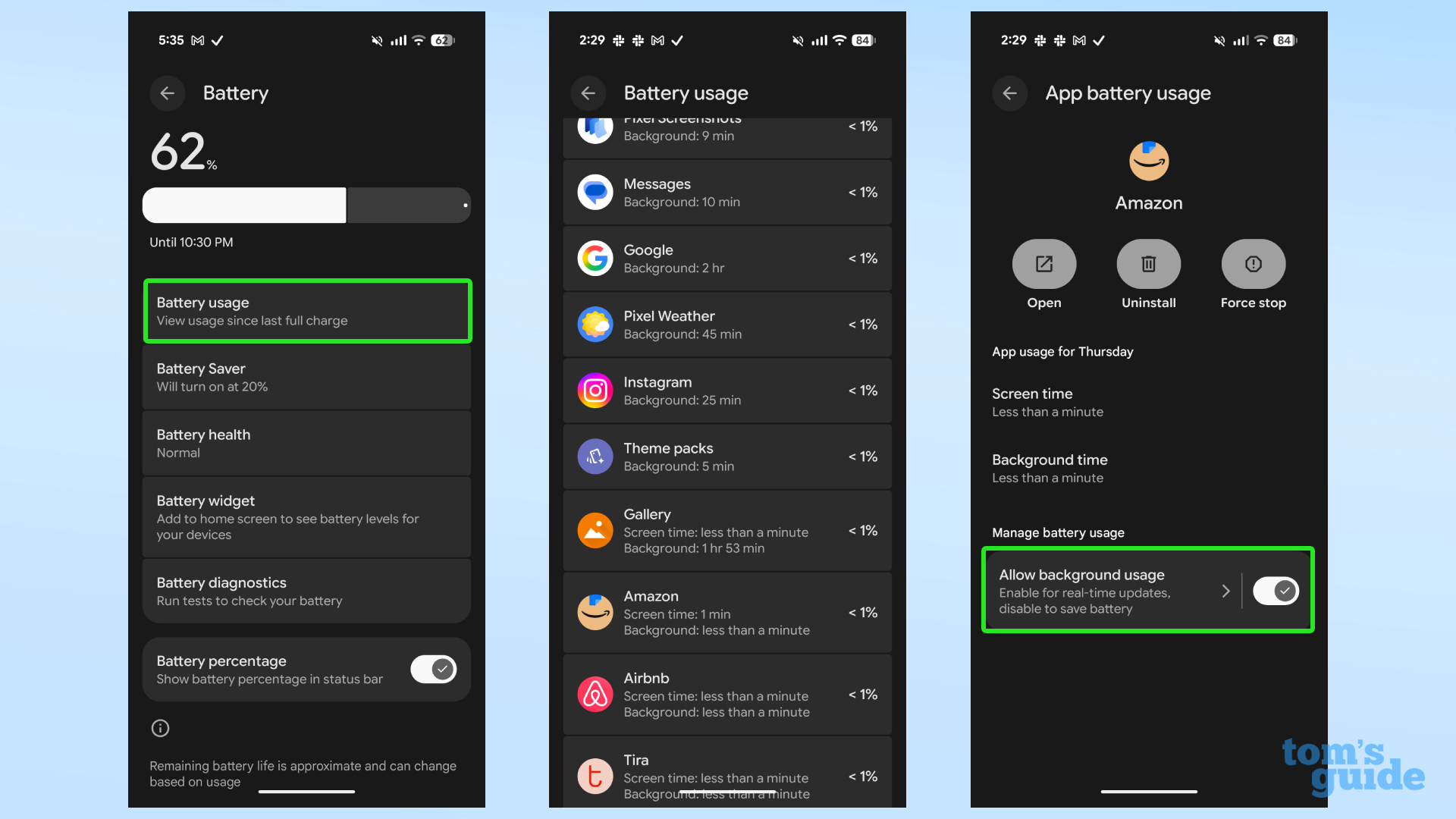
Table: Top Reasons For Fast Battery Drain
To give you a quick overview, here are the main causes of battery drain on smartwatches:
| Reason | Impact | How to Fix |
|---|---|---|
| Unnecessary background apps | High | Disable or restrict apps |
| Always-on display | High | Turn off in settings |
| Too many notifications | Medium | Limit notification apps |
| Old software | Medium | Update software |
| GPS and sensors always on | High | Turn off when not needed |
Credit: www.tomsguide.com
Why This Matters For Your Privacy
You might not realize it, but background apps can access your location, contacts, and health data. The fewer apps running, the less chance of your data being shared without your knowledge.
One survey found that over 60% of smartwatch users didn’t know which apps had location access. Take a few minutes to check permissions and turn off what you don’t use. It’s a simple way to keep your data safe.
If you want to learn more about privacy and smart devices, check out this Wikipedia article on smartwatches.
Frequently Asked Questions
How Do I Know Which Background Apps Are Safe To Disable?
Most apps not related to health, emergency alerts, or notifications are safe to disable. If you’re not sure, disable a few and watch for any changes. You can always turn them back on if you miss something.
Will Disabling Background Apps Delete My Data?
No, disabling or restricting background activity does not delete your data. It only stops the app from running when you’re not using it. However, uninstalling an app may remove its data.
Does Closing Apps Save Battery On All Smartwatches?
Yes, for most smartwatches, closing or disabling background apps will save battery. The effect is bigger if you use many apps or have a smaller battery.
Can I Disable Background Apps For All Apps At Once?
Some systems, like Apple’s watchOS, let you turn off background refresh for all apps at once in the Watch app. Others, like Wear OS, require you to do it app by app.
Will My Smartwatch Still Receive Notifications If I Disable Background Apps?
If you turn off background activity for messaging or notification apps, you might miss alerts. Always keep background access for apps you want notifications from.
Taking control of background apps is one of the easiest ways to make your smartwatch work better for you. Start with a few simple changes today, and you’ll see the difference in speed, battery life, and peace of mind. Your smartwatch—and your busy day—will thank you.

Rubel Miah is the Senior Editor at MyStyleGrid.com, where he brings a sharp editorial eye and an unshakable love for fashion to everything he does. A true style addict, Rubel lives and breathes trends, from streetwear to high fashion, and has a knack for turning inspiration into impactful stories. With years of experience in fashion journalism and digital media, he curates content that empowers readers to express themselves through style. When he’s not editing features or forecasting the next big thing, you’ll find him hunting down vintage pieces or capturing street style moments around the city.