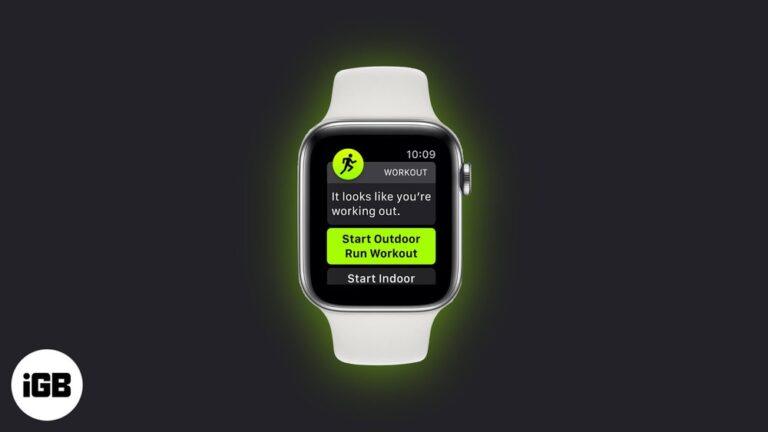
How To Enable Automatic Workout Detection On Smartwatch Devices
Smartwatches are changing how we track our health. Many people wear a watch not just to check the time, but also to monitor their steps, heart rate, and even sleep. But there is one feature that makes these devices even smarter. It is called automatic workout detection. This feature helps your watch notice when you start a workout—like a walk, run, or bike ride—without you pressing any button. That means you do not need to remember to start a workout every time. Your watch does it for you.
I remember when I first got my smartwatch. I was excited, but I often forgot to start my workout before running. Later, I found out about automatic workout detection. It made tracking my runs much easier. Now, I never miss logging a workout because my watch knows when I start moving fast.
In this guide, I will show you how to enable this feature on different smartwatches. I will also explain why this feature matters, and how to get the best results.
What Is Automatic Workout Detection?
Automatic workout detection is a feature found in many smartwatches. It uses sensors to notice when you start moving in a way that looks like exercise. For example, if you start walking quickly, your watch can guess you are starting a walk.
If you begin running, cycling, or swimming, the watch can detect that too.
The main goal is to help you track workouts without pressing any buttons. The watch collects data about your heart rate, movement, and steps. It then logs the workout in your fitness app. This makes tracking your progress simple and easy.
Why Is Automatic Workout Detection Useful?
- Saves time: You do not need to remember to start and stop workouts.
- More accurate logs: You will not miss workouts by forgetting to start tracking.
- Motivation: Seeing every workout logged can help you stay motivated.
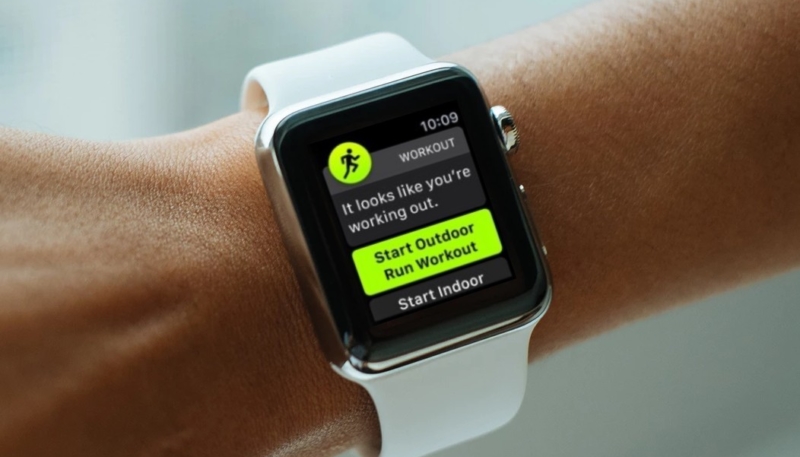
Some watches can even remind you if they notice you are working out but tracking is not on yet. This reminder helps you start tracking in time.
Which Smartwatches Offer Automatic Workout Detection?
Not every smartwatch has this feature. Some models do not support it. Below are smartwatches that have automatic workout detection.
| Brand | Popular Models | Auto Detection Supported? |
|---|---|---|
| Apple | Apple Watch Series 3 and later | Yes |
| Samsung | Galaxy Watch, Galaxy Watch Active | Yes |
| Fitbit | Charge 4, Versa series, Sense | Yes |
| Garmin | Vivoactive, Forerunner, Fenix | Yes |
| Huawei | Watch GT series | Yes |
| Xiaomi | Mi Watch, Amazfit GTS | Yes (limited) |
| Others | Various Android Wear OS models | Depends |
If you are not sure, check your watch’s manual or settings. Look for “auto workout detection,” “auto-recognition,” or “smart tracking. ”
How Does Automatic Workout Detection Work?
Smartwatches use sensors like accelerometers and heart rate monitors. When you move in a way that looks like exercise, the watch checks your movement and heart rate. If both match a workout pattern, it starts tracking.
For example:
- If you walk quickly for several minutes, the watch may recognize a “walk.”
- If your heart rate rises and you run, it may start a “run” session.
- Some watches can even spot cycling or swimming.
Most watches need a few minutes of steady activity to detect a workout. If you stop and start often, detection may not work as well.
Common Activities Detected
- Walking
- Running
- Cycling
- Swimming
- Elliptical training
- Rowing
- Stair climbing
Some watches can detect more activities. The exact list depends on your device.
How To Enable Automatic Workout Detection: Step-by-step For Top Brands
Let’s go through the steps for the most popular smartwatch brands. I will include clear steps and tips for each.
Apple Watch
Apple makes enabling automatic workout detection easy.
- Open the Watch app on your iPhone.
- Tap My Watch at the bottom.
- Tap Workout.
- Look for Start Workout Reminder and End Workout Reminder.
- Toggle these switches ON.
Now, your watch will remind you to start tracking if it notices you are moving. It will also remind you to end a workout if it sees you have stopped.
Tips For Apple Watch Users
- If you want the watch to start workouts automatically, you need to respond to the reminder. The Apple Watch does not start workouts without your input.
- Make sure your watchOS is updated for the best detection.
- If you swim, check that “Pool Swim” or “Open Water Swim” is enabled.
Samsung Galaxy Watch
Samsung’s Galaxy watches have strong workout detection.
- Press the Home button to open the apps.
- Tap Samsung Health.
- Scroll to Settings.
- Tap Workout Detection.
- Toggle Auto detect workouts ON.
You can choose which activities to auto-detect. For example, walking, running, or cycling.
Tips For Samsung Galaxy Watch Users
- The watch can start tracking some workouts without asking you.
- You can set which activities are auto-detected.
- Battery use may go up if you track many workouts.
Fitbit Devices
Fitbit uses a feature called SmartTrack.
- Open the Fitbit app on your phone.
- Tap your profile picture.
- Tap your device.
- Tap Exercise.
- Tap SmartTrack.
- Choose which activities you want detected.
- Set the minimum duration (for example, 10 minutes).
Fitbit will track activities like walking, running, biking, and elliptical automatically.
Tips For Fitbit Users
- The minimum duration is important. If you walk for less than the set time, the workout may not be tracked.
- Data appears in the Fitbit app under “Exercise.”
- You can disable SmartTrack for certain activities if you do not want them logged.
Garmin Devices
Garmin watches can auto-detect some activities.
- Open the Garmin Connect app.
- Tap your device icon.
- Tap Activity Tracking.
- Find Move IQ and enable it.
Move IQ is Garmin’s automatic detection feature. It works for walking, running, cycling, and other common activities.
Tips For Garmin Users
- Move IQ logs detected activities, but may not record detailed data unless you manually start a workout.
- For more detailed logs, start the workout manually.
- Move IQ is best for casual activity tracking.
Huawei Watches
Huawei’s watches use Smart Workout Detection.
- Open the Huawei Health app.
- Tap your watch device.
- Tap Device Settings.
- Tap Workout Detection.
- Toggle ON.
Huawei devices can auto-detect walking, running, and more.
Tips For Huawei Users
- Make sure your watch firmware is updated.
- The feature works best for common activities.
- For less common workouts, manual tracking is better.
Xiaomi Watches And Amazfit
Xiaomi and Amazfit devices use auto-recognition.
- Open the Mi Fit or Zepp app.
- Tap your device.
- Tap Workout Settings.
- Find Auto-recognition and toggle ON.
Some models only auto-detect walking and running.
Tips For Xiaomi/amazfit Users
- Battery may drain faster when auto-recognition is on.
- Not all models support swimming detection.
- Update your app and firmware for the latest features.

Credit: www.pbtech.com
Comparing Automatic Workout Detection Features
Here is a quick comparison of how top brands handle automatic workout detection.
| Brand | Auto Start? | Reminder? | Minimum Duration | Common Activities |
|---|---|---|---|---|
| Apple | No (reminder only) | Yes | 5-10 minutes | Walk, Run, Swim |
| Samsung | Yes | Yes | 3-10 minutes | Walk, Run, Cycle |
| Fitbit | Yes | No | 10 minutes | Walk, Run, Bike |
| Garmin | Yes (Move IQ) | No | Varies | Walk, Run, Bike |
| Huawei | Yes | No | Varies | Walk, Run |
| Xiaomi | Yes (limited) | No | Varies | Walk, Run |
As you can see, most watches need a minimum duration before detection. Some brands use reminders, while others start logging workouts automatically.
How To Get The Most Accurate Detection
Automatic workout detection is helpful, but it is not perfect. Sometimes the watch may miss your workout, or start tracking when you are not exercising. Here are ways to improve accuracy:
- Wear the watch correctly: Make sure it is snug on your wrist.
- Update firmware: Keep your watch and app updated.
- Set correct activity types: Choose which workouts you want auto-detected.
- Move steadily: Try to keep a steady pace. Frequent stops may confuse the sensors.
- Check battery: Low battery can affect detection.
When I first used automatic detection, I noticed that sometimes short walks were not tracked. After setting the minimum duration to 5 minutes, my walks were logged more often.
Common Mistakes To Avoid
- Loose watch: If your watch is too loose, sensors may not read well.
- Not updating apps: Features improve with updates. Always update your app and watch firmware.
- Wrong settings: Make sure auto-detection is enabled for the activities you want.
Privacy And Data Concerns
Smartwatches track your movement and heart rate. This data is private. Most brands let you control who sees your data. You can set privacy in your app settings. If you are worried, check your privacy settings often.
For more details on privacy and smart devices, visit FTC Consumer Advice.
Real-world Benefits And My Experience
Automatic workout detection is more than just a convenience. It can help you build healthy habits. I noticed that seeing every walk or run logged in my app gave me extra motivation. It felt good to see progress, even on days when I forgot to start tracking.
A friend of mine used to miss logging his bike rides. After turning on automatic detection, his weekly stats improved. He felt more confident about his health goals. This feature is especially helpful for busy people, or those who do not want to press buttons before every workout.
Troubleshooting Automatic Workout Detection
Sometimes, automatic detection may not work as expected. Here are some problems and solutions:
- Workout not detected: Check if auto-detection is enabled. Make sure minimum duration is set low enough.
- Wrong activity detected: Some watches may confuse walking and running. Adjust settings or update firmware.
- Battery drains fast: If detection uses too much battery, disable detection for less important activities.
- Data not syncing: Make sure your watch is connected to your phone. Sync manually if needed.
- Privacy concerns: Turn off auto-detection if you do not want certain activities tracked.
If you still have problems, check your user manual or visit your brand’s help site.
How To Disable Automatic Workout Detection
If you want to turn off automatic workout detection, follow these steps:
- Apple Watch: Open the Watch app. Tap Workout. Toggle “Start Workout Reminder” and “End Workout Reminder” OFF.
- Samsung Galaxy Watch: Open Samsung Health. Tap Settings. Turn OFF “Auto detect workouts.”
- Fitbit: Open Fitbit app. Tap device. Tap Exercise. Tap SmartTrack. Turn OFF activities you do not want.
- Garmin: Open Garmin Connect. Tap device. Tap Activity Tracking. Turn OFF Move IQ.
- Huawei: Open Huawei Health app. Tap Device Settings. Turn OFF Workout Detection.
- Xiaomi: Open Mi Fit or Zepp app. Tap device. Turn OFF Auto-recognition.
Disabling detection can help save battery and protect privacy.

Credit: www.youtube.com
Tips For Beginners
If you are new to smartwatches, here are some helpful tips:
- Start with auto-detection for common activities like walking and running.
- Check your workout logs weekly to see if detection is working.
- Adjust minimum duration to match your workout style.
- Update your watch and app often.
- Try manual tracking for special workouts or short sessions.
Advanced Features: What’s Next In Automatic Workout Detection?
Smartwatch brands are adding new features to automatic workout detection. Some watches can now detect more activities, like yoga or strength training. Others use AI to improve accuracy. In the future, watches may even track your mood during workouts.
If you want the latest features, look for watches with strong sensors and regular updates. New models often improve detection speed and accuracy.
Credit: allurelakestorey.com
Frequently Asked Questions
How Do I Know If My Smartwatch Supports Automatic Workout Detection?
Check your watch’s settings or user manual. Look for “auto-detection,” “SmartTrack,” or “Move IQ. ” If you cannot find it, search online for your model.
Can I Use Automatic Workout Detection For All Types Of Exercise?
Most watches support common activities like walking, running, and cycling. For less common workouts, like yoga or weightlifting, manual tracking is better.
Does Automatic Workout Detection Use More Battery?
Yes, it can use more battery, especially if you track many workouts. You can save battery by turning off detection for less important activities.
What Should I Do If My Workouts Are Not Being Detected?
Check that auto-detection is enabled. Make sure your watch is snug, and update your app and firmware. Adjust the minimum duration if needed.
Is My Data Safe With Automatic Workout Detection?
Your data is private. Most brands let you control who sees your data. Check privacy settings in your app. For more information, visit Wikipedia.
Smartwatches are making fitness easier for everyone. Automatic workout detection is a simple but powerful tool. It helps you track your progress and stay motivated. By following the steps in this guide, you can set up this feature and enjoy the benefits.
Whether you are walking, running, or cycling, your watch will remember your workouts—even when you forget. If you want more control, manual tracking is always an option. Stay active, stay healthy, and let your smartwatch do the work.

Rubel Miah is the Senior Editor at MyStyleGrid.com, where he brings a sharp editorial eye and an unshakable love for fashion to everything he does. A true style addict, Rubel lives and breathes trends, from streetwear to high fashion, and has a knack for turning inspiration into impactful stories. With years of experience in fashion journalism and digital media, he curates content that empowers readers to express themselves through style. When he’s not editing features or forecasting the next big thing, you’ll find him hunting down vintage pieces or capturing street style moments around the city.