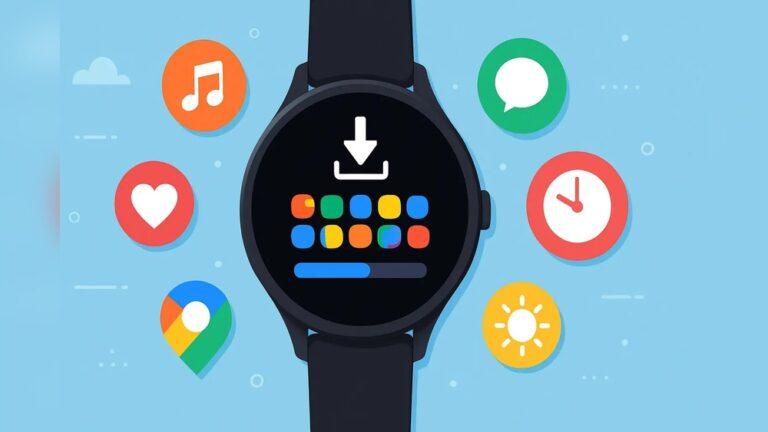
Installing Third Party Apps on Your Android Smartwatch: A Complete Guide
If you own an Android-based smartwatch, you probably enjoy checking your notifications, tracking your steps, and maybe even playing music. But you might wonder, “Can I install more apps? Can I get those cool apps that are not in the Play Store?” The answer is yes! You can add third party apps to your smartwatch and unlock more features. It feels like upgrading your watch to do more things you like.
In this guide, I will walk you through the whole process. You will learn how to install third party apps step by step, what you need, how to solve problems, and what to watch out for. I have done this myself with my own smartwatch, and I will share some tips I learned along the way.
Even if you are not a tech expert, you can follow these steps. Let’s get started and make your smartwatch smarter!
What Are Third Party Apps And Why Install Them?
Third party apps are apps not made by the watch company or Google. Sometimes, these apps are not in the official Play Store. People install them because:
- They want more choices than the Play Store offers.
- Some apps can do special things (like custom watch faces or tools).
- They want to try apps made by small developers.
- Some apps are not available in their country.
For example, I once wanted a special calculator app that was not in the Play Store. I found it online and installed it. Now I use it almost every day on my watch. It saves me time and works better than the basic calculator.
Requirements Before You Start
Before you try to install third party apps, you need a few things ready:
- Android-based smartwatch (Wear OS or other Android systems).
- Smartphone or a PC (Windows or Mac).
- Internet connection for downloads.
- USB cable to connect your watch (if needed).
- Developer options enabled on your watch.
- APK files for the apps you want to install.
- ADB software (for advanced installs).
Some smartwatches allow installing APKs directly, while others need a PC. Always check your watch model’s guide or website for special steps.
Enabling Developer Options On Your Smartwatch
You need to unlock Developer options first. This allows your watch to install apps from outside the Play Store.
Here is how you do it:
- Open the Settings app on your smartwatch.
- Scroll down and tap About or System.
- Find Build number (it may be inside “Software Information”).
- Tap Build number seven times quickly.
- You will see “You are now a developer!”
Now you can see Developer options in the settings. This menu gives you more control over your watch, like installing apps and debugging.
How To Install Apks: The Main Methods
There are a few ways to install third party apps (APKs) on your Android smartwatch. Let’s look at the most common ones.
1. Install Directly From Your Watch
Some watches let you install APKs without a PC. Here’s how:
- Download the APK file to your watch (using a browser or file manager).
- Open the Files app on your watch.
- Find the APK file and tap it.
- Tap Install.
If you get a warning about unknown sources, go to Settings > Apps > Special app access > Install unknown apps, then allow the Files app.
This method is easy, but not all watches support it. If your watch does not, try another way below.
2. Using Your Phone To Send Apks
You can use your phone to send APKs to your watch. This works well if your watch and phone are both Android.
- Download the APK file on your phone.
- Use an app like Wear Installer or Easy Fire Tools on your phone.
- Connect your watch and phone to the same Wi-Fi.
- Open the installer app and choose the APK.
- The app sends the APK to your watch and installs it.
This is my favorite way because it is fast and needs no cables. I once installed a note-taking app from my phone while I was outside, and it worked in less than 2 minutes.
3. Install Apks Using A Pc (with Adb)
For more control, use your PC and ADB (Android Debug Bridge). This tool lets you send files and commands to your watch.
Steps:
- Download the APK file to your computer.
- Install ADB on your computer. You can get it from the Android developer site.
- Connect your watch to the PC with a USB cable.
- On your watch, allow USB debugging (find this in Developer options).
- Open a command prompt or terminal on your PC.
- Type `adb devices` to check if your watch is listed.
- Type `adb install appname.apk` (replace with your APK’s name).
ADB is powerful and works on almost all Android watches, even if other methods fail.
4. Install From Cloud Storage
You can use cloud apps like Google Drive or Dropbox.
- Upload the APK to your cloud storage.
- Open the cloud app on your smartwatch.
- Download the APK on your watch.
- Open and install it from the Files app.
This works if your watch supports these cloud apps. It’s handy if you don’t want to use a PC.
Comparing Installation Methods
Here is a simple comparison of the four main methods:
| Method | Needs PC | Needs Phone | Works Offline | Best For |
|---|---|---|---|---|
| Direct Install | No | No | Yes | Simple APKs |
| Phone Installer | No | Yes | Yes | On the go |
| ADB (PC) | Yes | No | Yes | Advanced users |
| Cloud Storage | No | No | No | Remote install |
Downloading Safe Apk Files
When you download APKs, always choose trusted sites. Some APK files can have viruses or malware. Use popular sites like APKMirror, APKPure, or the app’s official website.
Check reviews or comments before downloading. If the file looks strange or has bad reviews, do not install it.
Remember: Installing unknown APKs is a risk. Only install apps you trust.
Setting Up Adb For Pc Install
If you choose to use ADB, here’s a deeper look at setting it up:
- Download the ADB platform tools from the Android developer site.
- Unzip the folder to a place you remember.
- Open Command Prompt (Windows) or Terminal (Mac/Linux).
- Go to the folder where you unzipped the tools.
- Connect your watch using a USB cable.
- On your watch, allow USB debugging (when you get a pop-up).
- Type `adb devices` to see your watch.
- Type `adb install appname.apk` to install the app.
If You See “success,” The App Is Installed!
Troubleshooting Common Issues
Sometimes, things do not go smoothly. Here are some problems you might see, and how to fix them.
Watch Not Showing In Adb
- Make sure USB debugging is ON.
- Try a different USB cable.
- Restart your watch and computer.
- Check if you need extra drivers for your watch model.
“app Not Installed” Error
- The APK may not be made for your watch’s Android version.
- The app may need phone-only features.
- Try a different version of the APK.
Storage Space Problems
- Uninstall old apps you do not use.
- Clear app cache in Settings > Apps.
- Restart your watch.
Apk File Won’t Open
- Some watches block unknown sources. Check Settings > Security.
- Try installing with ADB or from your phone.
From my own experience, some apps just do not work well on all watches. I once tried to install a weather app, but it crashed every time I opened it. I later found a different version that worked fine. Do not give up—sometimes you just need to try another APK.

Credit: www.familyhandyman.com
Keeping Your Smartwatch Safe
Installing third party apps gives you more control, but it can be risky. Here are tips to keep your device safe:
- Only use trusted APK sources.
- Do not install apps you do not know.
- Read reviews online before downloading.
- If your watch acts strange after installing an app, uninstall it right away.
- Keep your watch’s software updated. Updates often fix security problems.
Managing Apps After Installation
Once you install new apps, you may want to manage them. You can:
- Open the app from your app drawer or main menu.
- Uninstall apps you do not like (Settings > Apps > Select app > Uninstall).
- Turn off app permissions if you feel unsafe (Settings > Apps > Permissions).
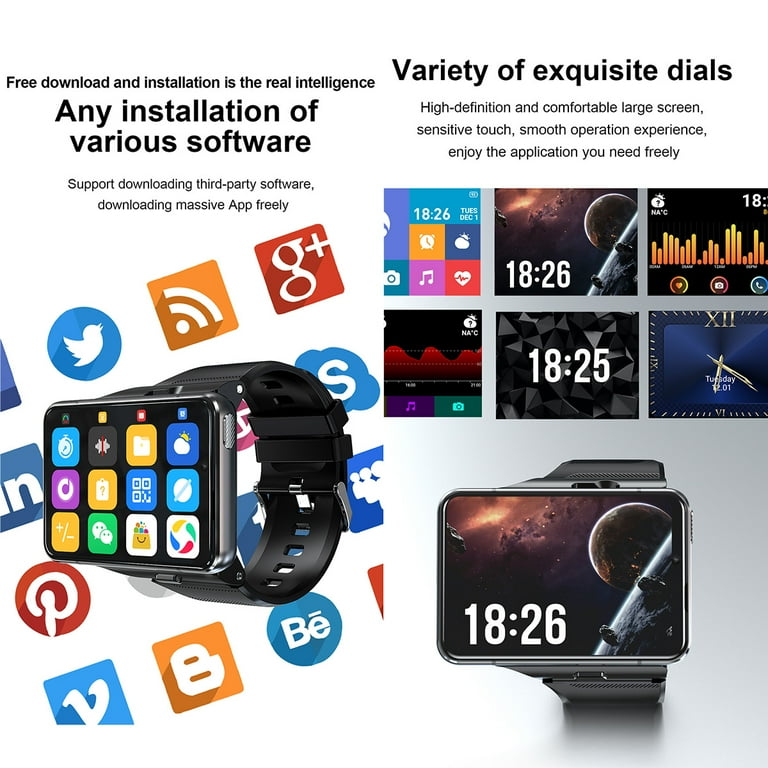
If you install many apps, keep track of them. Some apps run in the background and use battery. If your battery drains fast, try removing unused apps.
Credit: www.walmart.com
What To Do If Your Watch Becomes Slow
Sometimes, installing too many apps or heavy apps can slow down your watch. Here’s what to do:
- Restart your watch. This clears memory.
- Check which apps use the most battery and memory (Settings > Battery or Apps).
- Uninstall apps you do not use.
- Disable animations in Developer options to speed up the watch.
- Reset your watch as a last option (Settings > System > Reset).
I once installed a big game on my watch. After that, the watch was very slow. I had to uninstall the game and restart the watch. It was fast again!
Legal And Warranty Issues
Be careful: Installing third party apps can sometimes void your warranty or break rules set by your watch maker. Always check your warranty details.
Most companies do not support watches with modified software. If your watch has problems after installing unknown apps, they may not help fix it for free.
Backing Up Your Watch Before Installing
It’s smart to back up your data before installing new apps. This way, you do not lose your data if something goes wrong.
- Use the backup feature in your watch’s settings.
- Some watches back up to your Google account.
- If you use ADB, you can run `adb backup -apk -shared -all` to back up your apps and data.
Backing up takes a few minutes and can save you trouble later.
Table: Common App Types People Install
Here is a quick look at the types of apps people like to install and their uses:
| App Type | Why People Use | Popular Examples |
|---|---|---|
| Custom Watch Faces | Personalize look | Facer, WatchMaker |
| Fitness Tools | Track steps, calories | Strava, Fitify |
| Productivity | Notes, reminders | Google Keep, TickTick |
| Games | Entertainment | 2048, Snake |
| Media Players | Music, video | VLC, Musicolet |
Tips For Choosing The Right Third Party Apps
To find the best apps for your smartwatch, keep these points in mind:
- Check compatibility: Some apps are made for phones, not watches.
- Read user reviews: Look for reviews from other smartwatch users.
- Check update dates: Newer apps are more likely to work well.
- Try small apps first: Start with lightweight apps to avoid slowdowns.
Avoid installing too many at once. Test one app at a time, so you know which one causes problems if something goes wrong.
When Things Go Wrong: Resetting Your Watch
If your watch does not work after installing an app, you may need to reset it:
- Open Settings on your watch.
- Go to System.
- Tap Reset or Factory Reset.
This will erase all data and apps, and set your watch back to normal. Only do this if other fixes do not work.
Table: Risks Vs. Rewards Of Third Party Apps
Before you install, it’s good to know the benefits and risks. Here’s a simple overview:
| Rewards | Risks |
|---|---|
| More features | Security risks |
| Personalization | Warranty void |
| Latest apps | Device instability |
| Unique tools | Data loss |
Keeping Apps Updated
Third party apps do not always update automatically. To update, you must:
- Download the latest APK from a trusted site.
- Install it over the old version, or uninstall the old one first.
- Check for updates every few months.
Staying updated helps you get new features and fixes.
Where To Learn More
If you want to dive deeper, check out online forums like Reddit’s r/WearOS, XDA Developers, or the official Wear OS website. These places are full of tips, guides, and community help.
For official ADB details, you can visit the Android Developer Site.
Frequently Asked Questions
Can I Install Any Android App On My Smartwatch?
Not all Android apps work on smartwatches. Apps made for phones may not fit the small screen or may need features your watch does not have. Always check if the app is made for Wear OS or your watch’s system.
Is It Safe To Install Third Party Apps?
It is usually safe if you use trusted APK sources. But there is always a small risk. Some apps can have viruses or steal your data. Only install apps from sites you trust.
Will Installing Third Party Apps Void My Warranty?
It depends on your watch brand. Some companies do not allow third party installs and may not fix your watch for free if it breaks. Check your warranty terms before you try.
How Do I Uninstall A Third Party App From My Watch?
Go to Settings > Apps, find the app, and tap Uninstall. You can also uninstall using ADB with the command `adb uninstall packagename`.
What Should I Do If My Watch Becomes Slow After Installing Apps?
Restart your watch first. If it is still slow, uninstall apps you do not use. You can also reset your watch as a last step if nothing else works.
—
Adding third party apps to your Android smartwatch opens up new worlds of features and fun. With the right steps, you can customize your watch to fit your life. Just remember to stay safe, use trusted sources, and back up your data.
I have found many amazing apps this way, and I believe you will too! Enjoy your new, smarter smartwatch.
Credit: www.ifit.com

Rubel Miah is the Senior Editor at MyStyleGrid.com, where he brings a sharp editorial eye and an unshakable love for fashion to everything he does. A true style addict, Rubel lives and breathes trends, from streetwear to high fashion, and has a knack for turning inspiration into impactful stories. With years of experience in fashion journalism and digital media, he curates content that empowers readers to express themselves through style. When he’s not editing features or forecasting the next big thing, you’ll find him hunting down vintage pieces or capturing street style moments around the city.