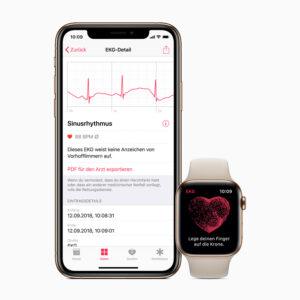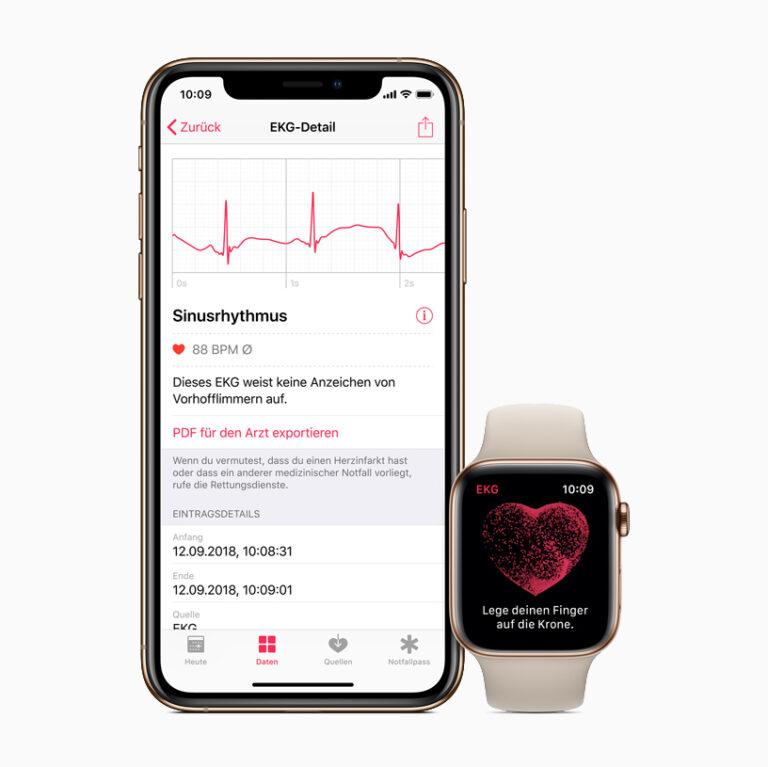
Open the ECG app, rest your arm, touch the Digital Crown with one finger, and wait 30 seconds.
Learning how to take an ECG on Apple Watch is simple, but getting a clean reading takes the right setup. This guide explains which Apple Watch models support the ECG app, how to record your heart rhythm, what each result means, and when you should seek medical care.
What an ECG on Apple Watch Does
An electrocardiogram, or ECG, records the electrical signals that make your heart beat. The Apple Watch uses electrodes on the back of the watch and the Digital Crown to create a single-lead ECG.
This reading can help identify signs of atrial fibrillation, often called AFib. AFib is an irregular heart rhythm that may increase the risk of blood clots and stroke.
The Apple Watch ECG is helpful, but it is not the same as a clinical 12-lead ECG. A doctor may use several electrodes across your chest, arms, and legs to view the heart from different angles. The Apple Watch provides one view, much like looking at a large picture through one window.
The ECG app is not designed to detect:
• A heart attack
• A stroke
• High blood pressure
• High cholesterol
• Every type of irregular heartbeat
• The cause of chest pain or shortness of breath
Use the reading as useful information to discuss with a health professional, not as a complete diagnosis.

Which Apple Watch Models Support ECG?
The ECG app works on Apple Watch Series 4 and later models, excluding Apple Watch SE models. Your watch must also use a supported version of watchOS, and the feature must be available in your country or region.
You also need a compatible iPhone. In most cases, the iPhone must be an iPhone 6s or later with a current version of iOS.
Before trying to take an ECG on Apple Watch, check these requirements:
• Apple Watch Series 4 or later, except Apple Watch SE
• A compatible iPhone
• The latest available watchOS and iOS updates
• The ECG app installed and set up
• A supported country or region
• The user must generally be at least 22 years old for the ECG app
The ECG feature may not appear if your Apple Watch was purchased in a region where the app is not approved. Availability can also change as local health regulators approve new features.
How to Set Up the ECG App
You must set up the ECG app before you can record an ECG on Apple Watch. The setup usually takes only a few minutes.
Set up ECG from the iPhone Health app
- Open the Health app on your iPhone.
- Tap Browse.
- Tap Heart.
- Select Electrocardiograms, or ECG.
- Tap Set Up ECG App.
- Follow the instructions on the screen.
- Enter your date of birth when asked.
- Read the information about the ECG feature.
- Finish the setup.
You may also open the Watch app on your iPhone, tap Heart, and look for ECG. If the ECG app is missing, update both devices and check whether the feature is available in your region.
A common setup mistake is searching for “EKG” instead of “ECG.” Both terms describe the same type of heart test, but Apple labels the app as ECG in many regions.

How to Take an ECG on Apple Watch
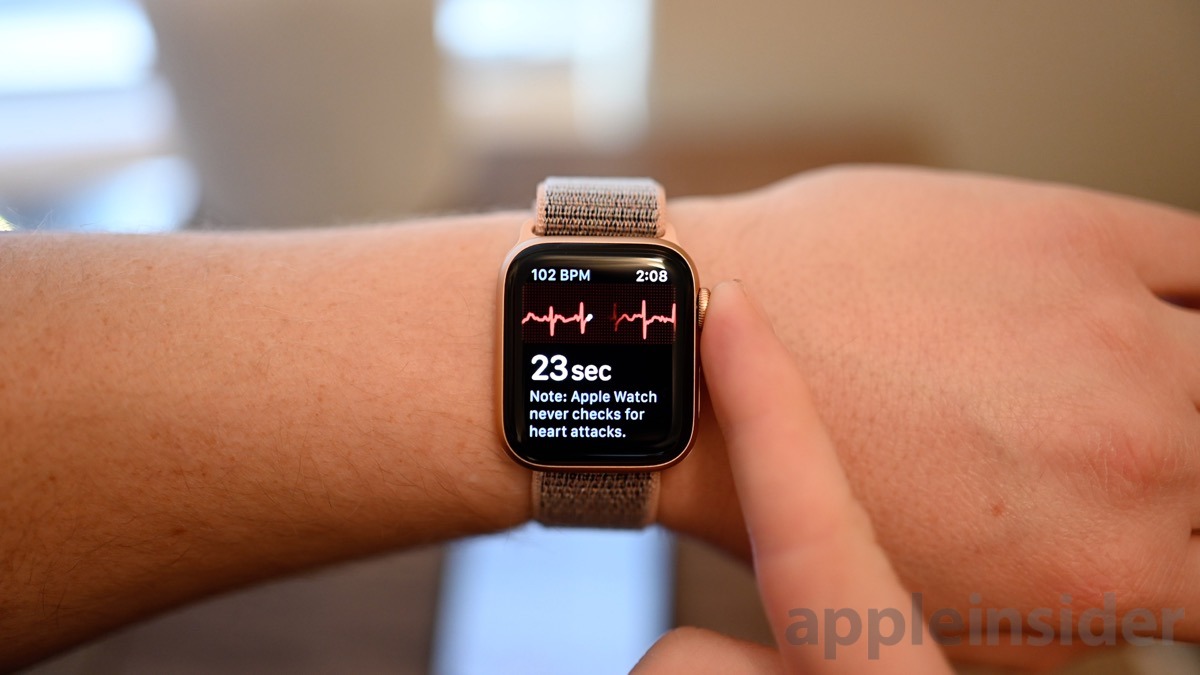
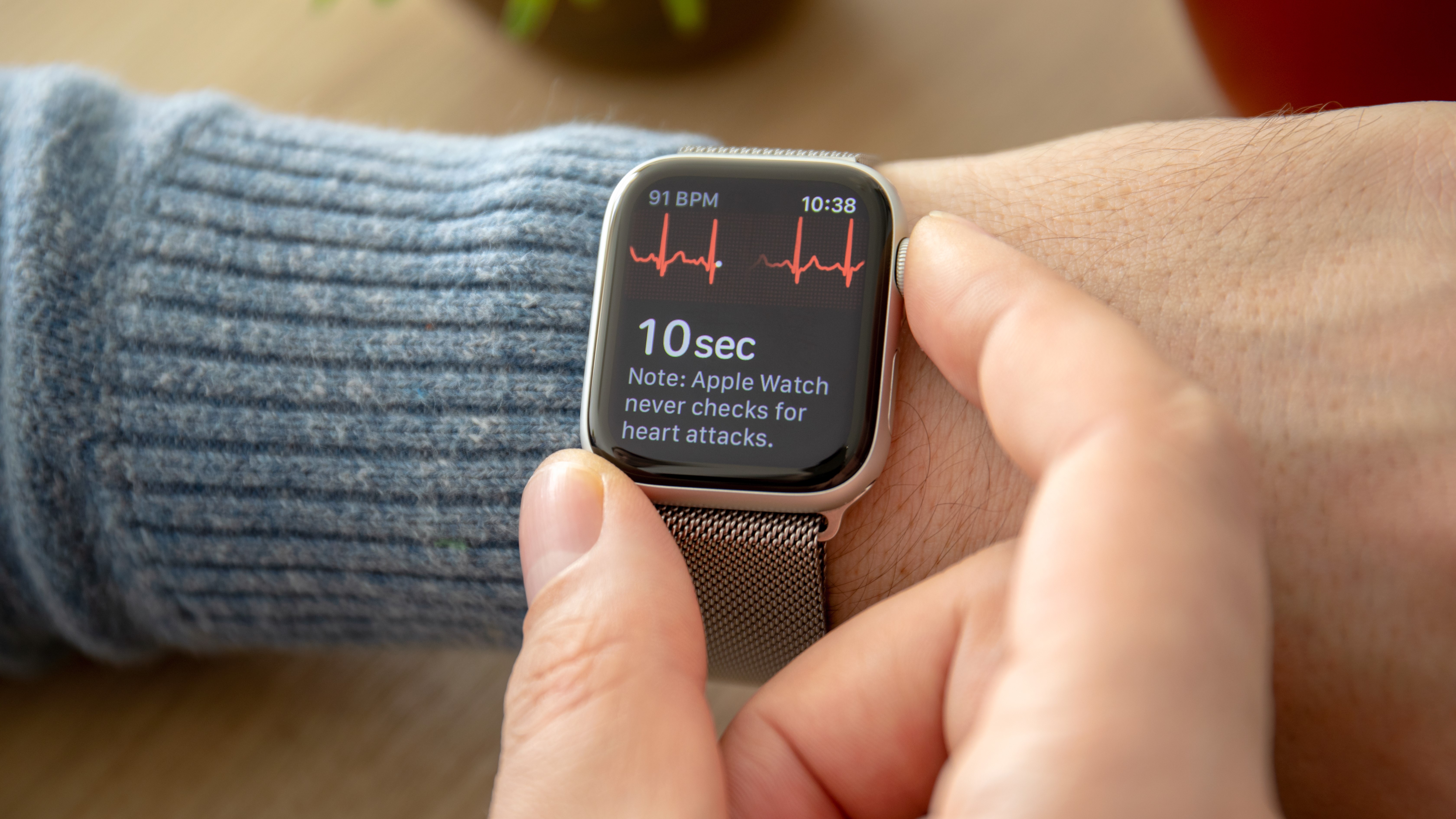
Once setup is complete, you can take an ECG on Apple Watch in a quiet place. The full recording takes about 30 seconds.
Follow these steps:
- Sit down and relax.
- Make sure the back of the Apple Watch is clean and dry.
- Wear the watch snugly on your wrist.
- Open the ECG app on the Apple Watch.
- Rest the arm wearing the watch on a table or your lap.
- Place a finger from your other hand on the Digital Crown.
- Keep your finger gently on the crown.
- Stay still and avoid talking for about 30 seconds.
- Wait for the result.
- Tap Done when the recording ends.
Do not press hard on the Digital Crown. A light, steady touch is enough. Pressing too firmly can make your hand tense and may create movement that affects the recording.
Keep both arms relaxed. Think of the process as holding a cup filled to the rim. Small movements can disturb the result.
How to Get a Better Apple Watch ECG Reading
A poor recording does not always mean something is wrong with your heart. It often means the watch could not make a stable connection with your skin.
Use these tips before you take an ECG on Apple Watch:
• Sit still in a comfortable chair.
• Rest your arm on a table or your leg.
• Keep your legs uncrossed if possible.
• Make sure your fingers and wrist are clean and dry.
• Wear the watch so it touches your skin fully.
• Avoid taking the reading right after exercise.
• Wait until your breathing is calm.
• Keep the watch band snug but not painful.
• Do not speak or move during the recording.
• Avoid nearby electrical devices that may cause interference.
Cold fingers can also make a recording harder. Warm your hands first, but avoid wetting your skin. Moisture can reduce the quality of the electrical contact.
One practical lesson is to avoid rushing. Many people start an ECG while walking, standing, or checking messages. That makes a poor recording more likely. A calm 30-second pause usually gives a better result.

What the Apple Watch ECG Results Mean
After you take an ECG on Apple Watch, the app may show one of several results. Each result has a different meaning.
Sinus rhythm
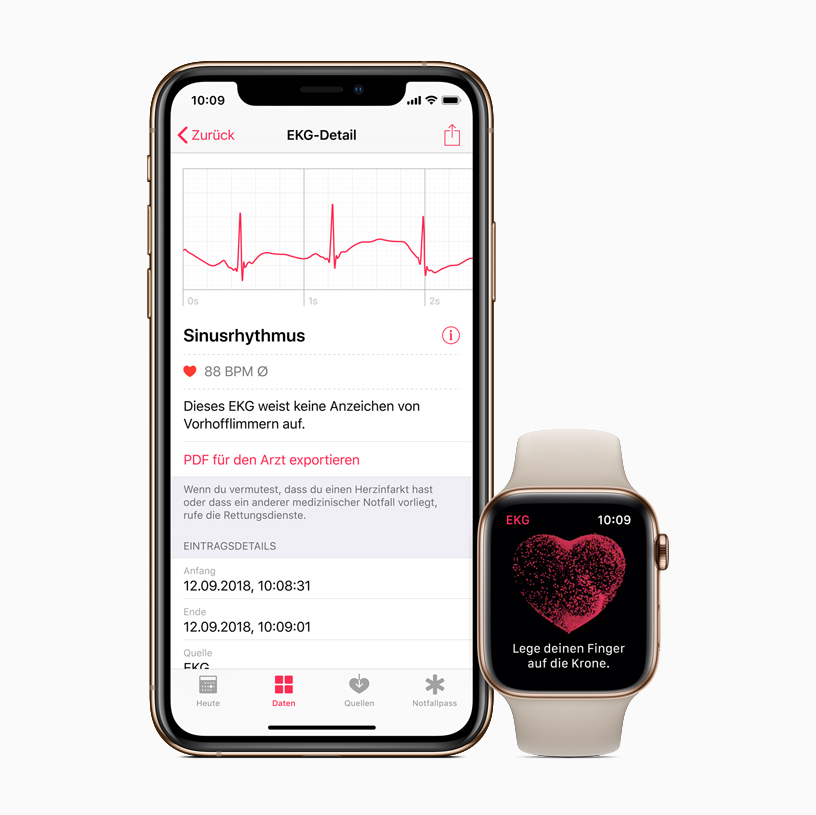
Sinus rhythm means the recording shows a regular heart rhythm. The signal appears to begin in the heart’s natural pacemaker.
This is generally a normal result, but it does not prove that your heart is completely healthy. You may still have a medical issue that the Apple Watch ECG cannot detect.
Atrial fibrillation
An AFib result means the recording shows an irregular rhythm that may be consistent with atrial fibrillation. It does not confirm a diagnosis by itself.
If you receive an AFib result, contact your doctor or another qualified health professional. Seek urgent help if you also have severe symptoms such as chest pain, trouble breathing, fainting, or sudden weakness.
Inconclusive
An inconclusive result means the app could not classify the recording. This can happen because of movement, a fast or slow heart rate, an unclear signal, or a rhythm that the app cannot classify.
Wait a few minutes and try again while sitting quietly. If the result keeps appearing, save the recording and discuss it with a health professional.
Poor recording
A poor recording usually means the signal was not clear enough. Check your watch position, clean the sensors, relax your arms, and try again.
If poor recordings happen often, make sure the watch fits well and that the back sensor has full skin contact.

How to View and Share Your ECG Results
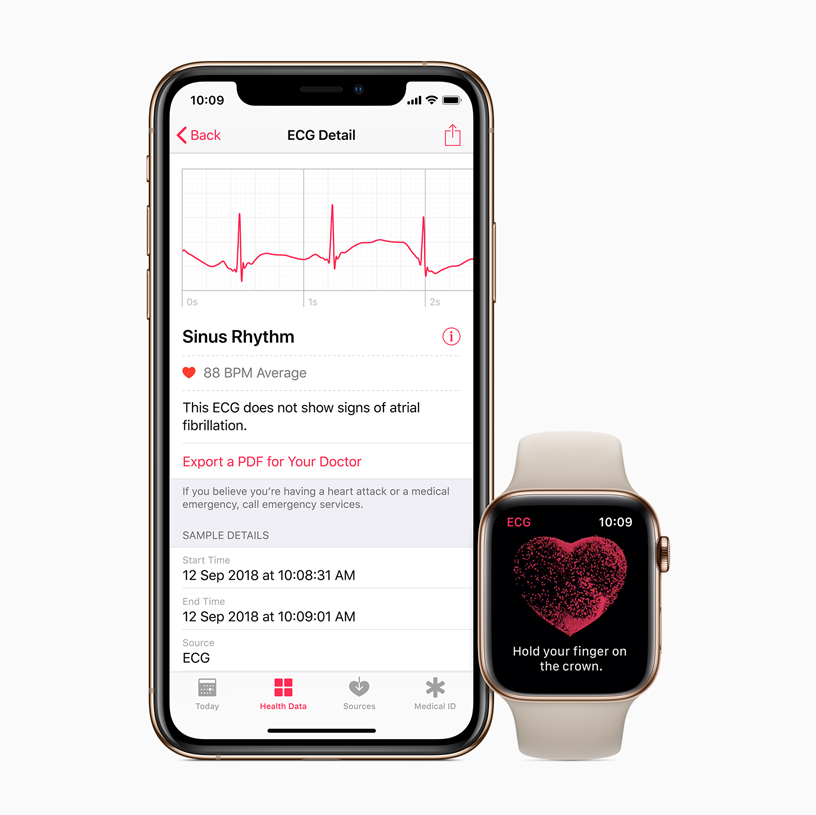
The Apple Watch stores ECG recordings in the Health app on your iPhone. You can review the result and create a PDF to share with a doctor.
To find your ECG history:
- Open the Health app.
- Tap Browse.
- Tap Heart.
- Tap Electrocardiograms, or ECG.
- Select a recording.
- Review the result and waveform.
- Tap Export a PDF for Your Doctor if you want to share it.
The PDF can help your doctor see the recording and the classification given by the app. It is useful to note the date, time, symptoms, activity, and any medicines taken near the recording.
For example, a record that says “AFib” after several episodes of a racing heartbeat may give your doctor helpful context. A single result without symptoms may need a different review.
Do not delete unusual recordings before speaking with your doctor. Keeping a small record of symptoms and readings can make your appointment more useful.
When to Seek Emergency Medical Help
An Apple Watch ECG should never delay emergency care. Call 911 in the United States if you have symptoms that may signal a serious problem.
Get urgent help for:
• Chest pain, pressure, or tightness
• Severe trouble breathing
• Fainting or near-fainting
• Sudden weakness or numbness on one side
• Sudden trouble speaking or understanding speech
• Severe dizziness
• A fast or irregular heartbeat with serious symptoms
• Blue or gray lips or skin
A normal ECG result does not rule out a heart attack or another emergency. The Apple Watch cannot assess every heart problem, and symptoms matter more than the watch classification.
If you feel seriously unwell, do not spend time repeating the test. Call emergency services and follow the instructions you receive.

Limitations of Taking an ECG on Apple Watch
The Apple Watch ECG is a useful wellness and monitoring tool, but it has clear limits. It records only a single-lead view of the heart and only during the short time you take the test.
It may not detect occasional rhythm changes that do not happen during the recording. It may also miss conditions that do not change the electrical pattern in a way the app can recognize.
The app is not intended to replace:
• A medical examination
• A clinical 12-lead ECG
• Blood tests
• Heart imaging
• A doctor’s diagnosis
• Emergency treatment
The reading can also be affected by motion, poor contact, skin conditions, tattoos, moisture, and an incorrectly worn watch. These limits explain why doctors may request more testing even when your Apple Watch shows sinus rhythm.
For people who take blood thinners or heart medicines, never change treatment based only on an Apple Watch result. Medication decisions should come from a qualified clinician.
How to Track ECG Readings Over Time
One ECG gives a brief snapshot. A record over time may provide more useful information, especially when you notice repeated symptoms.
You can keep a simple log with:
• Date and time
• ECG result
• Heart rate
• Symptoms
• Recent exercise or stress
• Caffeine or alcohol use
• Sleep quality
• Medicines taken
Do not take dozens of readings in a row because you feel anxious. Repeated checks can increase worry and may not add useful information. Instead, follow your doctor’s advice and record readings when symptoms occur or at agreed times.
A practical approach is to take one careful reading, save it, and write down how you felt. This creates a clearer history than many rushed recordings.
Common Mistakes to Avoid
Knowing how to take an ECG on Apple Watch also means knowing what can reduce accuracy. Avoid these common errors:
• Taking the test while walking or standing
• Holding the Digital Crown too tightly
• Wearing the watch over clothing
• Using wet hands
• Taking a reading right after intense exercise
• Talking during the 30-second test
• Ignoring repeated AFib results
• Treating a normal result as a medical guarantee
• Changing medicine without medical advice
• Waiting for another reading during an emergency
Another mistake is focusing only on the label. The waveform and your symptoms also matter. A doctor can review the complete recording and decide whether more testing is needed.
If you are unsure what a result means, contact your health care provider. Clear questions are always better than guessing.
Frequently Asked Questions
Can I take an ECG on any Apple Watch?
No. The ECG app generally works on Apple Watch Series 4 and later models, except Apple Watch SE. Your watch, iPhone, operating systems, and region must also support the feature.
How long does an Apple Watch ECG take?
The recording takes about 30 seconds. Setup, opening the app, and reviewing the result may add another minute or two.
Does an Apple Watch ECG detect a heart attack?
No. The Apple Watch ECG is not designed to detect heart attacks. Call 911 for chest pain, severe breathing trouble, fainting, or other emergency symptoms.
What should I do if my Apple Watch says AFib?
Save the recording and contact a health professional for advice. If you have serious symptoms, call 911 instead of waiting for a routine appointment.
Why does my Apple Watch ECG say inconclusive?
An inconclusive result can happen because of movement, poor skin contact, a fast or slow heart rate, or a rhythm the app cannot classify. Rest, clean the watch, and try once more; contact a clinician if it keeps happening.