Activating Remote Camera Control From Your Smartwatch: A Complete Guide
Taking photos from a distance used to be difficult. You needed to set a timer and run into the shot, hoping for the best. Now, with smartwatches, you can control your phone’s camera right from your wrist. This simple feature can change the way you capture memories, group photos, or selfies. But how do you set it up? Which devices support it? Are there any hidden tips to get better results? In this guide, I’ll walk you through every step, share some personal experiences, and help you avoid common mistakes.
What Is Remote Camera Control From A Smartwatch?
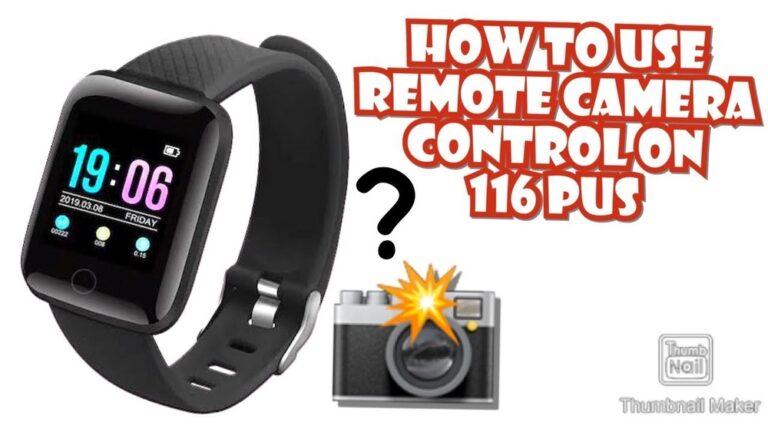
Remote camera control lets you use your smartwatch as a shutter button for your phone’s camera. Some smartwatches also let you see a live preview, change settings, or switch between front and rear cameras. This feature is great for group photos, creative angles, or recording yourself without asking for help.
It works over Bluetooth or sometimes Wi-Fi. Your watch connects to your phone, and you use a camera app on the watch to control the phone’s camera. Not all smartwatches and phones support this, but most modern devices do.
Why Use Remote Camera Control?
Let’s look at some reasons people love this feature:
- Group shots: Everyone can be in the photo, no more missing someone.
- Selfies: Take steady selfies from a distance, not just arm’s length.
- Creative photos: Try new angles, like placing your phone high up or on the ground.
- Vlogging: Start and stop recording without walking to your phone.
- Steady shots: Reduce blur by tapping your wrist, not the phone.
I often use remote camera control when hiking. With my hands full, I set the phone on a rock, move back, and snap a photo with my watch. The result feels natural and relaxed.
Credit: www.offroadvideos.org
Devices That Support Remote Camera Control
Not all devices work the same. Here are the main types:
Apple Watch And Iphone
- Works with any Apple Watch and iPhone running iOS 10 or later.
- Uses the built-in Camera Remote app.
Samsung Galaxy Watch And Android Phones
- Most Galaxy Watches (Active, Watch 3, Watch 4, Watch 5, etc.) Support remote camera control with Samsung phones.
- Uses the Camera Controller app.
Wear Os Watches (fossil, Ticwatch, Etc.)
- Many Wear OS watches support camera control with Android phones.
- Some features need third-party apps.
Other Smartwatches
- Fitbit: Some models support basic camera control via third-party apps.
- Garmin: Limited support, mostly through partner apps.
Compatibility Table
Here’s a quick look at which popular smartwatch and phone pairs support remote camera control.
| Smartwatch | Phone System | Native Support | App Needed |
|---|---|---|---|
| Apple Watch | iPhone | Yes | No |
| Galaxy Watch | Samsung Android | Yes | No |
| Wear OS | Android | Limited | Sometimes |
| Fitbit | Android/iOS | No | Yes |
| Garmin | Android/iOS | No | Yes |
How To Activate Remote Camera Control: Step-by-step
Let’s break down how to set up and use this feature for each major smartwatch type. I’ll include common setups, troubleshooting, and a few tips I learned from experience.
Apple Watch
If you have an Apple Watch and an iPhone, you’re in luck—setup is easy.
1. Connect Your Devices
Make sure your Apple Watch is paired with your iPhone via Bluetooth. Both devices should be turned on and close together.
2. Open The Camera Remote App
Find the “Camera Remote” app on your Apple Watch. It has an icon that looks like a camera.
3. Launch The Camera On Your Iphone
When you open the app, your iPhone’s camera opens automatically. If it doesn’t, unlock your phone and open the camera app manually.
4. Preview And Take Photos
You’ll see a live preview on your watch. Tap the shutter button to take a photo. You can also set a 3-second timer for group shots.
5. Switch Cameras
Use the menu on your watch to switch between the front and rear camera.
6. Record Video
Start recording by switching to video mode on your iPhone, then tap the shutter on your watch.
Personal tip: I once used this for a family photo at the park. I set up the iPhone on a bench and used my watch to check the frame. We got a perfect shot, and no one had to run back and forth.
Samsung Galaxy Watch
The Samsung Galaxy Watch series works best with Samsung phones, but you can use some features with other Android devices.
1. Pair Your Devices
Connect your Galaxy Watch to your phone using Bluetooth.
2. Install The Camera Controller App
On your watch, open the Galaxy Store and download the “Camera Controller” app if it’s not pre-installed.
3. Open Camera Controller
Start the app on your watch. This will open the camera on your phone.
4. Take Photos Or Videos
Use your watch to snap photos or start/stop videos. You can see a live preview, set a timer, and switch cameras.
5. Extra Features
Some models let you zoom, adjust flash, or view the last photo taken.
Tip: If your phone is not Samsung, you may need a third-party app. Also, keep your devices within 10 meters for the best connection.
Wear Os Watches
Wear OS watches (Fossil, TicWatch, Mobvoi, etc. ) Can control cameras, but you might need to try a few apps.
1. Connect Your Watch
Make sure your watch is paired with your phone.
2. Find A Compatible Camera App
Search the Play Store for “Camera Remote” or “Wear Camera Remote. ” Popular apps include “Camera One” and “Wear Camera Remote. ”
3. Install And Open The App
Follow the instructions in the app to connect your watch and phone.
4. Use The Remote Features
Most apps let you tap to take photos, set a timer, and sometimes preview the shot.
5. Test Before Important Moments
Not all apps support video or live preview. Try them out before you need them.
From my own use: I noticed that some free apps have ads or limited features. Paid apps usually work better and have live preview.
Fitbit And Garmin
These watches are not made for camera control, but some third-party apps work.
1. Install A Camera App On Your Phone
Apps like “Camera Remote for Fitbit” or “Camera Plus for Garmin” can help.
2. Connect And Follow Prompts
Open the app and follow instructions to connect your watch and phone.
3. Limitations
Usually, you can only trigger the shutter. No preview or advanced settings.
Advice: If you use these brands for fitness, think of camera control as a bonus, not the main reason to choose them.
How To Use Remote Camera Control: Real Scenarios
Let’s see how this feature helps in real life.
Group Photos
With remote camera control, you don’t need a stranger to hold your phone. Place your phone on a stable surface or tripod. Everyone gets in the frame. Use your watch to check the view and snap the photo.
Selfies And Solo Shots
No need to stretch your arm or use a selfie stick. Set your phone at the right spot. Use your watch to adjust your pose and take the shot. I did this on a solo trip to the mountains. The photos looked much better than handheld selfies.
Recording Videos
Start and stop videos for vlogs, workouts, or meetings. You can record your yoga routine from across the room, stopping and starting as you like.
Creative Angles
Try placing your phone in new spots: on the ground for a low shot, or on a shelf for a top view. Use your watch to control the camera, and you’ll get shots that stand out.
Common Problems And Fixes
Even when setup is easy, things can go wrong. Here’s how to fix common issues.
The Watch Doesn’t Connect
- Make sure Bluetooth is on for both devices.
- Restart both your watch and phone.
- Update the camera app on both devices.
- Unpair and re-pair if needed.
No Live Preview
- Some watches or apps don’t support live view.
- Try a different app or check for updates.
- On Wear OS, paid apps often give full features.
Shutter Delay
- Use the timer function if the photo is taken too soon.
- Keep your devices close together for strong connection.
App Not Working With Your Phone
- Check that your app matches your phone brand (Samsung app for Samsung, etc. ).
- Try third-party apps from the Play Store.
Battery Drain
- Close camera apps when done.
- Long use of live preview can use a lot of battery.
Features To Look For In A Camera Remote App
Not all camera remote apps are equal. Here’s what matters most:
1. Live Preview
See the shot before you take it.
2. Timer Option
Gives you time to get ready.
3. Switch Camera
Front and rear camera control.
4. Video Recording
Start and stop video from your wrist.
5. Zoom Control
Change zoom for close-ups or wide shots.
6. Flash Control
Turn the flash on or off from your watch.
7. Photo Review
Some apps let you see the last photo taken.
8. Simple Setup
Easy pairing and clear instructions.
9. Reliable Connection
Works without frequent drops or errors.
Feature Comparison Table
Here’s how major platforms compare for popular features.
| Feature | Apple Watch | Galaxy Watch | Wear OS |
|---|---|---|---|
| Live Preview | Yes | Yes | Sometimes |
| Switch Camera | Yes | Yes | Depends |
| Video Control | Yes | Yes | Sometimes |
| Zoom | No | Yes | No |
| Timer | Yes | Yes | Yes |
Tips For Better Results
Some advice goes beyond the manual. Here are practical tips I’ve learned:
1. Stabilize Your Phone
Use a tripod or steady surface for sharp photos. Even a coffee cup can help.
2. Check Lighting
Poor light means blurry shots. Use your watch to check the frame before snapping.
3. Test Before Important Moments
Try the setup before parties or trips. Not all apps work the same.
4. Update Your Apps
Camera apps get better with updates. Check for new features.
5. Watch Your Battery
Using live preview drains battery. Charge your watch and phone before long shoots.
6. Try Different Angles
Since you control the shutter, experiment with creative placements.
7. Be Patient
Sometimes, Bluetooth takes a few seconds to connect. Wait before pressing again.
8. Privacy And Security
Don’t use remote camera control in private places where it’s not allowed.
Hidden Insights Most Beginners Miss
Let’s go deeper. Here are some things new users often overlook:
- Bluetooth Range Matters: Most smartwatches need to be within 10 meters of the phone. If you go too far, the connection drops. Walls and large objects can also block the signal.
- Notifications Can Interrupt: If you get a call or alert while taking a photo, some watches may pause or close the camera app. Put your phone in “Do Not Disturb” mode for important shots.
- Permissions: Some camera apps need extra permissions to work. If you see errors, check your phone’s app settings.
- Third-Party Apps May Have Ads: Free camera control apps sometimes show ads or limit features. If you’ll use remote control a lot, consider buying a paid app.
- Not All Devices Support Video: Some older watches and apps only take photos, not videos. Test your gear before recording important events.
Safety And Privacy
Remote camera control is useful, but it comes with responsibility. Always respect people’s privacy. Don’t use the camera in places where photos are not allowed. Make sure no one is caught on camera without their permission.
If you lose your smartwatch, unlink it from your phone to stop unwanted access. Most phones let you remove paired devices in Bluetooth settings.
Credit: www.walmart.com
Future Of Remote Camera Control
This feature is improving fast. New smartwatches add better controls, live video preview, and even AI to help frame your shots. Some apps now use Wi-Fi for longer range. As cameras get smarter, so will the remote controls.
For example, smartwatches may soon help you pose, suggest angles, or even edit photos before saving them. Keep your devices updated to enjoy new features as they arrive.
For more detailed technical information, you can check the official Apple Support page.
Frequently Asked Questions
How Far Can My Smartwatch Be From My Phone For Camera Control?
Most smartwatches use Bluetooth for connection. The range is usually up to 10 meters (about 33 feet). Walls and obstacles can reduce this range. Some apps use Wi-Fi, which can go further, but this is less common.
Can I Record Video Using Remote Camera Control?
Yes, many smartwatches support video recording. On Apple Watch and Samsung Galaxy Watch, you can start and stop video from your wrist. Wear OS and third-party apps vary—check your app for video support.
What If The Camera Preview Is Slow Or Lags?
A slow preview can happen if your Bluetooth signal is weak or your devices are busy. Move the watch and phone closer together. Close other apps that use Bluetooth. If the problem continues, try restarting both devices.
Is Remote Camera Control Safe For My Privacy?
Yes, as long as you control both devices and don’t share your connection. Always unlink your watch if you lose it. Never use camera control in places where photos are not allowed or could violate privacy.
Can I Use Remote Camera Control With A Different Phone Brand?
Some features may not work if you mix brands (for example, Samsung watch with iPhone). Basic shutter control may work with third-party apps, but features like live preview and video are often limited. Always check compatibility before buying a new smartwatch.
—
Activating remote camera control from your smartwatch can make taking photos and videos easier, more creative, and more fun. With a little setup, you’ll get group shots, selfies, and videos that look professional—without asking for help. Try the steps above, explore new angles, and enjoy what your smartwatch can do. If you run into trouble, use the tips and troubleshooting advice here. And remember—great photos are only a tap away.

Credit: www.youtube.com

Rubel Miah is the Senior Editor at MyStyleGrid.com, where he brings a sharp editorial eye and an unshakable love for fashion to everything he does. A true style addict, Rubel lives and breathes trends, from streetwear to high fashion, and has a knack for turning inspiration into impactful stories. With years of experience in fashion journalism and digital media, he curates content that empowers readers to express themselves through style. When he’s not editing features or forecasting the next big thing, you’ll find him hunting down vintage pieces or capturing street style moments around the city.