If you use a smartwatch, you probably love checking your daily step count. It feels great to see your progress, but sometimes, you might wonder—is my step counter really accurate? Many people notice their smartwatch gives different numbers than expected. Maybe you take a walk with a friend, and both your watches show different steps. Or you count your steps as you walk, but your watch shows something else.
This difference is normal. Step counters, also called pedometers, use sensors to guess when you take a step. But small mistakes can add up. Maybe you wave your hand, push a stroller, or wear the watch loosely. Even your walking style or the way you set up your watch matters. Luckily, you can improve the accuracy. I’ve learned this after months of testing my own smartwatch on city walks and runs. By making a few changes, my step count matched much better with my real steps. Let me show you how to calibrate your smartwatch step counter for better accuracy, so you can trust your numbers and reach your goals.
Why Smartwatch Step Counters Can Be Inaccurate
Let’s first understand why your smartwatch might not count steps exactly right. These devices use a tiny sensor called an accelerometer. It senses movement, and the watch tries to tell which movements are steps.
But here’s the thing: it’s not perfect. Sometimes, your watch mistakes other movements for steps, or misses real steps. Here are a few common reasons:
- Wrist Movement: Moving your arm, even if you’re not walking, can count as steps.
- Wearing Position: Wearing your watch too loose or on the wrong wrist can cause errors.
- Walking Style: Some people walk softly, while others move their arms a lot.
- Device Settings: Incorrect settings like height, weight, or step length make the numbers less accurate.
For example, I once pushed a shopping cart for an hour. My arms barely moved, and my smartwatch counted only a few steps, even though I walked a lot.
How Step Counters Work
To calibrate your smartwatch, it helps to know the basics of how it counts steps. Most smartwatches use motion sensors to detect patterns. When you walk, your wrist moves up and down in a rhythm. The watch senses this and uses an algorithm to decide: “Was that a step?”
Here’s a simple breakdown:
- Sensor detects movement.
- Algorithm checks the movement pattern.
- If the pattern matches a step, it counts.
If you swing your arm while sitting, it might count steps by mistake. If you walk without moving your arm, it might miss steps.
Signs Your Step Counter Needs Calibration
How do you know your smartwatch needs calibration? Look for these signs:
- Your step count is much higher or lower than expected.
- You walk with someone else, and your numbers are very different.
- You count your steps, and your watch count is off by more than 10–15%.
- Steps are counted while you’re sitting or driving.
I remember checking my watch after a long bus ride, and it showed I’d walked 500 steps! That’s a clear sign it needed calibration.
Getting Ready To Calibrate Your Step Counter
Before you start, it’s good to prepare. Here’s what you need:
- Your smartwatch fully charged
- Access to your watch’s settings (on the device or in the app)
- A flat, measured area where you can walk (like a hallway or track)
- A way to count your steps (count in your head or use markers)
If you want the most accurate results, wear the watch on your non-dominant wrist (if you’re right-handed, wear it on the left). This helps reduce extra movements from your main hand.
Step-by-step Guide To Calibrate Your Smartwatch Step Counter
Let’s get into the details. I’ll guide you through each step, using what I’ve learned from my own experience.
1. Update Your Smartwatch Firmware
Always check for updates before calibrating. Manufacturers often release software updates to fix bugs and improve accuracy.
- Open the companion app on your phone.
- Go to the settings or device menu.
- Tap “Update” if a new version is available.
I once found my smartwatch’s step count improved a lot after an update. The company had fixed a problem with the sensor software.
2. Check And Set Up Personal Info
Your height, weight, age, and even gender affect step calculations. Make sure these are correct.
- Open your smartwatch app.
- Find the “Profile” or “Personal Info” section.
- Double-check all details.
If your height is wrong by even a few centimeters, your watch might estimate your step length incorrectly, leading to the wrong total.
3. Wear The Smartwatch Correctly
Wear the watch snugly—not too tight, not too loose. It should sit just above your wrist bone.
- Avoid wearing on clothing or loose bands.
- Use the wrist the manufacturer recommends.
If you wear the watch too loose, it may move around and record extra steps. Too tight, and it may not sense movement well.
4. Set Your Correct Step Length
Some smartwatches let you enter your step length (the distance from the heel of one foot to the heel of the other when you walk). To find your step length:
- Measure a distance (20 meters or 50 feet works well).
- Walk at your normal pace, counting your steps.
- Divide the distance by the number of steps.
For example, if you walk 20 meters in 25 steps:
20 Meters ÷ 25 Steps = 0.8 Meters Per Step
Enter this number in your smartwatch app if possible. If not, at least note it for comparing accuracy.
5. Perform A Walk Test
Now, test your watch’s accuracy:
- Walk a measured distance (like 100 steps on a flat surface).
- Count your steps manually.
- Check the step count on your smartwatch.
If the numbers match within 5–10%, your watch is quite accurate. If not, continue calibrating.
6. Adjust Settings And Re-test
If the numbers don’t match, try these:
- Re-enter your step length.
- Make sure your personal info is correct.
- Switch wrists and test again.
Repeat the walk test until your count is closer to your real steps.
7. Calibrate Using Built-in Tools
Some smartwatches have a calibration tool. For example, Apple Watch lets you do a 20-minute outdoor walk or run to improve step accuracy.
- Find the calibration tool in your watch or app.
- Follow the instructions, usually walking at a natural pace.
- Allow the watch to learn your movements.
My own Apple Watch improved a lot after I did the outdoor calibration walk.
8. Compare With Other Devices
If you want extra confidence, compare your smartwatch with another step counter:
- Use a smartphone app or a simple pedometer.
- Wear both devices during the same walk.
- Compare results.
Don’t worry if the numbers aren’t identical—aim for them to be within 5–10% of each other.
9. Try Different Activities
Walk at different speeds—slow, medium, and fast. Try walking upstairs, downstairs, or on different surfaces.
- Record your manual step count for each.
- Check your smartwatch’s count.
Some watches are less accurate at slow speeds or when going upstairs. If you see big differences, note which activities cause problems.
10. Log Your Results
Keep a simple log for a few days. Write down:
- Manual step counts
- Smartwatch step counts
- Any changes you made
This helps you spot patterns. For example, you might find your watch is more accurate on flat ground than on stairs.
Common Mistakes To Avoid During Calibration
You can save time and frustration by avoiding these mistakes:
- Not counting steps carefully: If you lose count, your results will be off.
- Wearing the watch incorrectly: Too loose or on the wrong wrist causes errors.
- Ignoring updates: Skipping firmware updates means missing out on improved accuracy.
- Testing on short walks only: Small errors are harder to see on short walks; longer tests show the real difference.
- Changing settings one by one: Make one change at a time, or you won’t know what helped.
How Different Smartwatches Compare In Step Counter Accuracy
Step counter accuracy can vary across brands. Here’s a quick look at how some popular smartwatches compare based on user reviews and test results.
| Smartwatch Model | Average Error Rate | Calibration Options |
|---|---|---|
| Apple Watch Series | +/- 5% | Manual calibration, outdoor walk/run |
| Samsung Galaxy Watch | +/- 7% | Profile setup, firmware updates |
| Fitbit Versa/Sense | +/- 10% | Step length entry, dominant hand setting |
| Garmin Forerunner | +/- 6% | Stride length, activity calibration |
As you can see, even the best watches can be off by a few percent. Calibration helps minimize this error.
How To Maintain Step Counter Accuracy Over Time
Calibration is not a one-time job. Your walking style, fitness level, or even your watch band can change over time. Here’s how to keep your step counter accurate for the long run:
1. Re-calibrate Regularly
Every few months, repeat the walk test and re-enter your information if needed. If you notice big changes in your step count, calibrate again.
2. Update Your Watch And App
Manufacturers often release updates to improve accuracy. Check for updates at least once a month.
3. Check Watch Position
Make sure your watch stays snug and in the right spot. If you get a new band or start wearing it differently, re-test your steps.
4. Adjust For Special Activities
If you often push a stroller, walk with your hands in your pockets, or do activities that limit arm movement, know that your step count may be lower. Some watches let you log special activities manually.
5. Review Your Data
Most smartwatch apps let you review daily, weekly, or monthly step counts. If you see strange numbers, try calibrating again.

Credit: allurelakestorey.com
Example: Calibrating An Apple Watch Step Counter
Let’s walk through an example calibration for an Apple Watch. This method works for most modern models.
- Update your watch to the latest software.
- Open the Apple Health app on your iPhone.
- Check your personal info and make sure it’s correct.
- Wear your watch on your non-dominant wrist.
- Go to a flat, measured area (like a 400m track).
- Walk 100 steps at your normal pace, counting as you go.
- Check your step count in the Activity app.
- If it’s off by more than 10 steps, use the “Reset Calibration Data” feature in the iPhone Watch app under Privacy > Location Services.
- Repeat the walk test. Over time, the watch learns your pattern.
Smartwatch Step Counter Accuracy: Real-world Examples
Let’s look at how small changes can make a difference. I once helped a friend calibrate his Samsung Galaxy Watch. At first, it over-counted by about 15%. He wore it loosely and had an old profile with the wrong height.
After tightening the band and updating his info, his step count matched mine almost perfectly on a 1,000-step walk.
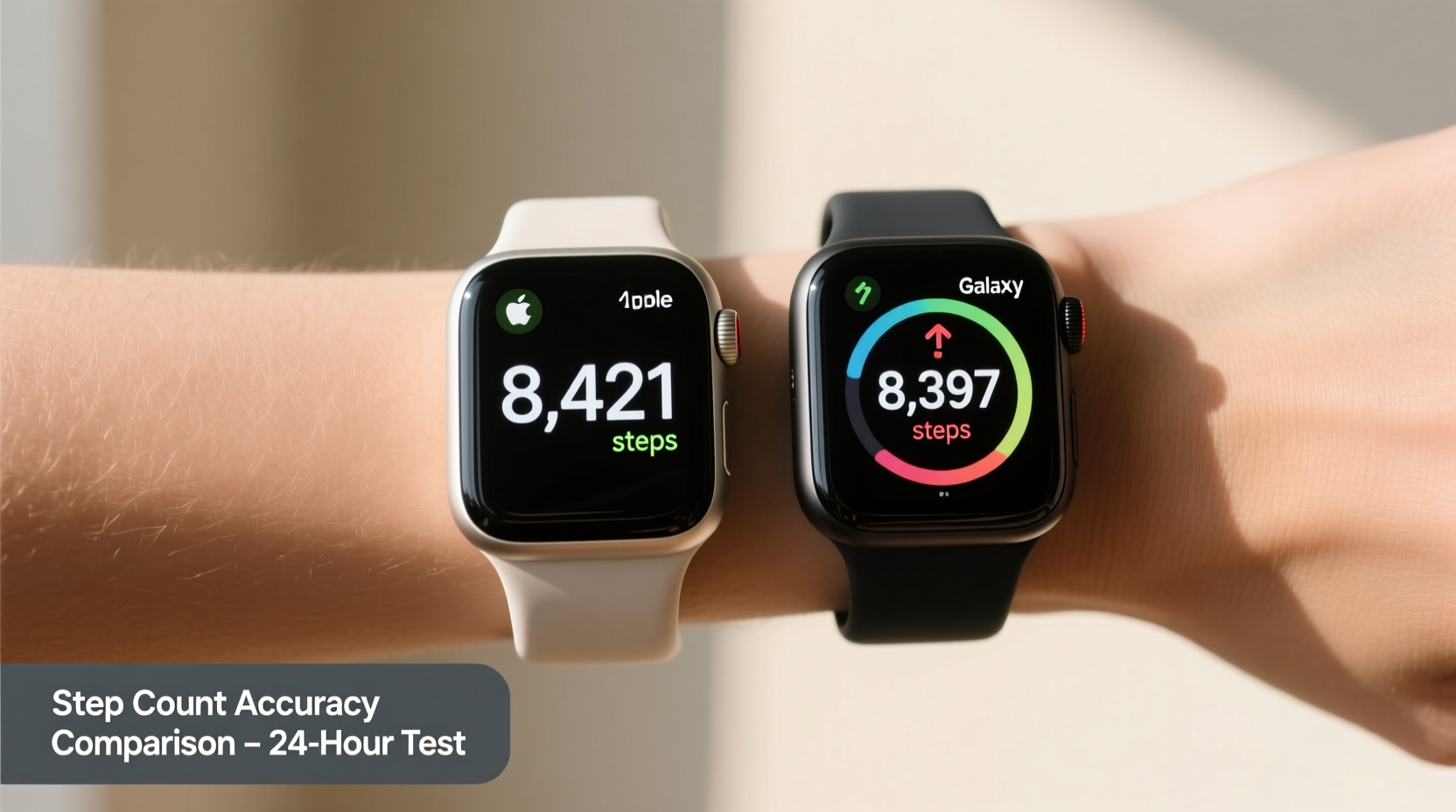
Another time, I compared my Apple Watch with a simple pedometer on a weekend hike. At the end, the difference was only 30 steps out of 5,000—less than 1%. That’s good enough for most people.
Credit: www.alibaba.com
How To Interpret Step Counter Data
Even after careful calibration, remember: no step counter is perfect. Here’s how to make the most of your data:
- Use your step count as a trend, not an exact number.
- Compare day-to-day changes, not just daily totals.
- Set realistic goals—most experts suggest 7,000–10,000 steps per day for health.
- If you have big changes in your routine, re-check your calibration.
Other Factors That Affect Step Counter Accuracy
It’s not just the watch or settings. Your daily life can affect accuracy:
- Different walking surfaces: Soft grass or sand can be harder to detect.
- Carrying items: Holding bags or pushing carts limits arm movement.
- Body shape and gait: Everyone walks differently; some watches handle this better than others.
- Battery level: Some watches are less accurate when the battery is low.
If you notice big changes on certain days, think about what might be different.
Data Table: Activities And Step Count Differences
Here’s a look at how different activities can affect step count accuracy.
| Activity | Step Count Accuracy | Common Issues |
|---|---|---|
| Normal walking | High | Usually within 5-10% |
| Running | High | Shorter stride can cause undercounting |
| Walking with hands in pockets | Medium | May undercount steps |
| Pushing stroller/cart | Low | Arm movement limited, steps missed |
| Climbing stairs | Medium | Some watches undercount steps |
Tips For Getting The Most Accurate Step Count
Let’s wrap up with some key tips you can use every day:
- Always wear your watch on the recommended wrist.
- Keep your profile information up to date.
- Walk naturally during calibration—don’t exaggerate your steps.
- Re-calibrate after big changes (new shoes, new walking style).
- Use the watch’s manual activity logging if you do special activities.
- If your watch allows, reset calibration data once a year for a fresh start.
When To Trust Your Step Counter (and When Not To)
Most modern smartwatches are good enough for daily fitness tracking, but they’re not medical devices. If you use your step count to motivate yourself, focus on trends and progress, not perfection.
If you need step counts for medical reasons, talk to your doctor about the best device for your needs.
For more on how step counters work, you can visit this Wikipedia page about pedometers.
Frequently Asked Questions
How Often Should I Calibrate My Smartwatch Step Counter?
You should calibrate your step counter every few months or anytime you notice a big difference in your step count. Also, recalibrate if you change your walking style, shoes, or wear your watch differently.
Why Does My Smartwatch Count Steps While I’m Not Walking?
Smartwatches use sensors to detect movement. Sometimes, movements like waving your arms, driving, or even brushing your teeth can look like steps to the watch. Calibration and proper wearing position help reduce these mistakes.
What Should I Do If My Step Count Is Always Too Low?
First, check your watch’s fit and settings. Make sure your profile information is correct, and try calibrating your step length. Also, remember that activities with less arm movement (like pushing a stroller) may not be counted well.
Can I Use My Phone’s Step Counter Instead Of A Smartwatch?
Yes, most smartphones have built-in step counters. They are often accurate, but only if you carry your phone with you all the time. Smartwatches can be more convenient because they’re always on your wrist.
Do All Smartwatches Have A Calibration Feature?
Not all smartwatches have manual calibration. Some use automatic learning over time. Check your device’s user manual or app for specific calibration options.
Getting your smartwatch step counter accurate takes a little work, but it’s worth it. You’ll get better data, more motivation, and real confidence in your daily progress. With these steps, you can trust your numbers and keep moving towards your fitness goals.

Credit: www.reddit.com

Rubel Miah is the Senior Editor at MyStyleGrid.com, where he brings a sharp editorial eye and an unshakable love for fashion to everything he does. A true style addict, Rubel lives and breathes trends, from streetwear to high fashion, and has a knack for turning inspiration into impactful stories. With years of experience in fashion journalism and digital media, he curates content that empowers readers to express themselves through style. When he’s not editing features or forecasting the next big thing, you’ll find him hunting down vintage pieces or capturing street style moments around the city.