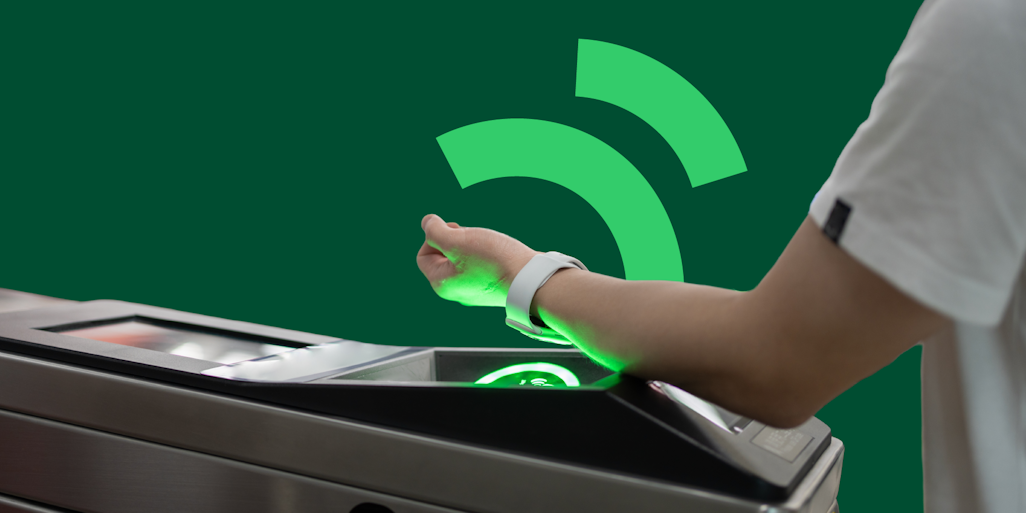
Setting up contactless payment on your smartwatch can make your life so much easier. Imagine you are in a hurry, your hands are full, and you need to pay for your coffee or groceries. Instead of digging for your wallet or phone, you just tap your wrist and go.
It’s quick, safe, and feels a little bit futuristic. In this guide, I’ll walk you through everything you need to know about how to enable contactless payment on smartwatch devices, step by step. I’ll also share some personal tips and mistakes I made along the way, so you don’t have to repeat them.
Even if you’re not a tech expert, you’ll find it easy to follow along.
What Is Contactless Payment On Smartwatches?
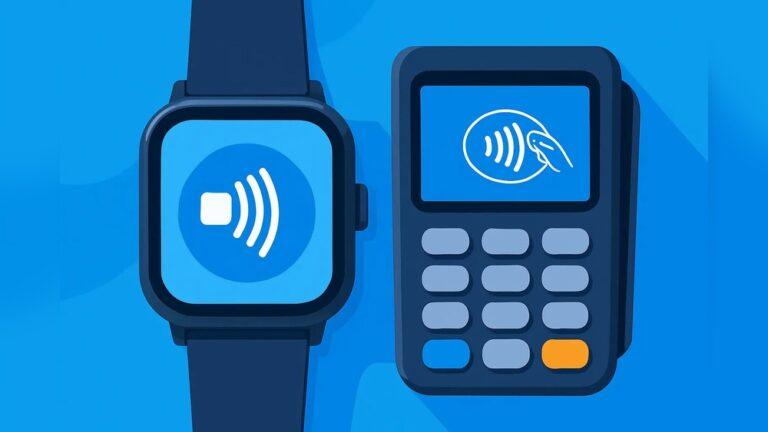
Contactless payment lets you pay by holding your smartwatch near a payment terminal. It uses something called NFC (Near Field Communication), the same technology in many modern phones and credit cards. When you use your watch, you do not have to touch the payment terminal or hand over your card. This makes things cleaner and more secure.
Several smartwatch brands support contactless payments. The most popular are Apple Watch (Apple Pay), Samsung Galaxy Watch (Samsung Pay), Garmin Pay, and Google Wear OS watches (Google Wallet). Each one works a bit differently, but the setup process is often similar.
Why Use Contactless Payment On Your Smartwatch?
If you have never tried paying with your watch, you might wonder if it’s worth the effort. Here are some reasons why I (and millions of others) love it:
- Speed: Payments are almost instant. No need to search for your card or phone.
- Cleanliness: You don’t have to touch cash or keypads.
- Safety: Your card details are not shared with the shop. Payments are encrypted and secure.
- Convenience: If you go for a run or to the gym, you can leave your wallet at home and still grab a drink or a snack.
The first time I used my watch to pay at a busy shop, I felt a bit nervous. But it worked smoothly, and now it’s my favorite way to pay.
Credit: aevi.com
Requirements For Using Contactless Payment
Before you can enable contactless payment, you need to check a few things:
- NFC Support: Your smartwatch must have NFC. Most models made after 2017 include this, but some budget watches do not.
- Supported Country and Bank: Not all banks or countries allow smartwatch payments. You need to check if your bank and country are on the list.
- Compatible Smartphone: You often need a phone to set up payment cards on your watch. Make sure your phone and watch are compatible.
- Updated Software: Both your phone and watch should run the latest software.
Here’s a quick look at which watches support contactless payments:
| Smartwatch Brand | Contactless Payment Service | NFC Required |
|---|---|---|
| Apple Watch | Apple Pay | Yes |
| Samsung Galaxy Watch | Samsung Pay / Google Wallet | Yes |
| Google Wear OS | Google Wallet | Yes |
| Garmin | Garmin Pay | Yes |
| Fitbit | Fitbit Pay | Yes |
Tip: You can usually find out if your watch has NFC by checking the official website or your device’s settings.
Step-by-step Guide: How To Enable Contactless Payment
Let’s get into the practical steps. I’ll cover the most popular devices, but the process is similar for others.
Apple Watch (apple Pay)
- Open the Watch App on your iPhone.
- Tap Wallet & Apple Pay.
- Tap Add Card. You can add a credit or debit card.
- Follow the instructions. You may need to confirm with your bank by SMS or app.
- Once added, you’re ready to use your watch for payments.
Pro tip: On your first try, make sure your watch is unlocked and snug on your wrist. I once had a card fail because my watch was too loose.
Samsung Galaxy Watch (samsung Pay Or Google Wallet)
- Open the Samsung Wearable app on your phone.
- Tap Samsung Pay or Google Wallet (depending on your watch).
- Tap Add Card and enter your card details.
- Confirm with your bank.
- Your card will show up on your watch.
For Samsung Pay, you may need to set a PIN or pattern to protect your watch.
Google Wear Os (google Wallet)
- On your watch, open the Google Wallet app.
- Tap Get Started.
- On your phone, open Google Wallet and add a new card.
- Follow the steps to verify your card.
- Once done, the card appears on your watch.
I found Google Wallet setup to be the fastest. It took me less than five minutes from start to finish.
Garmin Pay
- Open the Garmin Connect app on your phone.
- Tap the Menu button and go to Garmin Pay.
- Set up a wallet and a 4-digit passcode.
- Add your card details and confirm with your bank.
- Your watch is now ready for payment.
Fitbit Pay
- Open the Fitbit app on your phone.
- Tap your watch image, then tap the Wallet tile.
- Add a card and follow the instructions to verify.
- Set up a PIN for security.
- Now you can use Fitbit Pay at stores.
Note: Some Fitbit models do not have NFC. Check your model before starting.
How To Use Your Smartwatch For Payment
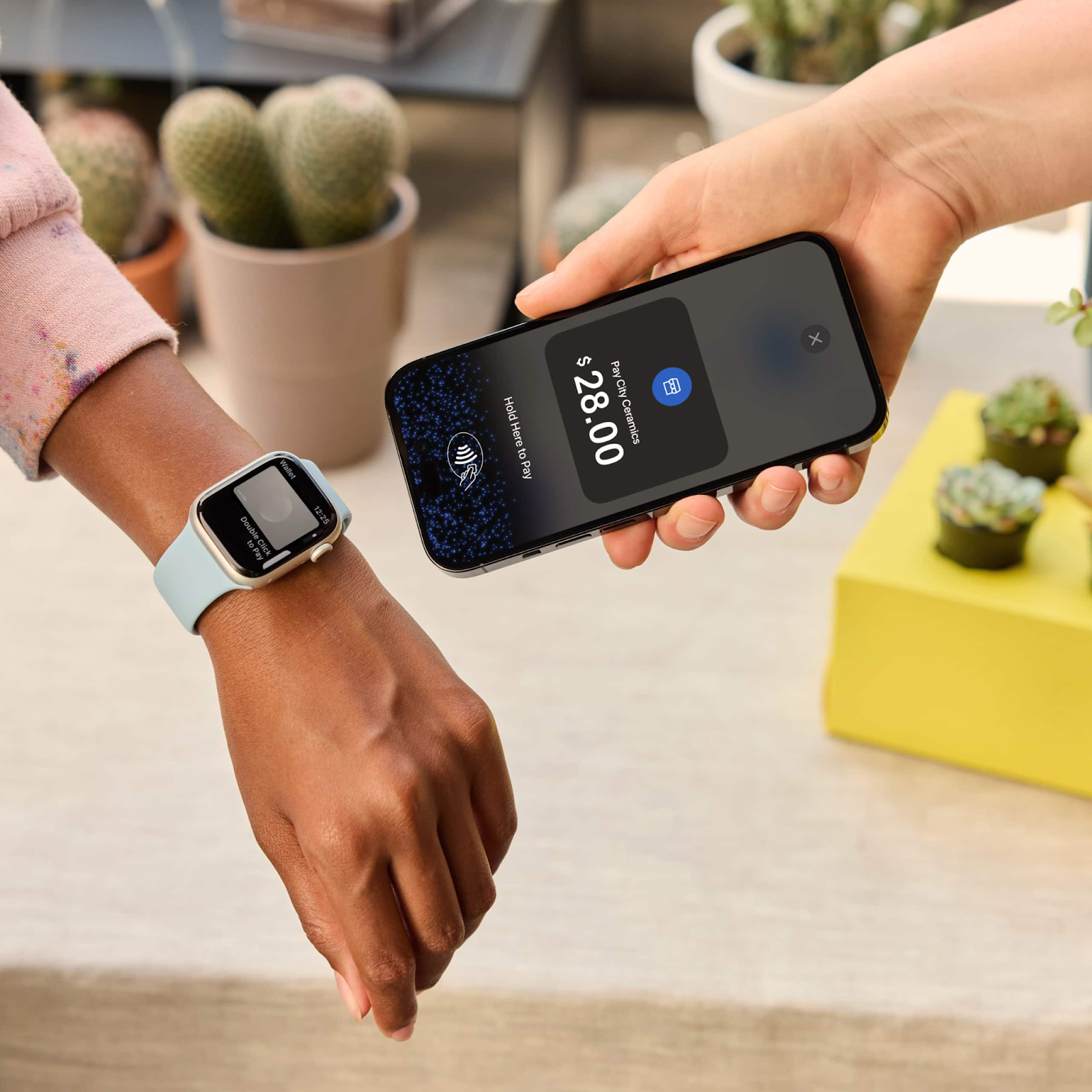
After setup, paying is easy. Here’s how it works in most cases:
- Wake up your watch (press a button or tap the screen).
- Open the payment app (Apple Pay, Google Wallet, etc. ).
- Hold your watch near the payment terminal.
- Wait for the vibration or beep that confirms payment.
- You’re done!
Pro tip: If the payment terminal is slow or old, hold your watch still for a few seconds. Some stores use older machines that take longer to read NFC.
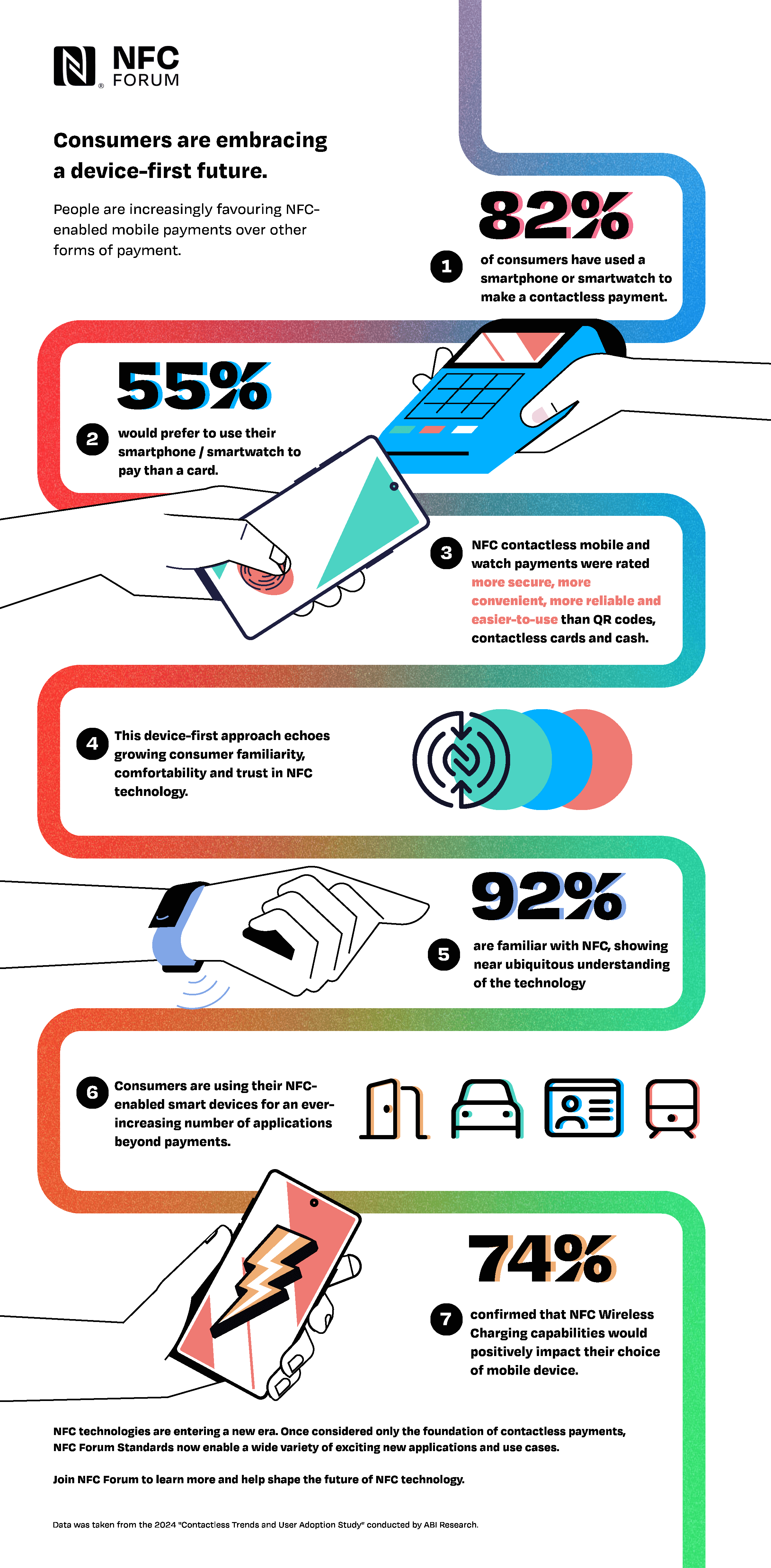
Is Contactless Payment Safe?
You might wonder if using your watch for payments is safe. The answer is yes, and here’s why:
- Your card number is not stored on the watch. Instead, a special code (token) is used.
- Each payment needs your watch to be unlocked and on your wrist.
- If your watch is removed, payment won’t work without your PIN.
- Most banks add extra security checks. If there is a strange transaction, they will block it.
I once lost my watch at a park. I worried about my cards, but when I checked, no payments had been made. The security worked as promised.
Credit: nfc-forum.org
Comparing Payment Services
Every payment service has strengths and small differences. Here’s a side-by-side look:
| Service | Supported Devices | Countries Available | Banks Supported | Extra Security |
|---|---|---|---|---|
| Apple Pay | Apple Watch | 60+ | Most major banks | Yes |
| Samsung Pay | Samsung Galaxy Watch | 25+ | Many banks | Yes |
| Google Wallet | Wear OS, Samsung | 45+ | Most major banks | Yes |
| Garmin Pay | Garmin Watches | 30+ | Limited banks | Yes |
| Fitbit Pay | Fitbit Devices | 15+ | Limited banks | Yes |
Non-obvious insight: Not all banks support every service. You need to check your bank’s website or the payment service site to see if your card is compatible.
Troubleshooting Common Issues
Sometimes, things don’t work as planned. Here are common problems and how to solve them:
Card Not Adding
- Check if your bank supports the service.
- Make sure your watch and phone have the latest software.
- Try restarting both devices.
- If you get a security text or call from your bank, complete it.
Payment Not Working At Store
- Make sure NFC is turned on in your watch settings.
- Try holding the watch closer to the terminal.
- Make sure the store’s terminal supports contactless payments.
- If your watch has not been unlocked or worn in a while, you may need to enter your PIN again.
Card Removed After Update
- Some software updates remove saved cards for safety. Just add your cards again.
- Check if your bank had any outages or changes.
Battery Issues
- NFC can use more battery. If your battery is low, payment may not work.
- Charge your watch before you go shopping.
Personal experience: The first time I tried to pay, my watch battery was almost dead. The payment app would not open. Now, I always check my battery before leaving home.
Credit: technologyadvice.com
How To Maximize Security
Contactless payment is safe, but you can make it even safer:
- Set a strong PIN or pattern on your watch.
- Never share your PIN with anyone.
- Use the “Find My Device” feature to lock or erase your watch if lost.
- Check your bank app often for unknown transactions.
- Only add cards you trust.
Non-obvious insight: If you travel, tell your bank. Some banks block payments from new locations unless you warn them first.
What To Do If Your Watch Is Lost Or Stolen
Losing your smartwatch can be stressful, but you have options:
- Use your phone or computer to open the “Find My” app (Apple, Google, Samsung).
- Lock or erase your watch. This removes your cards and stops payments.
- Call your bank if you see any unknown charges.
- Change your passwords for extra safety.
Reassurance: All major payment services let you remove cards remotely. Your money is safe as long as you act quickly.
When Contactless Payment Might Not Work
There are a few situations where smartwatch payments might fail:
- In some countries, contactless is not supported yet.
- Small shops may not have NFC payment terminals.
- Some cards (like gift cards) cannot be added.
- High-value purchases may need a PIN or signature.
If you travel, always carry a backup card or cash, just in case.
Comparing Smartwatch Payment To Phone Payment
Many people ask if paying with a watch is better than a phone. Here’s a quick comparison:
| Feature | Smartwatch | Phone |
|---|---|---|
| Hands-free | Yes | No |
| Speed | Very fast | Fast |
| Battery life | Shorter | Longer |
| Screen size | Small | Large |
| Convenience | High | Medium |
Personal tip: After a month of using my smartwatch, I started leaving my phone in my bag more often. It gave me a sense of freedom, especially when going for a walk or a run.
How To Add Multiple Cards And Switch Between Them
Most payment apps let you add more than one card. This is great for travel or for separating business and personal expenses.
- Open your payment app (on phone or watch).
- Tap “Add Card” and follow the steps.
- At the store, open the payment app and swipe to pick the card you want to use.
- Hold your watch to the terminal as usual.
Pro tip: Set your main card as the “default” for one-tap payments. You can change this anytime.
Managing Cards And Payment History
You can see your payment history in your phone’s payment app. This is useful for checking what you spent and where.
- Open Wallet, Samsung Pay, or Google Wallet on your phone.
- Tap your card to see recent transactions.
- If you spot a payment you don’t recognize, contact your bank right away.
Some watches also show payment history, but details are often easier to read on your phone.
Updates And Future Trends
Contactless payment is growing every year. More banks, shops, and countries are joining in. In 2023, over 50% of in-person transactions in Europe were contactless, and the number is rising worldwide. New watches get better battery life and faster payment chips.
Some watches now support loyalty cards and transit passes. This means you can use your watch for buses, trains, and even to enter your gym or office.
If you stay updated with your watch’s software, you’ll get these new features as they arrive. For the latest news, check the official support pages for your device or visit Wikipedia’s NFC page.
Frequently Asked Questions
How Do I Know If My Smartwatch Supports Contactless Payment?
Check your watch’s settings or the official website. Look for “NFC” or “Wallet” features. If you see them, contactless payment is likely supported.
Is Contactless Payment With A Smartwatch Safer Than Using A Card?
Yes, it is usually safer. Your card number is never shared, and you need your PIN or biometric unlock to pay. If your watch is lost, payments are blocked.
What If My Bank Doesn’t Support Smartwatch Payment?
You cannot use that card, but you can try another card or contact your bank to ask if support is coming soon. Some smaller banks are adding support every year.
Can I Use My Smartwatch To Pay When Traveling Abroad?
Yes, if both your bank and the country support NFC payments. Always check before you travel and let your bank know to avoid blocks.
What Should I Do If My Payment Keeps Failing?
Check your battery, NFC settings, and that your card is active. Try restarting your watch. If it still fails, contact your bank or the smartwatch support team.
Getting started with contactless payment on your smartwatch is one of those simple upgrades that can make everyday life smoother. You’ll spend less time at checkout, keep your hands free, and enjoy a bit more security. The setup is quick, and once you try it, you’ll probably never want to go back.
If you have questions or run into problems, support teams and user guides are there to help. Now you’re ready to tap and go—enjoy the freedom and speed of smartwatch payments.

Rubel Miah is the Senior Editor at MyStyleGrid.com, where he brings a sharp editorial eye and an unshakable love for fashion to everything he does. A true style addict, Rubel lives and breathes trends, from streetwear to high fashion, and has a knack for turning inspiration into impactful stories. With years of experience in fashion journalism and digital media, he curates content that empowers readers to express themselves through style. When he’s not editing features or forecasting the next big thing, you’ll find him hunting down vintage pieces or capturing street style moments around the city.