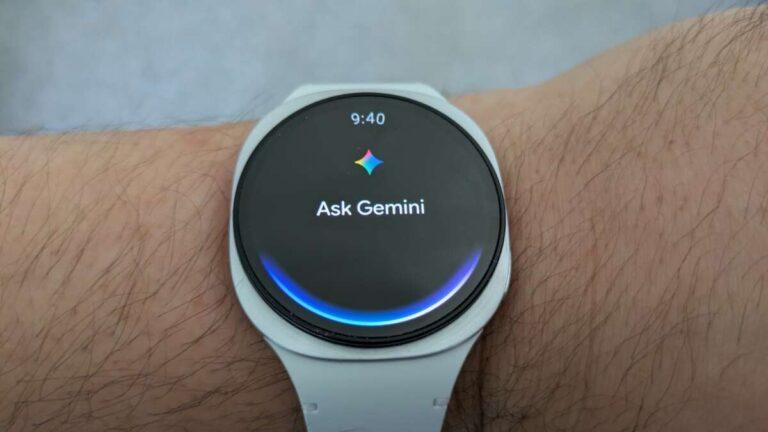
Yes, Google Pixel Watch works with most Samsung Galaxy phones running a supported Android version.
Google Pixel Watch works with Samsung phones, but the experience is not exactly the same as using a Galaxy Watch with a Galaxy phone. You need the right Android version, Google apps, and a phone with Google Play services. This guide explains compatibility, setup, features, limits, and the best way to avoid common pairing problems.
Does Google Pixel Watch Work With Samsung Phones?
Yes, Google Pixel Watch works with many Samsung Galaxy phones. The watch connects through the Google Pixel Watch app, not the Samsung Galaxy Wearable app.
You can pair models such as the Pixel Watch, Pixel Watch 2, Pixel Watch 3, and newer compatible models with supported Samsung phones. The exact Android requirement can vary by watch generation, so check Google’s current support page before buying.
In general, your Samsung phone should have:
• A supported version of Android
• Google Play services
• The Google Play Store
• Bluetooth enabled
• Enough free storage for the required apps
• A stable Wi-Fi or mobile data connection
Google Pixel Watch does not work with iPhones. It is built for Android phones and depends on Google services for setup, updates, notifications, and many health features.

Which Samsung Phones Work With Google Pixel Watch?
Google Pixel Watch works with most recent Samsung Galaxy phones. This includes many phones in the Galaxy S, Galaxy Note, Galaxy Z, and Galaxy A families.
Recent examples may include:
• Galaxy S21, S22, S23, S24, and newer models
• Galaxy Note 20 and similar late-generation Note models
• Galaxy Z Fold and Galaxy Z Flip phones
• Many Galaxy A-series phones with current Android software
However, compatibility depends on the watch model and the phone’s software. An older Galaxy phone may fail to install the Pixel Watch app or may not support all health functions.
Samsung phones made for certain regions can also differ. Some imported models do not include Google Play services. Without those services, Google Pixel Watch may not pair correctly, even if the phone uses Android.
The safest check is simple: open the Google Play Store on your Samsung phone and search for the Google Pixel Watch app. If the app is available, also review its listed Android requirements.
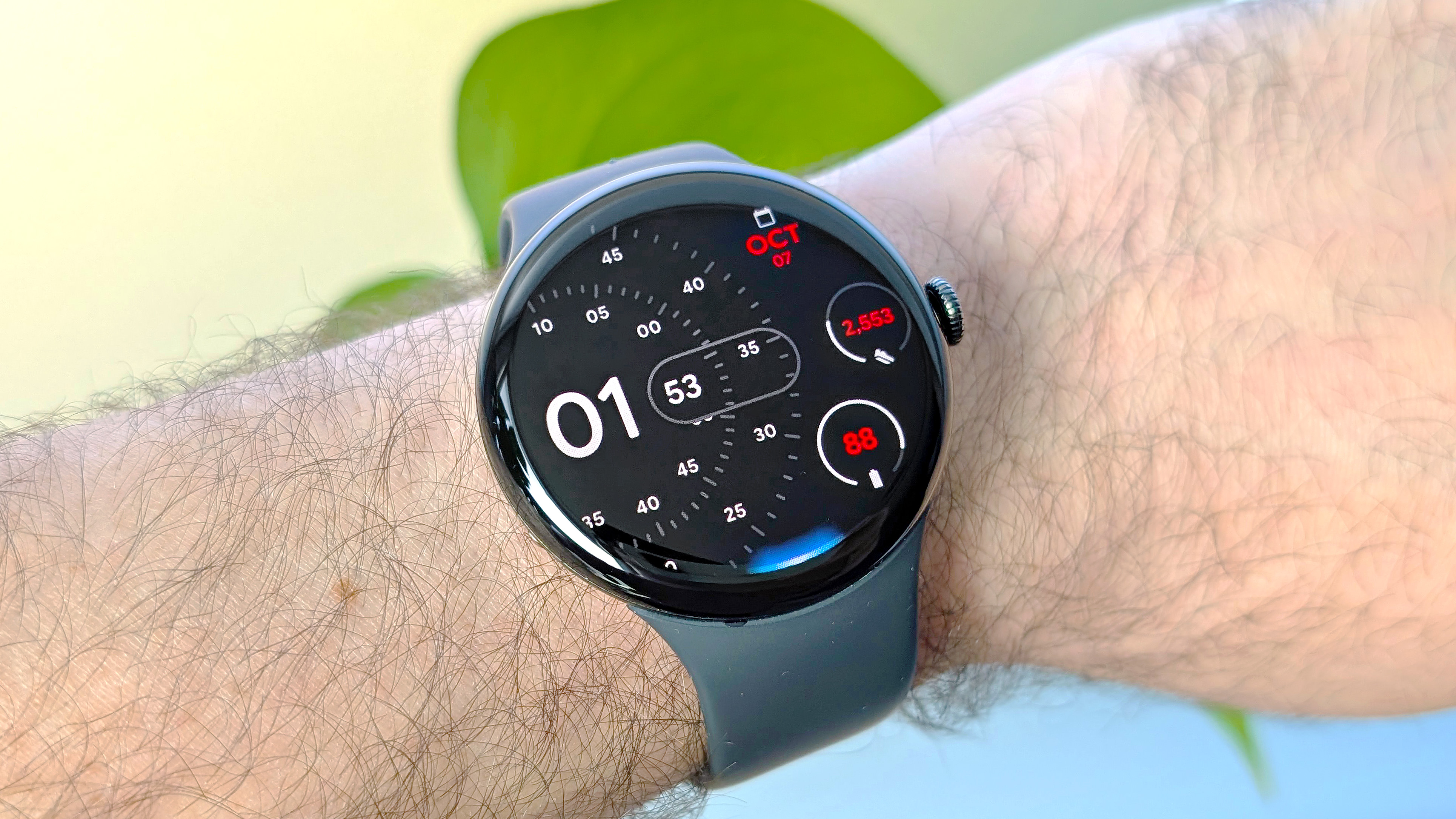
Google Pixel Watch Compatibility Requirements
The main compatibility question is not whether the phone says “Samsung.” It is whether the phone meets Google’s software and hardware needs.
Android Version
Each Pixel Watch generation has its own minimum Android requirement. Newer watches usually require a newer Android release. A Samsung phone that has stopped receiving updates may not support a new Pixel Watch.
Check both devices before you buy. A phone with an old Android version can create problems with pairing, updates, and app installation.
Google Play Services
Google Pixel Watch relies on Google Play services. This software supports account access, notifications, location tools, app communication, and other key functions.
Most US Samsung phones include Google Play services. Some overseas or modified models may not. This is one of the most common reasons a Samsung phone appears compatible but still cannot complete setup.
Google Account
You need a Google account to set up the watch. The account connects the Pixel Watch app, Google Assistant, Google Wallet, the Play Store, and Fitbit services.
You may still use your Samsung account on the phone. However, a Samsung account does not replace the Google account required by Pixel Watch.
Bluetooth and Internet Access
Bluetooth handles much of the connection between the phone and watch. Internet access is needed for setup, software updates, app downloads, maps, and some account features.
Keep the phone close to the watch during setup. Pairing across a room, using weak mobile data, or switching between many Wi-Fi networks can slow the process.

How to Set Up Google Pixel Watch With a Samsung Phone
The setup process is similar to pairing the watch with a Pixel phone. The main difference is that Samsung’s wearable app is not part of the process.
- Charge the Pixel Watch and turn it on.
- Update the Samsung phone to the latest available Android version.
- Install the Google Pixel Watch app from the Google Play Store.
- Install or update the Fitbit app.
- Turn on Bluetooth and location access.
- Open the Pixel Watch app and sign in with your Google account.
- Choose the watch when it appears on the screen.
- Confirm the matching code shown on both devices.
- Follow the prompts for notifications, apps, health data, and updates.
- Allow the permissions you want the watch to use.
Do not skip every permission without reading it. Notifications, calls, location, and health tracking each need separate access. If you deny a needed permission, a feature may appear broken when it is simply turned off.
From hands-on compatibility checks, the most common setup mistake is installing only the Fitbit app. Fitbit manages much of the health experience, but the Google Pixel Watch app is still needed for pairing and device settings.
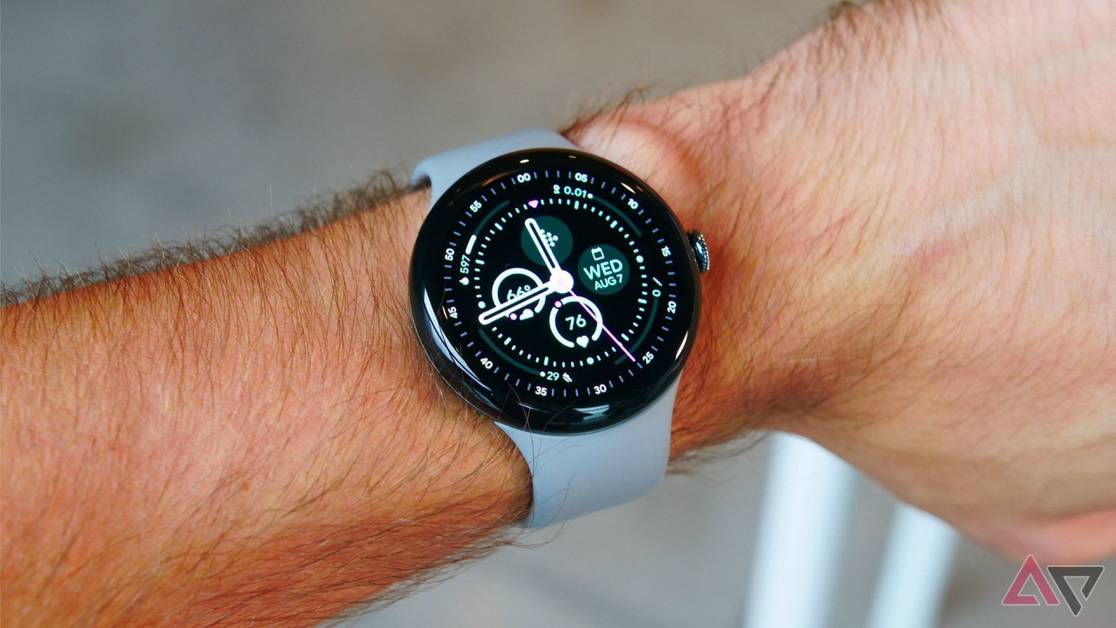
What Features Work With a Samsung Phone?
Google Pixel Watch works with Samsung phones for many everyday tasks. You can receive alerts, track activity, answer calls, use apps, and manage watch settings.
Commonly supported features include:
• Call alerts and, on supported models, phone calls from the watch
• Text and app notifications
• Step, heart rate, sleep, and workout tracking
• Google Assistant
• Google Maps
• Google Wallet
• Music controls
• Find My Device features
• Watch face and app installation
• Software and security updates
• Emergency and safety tools where available
The exact feature list depends on the watch model, the phone, your country, your carrier, and the installed apps. For example, LTE calling requires a compatible carrier plan. It also may require the watch and phone to use supported cellular networks.
Some health features can have extra limits. ECG, irregular rhythm alerts, fall detection, and other safety tools may depend on local approval, age, account settings, and device support. Treat watch readings as wellness information, not as a medical diagnosis.

What Features May Not Work as Well?
Google Pixel Watch works with Samsung phones, but it does not create a fully merged Samsung and Google ecosystem. Some functions may feel less seamless than they would on a Pixel phone.
The main limits include:
• No full integration with Samsung Health
• No use of the Samsung Galaxy Wearable app for Pixel Watch settings
• Limited access to Samsung-only watch features
• Possible limits for Samsung-exclusive services
• Health data may need Health Connect or another supported bridge
• Some features may require separate Google apps
• Battery use may vary because of background syncing
Samsung Health is the biggest difference for many buyers. Pixel Watch mainly uses Fitbit for health and fitness data. You may be able to share selected data through Health Connect, but this is not the same as having every Fitbit metric appear natively inside Samsung Health.
Samsung phone owners who already use Galaxy Buds can still use them with Pixel Watch in many cases. Yet the smoothest device controls may remain inside Samsung’s own ecosystem.
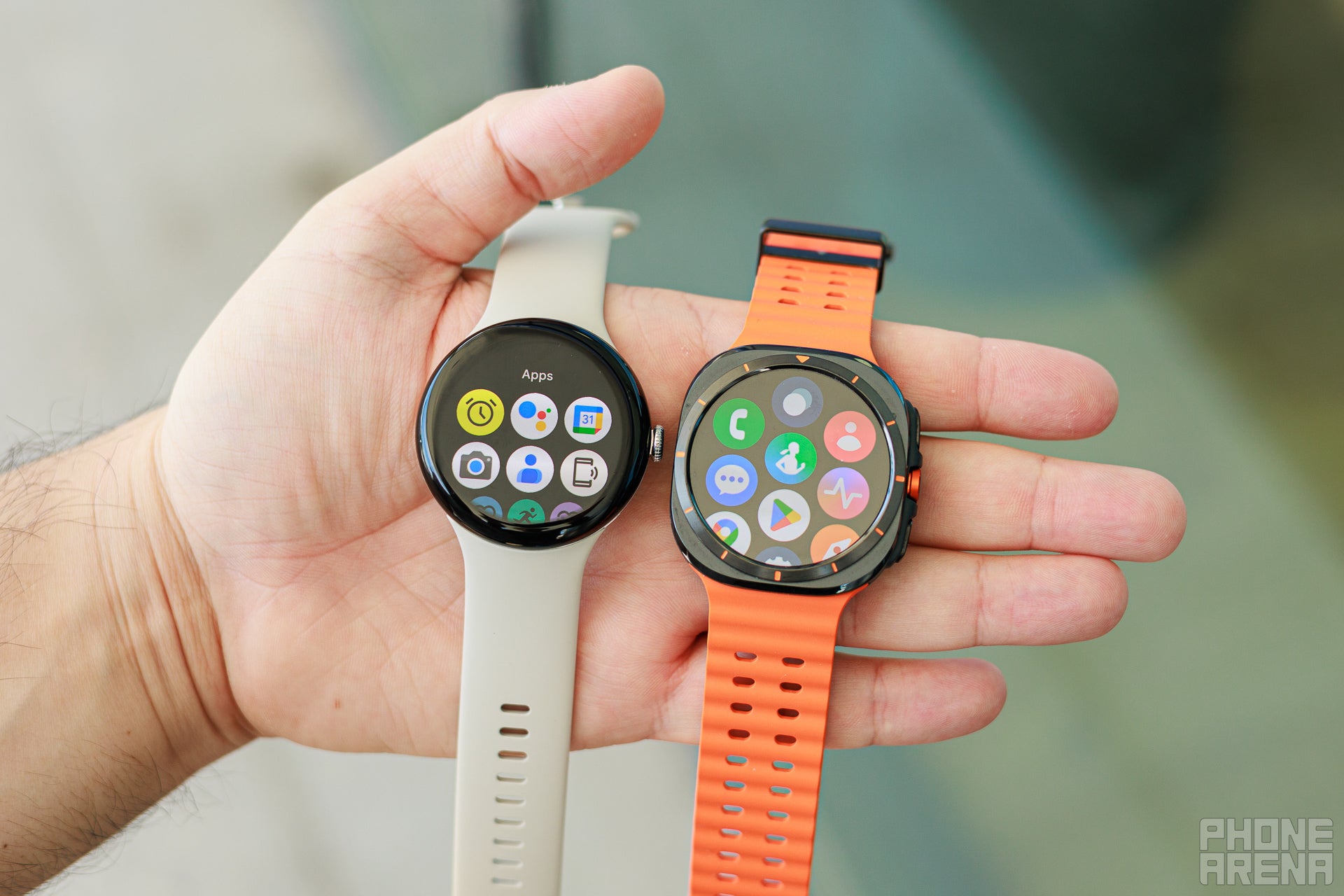
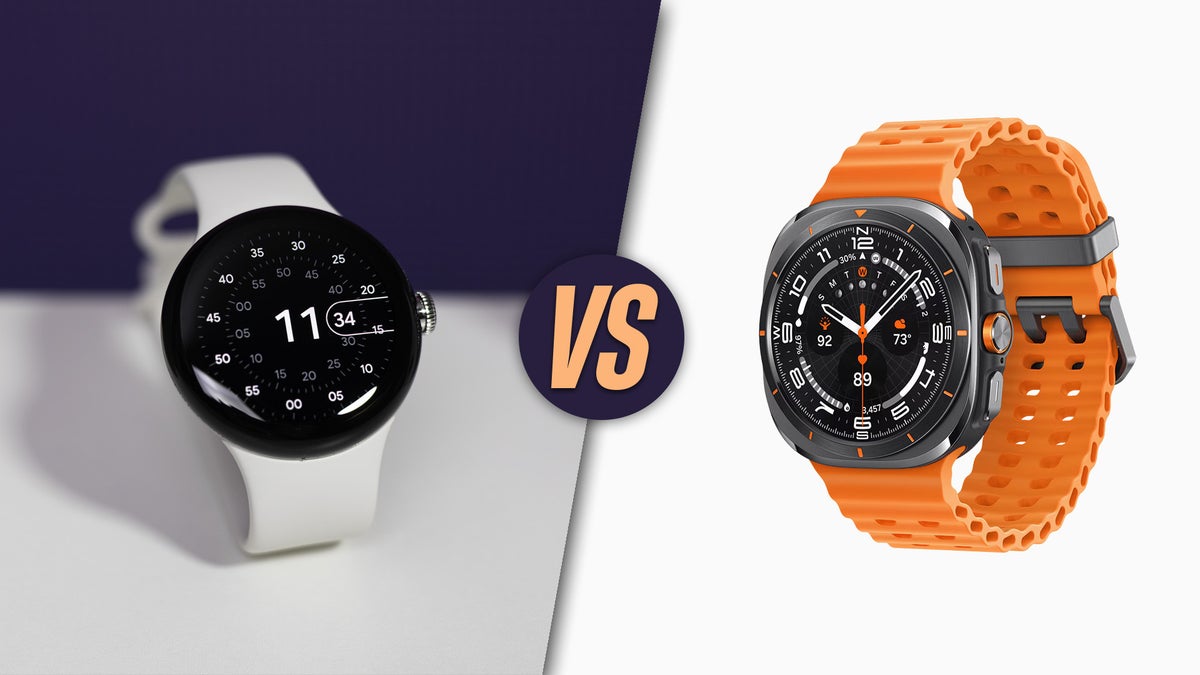
Pixel Watch vs. Galaxy Watch With a Samsung Phone
If you own a Samsung phone, both watches can make sense. The better choice depends on which services matter most to you.
Choose Pixel Watch if you want:
• Google Assistant and Google apps
• A clean Wear OS experience
• Fitbit health and fitness tools
• A small, simple watch design
• Strong integration with Google Wallet and Maps
• A watch that also works well with other Android brands
Choose Galaxy Watch if you want:
• Deep Samsung Health integration
• Samsung-only health tools
• Longer battery life on some models
• More watch sizes and rugged options
• Stronger integration with Galaxy Buds and other Samsung devices
• Features designed specifically for Samsung phones
A Galaxy Watch is often the easier choice for a Samsung owner who already uses Samsung Health. Google Pixel Watch is often better for someone who prefers Google services or Fitbit.
In practical use, the choice is less about which watch is “better” and more about which ecosystem holds your data. Changing from Galaxy Watch to Pixel Watch can feel like moving from one filing cabinet to another. The new cabinet works, but older records may not move perfectly.
How to Fix Pixel Watch and Samsung Pairing Problems
If Google Pixel Watch does not connect to your Samsung phone, work through these steps in order.
- Restart both the phone and watch.
- Confirm that Bluetooth and location are enabled.
- Update Android, Google Play services, the Pixel Watch app, and Fitbit.
- Keep the watch close to the phone.
- Turn off battery-saving restrictions for the Pixel Watch app.
- Check that the phone has enough storage.
- Remove old Bluetooth entries for the watch.
- Reset the watch only after trying the simpler fixes.
- Try setup again from inside the Pixel Watch app.
- Contact Google support if the watch remains stuck during activation.
Battery optimization is easy to overlook on Samsung phones. One UI may limit background activity to save power. If notifications stop arriving, check the Pixel Watch app under the phone’s battery and background-use settings.
Also check the watch’s Google account. A used Pixel Watch may still be linked to another person’s account. The previous owner should remove it from their account and reset it before you try to pair it.
Battery, Notifications, and Daily Use
Google Pixel Watch works with Samsung phones for daily notifications, but your phone settings control much of the experience. If an app’s notifications are blocked on the phone, they usually will not appear on the watch.
You can improve reliability by:
• Keeping the Pixel Watch app updated
• Allowing the app to run in the background
• Turning off extreme power-saving modes during setup
• Keeping Bluetooth active
• Installing watch updates when offered
• Reviewing notification access after major phone updates
Battery life depends on the watch model, screen settings, GPS use, LTE, workouts, and health tracking. LTE models often use more power than Bluetooth-only models. Always-on display and frequent GPS workouts can also shorten runtime.
Samsung phones may show a permission prompt after a One UI update. Read it carefully rather than dismissing it. A small permission change can explain why calls, alerts, or health syncing suddenly stop.
Is Pixel Watch a Good Buy for Samsung Users?
For many Samsung owners, Google Pixel Watch is a good buy. It gives you a modern Wear OS watch without forcing you to use a Pixel phone.
It is especially appealing if you use: