You bought a smartwatch to make life easier. But sometimes, software updates can feel like a hassle. Maybe you forgot to check, or you didn’t see the alert. Yet, those updates are important—they fix bugs, add new features, and keep your device safe. What if your smartwatch could update itself, while you relax? The good news: it can. Let’s talk about how to enable automatic software updates on your smartwatch, why you should care, and what to watch out for. I’ll also share a few tips from my own experience, so you avoid the problems I faced.
Why Automatic Updates Matter
Keeping your smartwatch up to date is more than just getting new watch faces. Automatic updates mean your device works better, stays secure, and lasts longer. Software companies often find bugs or security holes after launch. If you don’t update, you might miss patches that stop hackers or fix battery drain.
I once ignored an update on my own watch. Later, the battery started draining fast, and some apps kept crashing. Only after updating did things return to normal. Since then, I let updates happen on their own. It’s one less thing to worry about.
Automatic updates have these main benefits:
- Better security. Protects your data and privacy.
- New features. Get the latest tools and watch faces.
- Fewer bugs. Fixes problems that make your device slow or unstable.
- Less stress. No need to remember to check for updates.
How Automatic Updates Work
Let’s make this simple. When you enable automatic updates, your smartwatch checks for new software on its own. If an update is found, it downloads and installs it—usually when your watch is charging and connected to Wi-Fi. This process is designed to run in the background, so you can keep using your device.
The exact steps depend on your watch’s brand and software. Most smartwatches fall under these groups:
- Apple Watch (watchOS)
- Samsung Galaxy Watch (Wear OS or Tizen)
- Google Pixel Watch (Wear OS)
- Fitbit
- Garmin
- Other Android smartwatches
Each brand is a little different, but most make it easy to turn on auto-updates. I’ll walk you through each one.
Apple Watch: Enabling Automatic Updates
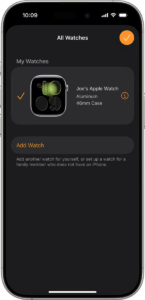
Apple makes it simple to keep your Apple Watch updated. Most people use the Watch app on their iPhone to manage settings.
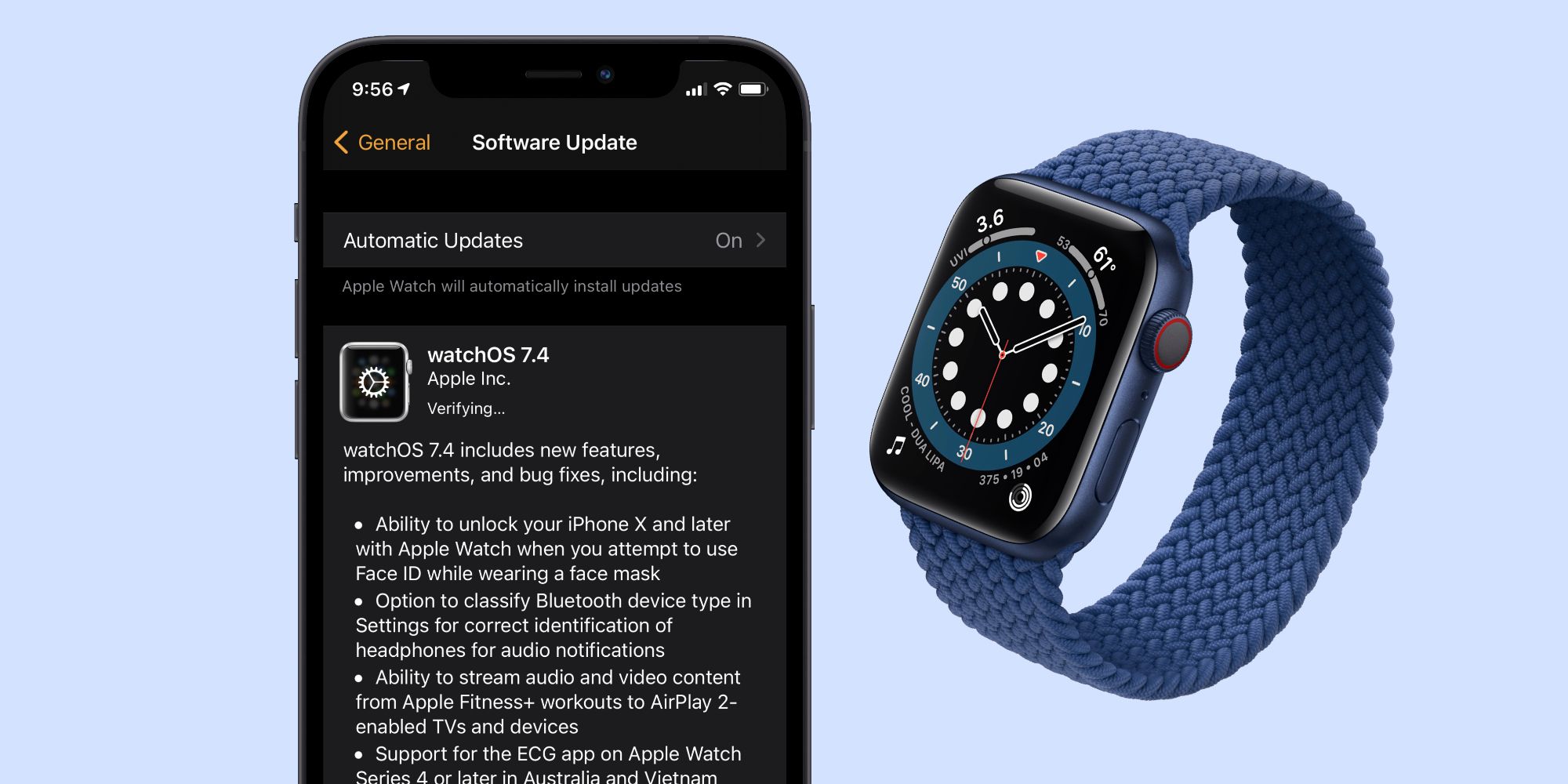
- Open the Watch app on your iPhone.
- Tap General.
- Tap Software Update.
- Look for Automatic Updates.
- Turn on the switch next to Automatic Updates.
Your Apple Watch will now install new updates whenever it’s charging, connected to Wi-Fi, and near your iPhone. You might see a notification first, so you know what’s coming.
Tip: Make sure your iPhone is also up to date. Sometimes, your watch needs the latest iOS to get new features.
Common mistake: Some people turn off Wi-Fi on their watch to save battery. Without Wi-Fi, updates won’t download. Keep Wi-Fi on, at least while charging.
Samsung Galaxy Watch: Setting Up Auto-updates
Samsung watches run either Wear OS (new models) or Tizen (older models). Here’s how to enable automatic updates for both.
For Wear Os (like Galaxy Watch 4 Or Newer):
- Open the Galaxy Wearable app on your phone.
- Tap Watch settings.
- Tap Watch software update.
- Find Auto download over Wi-Fi and turn it on.
Your watch will now download updates when connected to Wi-Fi. It may ask before installing, or it may do it on its own.
For Tizen (older Galaxy Watches):
- Open the Galaxy Wearable app.
- Tap Home.
- Tap Watch software update.
- Tap Auto download over Wi-Fi and enable it.
Pro tip: Keep your watch on its charger overnight. Updates often happen late, so your device is ready when you wake up.
Personal tip: Once, I missed an important fitness feature because my Galaxy Watch was set to update only manually. I changed the setting, and the next morning, I had a new sleep tracking feature waiting for me.

Credit: www.garmin.com
Google Pixel Watch And Other Wear Os Watches
Many smartwatches use Wear OS by Google. The process is similar, whether you have a Pixel Watch, Fossil, Mobvoi, or another Wear OS brand.
- Open the Settings app on your watch.
- Scroll and tap System.
- Tap Software Updates.
- Look for Auto-download updates or Automatic updates and turn it on.
Some Wear OS watches also let you manage updates from their companion phone app. Open the app, find settings for updates, and enable auto-download there.
Watch out: Sometimes, Wear OS watches need enough battery (at least 50%) to install updates. If the update fails, charge your watch and try again.
Fitbit Devices: Making Updates Automatic
Fitbit smartwatches (like Versa or Sense) do not have a full auto-update like Apple, but you can make updates as smooth as possible.
- Open the Fitbit app on your phone.
- Tap your profile picture.
- Tap your device image.
- Look for Update Available and tap it if you see one.
Fitbit pushes updates quietly, so you may get them overnight if your watch is charging and connected to Wi-Fi. There is no universal auto-update switch, but keeping your watch charged and connected helps.
Insider note: Some users report that updates arrive faster if you use the watch daily and keep Bluetooth always on.
Garmin Smartwatches: Turning On Automatic Updates
Garmin is popular for sports and outdoor watches. Most Garmin watches support automatic updates.
- Open the Garmin Connect app on your phone.
- Pair your device if you haven’t already.
- Open the Settings for your watch.
- Go to System > Software Update.
- Make sure Auto Update is set to On.
Garmin watches check for updates when syncing with your phone. Keep Bluetooth enabled and sync often for best results.
Extra tip: Garmin watches sometimes need a restart after updating. If your watch acts strange after an update, just restart it once.
Other Android Smartwatches
Some brands (like Huawei, Amazfit, or TicWatch) use their own software. Most have similar auto-update options.
- Open the companion app on your phone.
- Go to Device settings or Firmware update.
- Enable Automatic update or Auto-download if available.
If you don’t see an option, check the watch’s settings directly. Brands may call it “auto-update,” “background update,” or something similar.
Insight: Some budget smartwatches require manual updates. If you can’t find an auto-update option, you may need to check for updates every month.
Comparing Auto-update Features Across Brands
To help you see the differences, here’s a simple comparison of how top smartwatch brands handle automatic updates.
| Brand | Auto-Update Available? | How Updates Happen |
|---|---|---|
| Apple Watch | Yes | When charging, Wi-Fi, near iPhone |
| Samsung Galaxy Watch | Yes | When charging, Wi-Fi |
| Wear OS (Google, Fossil, etc.) | Yes | When charging, Wi-Fi |
| Fitbit | Partial | While charging, Wi-Fi, no full auto |
| Garmin | Yes | During sync with app |
| Other Android | Varies | Check settings or app |
Common Issues And How To Solve Them
Even when you turn on automatic updates, problems can happen. Here are the most common issues—and what to do.
- Updates not installing: Check battery and Wi-Fi. Most watches need at least 50% battery and a good Wi-Fi connection.
- Storage full: Updates need space. Delete old apps or files if your watch says “not enough space.”
- Update stuck: Restart your watch. Sometimes, a simple reboot solves the problem.
- Missing features after update: Some updates need both your watch and phone apps to be updated. Check both devices.
- Watch restarts during update: Don’t panic. This can be normal. If it keeps restarting, contact support.
Personal experience: Once, my old smartwatch stopped updating. I found out my phone’s Bluetooth was off. Turning it on fixed everything. Don’t forget the basics!
How To Check If Automatic Updates Are Enabled
Sometimes you’re not sure if auto-updates are on. Here’s how to check:
- On Apple Watch: In the Watch app, under Software Update, see if “Automatic Updates” is green.
- On Samsung: In the Galaxy Wearable app, the switch should be blue or on.
- On Wear OS: In watch Settings > System > Software Updates, look for the toggle.
- On Garmin: In the Connect app, System > Software Update should say “Auto Update: On.”
If you’re not sure, try looking for update settings in your companion app or watch menu.
What To Do If You Want To Turn Off Automatic Updates
Some people prefer to control updates. Maybe you want to avoid bugs, or you don’t like surprises. Here’s how to turn off auto-updates on most smartwatches:
- Go back to the same settings screen where you enabled automatic updates.
- Toggle the switch to off.
Remember, you’ll need to check for updates yourself, at least once a month, for security.

Credit: www.shophq.com
Tips For A Smooth Update Experience
Making updates easy is not just about turning on a switch. These tips will help you avoid trouble:
- Keep your watch charged. Updates often need 50% battery or more.
- Connect to Wi-Fi. Updates are large. Wi-Fi is faster and uses less battery.
- Leave your watch on the charger overnight. Most updates happen at night.
- Keep your phone nearby. Many watches need the phone for updates.
- Restart after updating. This helps new features work well.
Hidden insight: Some smartwatches only check for updates weekly. If you want updates sooner, try restarting your device or syncing with your phone.
Risks And Downsides Of Automatic Updates
Letting your watch update on its own is safe most of the time. But, there are a few risks:
- New bugs. Sometimes, new software has small problems.
- Changes you don’t like. Features can change or move.
- Temporary battery drain. New updates may use more battery at first.
If you rely on your watch for health or work, consider waiting a week before installing big updates. Check online forums to see if others found problems. For most users, the benefits of auto-updates are much greater than the risks.
How Smartwatches Handle Updates Differently
Not all watches treat updates the same. For example:
- Apple: Sends updates to all devices at once. Everyone gets them at the same time.
- Samsung: Rolls out updates slowly. Some users get them before others.
- Google Wear OS: Depends on your brand and region.
- Garmin: Updates arrive when you sync, but not always right away.
Here’s a quick look at update speed by brand:
| Brand | Update Speed | Manual Option? |
|---|---|---|
| Apple Watch | Fast (same day) | Yes |
| Samsung Galaxy Watch | Medium (days-weeks) | Yes |
| Wear OS | Medium (days-weeks) | Yes |
| Fitbit | Slow (weeks) | Yes |
| Garmin | Medium (days-weeks) | Yes |
Extra insight: Some watches let you join “beta” programs to get updates early. This is only for advanced users, as beta software can be unstable.
Privacy And Security: Why Updates Matter More Than Ever
Smartwatches hold a lot of personal data—steps, heart rate, even payments. Hackers look for old software to break into. In 2023, over 15% of wearable device attacks happened because users missed updates (source: industry security reports). Automatic updates help you stay safe without extra work.
Example: In 2022, a big smartwatch brand fixed a bug that let hackers track user location. The fix came in a software update. Users who left auto-updates off stayed at risk for weeks.
Troubleshooting: What If Auto-update Is Missing?
If your watch or app does not show an option for automatic updates:
- Check for updates to the companion app (App Store or Google Play).
- Visit the support site for your watch brand.
- Ask customer service if auto-updates are available.
- Consider upgrading to a newer smartwatch if your model is too old.
Real-world tip: Older watches often lose support after a few years. If updates stop, it may be time for a new device.
Keeping Apps Up To Date On Your Smartwatch
Most smartwatches have apps you can install or update. These apps also need updates for security and features.
- On Apple Watch: Open the App Store on your watch. Scroll to Account > Updates. Turn on Automatic Updates here.
- On Wear OS: Open the Play Store app on your watch. Go to Settings > Auto-update apps and choose Over Wi-Fi only.
- On Samsung: Use the Galaxy Store app.
Keeping apps up to date is just as important as the main software. Don’t forget to check these settings.
Credit: www.lapitadearborn.com
When Should You Update Manually?
Sometimes, you might want to trigger an update yourself:
- You hear about a new feature you want now.
- Your watch is acting strange.
- You missed an auto-update for some reason.
To update manually, go to the update section on your watch or companion app, and tap Check for updates.
Quick example: I once wanted a new running app as soon as it launched. I checked manually, and got it a week before my friends, who waited for auto-update.
Advanced Tips For Tech-savvy Users
If you like to customize your smartwatch, or you use it for work, here are a few advanced tips:
- Backup your data before big updates. Use your companion app or cloud service.
- Read update notes before installing.
- Join forums to learn about issues or new features (Reddit, official forums).
- Test new features after updating to make sure everything works.
Pro insight: Some smartwatches let you roll back to old software if you find problems. Check your brand’s support pages for details.
The Future Of Automatic Updates
Smartwatches are getting smarter. Newer models use AI to predict your needs and update when you’re least likely to notice. In the next few years, most watches will handle updates without any effort from you.
Brands are also working to make updates smaller and faster, so you don’t have to wait. This is good news if you want a device that “just works. ”
If you want to learn more about how wearable updates work, you can visit the Smartwatch Wikipedia page.
Frequently Asked Questions
How Do I Know If My Smartwatch Updated Automatically?
Most smartwatches show a small notification or message after an update. You can also check the software version in your watch’s settings and compare it to the latest version on your brand’s website.
Will Automatic Updates Delete My Data?
Normally, automatic updates only change the software. Your steps, heart rate, and apps stay safe. It’s rare for data to be lost, but backing up your data before big updates is always a good idea.
What If My Smartwatch Gets Stuck During An Update?
If your watch freezes or is stuck on the update screen, try restarting it. Hold the side button for 10 seconds. If that does not work, connect it to the charger and wait. If the problem continues, contact support.
Can I Choose Which Updates To Install Automatically?
Most smartwatches do not let you pick specific updates for auto-install. It’s usually all or nothing. If you want control, turn off automatic updates and install only the ones you want.
Are Automatic Updates Safe?
Yes, automatic updates are made to keep your device safe and working well. Problems are rare, but if you worry about bugs, wait a few days before installing big updates.
You made a smart choice by enabling automatic updates. Now, your smartwatch will stay current, safe, and fun to use—with almost no effort from you. And if you ever want to take back control, you know how to do it.
Stay curious, and enjoy your wearable tech!

Rubel Miah is the Senior Editor at MyStyleGrid.com, where he brings a sharp editorial eye and an unshakable love for fashion to everything he does. A true style addict, Rubel lives and breathes trends, from streetwear to high fashion, and has a knack for turning inspiration into impactful stories. With years of experience in fashion journalism and digital media, he curates content that empowers readers to express themselves through style. When he’s not editing features or forecasting the next big thing, you’ll find him hunting down vintage pieces or capturing street style moments around the city.