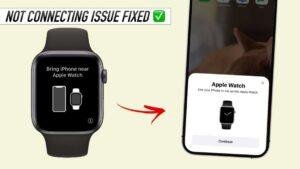
Your Apple Watch may not connect because Bluetooth, software, battery, distance, or pairing settings are causing a communication problem.
If you are wondering, “why won’t my Apple Watch connect to my phone,” the cause is often simple but hidden. A weak Bluetooth link, an outdated iPhone, low battery, or an incomplete setup can stop the devices from talking. This guide explains how to find the cause and fix it safely, starting with the fastest checks.
Why won’t my Apple Watch connect to my phone?
Your Apple Watch connects to your iPhone through Bluetooth, Wi-Fi, and, on supported models, cellular service. Bluetooth usually handles the closest connection, while Wi-Fi can help the watch stay connected when your iPhone is not nearby.
When one part of that link fails, the watch may show a red iPhone icon, a red “X,” a spinning connection symbol, or a message that says “Not Connected.” The most common causes include:
• Bluetooth is turned off on your iPhone.
• Airplane Mode is active on one or both devices.
• The watch and iPhone are too far apart.
• The iPhone or Apple Watch needs a restart.
• One device is running outdated software.
• The watch is already paired with another iPhone.
• The Apple Watch battery is too low.
• The iPhone does not support the watchOS version on the watch.
• The pairing process stopped before it finished.
A useful way to think about this problem is like a phone call. The watch and iPhone need power, a signal, permission, and compatible software. If even one of those is missing, the call cannot go through.


Check the connection basics first
Before changing settings or erasing your Apple Watch, try the simple checks. These steps solve many cases of why won’t my Apple Watch connect to my phone without removing any data.
-
Place the Apple Watch and iPhone close together. Keep them within a few feet of each other.
-
Unlock your iPhone and keep it on the Home Screen.
-
Make sure Bluetooth is on. Open Settings, tap Bluetooth, and check the switch.
-
Check Wi-Fi. Open Settings, tap Wi-Fi, and connect to a trusted network.
-
Turn off Airplane Mode on both devices.
-
Charge the Apple Watch and iPhone for at least 15 minutes.
-
Open the Apple Watch app on your iPhone and check whether the watch appears under the My Watch tab.
The Control Center Bluetooth button can be confusing. It may disconnect accessories without fully turning Bluetooth off. For a complete check, use Settings > Bluetooth instead.
Also check the watch screen. A green iPhone icon usually means the devices are connected. A red iPhone icon often means the watch has lost contact with the phone.

Restart both devices
A restart clears temporary software errors. It is one of the safest answers to why won’t my Apple Watch connect to my phone, especially after an update or a long period without restarting.
To restart your iPhone:
-
Press and hold the side button and either volume button.
-
Drag the power-off slider.
-
Wait about 30 seconds.
-
Press and hold the side button until the Apple logo appears.


To restart your Apple Watch:
-
Press and hold the side button.
-
Tap the power icon if it appears.
-
Drag the power-off slider.
-
Wait a few seconds.
-
Press and hold the side button to turn it on again.
Do not force restart the watch unless it is frozen. If you must do so, press and hold the side button and Digital Crown together for at least 10 seconds. Release them when the Apple logo appears.
In many troubleshooting sessions, the issue has been nothing more than a temporary Bluetooth process that became stuck. Restarting both devices gives that process a clean start.

Update your iPhone and Apple Watch
Software updates can fix connection bugs, improve Bluetooth performance, and add support for newer watchOS versions. If your iPhone is far behind on updates, it may not pair correctly with a newer Apple Watch.
To update your iPhone:
• Open Settings.
• Tap General.


• Tap Software Update.
• Install any available update.
To update your Apple Watch:
• Place it on its charger.
• Make sure it has at least 50 percent battery.
• Keep the iPhone and watch close together.
• Open the Watch app on your iPhone.
• Tap General, then Software Update.
If you cannot open the Watch app because the watch is not paired, update the iPhone first. Then restart both devices and try pairing again.
Compatibility matters too. Apple Watch models work only with certain iPhone models and operating system versions. Because supported versions change over time, check the current compatibility list before buying or pairing an older iPhone with a newer watch.

Check your Apple ID and pairing status
An Apple Watch may fail to connect if it is still linked to another iPhone or Apple ID. This often happens after buying a used watch, replacing an iPhone, or restoring from a backup.
If the watch asks for someone else’s Apple ID, Activation Lock is active. The previous owner must remove the watch from their Apple account. You cannot safely bypass Activation Lock through normal settings.
If you still have the old iPhone, open the Watch app and unpair the watch:
-
Open the Watch app.
-
Tap All Watches.
-
Tap the information button next to the watch.
-
Tap Unpair Apple Watch.
-
Follow the on-screen instructions.


Unpairing through the old iPhone creates a backup and removes the watch from the account when completed correctly. If the old iPhone is lost or broken, the owner may need to remove the watch through their Apple account settings before you can use it.
This is a common reason why won’t my Apple Watch connect to my phone after a secondhand purchase. Ask for proof that the watch was removed from the seller’s account before buying.

Try pairing the Apple Watch again
If the watch appears in the Watch app but will not finish setup, start the pairing process again. Keep both devices charged and close together during the entire process.
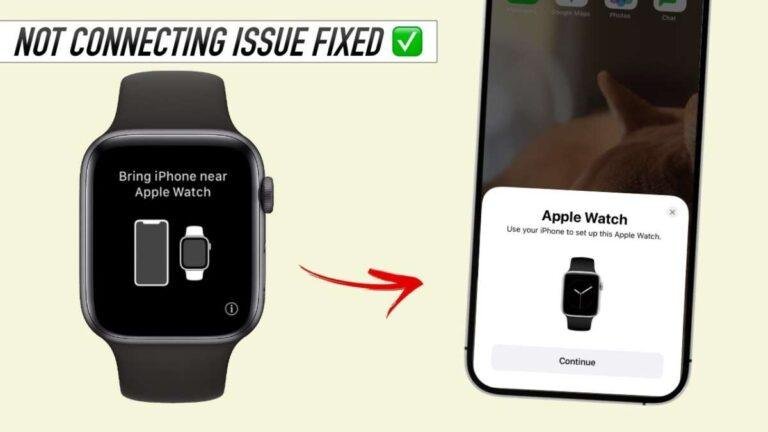
Open the Watch app, tap All Watches, and choose Add Watch. Then point the iPhone camera at the animation on the Apple Watch. If the camera cannot read the animation, tap Pair Apple Watch Manually and follow the prompts.
During setup:
• Keep the iPhone connected to Wi-Fi.
• Do not restart either device.
• Keep the watch on its charger if possible.
• Enter the correct Apple ID password.
• Allow the setup process time to finish.
Pairing can take several minutes. A progress bar that seems slow does not always mean the process has failed. Interrupting it too soon can leave the watch in an incomplete setup state.
If the watch asks for a passcode you do not know, you may need to erase it before pairing. This removes data from the watch, but you may restore supported data from an iPhone backup afterward.

Unpair and erase the Apple Watch as a last resort
If basic steps fail, unpairing and erasing the watch can fix damaged pairing data. Use this step only after checking backups, the Apple ID, and compatibility.
To unpair from the iPhone:
-
Open the Watch app.
-
Tap All Watches.
-
Tap the information button beside your watch.
-
Select Unpair Apple Watch.
-
Enter your Apple ID password if requested.
If you cannot access the iPhone, erase the watch directly:
-
Open Settings on the watch.
-
Tap General.
-
Tap Reset.
-
Choose Erase All Content and Settings.
-
Confirm the action.
Erasing the watch does not remove Activation Lock. You may still need the Apple ID used during setup. This protection helps prevent lost or stolen watches from being reused by someone else.
After erasing, place the watch near the iPhone and pair it as a new device or restore from a backup. If the watch still refuses to connect, the problem may involve hardware, account security, or deeper software damage.

What the Apple Watch connection icons mean
The icons on the watch can point to the cause. They do not always provide a complete diagnosis, but they offer useful clues.
• Red iPhone icon: The watch is not connected to the iPhone.
• Red “X”: The watch has lost contact with the iPhone or a network.
• Green iPhone icon: The watch is connected to the iPhone.
• Wi-Fi icon: The watch is connected to a known Wi-Fi network.
• Cellular icon: A supported cellular Apple Watch is connected to a mobile network.
• Spinning pairing symbol: The watch is still trying to complete setup.
If the watch connects to Wi-Fi but not to the iPhone, Bluetooth or the iPhone’s settings may be the issue. If it cannot connect to either Wi-Fi or the iPhone, check Airplane Mode, software, battery, and network settings.
Some connection behavior is normal. An Apple Watch may work away from the iPhone through Wi-Fi or cellular service, but certain features still require the phone or a compatible internet connection.

Fix connection problems after an iPhone upgrade
A new iPhone often causes confusion because the watch must be transferred or paired again. If you set up the new iPhone from a backup, the watch may appear in the Watch app but still need to complete activation.
First, update the new iPhone. Then open the Watch app and follow the transfer instructions. Keep the old iPhone nearby if it is available, because it can make the transfer smoother.
If the old phone is no longer available:
• Confirm that you know the Apple ID password.
• Check that the watch is not locked to another account.
• Open the Watch app on the new iPhone.
• Choose the option to pair or add the watch.
• Restore the watch from the most recent backup when offered.
One mistake is erasing the old iPhone before checking the watch. If possible, complete the watch transfer first. This protects your settings and reduces the chance of needing to set up the watch from scratch.

Fix Apple Watch connection problems after travel
Travel can trigger connection issues because of Airplane Mode, unfamiliar Wi-Fi networks, or changes to cellular service. Check both devices after a flight, especially if the watch was placed in Airplane Mode.
Turn Airplane Mode off, then turn Bluetooth and Wi-Fi back on. If the watch uses cellular service, confirm that your carrier supports the plan in your current location.
Public Wi-Fi can also cause trouble. Many hotel and airport networks require a web sign-in page. The Apple Watch may not complete that sign-in on its own, so it may show limited connectivity even when Wi-Fi appears available.
When traveling, keep the iPhone close during setup and avoid pairing over a weak or crowded network. A stable home network is often the best place to complete updates or restore a watch.
When the problem may be hardware
Most cases of why won’t my Apple Watch connect to my phone are software or settings problems. Still, hardware damage is possible after a drop, water exposure, charging failure, or screen repair.
Contact Apple Support or an authorized service provider if:
• The watch will not turn on after charging.
• The watch repeatedly restarts.
• Bluetooth does not work with any device.
• The watch shows a damaged screen or physical defect.
• The iPhone cannot detect the watch after a full erase.
• Pairing fails with more than one compatible iPhone.
Apple Watch models have different water-resistance limits, and water resistance can weaken with age or damage. Avoid charging a wet watch, and do not assume that a water-resistant device is waterproof.
A repair center can test the battery, wireless connection, and internal hardware. Avoid unofficial repair tools that promise to remove Activation Lock or bypass security. They can put your data and account at risk.
How to prevent future Apple Watch connection problems
Once the watch connects, a few habits can prevent the issue from returning.
• Keep the iPhone and Apple Watch updated.
• Restart both devices from time to time.
• Charge the watch before installing software updates.
• Keep Bluetooth and Wi-Fi enabled when you use the watch with the iPhone.
• Avoid interrupting the pairing process.
• Keep your Apple ID password available.
• Unpair the watch properly before selling or giving it away.
• Back up the iPhone before major upgrades.
• Buy used watches only after confirming Activation Lock is removed.
A simple backup plan saves time. Before replacing an iPhone, check that the Apple Watch appears in the Watch app and that the iPhone has a current backup. This small step can prevent hours of setup trouble later.
Frequently asked questions about why won’t my Apple Watch connect to my phone
Why won’t my Apple Watch connect to my iPhone even with Bluetooth on?
Bluetooth being on does not guarantee a working connection. Restart both devices, keep them close, disable Airplane Mode, and check for software updates.
How do I reconnect my Apple Watch to my iPhone?
Open the Watch app on the iPhone and check the My Watch tab. If the watch is missing, tap All Watches, choose Add Watch, and follow the pairing steps.
Do I need to reset my Apple Watch if it will not connect?
No. Restarting, checking Bluetooth, updating software, and trying to pair again should come first. Reset the watch only when those steps fail or when the pairing data appears damaged.
Can an Apple Watch connect to an iPhone without Wi-Fi?
Yes. The watch can connect through Bluetooth when it is near the iPhone. Wi-Fi helps when the watch and iPhone are apart, while cellular models can use supported mobile networks.
Why won’t my Apple Watch connect after I bought it used?
The watch may still have Activation Lock enabled or remain paired with the previous owner’s iPhone. The previous owner must remove it from their Apple account before you can pair it.
Will erasing my Apple Watch delete everything?
Erasing removes content and settings stored on the watch. Some information may be restored from an iPhone backup, but you should confirm your backup before erasing the device.
Conclusion
The most common reason why won’t my Apple Watch connect to my phone is a broken Bluetooth link, outdated software, low battery, or incomplete pairing. Start with the basics: bring the devices close, check Bluetooth and Airplane Mode, restart both devices, and install updates.
If those steps fail, check Apple ID ownership and compatibility before unpairing or erasing the watch. Work through the steps in order, protect your backups, and seek official service if the problem continues. Share this guide with someone troubleshooting an Apple Watch, and explore more device support resources for practical fixes.

Rubel Miah is the Senior Editor at MyStyleGrid.com, where he brings a sharp editorial eye and an unshakable love for fashion to everything he does. A true style addict, Rubel lives and breathes trends, from streetwear to high fashion, and has a knack for turning inspiration into impactful stories. With years of experience in fashion journalism and digital media, he curates content that empowers readers to express themselves through style. When he’s not editing features or forecasting the next big thing, you’ll find him hunting down vintage pieces or capturing street style moments around the city.