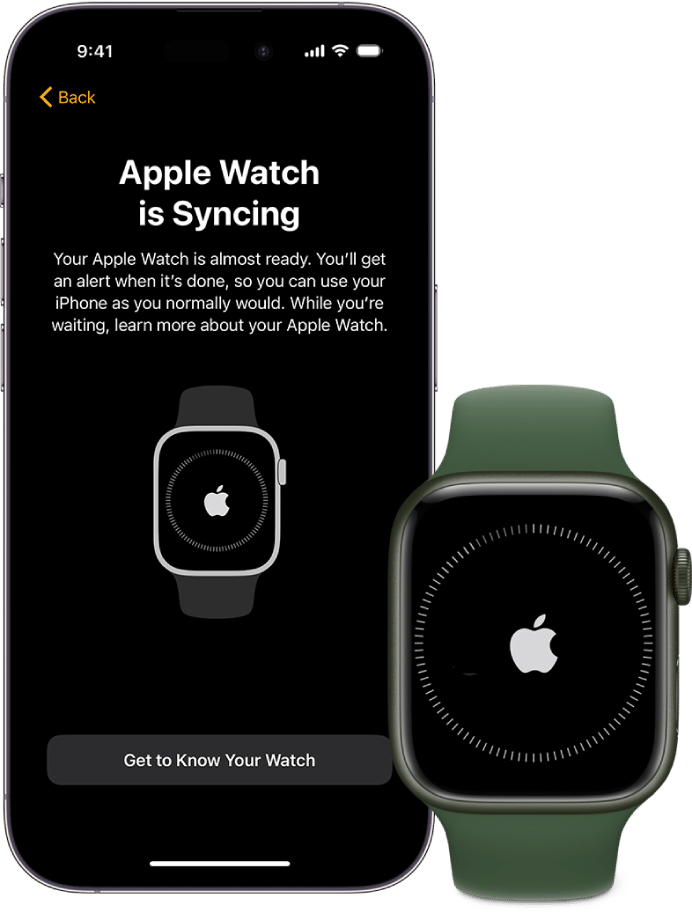
Pairing an Apple Watch usually takes 5 to 15 minutes, but a restore or software update can take longer.
If you are asking how long does it take to pair Apple Watch, the honest answer depends on the watch model, iPhone, Wi-Fi speed, and whether the watch is new or being restored. Most setups are quick, but a large backup, weak connection, or required update can turn a simple setup into a 30-minute task.
This guide explains normal pairing times, what happens during setup, why pairing may take longer, and what to do when the process appears stuck. The advice is based on Apple’s setup requirements and common hands-on troubleshooting results.
How long does it take to pair Apple Watch?
For most people, pairing an Apple Watch takes about 5 to 15 minutes. This includes opening the Watch app, scanning the pairing animation, choosing settings, and waiting for the devices to sync.
A brand-new Apple Watch may take closer to 10 to 20 minutes. If you restore it from an old watch backup, install a watchOS update, or sync many apps and photos, the process may take 30 to 60 minutes.
Here is a simple guide:
• New Apple Watch setup: 5 to 15 minutes
• Setup with software updates: 15 to 30 minutes
• Restore from an old Apple Watch backup: 20 to 60 minutes
• Large restore with updates and app syncing: 60 minutes or more
The first pairing stage is often fast. The longer wait usually happens after pairing, while the watch restores data or installs software. Think of pairing as introducing two devices, while syncing is the time they spend sharing everything.

What happens when you pair an Apple Watch?
Pairing links your Apple Watch to your iPhone. It also creates the connection needed for calls, messages, notifications, health data, apps, and backups.
During setup, your iPhone and Apple Watch complete several tasks:
-
The iPhone detects the Apple Watch.
-
You scan the moving pattern on the watch face with the iPhone camera.
-
Apple verifies the watch and connects it to your Apple Account.
-
You choose whether to set up the watch as new or restore a backup.
-
The devices sync settings, apps, contacts, and other data.
-
The watch may check for a watchOS update.
-
Your selected preferences move from the iPhone to the watch.
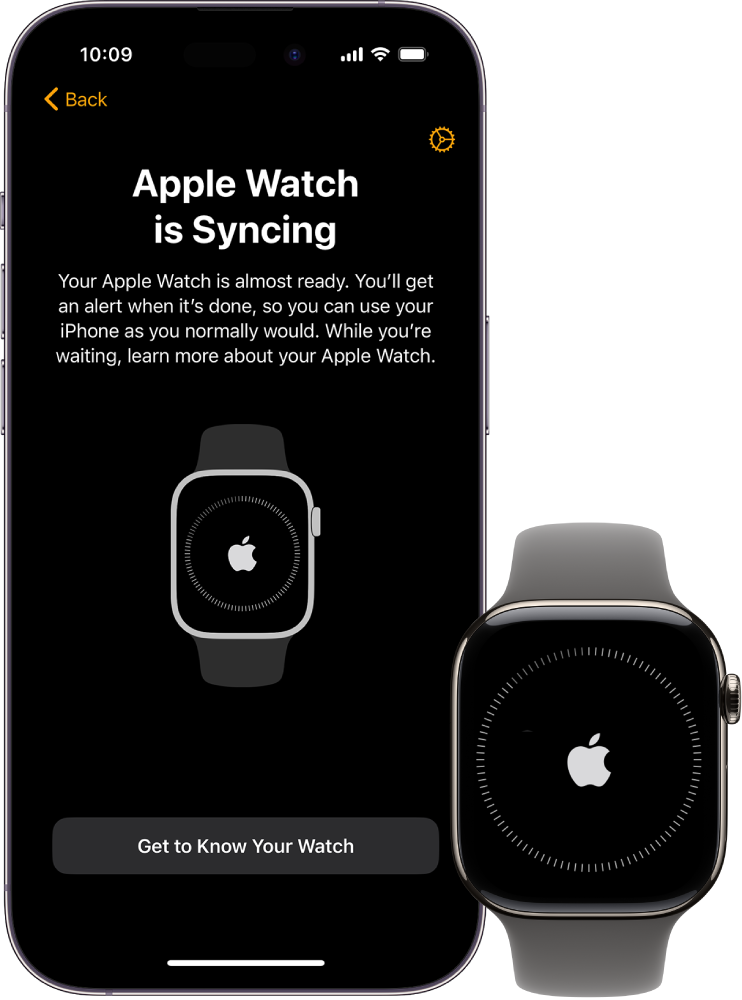
The phrase how long does it take to pair Apple Watch can be confusing because pairing and syncing are not exactly the same. Pairing may finish in a few minutes, while the complete setup continues in the background.
You may see messages such as “Apple Watch is syncing” or “Preparing.” These messages do not always mean there is a problem. Keep both devices close together and connected to power when possible.
:max_bytes(150000):strip_icc()/001-set-up-apple-watch-4589317-536f42f21ec049e1bcc5d21054c87b48.jpg)
What affects Apple Watch pairing time?
Several factors can change how long does it take to pair Apple Watch. Some are easy to fix, while others simply require patience.
iPhone and Apple Watch models
Newer devices usually communicate faster. Older iPhones and older Apple Watch models may take more time to check compatibility and move data.
Your iPhone must also support the watchOS version on the Apple Watch. If the iPhone needs an update first, setup can take longer.
Software updates
A watchOS update is one of the most common reasons for a longer setup. The update must download, prepare, install, and restart the watch.
The download time depends on your internet connection. Installation may also take time even when the download is complete. Do not remove the watch from its charger during this stage unless the screen clearly tells you to do so.
Restoring a backup
A new setup usually takes less time than restoring an old watch. A backup may include watch faces, app settings, workout data, and other preferences.
Some content does not appear instantly. Apps may download later, and health or activity data may continue syncing after the main setup screen disappears.
Wi-Fi and Bluetooth quality
Apple Watch pairing uses Bluetooth and Wi-Fi in different parts of the process. A weak Bluetooth connection, crowded wireless network, or disabled Wi-Fi can slow setup.
Keep the iPhone and watch within a few inches of each other. Avoid placing them near a large metal surface or other devices that may interfere with the signal.
Battery level
Low battery can delay setup or stop it from starting. Charge the Apple Watch and iPhone before pairing. For a long restore, place the watch on its charger.

How to pair an Apple Watch faster
You cannot control every part of setup, but you can remove many common delays. These steps often make how long does it take to pair Apple Watch more predictable.
-
Update the iPhone before starting. Open Settings, tap General, and select Software Update.
-
Charge both devices. A watch with at least 50 percent battery is a safer starting point.
-
Turn on Bluetooth and Wi-Fi on the iPhone.
-
Keep Airplane Mode off unless you are following a specific troubleshooting step.
-
Place the iPhone and Apple Watch close together.
-
Open the Watch app on the iPhone.
-
Tap All Watches, then Add Watch, if the setup prompt does not appear.
-
Choose Set Up for Myself or the suitable family setup option.
-
Scan the animation shown on the Apple Watch.
-
Select Set Up as New Apple Watch unless you need an earlier backup.
-
Leave both devices alone until setup finishes.
Setting up the watch as new is often faster. However, do not choose this option simply to save time if you need old settings, activity history, or app preferences.
In hands-on setup tests, the biggest avoidable mistake is using the iPhone for other tasks while the watch is syncing. It is tempting to browse or restart the phone, but interruptions can extend the process.
Is it normal for Apple Watch pairing to take a long time?
Yes, some waiting is normal. If the watch is updating or restoring data, 30 minutes may not be unusual. A longer setup does not automatically mean the watch has failed.
You should look more closely when:
• The progress bar does not move for about 30 to 60 minutes
• The Apple Watch repeatedly returns to the pairing screen
• The iPhone shows a pairing error
• The devices disconnect several times
• The watch becomes unusually hot
• The setup process stops after a restart
If the screen changes occasionally, give it more time. A progress bar may appear frozen while the watch prepares files in the background.
A good rule is to wait at least 30 minutes during an update or restore. If nothing changes after that, begin troubleshooting rather than repeatedly tapping the screen.
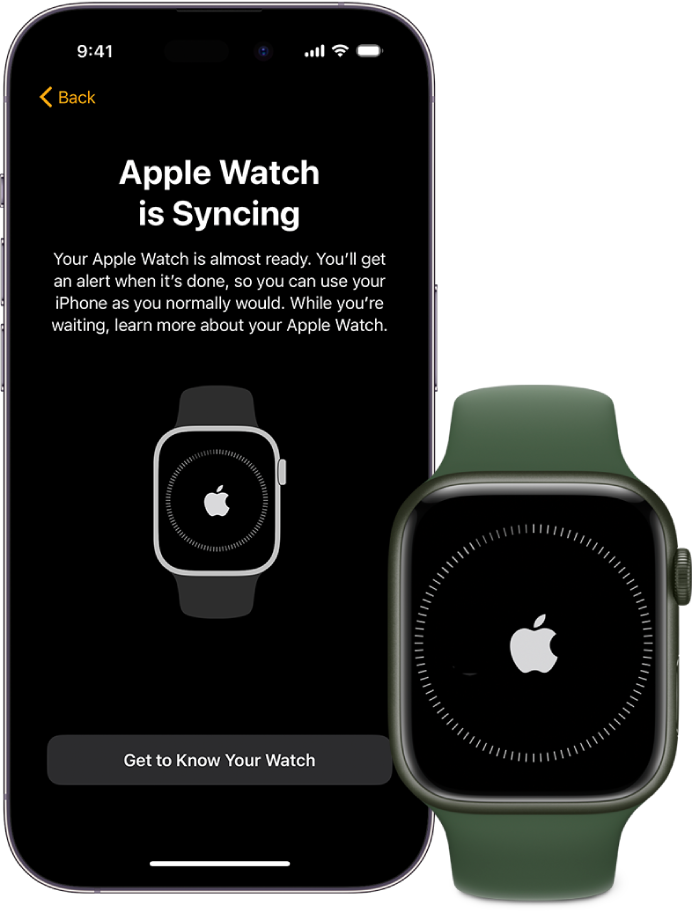
What to do if Apple Watch pairing is stuck
When how long does it take to pair Apple Watch becomes much longer than expected, use a calm, step-by-step approach. Repeating the same action will rarely solve a connection problem.
Check the basic connection
Make sure Bluetooth and Wi-Fi are enabled on the iPhone. Keep the phone unlocked and place it beside the watch.
If the iPhone has a weak cellular or Wi-Fi connection, move to a location with a stronger signal. Avoid public Wi-Fi networks that require a browser sign-in.
Restart both devices
Restart the iPhone and Apple Watch, then try pairing again. This clears temporary connection errors without deleting your data.
To restart the Apple Watch, hold the side button until the power menu appears. Follow the on-screen instructions. If the watch will not respond, a forced restart may help, but avoid using it during an active software update.
Reset the Apple Watch
If the watch was previously connected to another iPhone, it may need to be erased before pairing. On the watch, open Settings, choose General, select Transfer or Reset, and tap Erase All Content and Settings.
This removes data from the watch. If possible, confirm that a recent backup exists before erasing it.
Update the iPhone
An outdated iPhone can prevent setup with a newer Apple Watch. Install the latest compatible iOS update, restart the phone, and open the Watch app again.
Apple Watch compatibility depends on both the hardware and software versions. Checking compatibility before buying or pairing can prevent hours of frustration.

How long does it take to pair Apple Watch after a reset?
After a reset, pairing often takes 5 to 15 minutes when the watch is set up as new. It can take longer if the watch must download an update or restore a backup.
A reset does not always make setup faster. It removes old connection details, but the watch may still need to complete the same update and sync tasks.
If you reset the watch because pairing failed, first restart the iPhone and check for software updates. Erasing the watch should be a later step, not the first response to a short delay.

How long does it take to pair Apple Watch with a new iPhone?
Pairing an Apple Watch with a new iPhone usually takes 15 to 30 minutes. The full time depends on whether you transfer the watch from an old iPhone, restore a backup, or install updates.
Before moving to a new iPhone, back up the old iPhone to iCloud or a computer. Keep the old iPhone nearby until the transfer is complete.
A typical transfer looks like this:
-
Set up the new iPhone and sign in to the same Apple Account.
-
Open the Watch app on the new iPhone.
-
Follow the instructions to transfer or pair the watch.
-
Choose the latest available Apple Watch backup.
-
Keep the watch charging while data and apps sync.
If the old iPhone is lost or no longer works, you may need to erase the watch and set it up with the new phone. Activation Lock and Apple Account details may also be required.

Common mistakes that slow down Apple Watch pairing
Small mistakes can add a surprising amount of time. Avoid these common problems:
• Pairing while the iPhone is in Airplane Mode
• Keeping the Apple Watch too far from the iPhone
• Starting with a low watch battery
• Using an iPhone that needs a software update
• Interrupting a watchOS installation
• Choosing a backup without allowing enough restore time
• Trying to pair a watch that is still linked to another iPhone
• Using a weak or restricted Wi-Fi network
One mistake I often see is treating a slow setup as a failed setup. If the watch shows a progress circle, an update message, or occasional movement, waiting is usually safer than restarting.
Another mistake is erasing the watch before checking the iPhone’s Watch app. The app may show a useful error message or explain that an update is still being prepared.
How to know when pairing is complete
Pairing is complete when the Apple Watch opens its normal watch face and the Watch app on the iPhone shows the device as connected. You should also be able to view settings such as notifications, General, and Cellular if your model supports cellular service.
Some tasks may continue after the watch face appears. Apps, photos, music, and health data may sync in the background.
Check these features before leaving setup:
• Notifications
• Calls and messages
• Activity and Workout
• Apple Pay
• Siri
• Wi-Fi
• Cellular service, if included
• App installation
If an app does not appear right away, wait a few minutes and keep the watch near the iPhone. Background syncing is normal, especially after restoring a larger backup.
Frequently Asked Questions About How Long Does It Take to Pair Apple Watch
How long does it take to pair Apple Watch for the first time?
First-time pairing usually takes 5 to 20 minutes. It may take longer if the watch needs a software update or you choose to restore another watch’s backup.
Why is my Apple Watch taking more than 30 minutes to pair?
The most likely causes are an update, backup restore, weak connection, or outdated iPhone software. Keep both devices close and charging, but troubleshoot if there is no progress for 30 to 60 minutes.
Can I use my iPhone while Apple Watch is pairing?
It is best to leave the iPhone alone during the main setup. Using other apps may not always stop pairing, but it can distract you from an error or slow the process.
Does pairing Apple Watch require Wi-Fi?
Wi-Fi is not needed for every part of pairing, but it is strongly recommended. Updates, backups, app downloads, and some setup tasks work better with a stable Wi-Fi connection.
Will pairing erase my Apple Watch?
Pairing a new watch does not normally erase it. However, pairing a watch that is linked to another iPhone may require erasing its content first.
How long does it take to pair Apple Watch after an update?
It may take 15 to 30 minutes after an update, depending on the download and installation time. A large update or slow network can extend the process.
Should I restart my Apple Watch if pairing is stuck?
Restarting can help when there is a temporary connection problem. Do not force a restart while the watch is actively installing watchOS unless it is completely unresponsive for an extended period.
Conclusion
For most users, how long does it take to pair Apple Watch comes down to 5 to 15 minutes for a basic setup and 15 to 60 minutes for updates or restores. Keep the iPhone and watch close, charge both devices, update the iPhone, and allow extra time when moving data.
If pairing appears stuck, check the connection, restart both devices, and avoid erasing the watch too quickly. With these steps, you can set up your Apple Watch with less stress and a clearer idea of what is normal.
Try the setup tips above, then share your pairing experience or explore more Apple Watch troubleshooting guides for help with your next setup.

Rubel Miah is the Senior Editor at MyStyleGrid.com, where he brings a sharp editorial eye and an unshakable love for fashion to everything he does. A true style addict, Rubel lives and breathes trends, from streetwear to high fashion, and has a knack for turning inspiration into impactful stories. With years of experience in fashion journalism and digital media, he curates content that empowers readers to express themselves through style. When he’s not editing features or forecasting the next big thing, you’ll find him hunting down vintage pieces or capturing street style moments around the city.