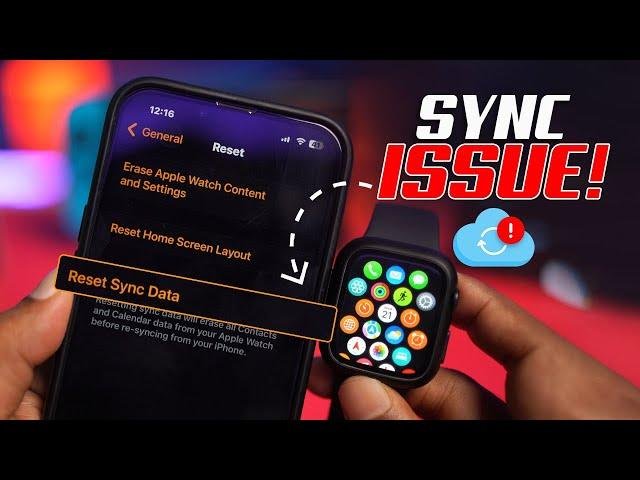
To re-sync an Apple Watch to an iPhone, restart both devices, check Bluetooth, and reconnect them in the Watch app.
When your Apple Watch stops showing alerts, health data, or current messages, it may have lost its connection with your iPhone. In most cases, you can fix the problem without erasing anything. This guide explains how to re sync Apple Watch to iPhone using safe steps, from simple checks to unpairing and pairing again.
What Happens When an Apple Watch Loses Sync
An Apple Watch uses Bluetooth, Wi-Fi, and sometimes cellular service to stay connected with an iPhone. Bluetooth handles many nearby tasks, while Wi-Fi helps the watch communicate when the phone is not close. Cellular Apple Watch models can also work away from the phone, but they still need an iPhone for setup and many features.
You may need to re sync Apple Watch to iPhone if you notice:
• Notifications stop appearing on the watch
• Activity or Health data does not update
• Calls and messages fail to arrive
• The Watch app says “Not Connected”
• Apps remain stuck on “Loading”
• The watch shows a red iPhone icon
• Siri, weather, or location features stop working
Think of the connection like a bridge. Your iPhone is one side, and your Apple Watch is the other. A small software glitch, a weak Bluetooth link, or an outdated update can temporarily damage that bridge.
Before you begin, keep both devices close together. Charge the Apple Watch if its battery is low, and make sure Airplane Mode is off unless you are testing a specific connection problem.

Quick Checks Before You Re Sync Apple Watch to iPhone
Start with the easy checks. Many connection problems disappear after one setting is corrected.
Check Bluetooth and Wi-Fi
On your iPhone, open Settings and select Bluetooth. Make sure Bluetooth is on. Then open Settings, select Wi-Fi, and connect to a trusted network if one is available.
On the Apple Watch, press the side button to open Control Center. A green iPhone icon usually means the watch is connected. A red iPhone icon means the devices are disconnected.
Do not turn Bluetooth off from Control Center on the iPhone if you want to fully reset it. Instead, go to Settings > Bluetooth, switch it off, wait about 10 seconds, and switch it on again.
Keep the devices close
Place the iPhone and Apple Watch within a few feet of each other. Walls, crowded wireless areas, and other Bluetooth devices can sometimes affect the connection.
Remove the watch from its charger while testing. Some features may behave differently when the watch is charging, and restarting it is easier when it is off the charger.
Turn off Airplane Mode
Airplane Mode can stop the wireless links needed to re sync Apple Watch to iPhone. Check both devices and turn it off unless you intentionally need it.
Also check Do Not Disturb and Focus settings. These modes usually do not break syncing, but they can make it seem like your watch is not receiving alerts.

Restart Both Devices
A restart is one of the safest ways to re sync Apple Watch to iPhone. It clears temporary software errors without removing your data or settings.
Restart the iPhone
For an iPhone with Face ID:
- Press and hold the side button and either volume button.
- Drag the power slider when it appears.
- Wait at least 30 seconds.
- Press and hold the side button until the Apple logo appears.
For an iPhone with a Home button, press and hold the side or top button. Drag the power slider, wait, and then turn the iPhone on again.
Restart the Apple Watch
- Press and hold the side button.
- Tap the power icon in the upper right corner.
- Drag the Power Off slider.
- Wait about 30 seconds.
- Press and hold the side button until the Apple logo appears.
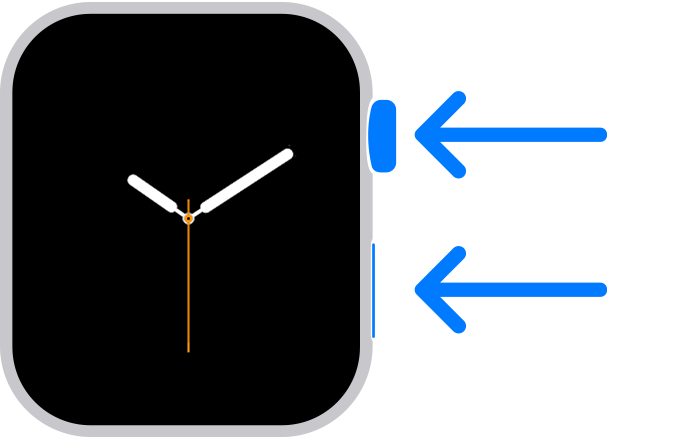
If the Apple Watch is frozen, force restart it only as a last resort. Press and hold the side button and Digital Crown together for about 10 seconds. Release them when the Apple logo appears.
After both devices restart, open the Watch app on the iPhone. Wait a minute or two and check whether the connection returns.
Update iOS and watchOS
Old software can cause pairing and syncing problems. Apple often fixes connection bugs through iOS and watchOS updates, so updating both devices is an important step.
To update your iPhone:
- Open Settings.
- Tap General.
- Tap Software Update.
- Install an available update.
To update your Apple Watch:
- Open the Watch app on the iPhone.
- Tap General.
- Tap Software Update.
- Download and install the update if one is available.
Keep the Apple Watch on its charger during the update. It should also have enough battery power, and the iPhone should stay close by with Wi-Fi enabled.
If your iPhone is too old to support the current watchOS version, the devices may not pair correctly. Apple publishes compatibility information for each major software release. Check your iPhone model and Apple Watch model before attempting an update.
Re Pair the Apple Watch Without Erasing It
Sometimes the watch is paired but the connection is stuck. You may be able to fix it by removing the Bluetooth connection and pairing again. This method is less common than a full unpair, but it can help after a minor wireless error.
Open Settings on the iPhone, tap Bluetooth, and look for the Apple Watch. If it appears in the device list, tap the information button beside it. If you see an option to forget the device, use it only if the Watch app still recognizes the watch and you understand that you may need to pair it again.
A safer first step is to open the Watch app and check the connection status. If the app shows the watch normally, restart both devices again and wait for automatic reconnection.
If the Watch app says “Start Pairing,” place the watch close to the iPhone. Follow the instructions on screen and choose the option to restore from a backup if one is offered.
When people ask how to re sync Apple Watch to iPhone, they often want to keep their watch data. Do not erase the watch until you have tried restarting, updating, and checking for a backup.

Unpair and Pair the Apple Watch Again
Unpairing is the most reliable way to re sync Apple Watch to iPhone when normal steps fail. Unpairing creates a backup of the watch on the iPhone before the watch returns to factory settings.
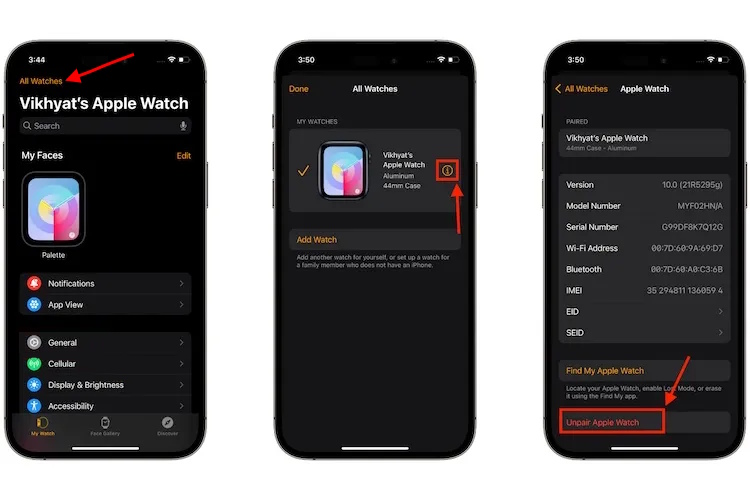
Unpair from the Watch app
- Keep the Apple Watch and iPhone close together.
- Open the Watch app on the iPhone.
- Tap My Watch.
- Tap All Watches at the top.
- Tap the information button beside your watch.
- Select Unpair Apple Watch.
- Follow the on-screen instructions.
- Enter your Apple Account password if requested.
If the watch has cellular service, the iPhone may ask whether you want to keep or remove the cellular plan. Keep the plan if you intend to pair the same watch with the same iPhone again. Remove it only if you are selling the watch or moving the plan to another device.
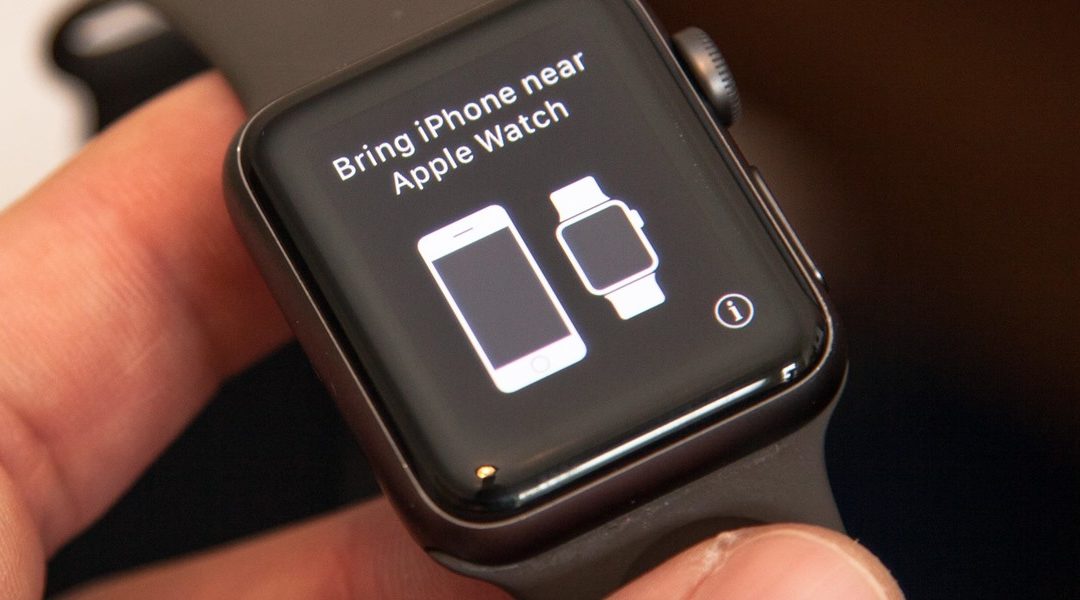
After unpairing finishes, the watch displays the setup screen. Open the Watch app on the iPhone, tap Pair New Watch, and follow the instructions.
When asked, choose Restore from Backup. Select the newest backup unless you have a specific reason to use an older one.
What may not come back
Most settings and data return from the backup, but some items may need to be set up again. These can include:
• Apple Pay cards
• Some notification settings
• Bluetooth accessories
• Certain app preferences
• Offline music and podcasts
• Passcodes and security settings
Health and Activity data normally depend on iPhone backups and iCloud syncing. Make sure iCloud Health is enabled before unpairing if you want the best chance of preserving recent information.
Fix Sync Problems After Pairing
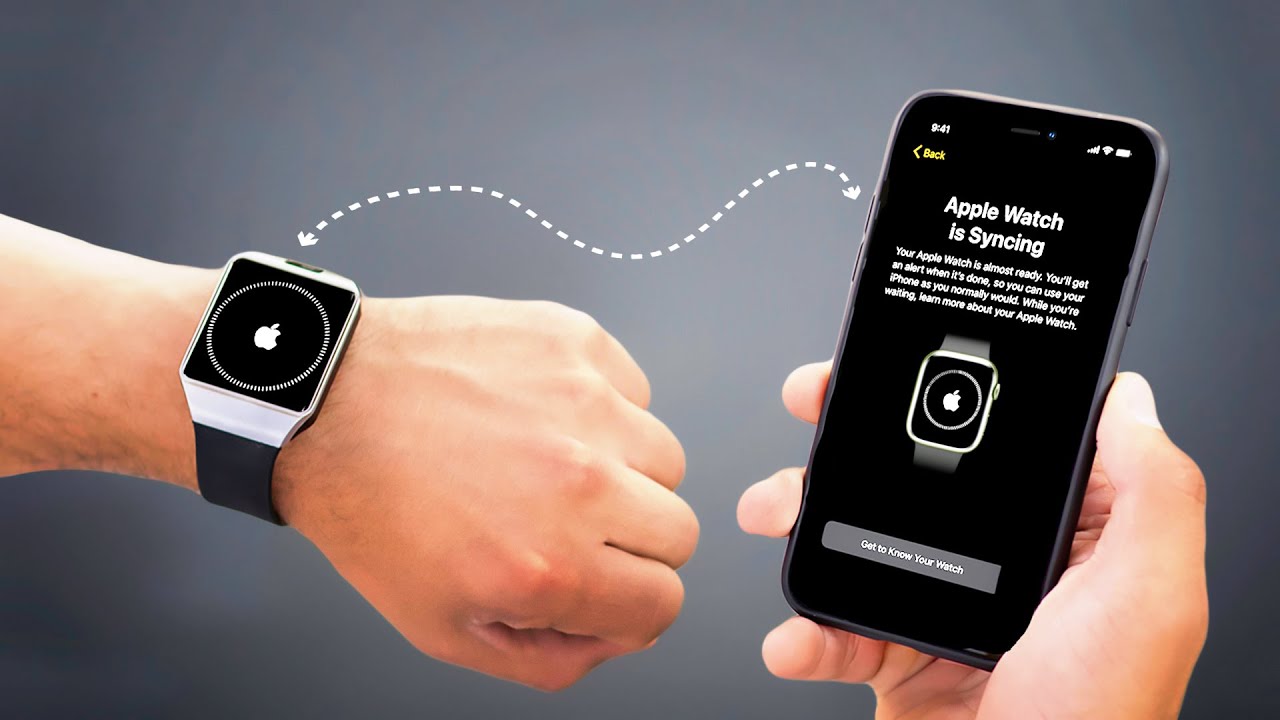
After you re sync Apple Watch to iPhone, allow several minutes for apps, photos, messages, and health data to refresh. A large backup or many installed apps can make the first sync slow.
If notifications still do not arrive, check these settings:
• Open the Watch app and tap Notifications. Review each app.
• On the iPhone, open Settings > Notifications and confirm alerts are allowed.
• Check whether a Focus mode is active on either device.
• Make sure the watch is unlocked and worn correctly.
• Confirm that Wrist Detection is enabled under Watch app > Passcode.
• Check that the iPhone has internet access.
For Messages, open the Watch app, tap Messages, and review notification settings. For Mail, Calendar, and other apps, check both the iPhone app settings and the Watch app settings.
If Activity or Health data appears delayed, keep the devices near each other and connected to power. Data may sync in batches rather than appearing instantly.
A practical lesson is to change one setting at a time. If you change five things together, you may fix the problem but never learn what caused it. Slow troubleshooting is often faster than repeated resets.

If Your Apple Watch Shows an Activation Lock
Activation Lock is a security feature connected to Find My. It helps prevent someone else from using a lost or stolen Apple Watch.
If the watch asks for another person’s Apple Account, the watch is still linked to that account. The previous owner must remove it from their account before you can pair it with your iPhone.
If you bought the watch used, ask the seller to:
- Open Find My on their Apple device or visit iCloud Find Devices.
- Select the Apple Watch.
- Erase the watch if needed.
- Remove it from their account.
A factory reset does not remove Activation Lock. This is why buying a used Apple Watch without checking its account status can create a major problem.
If the watch belongs to you but you forgot your Apple Account password, use Apple’s official account recovery process. Avoid websites or services that claim they can bypass Activation Lock.
When to Reset Network Settings
Resetting network settings can help when Bluetooth and Wi-Fi connections remain unstable. However, it should not be your first choice because it removes saved Wi-Fi passwords, VPN settings, and other network information from the iPhone.
To reset network settings:
- Open Settings.
- Tap General.
- Tap Transfer or Reset iPhone.
- Tap Reset.
- Choose Reset Network Settings.
- Enter your iPhone passcode if requested.
The iPhone will restart. Reconnect to Wi-Fi afterward, then open the Watch app and check the connection.
This step may help when you cannot re sync Apple Watch to iPhone after a network change, router replacement, or major iOS update. It will not fix a damaged watch, a locked Apple Account, or hardware failure.
Common Mistakes to Avoid
Several rushed actions can make Apple Watch troubleshooting harder.
• Do not erase the watch before checking for a current backup.
• Do not repeatedly enter a passcode if the watch is asking for an Apple Account password.
• Do not install an update with a nearly empty battery.
• Do not unpair the watch while it is far from the iPhone.
• Do not remove a cellular plan unless you know you no longer need it.
• Do not use unofficial tools that claim to bypass Activation Lock.
• Do not assume a red iPhone icon means the watch is broken.
In my experience with device troubleshooting, the most common mistake is skipping the simple checks and jumping straight to a reset. A restart, software update, or corrected Bluetooth setting often solves the issue with much less risk.
Another common mistake is confusing a notification problem with a connection problem. If the watch is connected but silent, review Focus and notification settings before unpairing it.
How Long Does Apple Watch Sync Take?
A normal reconnection may take less than a minute. A full restore can take much longer, especially if the watch has many apps, music files, photos, or a large backup.
During the first sync, keep the iPhone and watch close together. Put the watch on its charger and connect the iPhone to power if possible.
The process may seem slow, but stopping it too soon can lead to incomplete app installation or missing settings. If the progress does not change for an hour, restart both devices and try again.
For a new Apple Watch or a watch restored from backup, overnight syncing is not usually necessary. Still, the exact time depends on the iPhone model, watchOS version, Wi-Fi quality, and the amount of content being restored.
Frequently Asked Questions About How to Re Sync Apple Watch to iPhone
How do I re sync my Apple Watch to my iPhone without losing data?
Restart both devices, confirm Bluetooth and Wi-Fi are on, and open the Watch app. If you must unpair the watch, choose Restore from Backup during setup to recover supported settings and data.
Why is my Apple Watch not connecting to my iPhone?
The cause may be Bluetooth, Airplane Mode, outdated software, distance, or a temporary system error. Keep both devices close, restart them, update them, and then try pairing again.
Do I need to unpair my Apple Watch to re sync it?
No. Many sync problems resolve after restarting both devices or correcting wireless settings. Unpairing is best used when the Watch app cannot recognize the watch or normal troubleshooting fails.
Will unpairing erase everything on my Apple Watch?
Unpairing erases the watch, but the iPhone normally creates a backup first. You can restore that backup when pairing the watch again, although some items, such as Apple Pay cards, may need to be added again.
How do I re sync Apple Watch to iPhone after getting a new iPhone?
Back up the old iPhone, set up the new iPhone with that backup, and open the Watch app. If the watch does not appear, unpair it from the old iPhone when possible and pair it with the new one using the available backup.
Why is my Apple Watch connected but not receiving notifications?
Check notification settings in both the iPhone and Watch app. Also review Focus modes, wrist detection, the watch’s locked status, and whether the specific app allows alerts.
Conclusion
You can usually re sync Apple Watch to iPhone without professional help. Start with Bluetooth, Wi-Fi, device distance, Airplane Mode, and a restart. Then update both devices before considering unpairing and restoring from a backup.
If the watch still will not connect, look for Activation Lock, cellular plan issues, or possible hardware damage. Take each step in order, protect your backup, and avoid erasing the watch too early. Try the process today, and share this guide with anyone whose Apple Watch has stopped syncing.

Rubel Miah is the Senior Editor at MyStyleGrid.com, where he brings a sharp editorial eye and an unshakable love for fashion to everything he does. A true style addict, Rubel lives and breathes trends, from streetwear to high fashion, and has a knack for turning inspiration into impactful stories. With years of experience in fashion journalism and digital media, he curates content that empowers readers to express themselves through style. When he’s not editing features or forecasting the next big thing, you’ll find him hunting down vintage pieces or capturing street style moments around the city.