To get an ECG on Apple Watch, use a compatible model, update your software, and set up ECG in the Health app.
Learning how to get ECG on Apple Watch is simple once you know the model, region, and setup rules. This guide explains each step, how to record a reliable reading, what the results mean, and when you should seek medical care.
Check whether your Apple Watch supports ECG
Before learning how to get ECG on Apple Watch, check your device. The ECG app is available on Apple Watch Series 4 and later, including Apple Watch Ultra models. Apple Watch SE models do not include the electrical heart sensor needed for ECG readings.
You also need a compatible iPhone and current software. In the United States, ECG generally requires an iPhone 5s or later with a supported iOS version and an Apple Watch running the required watchOS version.
The feature may not be available in every country or region. Apple enables ECG based on local regulations, so two identical watches may not offer the app in different locations.
Check these points first:
• Apple Watch Series 4 or later, or Apple Watch Ultra
• ECG availability in your country or region
• The latest compatible version of watchOS
• The latest compatible version of iOS
• An iPhone paired with your Apple Watch
• The user must usually be at least 22 years old
If your watch is an Apple Watch SE, you will not be able to add the ECG app through an update. The SE can still track heart rate and send some heart rhythm alerts, but it cannot create an ECG.

Update your Apple Watch and iPhone
Software updates are an important part of how to get ECG on Apple Watch. An older system can hide the app or prevent setup from finishing.
To update your iPhone:
- Open Settings.
- Tap General.
- Tap Software Update.
- Install any available update.
To update your Apple Watch:
- Place the watch on its charger.
- Make sure it has at least 50% battery.
- Keep the watch near your iPhone.
- Open the Watch app on your iPhone.
- Tap General.
- Tap Software Update.
- Download and install the update.
Updates can take time. Keep both devices connected to Wi-Fi, and avoid restarting them during installation. If the watch is managed by a work or school account, an administrator may limit health features.
A practical lesson here is to update both devices before troubleshooting. Many setup problems come from updating the iPhone but forgetting the watch, or from using an outdated Health app profile.
Set up the ECG app in the Health app
The next step in how to get ECG on Apple Watch is adding your health information. The Health app uses this information to confirm that the ECG feature is appropriate for your age and location.
Follow these steps:
- Open the Health app on your iPhone.
- Tap your profile picture or initials.
- Tap Health Checklist, if shown.
- Look for the Heart section.
- Select Set Up ECG App.
- Enter your date of birth.
- Read the information about the ECG app.
- Follow the instructions to finish setup.
You can also search for “ECG” inside the Health app. If the ECG setup option does not appear, check your watch model, software version, region, and age requirement.
After setup, the ECG app should appear on your Apple Watch. If it does not, open the Watch app on your iPhone and search for ECG under the available apps. Restarting both devices may also help.
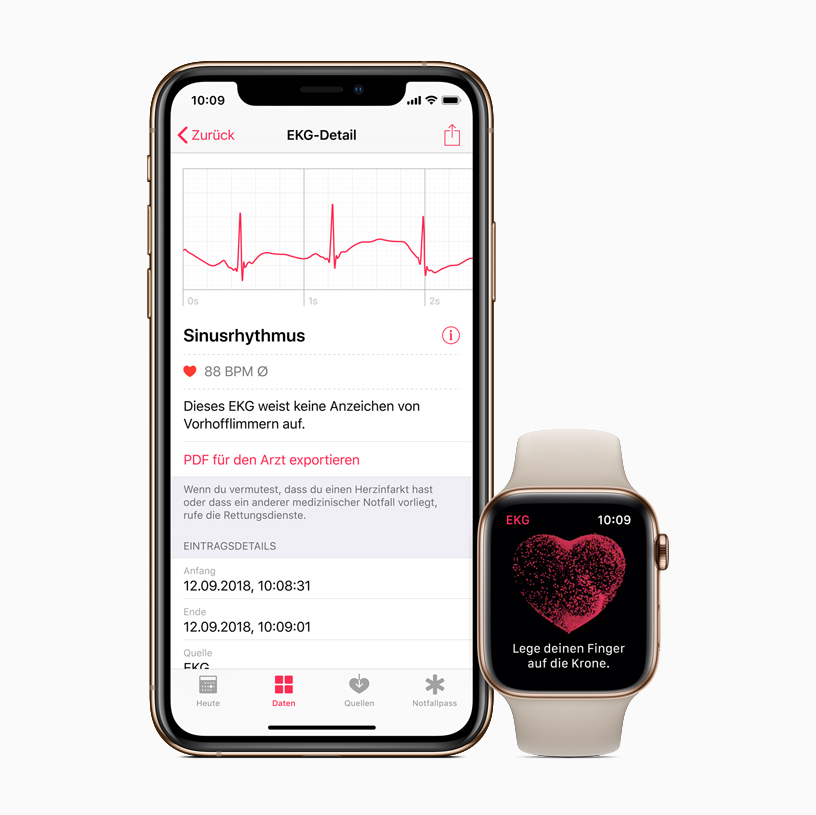
The ECG app is not a general heart check. It records the electrical activity of your heart for about 30 seconds. Think of it as a short snapshot, not a continuous video.

How to take an ECG on Apple Watch
Once setup is complete, you can learn how to get ECG on Apple Watch by following a short process. The reading works best when your body and arm remain still.
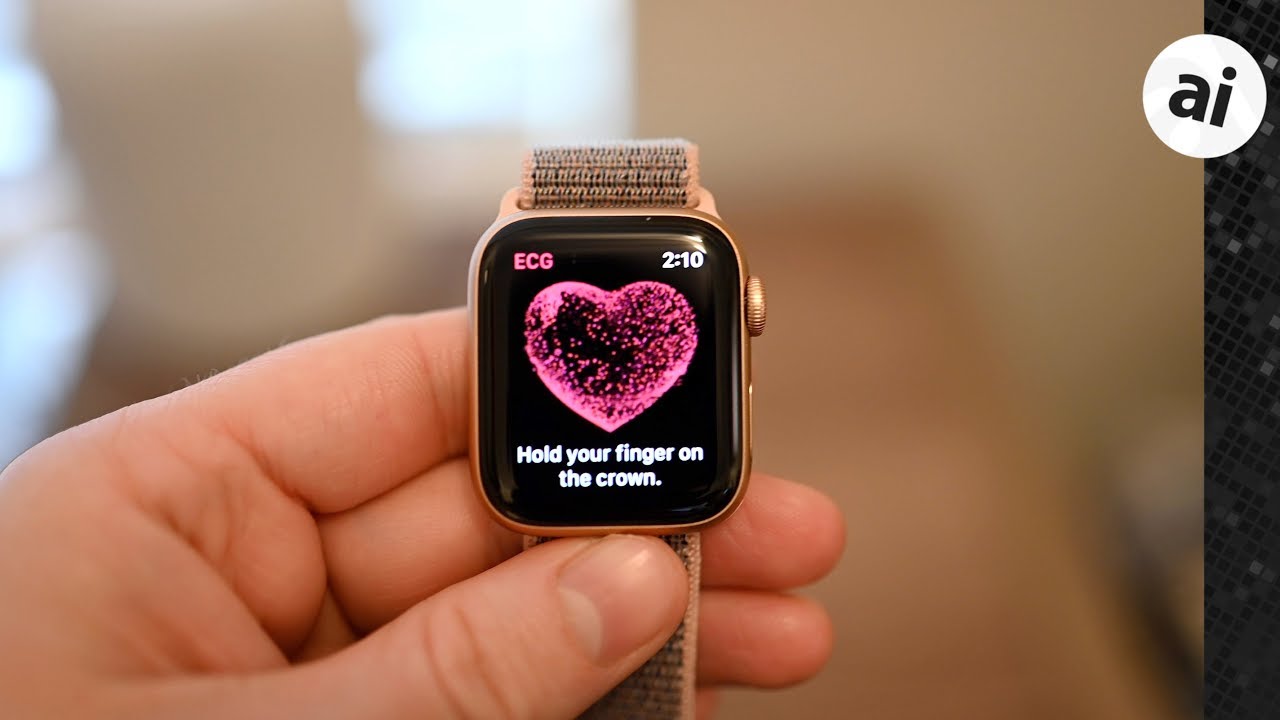
- Open the ECG app on your Apple Watch.
- Rest your arm on a table or your lap.
- Make sure the watch fits snugly against your wrist.
- Place one finger from your opposite hand on the Digital Crown.
- Keep your finger on the crown without pressing it.
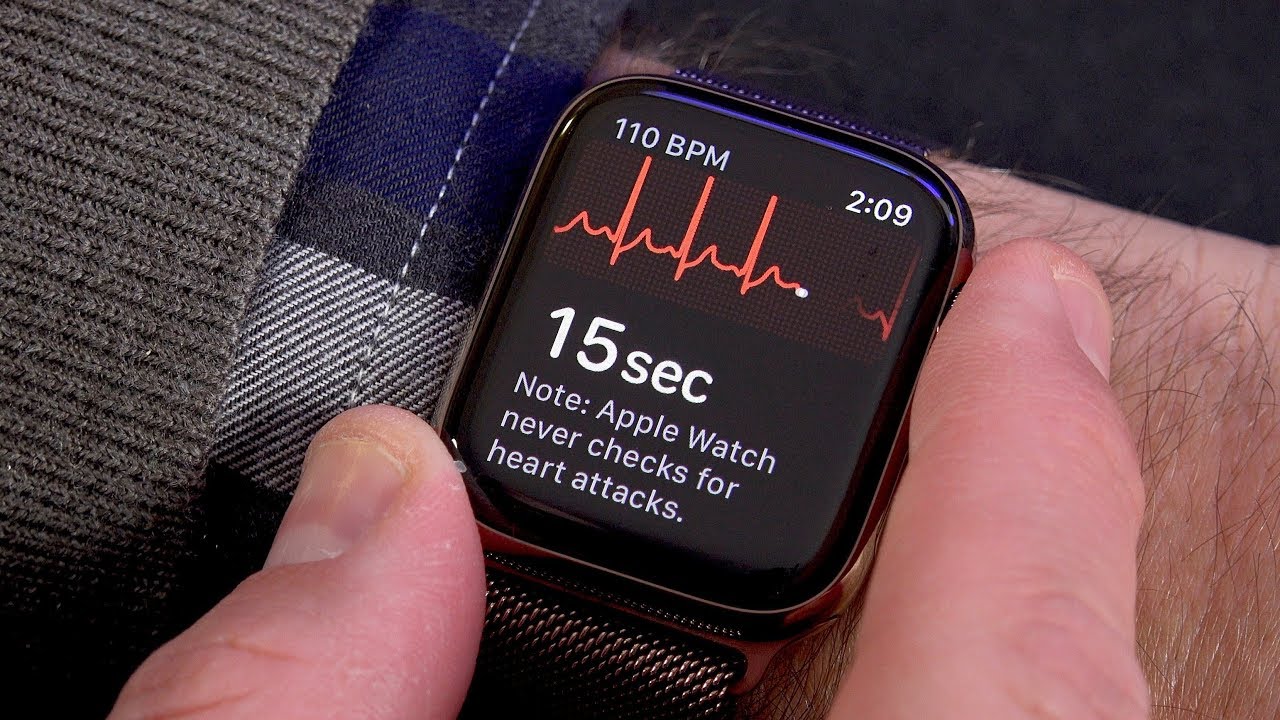
- Wait for the 30-second countdown to finish.
- Tap Done when the reading ends.
The watch uses the electrical connection between your wrist and the finger touching the Digital Crown. This creates a single-lead ECG, similar in basic concept to Lead I on a clinical ECG, but it is not the same as the multi-lead test used in a medical office.
Do not lift your finger early. Do not talk, walk, or move your arm during the reading. A relaxed position helps reduce noise and improves the chance of receiving a clear result.
If your skin is very dry, the watch may struggle to record a reading. Lightly moistening your finger can sometimes help, but do not use water while the watch is connected to a charger.
Understand Apple Watch ECG results
After you record an ECG, the Apple Watch may show one of several results. Learning what each result means is a key part of how to get ECG on Apple Watch safely.
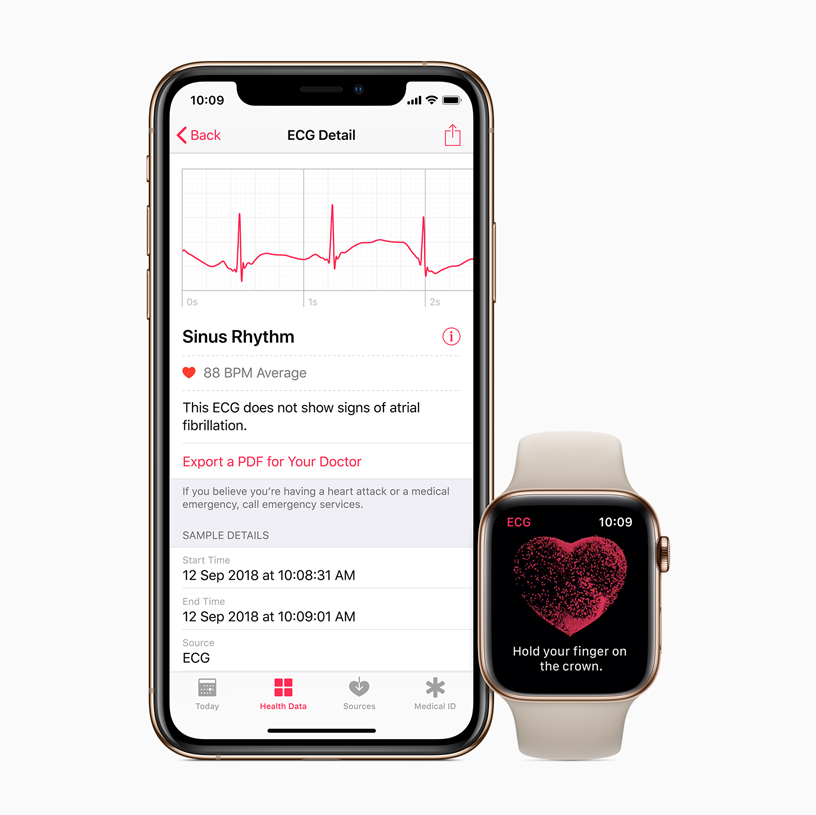
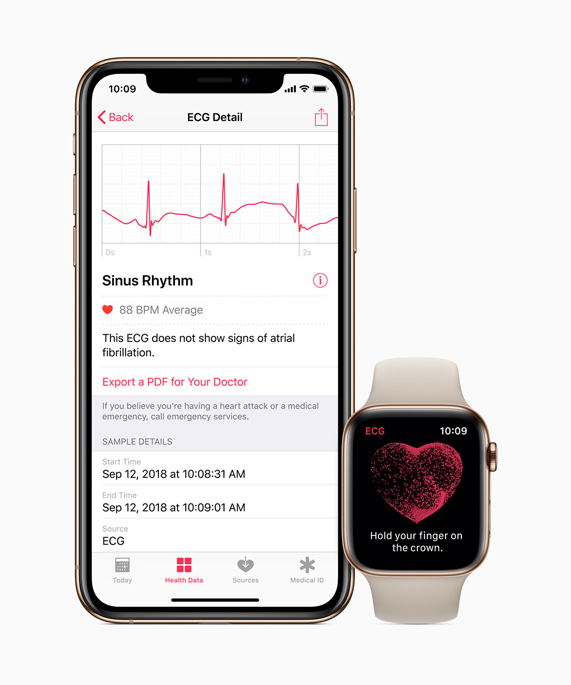
Sinus rhythm
This usually means the heart rate is between about 50 and 120 beats per minute and the rhythm looks regular during the recording. It does not prove that your heart is completely healthy.
Atrial fibrillation
The watch may classify the reading as atrial fibrillation, often called AFib. AFib is an irregular heart rhythm that can increase the risk of stroke and other complications.
Contact a health professional if you receive this result, especially if it is new or appears more than once. Do not change medication based only on an Apple Watch reading.
High or low heart rate
The app may not classify the ECG if your heart rate is too high or too low. Sit quietly for a few minutes and try again if you feel well.
Inconclusive
An inconclusive result means the app could not classify the recording. This can happen because of movement, loose contact, a high or low heart rate, or an irregular rhythm that the app cannot identify.
Poor recording
A poor recording usually means the signal was not clear enough. Adjust the fit, rest your arm, and make sure your finger touches the Digital Crown correctly.
The ECG app is designed to detect certain rhythm patterns. It cannot detect every heart condition, including all heart attacks, blood clots, or structural problems. A normal result should never override serious symptoms.

Save and share your ECG results
After recording an ECG, the Health app stores the result on your iPhone. This makes it easier to review patterns or share information with a doctor.
To find your ECG history:
- Open the Health app.
- Tap Browse.
- Tap Heart.
- Tap Electrocardiograms.
- Select a recording.
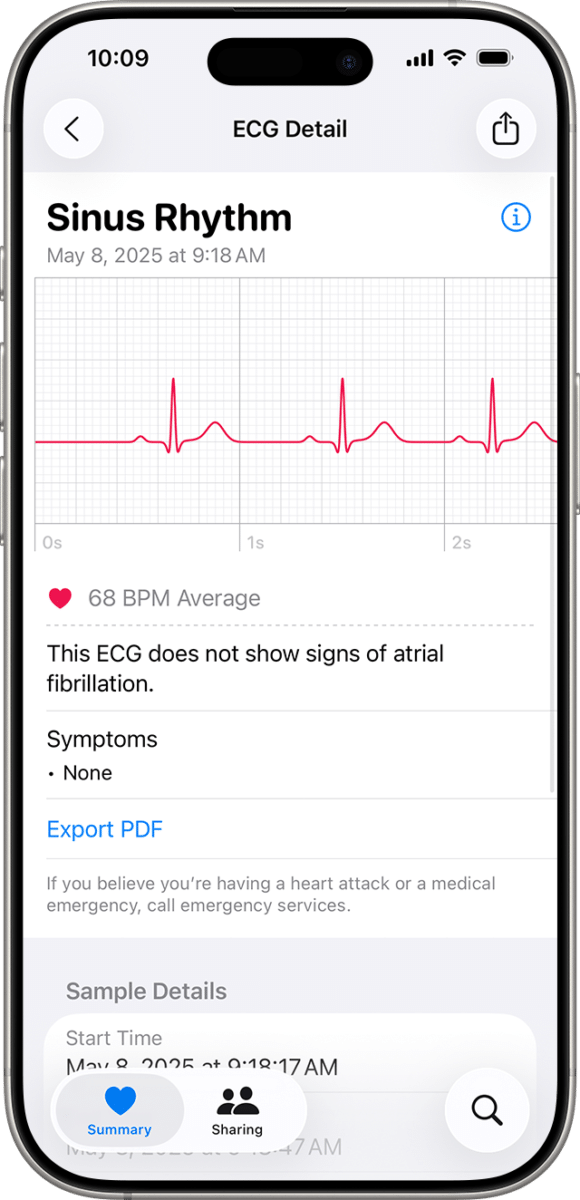
You can view the waveform, result, heart rate, and recording date. You can also export the result as a PDF.
To share it:
- Open the selected ECG recording.
- Tap Export a PDF for Your Doctor.
- Tap the Share button.
- Choose Mail, Messages, Files, or another available option.
A PDF can help a clinician understand what the watch recorded. However, send it through a secure method when possible. Health information is private, so avoid posting ECG screenshots publicly or sending them through an unsecured account.
A useful habit is to write down what you felt during the reading. Note symptoms such as racing heart, skipped beats, dizziness, or chest discomfort. The timing can give your clinician useful context.
Improve the accuracy of your Apple Watch ECG
Knowing how to get ECG on Apple Watch is only part of the process. Good technique matters because movement and poor contact can affect the result.
Use these tips:
• Wear the watch on the wrist selected during setup.
• Keep the band snug but comfortable.
• Rest your arm on a flat surface.
• Sit quietly before and during the test.
• Touch the Digital Crown with a clean finger.
• Avoid recording over clothing.
• Keep away from strong electrical interference.
• Do not speak or move during the countdown.
• Try again if the result says poor recording.
Metal jewelry, sweat, lotions, and dry skin can sometimes affect contact. If you get repeated poor results, clean the back crystal and Digital Crown with a soft, lint-free cloth. Follow Apple’s cleaning instructions and never use harsh chemicals.
The most common mistake is pressing the Digital Crown instead of lightly touching it. Pressure is not needed. A gentle, steady touch is enough.
What to do if ECG is missing
If you cannot find the ECG app, work through the following checklist. This approach often solves the issue faster than repeatedly restarting the watch.
- Confirm that your watch is Series 4 or later.
- Make sure it is not an Apple Watch SE.
- Check whether ECG is approved in your region.
- Update iOS and watchOS.
- Confirm that your date of birth meets the age requirement.
- Open the Health app and complete the ECG setup.
- Restart the iPhone and Apple Watch.
- Check that the watch is paired with the correct iPhone.
- Contact Apple Support if the app remains unavailable.
If you recently changed your Apple Account region, the ECG feature may not appear immediately. Region settings, device sales region, and regulatory availability can affect access.
Do not install unofficial apps that claim to unlock ECG. They cannot add the required electrical sensor to an unsupported watch, and they may put your personal data at risk.

Apple Watch ECG limitations and safety
The ECG feature can be useful, but it is not a replacement for medical care. It is a wellness and monitoring tool that can help you capture information to discuss with a qualified professional.
Apple states that the ECG app cannot detect a heart attack. It also cannot identify every form of irregular heartbeat or diagnose conditions such as high blood pressure, stroke, or blood clots.
Call 911 or your local emergency number immediately if you have symptoms such as:
• Chest pain, pressure, or tightness
• Trouble breathing
• Fainting or severe weakness
• Sudden confusion
• Severe dizziness
• Pain spreading to the arm, back, jaw, or neck
Do not wait for an Apple Watch ECG if you have emergency symptoms. A watch reading can take time, and a normal result does not rule out a serious problem.
People with implanted pacemakers or defibrillators should ask their doctor whether using the ECG app is appropriate. The watch cannot replace routine checkups, clinical ECGs, blood tests, or other tests ordered by a medical professional.
How ECG differs from heart rate and irregular rhythm alerts
Heart rate, irregular rhythm notifications, and ECG are related but different features.
Heart rate tracking measures how fast your heart is beating. It does not show the full electrical pattern of each beat.
Irregular rhythm notifications look for signs of an irregular rhythm in the background. They do not create a full ECG whenever the watch notices a change.
The ECG app requires you to start a 30-second recording. It creates a waveform that you can review and share with a clinician.
This difference explains why learning how to get ECG on Apple Watch is useful. A heart rate number may tell you that your pulse is fast, while an ECG can provide more detail about the rhythm during that moment.
Still, all three features have limits. The Apple Watch is a helpful tool, but it is not a portable hospital monitor.
Frequently asked questions about how to get ECG on Apple Watch
Which Apple Watch models have ECG?
Apple Watch Series 4 and later models support the ECG app, as do Apple Watch Ultra models. Apple Watch SE models do not have the electrical heart sensor required for ECG.
Why can’t I find the ECG app on my Apple Watch?
The app may be missing because your watch is unsupported, the software is outdated, or ECG is not available in your region. Check your model, update both devices, and complete ECG setup in the Health app.
Can I get ECG on Apple Watch without an iPhone?
You need an iPhone for the initial setup and for viewing, managing, and sharing detailed ECG records. After setup, you can record an ECG from the watch, but the paired iPhone remains part of the health system.
How long does an Apple Watch ECG take?
An Apple Watch ECG recording takes about 30 seconds. You must keep your finger on the Digital Crown and remain still until the countdown ends.
Is an Apple Watch ECG as accurate as a hospital ECG?
No. The Apple Watch creates a single-lead ECG, while a clinical ECG usually uses multiple leads and professional equipment. The watch can provide useful information, but it should not replace a medical examination.
Can an Apple Watch ECG detect a heart attack?
No. The ECG app is not designed to detect heart attacks. Seek emergency help for chest pain, breathing trouble, fainting, or other serious symptoms, even if the watch shows a normal result.
Can I share an Apple Watch ECG with my doctor?
Yes. You can export an ECG as a PDF from the Health app and share it with your doctor. Include the date, symptoms, and any relevant health details when discussing the reading.
Conclusion
Learning how to get ECG on Apple Watch starts with using a supported model, updating both devices, and completing setup in the Health app. Once ready, sit still, touch the Digital Crown, and record for 30 seconds.
Treat the result as useful health information, not a diagnosis. Save readings, share them with your clinician when needed, and seek emergency care for serious symptoms without waiting for another test. Check your Apple Watch settings today, and explore your Health app to make the most of its heart monitoring tools.

Rubel Miah is the Senior Editor at MyStyleGrid.com, where he brings a sharp editorial eye and an unshakable love for fashion to everything he does. A true style addict, Rubel lives and breathes trends, from streetwear to high fashion, and has a knack for turning inspiration into impactful stories. With years of experience in fashion journalism and digital media, he curates content that empowers readers to express themselves through style. When he’s not editing features or forecasting the next big thing, you’ll find him hunting down vintage pieces or capturing street style moments around the city.