Introduction
If your Apple Watch is not connected to cellular in the United States, the most common causes are an inactive cellular plan, an unsupported carrier, weak coverage, a setup problem, or a Watch model without cellular hardware. Your Apple Watch may still work through your iPhone or Wi-Fi, which can make the problem hard to spot.
Start by checking whether your watch is a GPS model or a GPS + Cellular model. Then confirm that your carrier supports Apple Watch service and that the cellular plan is active in the Watch app on your iPhone.

What the Apple Watch Cellular Connection Does
Apple Watch cellular lets the watch connect to a mobile network without your iPhone nearby. With an active plan and coverage, you can make calls, send messages, receive notifications, use Maps, stream some media, and access apps that support a data connection.
An Apple Watch can connect in three main ways:
| Connection | Requires your iPhone nearby? | What it means |
|---|---|---|
| iPhone connection | Usually yes | The watch uses Bluetooth or a nearby iPhone connection |
| Wi-Fi | No, if the network is known and supported | The watch uses Wi-Fi for many online tasks |
| Cellular | No | The watch uses its built-in mobile connection |
A cellular Apple Watch does not use a removable SIM card. It uses an embedded SIM, or eSIM, that is activated through the Watch app and your wireless carrier.
Check whether your watch supports cellular
Look at the model information in the Watch app:
- Open the Watch app on your iPhone.
- Tap My Watch.
- Tap General.
- Tap About.
- Find the model name or model number.
You can also check the back of the watch and the original purchase information. A GPS-only Apple Watch cannot be upgraded to cellular through software. If the watch has no cellular hardware, the Cellular settings may not appear.
Check the cellular icon
On the Apple Watch:
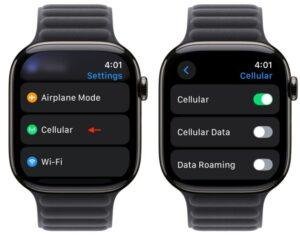
- Open Control Center by pressing the side button. On some watchOS versions, swipe up from the bottom of the watch face.
- Look for the cellular button.
The icon can provide a useful clue:
- Green cellular icon: The watch is connected to a cellular network.
- White cellular icon: A cellular plan may be active, but the watch is using another connection or is not currently using cellular data.
- No cellular button or no plan listed: The watch may be a GPS-only model, or cellular service may not be set up.
- Red X or disconnected iPhone symbol: The watch is not connected to the iPhone. This does not always mean that cellular service is broken.
The exact icon behavior can vary by watchOS version and connection state, so treat the icon as a starting clue rather than a complete diagnosis.
The Most Common Reasons Apple Watch Cellular Is Not Working
The cause is usually easy to narrow down by checking the watch model, plan, carrier, signal, and software in that order.
1. Your Apple Watch is a GPS-only model
Only GPS + Cellular models can connect directly to a cellular network. A GPS-only model can still make calls or use online features when it is connected to your iPhone or a compatible Wi-Fi network, but it cannot use a carrier plan by itself.
2. Cellular service was never activated
Buying a cellular Apple Watch does not always activate service automatically. You usually need to add the watch to an eligible line through the Watch app.
Open:
Watch app → My Watch → Cellular
If you see Set Up Cellular, the watch may not have an active plan yet. Follow the setup steps and sign in to your carrier account when asked.
3. Your carrier does not support Apple Watch
Apple Watch cellular service depends on carrier support. In the United States, major carriers support Apple Watch on some plans, but prepaid, business, enterprise, discount, and older plans may have different rules.
Carrier support can also vary by:
- Account type
- Wireless plan
- Region
- Watch model
- Family Setup configuration
- Number-sharing features
- International use
Check Apple’s current carrier list and your carrier’s Apple Watch requirements. Carrier policies can change, so an older support article may no longer be correct.
4. The cellular plan is inactive or has a billing problem
A watch may stop connecting if the wireless account is suspended, the plan was canceled, a payment failed, or the carrier removed the watch line.
Check your carrier account for:
- An active Apple Watch line
- A successful recent payment
- No account suspension
- No pending plan change
- The correct watch listed on the account
If the Watch app shows a carrier error, contact the carrier rather than repeatedly trying setup.
5. The watch is outside cellular coverage
Cellular service depends on signal strength and network availability. Coverage may be weak in rural areas, inside large buildings, underground spaces, elevators, or places with heavy network use.
The watch may switch between iPhone, Wi-Fi, and cellular as conditions change. If cellular works outdoors but not inside your home or workplace, poor signal is more likely than a hardware failure.
6. Airplane Mode or cellular settings are blocking the connection
Airplane Mode turns off wireless connections. A cellular setting may also be disabled.
On the watch:
- Open Control Center.
- Make sure Airplane Mode is off.
- Tap the cellular button.
- Confirm that cellular service is enabled.
The Watch app → My Watch → Cellular screen can also show whether the plan is active.
7. The iPhone and Apple Watch did not finish setup correctly
Apple Watch cellular setup depends on the paired iPhone, carrier account, and Apple Account. A setup process can fail after a phone upgrade, watch replacement, carrier change, or interrupted activation.
This is more common when:
- You restored an Apple Watch from a backup
- You changed carriers
- You moved the watch to a new iPhone
- You transferred service from an older watch
- Your iPhone software is out of date
- The carrier account has an old watch still attached
8. Software or carrier settings are outdated
Apple and wireless carriers may require current software for activation and network support. Update both devices before deeper troubleshooting.
On the iPhone:
- Open Settings.
- Tap General.
- Tap Software Update.
Then open the Watch app and check for a watchOS update under General → Software Update. Keep the watch on its charger during the update if prompted.
The iPhone may also receive carrier settings updates. Check Settings → General → About and wait briefly for an update prompt.
How to Fix an Apple Watch That Is Not Connected to Cellular
Follow these steps in order. The early checks are quick and do not erase data.
Step 1: Move to an open area
Take the watch outdoors or near a window. Wait a minute or two, then check the cellular icon again.
If the watch connects outside but not indoors, the issue is likely signal strength or building interference.
Step 2: Turn Airplane Mode off and back on
On the Apple Watch:
- Open Control Center.
- Turn on Airplane Mode.
- Wait about 15 seconds.
- Turn Airplane Mode off.
- Wait for the watch to search for service.
This refreshes the wireless radios without deleting your plan.
Step 3: Restart the Apple Watch and iPhone
Restart both devices:
- Turn off the Apple Watch.
- Turn off the paired iPhone.
- Turn on the iPhone first.
- Turn on the Apple Watch.
- Test cellular service away from the iPhone.
Do not use a force restart unless the watch is frozen or cannot respond normally. A regular restart is safer for routine connection problems.
Step 4: Test the watch away from the iPhone
To test cellular properly, leave the iPhone in a safe place and walk to an area with known coverage. Try a call or a message from the watch.
A watch may continue to show limited functions when it is close to the iPhone, even if its cellular service is not working. Testing at a distance helps separate an iPhone connection from a cellular connection.
Step 5: Confirm the plan in the Watch app
Open:
Watch app → My Watch → Cellular
Look for the carrier name and plan status. If the screen asks you to set up cellular, activation is incomplete.
If your watch was replaced or repaired, remove the old watch line through the carrier only when you are sure it is no longer needed. Deleting the wrong line can create a second activation problem.
Step 6: Check your carrier account
Sign in to your wireless account or contact the carrier. Ask the carrier to confirm:
- The Apple Watch line is active
- The watch is attached to the correct phone number
- Number sharing is enabled if required
- The plan supports Apple Watch
- The device’s eSIM activation is complete
- There is no billing or account block
Your carrier can often refresh or reprovision the watch line. “Reprovision” means setting up the network service again on the carrier’s side.
Step 7: Update the software
Install available updates on the iPhone and Apple Watch. Keep the devices near each other, connected to power as needed, and connected to Wi-Fi during the update.
After updating, restart both devices and test the watch again.
Step 8: Remove and add the cellular plan only when needed
If the carrier confirms that the plan is active but the Watch app still shows an error, you may need to remove and add the cellular plan again.
Before doing this, contact the carrier or Apple Support if you are unsure. Removing a plan can require a new activation, and the exact steps differ by carrier.
Do not erase the Apple Watch as a first step. Erasing the watch will not fix an unsupported carrier, poor coverage, or an unpaid account.
Step 9: Unpair and pair the watch again
Unpairing can repair a damaged pairing or incomplete setup, but it takes longer and may remove local watch data.
Before unpairing:
- Back up the iPhone
- Know your Apple Account password
- Confirm that the carrier can reactivate the watch
- Keep the watch and iPhone charged
In the Watch app, go to All Watches, tap the information button next to the watch, and choose Unpair Apple Watch. Follow the prompts to pair it again.
If activation still fails after a clean pairing, the carrier or Apple may need to inspect the account or hardware.
What to Check Based on the Symptom
The symptom often points to the right cause.
| What you see | Likely cause | Best next check |
|---|---|---|
| No Cellular option in the Watch app | GPS-only watch, unsupported region, or incomplete pairing | Confirm the model and pair it with the iPhone |
| “No Service” | Weak coverage, carrier outage, inactive plan, or account issue | Test outdoors and contact the carrier |
| Cellular worked before but stopped | Billing issue, carrier change, software problem, or account removal | Check the carrier account and recent changes |
| Calls work but apps do not | Data restriction, weak signal, or app limitation | Test another location and review the app |
| The watch works near the iPhone only | Cellular is not being used or is not active | Test away from the iPhone |
| Cellular setup keeps failing | Carrier incompatibility, account error, or stale eSIM setup | Ask the carrier to verify Apple Watch activation |
| It stopped after an iPhone upgrade | Pairing or plan transfer problem | Update both devices and review the Watch app |
| It works in the United States but not abroad | Roaming or country support limitation | Check Apple and carrier roaming rules |
Apple Watch Cellular Requirements and Limitations
Cellular service has limits that can look like a device fault.
The watch and iPhone usually need compatible service
Many carriers require the Apple Watch and iPhone to use the same carrier. Some carriers support exceptions, but do not assume that a watch can use any carrier simply because the iPhone has service.
Family Setup has different rules
Apple Watch Family Setup allows a watch to be configured for a family member who does not have their own iPhone. It has different carrier, feature, and account requirements.
Some iPhone-dependent functions may not work in the same way under Family Setup. The carrier must support Apple Watch service for that arrangement.
International cellular use may be restricted
A cellular Apple Watch purchased in the United States may not work on every foreign network. Apple Watch cellular models can vary by region, and carrier roaming support is not universal.
Before traveling, check:
- Whether your watch model supports the destination region
- Whether your carrier supports Apple Watch roaming
- Whether calls, messages, and data work abroad
- Whether extra charges apply
Wi-Fi and the paired iPhone may still provide service even when watch cellular roaming does not.
Cellular drains more battery
Using cellular can use more battery than using a nearby iPhone or Wi-Fi network. Weak signal can increase battery use because the watch works harder to maintain a connection.
A short test is useful. If cellular works but the battery drops much faster in a low-signal area, that may be normal network behavior rather than a defective watch.
Emergency calling is not the same as regular cellular service
Emergency calling may work under conditions that do not support ordinary calls or data. Never rely on the watch as your only emergency communication method. In the United States, emergency access can depend on network availability, location, device condition, and local systems.
When to Contact Apple or Your Carrier
Contact your carrier first when:
- The Watch app shows a plan or activation error
- The watch line is missing from your account
- The plan was recently changed
- Billing is late or disputed
- You changed phone numbers or carriers
- The watch was replaced
Contact Apple Support when:
- The watch is a confirmed cellular model
- The carrier confirms that service is active
- The watch still shows no cellular connection in several locations
- Cellular stopped after physical damage
- The device cannot complete setup after normal troubleshooting
- The watch becomes unusually hot, restarts, or shows hardware warnings
Keep your watch model, watchOS version, iPhone model, iOS version, carrier name, and exact error message available. That information can shorten the support process.
Frequently Asked Questions
Why does my Apple Watch say “No Service” even though my iPhone has signal?
The iPhone and Apple Watch can use different connections. Your iPhone may have coverage while the watch has a weak signal, an inactive plan, or a carrier activation problem. Test the watch outdoors and check the cellular plan in the Watch app.
Can I use Apple Watch cellular without an iPhone nearby?
Yes, if the Apple Watch is a GPS + Cellular model with an active, supported plan and network coverage. Some features still depend on the iPhone, Apple Account, app support, or Wi-Fi.
Does Apple Watch cellular work without a separate phone number?
Usually, carriers use number sharing so the watch can use the iPhone’s phone number. The carrier may still charge a separate monthly fee for the watch line. Plan details vary by carrier.
Why does my Apple Watch cellular work only when the iPhone is nearby?
The watch may be using Bluetooth instead of cellular. It may also have an inactive plan, poor coverage, or a setup error. Leave the iPhone behind in a safe place and test the watch in an area with known coverage.
Will resetting my Apple Watch fix cellular service?
Not usually. A reset cannot fix an unsupported model, carrier restriction, poor signal, or billing issue. Try the connection, plan, carrier, and software checks first. Reset or unpair the watch only after those checks fail.
Conclusion
An Apple Watch that is not connected to cellular usually has a setup, plan, carrier, coverage, or software issue. Confirm that the watch is a GPS + Cellular model, check the plan under Watch app → My Watch → Cellular, test in an open area, and verify the account with your carrier.
If the carrier confirms active service and good coverage but the watch still cannot connect, update both devices and contact Apple Support. Avoid erasing the watch until the carrier and model checks are complete.
Next action: Open the Watch app, check the Cellular screen, and note the exact status or error message before changing any settings.
Rubel Miah is the Senior Editor at MyStyleGrid.com, where he brings a sharp editorial eye and an unshakable love for fashion to everything he does. A true style addict, Rubel lives and breathes trends, from streetwear to high fashion, and has a knack for turning inspiration into impactful stories. With years of experience in fashion journalism and digital media, he curates content that empowers readers to express themselves through style. When he’s not editing features or forecasting the next big thing, you’ll find him hunting down vintage pieces or capturing street style moments around the city.