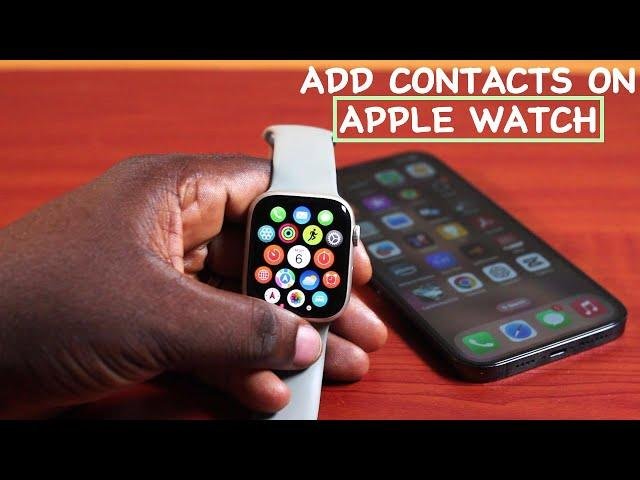
To add contacts to Apple Watch, sync them through your iPhone, then open the Contacts app on your watch.
Adding contacts to Apple Watch is simple once you know how Apple handles contact syncing. Your watch usually gets contact information from the paired iPhone, so you do not add contacts in the same way you would on an iPhone. This guide explains how to add contacts to Apple Watch, show favorite people quickly, fix sync problems, and use contacts for calls, messages, and emergencies.

How contacts work on Apple Watch
Apple Watch uses the Contacts information from your paired iPhone. When you create or edit a contact on your iPhone, the change normally syncs to your Apple Watch through the Watch app and iCloud.
This means the most reliable way to add contacts to Apple Watch is to add them on your iPhone first. After the devices sync, you can view the contact from the Contacts app on your watch.
Your Apple Watch can use contact details for:
• Phone calls
• Messages
• FaceTime audio calls on supported models
• Siri requests
• Sharing your location
• Emergency contacts
• Activity and workout sharing
Apple Watch does not work like a small iPhone with a full contact-editing screen. In most cases, you cannot create a new contact directly from the watch. Instead, you use the iPhone for contact management and the watch for quick access.

How to add contacts to Apple Watch using your iPhone
The easiest method is to create a contact in the Contacts app on your iPhone. Keep your watch near the iPhone while you do this.
Step 1: Open the Contacts app
Unlock your iPhone and open Contacts. You can also open the Phone app and tap Contacts at the bottom of the screen.
Step 2: Create a new contact
Tap the plus sign in the upper-right corner. Enter the person’s name, phone number, email address, and any other useful details.
You can also add a photo, company name, birthday, or mailing address. A phone number is enough for basic calls and messages from Apple Watch.
Step 3: Save the contact
Tap Done. The contact is now stored on your iPhone.
If your iPhone uses iCloud Contacts, the new contact may also sync with your other Apple devices. This includes an iPad, Mac, or another device signed in to the same Apple Account.
Step 4: Wait for the watch to sync
Keep the iPhone and Apple Watch close together. Make sure Bluetooth is on and both devices have enough battery.
Open the Contacts app on Apple Watch after a short wait. The new person should appear in your contact list.
If the contact does not appear, open the Watch app on your iPhone and check that the watch is connected. A short delay is normal, especially after adding many contacts.

How to view contacts on Apple Watch
Once your contacts sync, viewing them is quick.
-
Press the Digital Crown to open the app view.
-
Tap the Contacts app.
-
Scroll through the list or turn the Digital Crown.
-
Tap a person’s name.
-
Choose the phone, message, or email option available for that contact.
On some Apple Watch models and watchOS versions, you can use the side button or Siri to reach people faster. You can say, “Hey Siri, call Mom,” or “Hey Siri, send a message to Alex.”
Siri works best when the contact name is clear and unique. If two contacts have the same name, add a relationship such as “my brother” or say the last name.
The Contacts app may display slightly different options based on the contact’s saved information. For example, a contact with only an email address may not show a phone call button.
How to add favorite contacts to Apple Watch
Many people want to add contacts to Apple Watch so they can reach them with fewer taps. Apple Watch does not have a separate Favorites list that you build entirely on the watch. Instead, you manage favorites on your iPhone.
Add a contact to Favorites on iPhone
-
Open the Phone app.
-
Tap Favorites.
-
Tap the plus sign.
-
Select a contact.
-
Choose a phone number or FaceTime option.
The contact will appear in the Favorites list on your iPhone. Depending on your watchOS version and app layout, you may access favorite people through the Phone app on Apple Watch.
You can also place a contact in a complication if your watch face supports a Contacts-related option. Watch face choices vary by model and watchOS version, so not every face offers the same shortcut.
Favorites are useful for family members, a partner, a caregiver, or a work contact you call often. They are like putting a key person near the front door instead of searching through a full address book.

How to call or message a contact from Apple Watch
After you add contacts to Apple Watch, you can contact them in several ways.
Call a contact
-
Open the Phone app on Apple Watch.
-
Tap Contacts.
-
Select the person.
-
Tap the phone icon.
You can talk through the watch’s built-in speaker and microphone. AirPods or another compatible Bluetooth headset can provide better sound in a busy place.
Apple Watch calling depends on your connection. A GPS-only model usually needs the paired iPhone nearby or a known Wi-Fi connection. A cellular Apple Watch can call without the iPhone nearby when it has an active cellular plan and cellular coverage.
Send a message
-
Open Messages on Apple Watch.
-
Start a new message or open an existing conversation.
-
Tap the recipient field.
-
Select a contact.
-
Dictate, type, or choose a reply.
You can use voice dictation, Scribble, the keyboard on supported models, emojis, or preset replies. For longer messages, dictation is often faster than typing on the small screen.
Ask Siri to contact someone
Raise your wrist and say, “Hey Siri, call Jordan.” You can also press and hold the Digital Crown and give the same command.
Siri needs permission to access contacts and communications. If it cannot find someone, check the contact’s name and confirm that the person is saved on your iPhone.

How to add emergency contacts to Apple Watch
Emergency contacts are different from regular contacts. They are stored through your iPhone’s Health app and are linked to your Medical ID.
To add an emergency contact:
-
Open the Health app on your iPhone.
-
Tap your profile picture.
-
Tap Medical ID.
-
Tap Edit.
-
Scroll to Emergency Contacts.
-
Tap Add Emergency Contact.
-
Choose a person.
-
Select the relationship.
-
Tap Done.
Your emergency contacts can be shown to emergency responders when Medical ID is available from the Lock Screen. Apple Watch can also use emergency features, such as Emergency SOS, based on the watch model, region, network access, and settings.
Choose people who are likely to answer quickly. Tell them that you listed them as emergency contacts so they understand why they may receive an alert.
Adding a person as a normal contact does not automatically make them an emergency contact. You must add them separately through Medical ID.