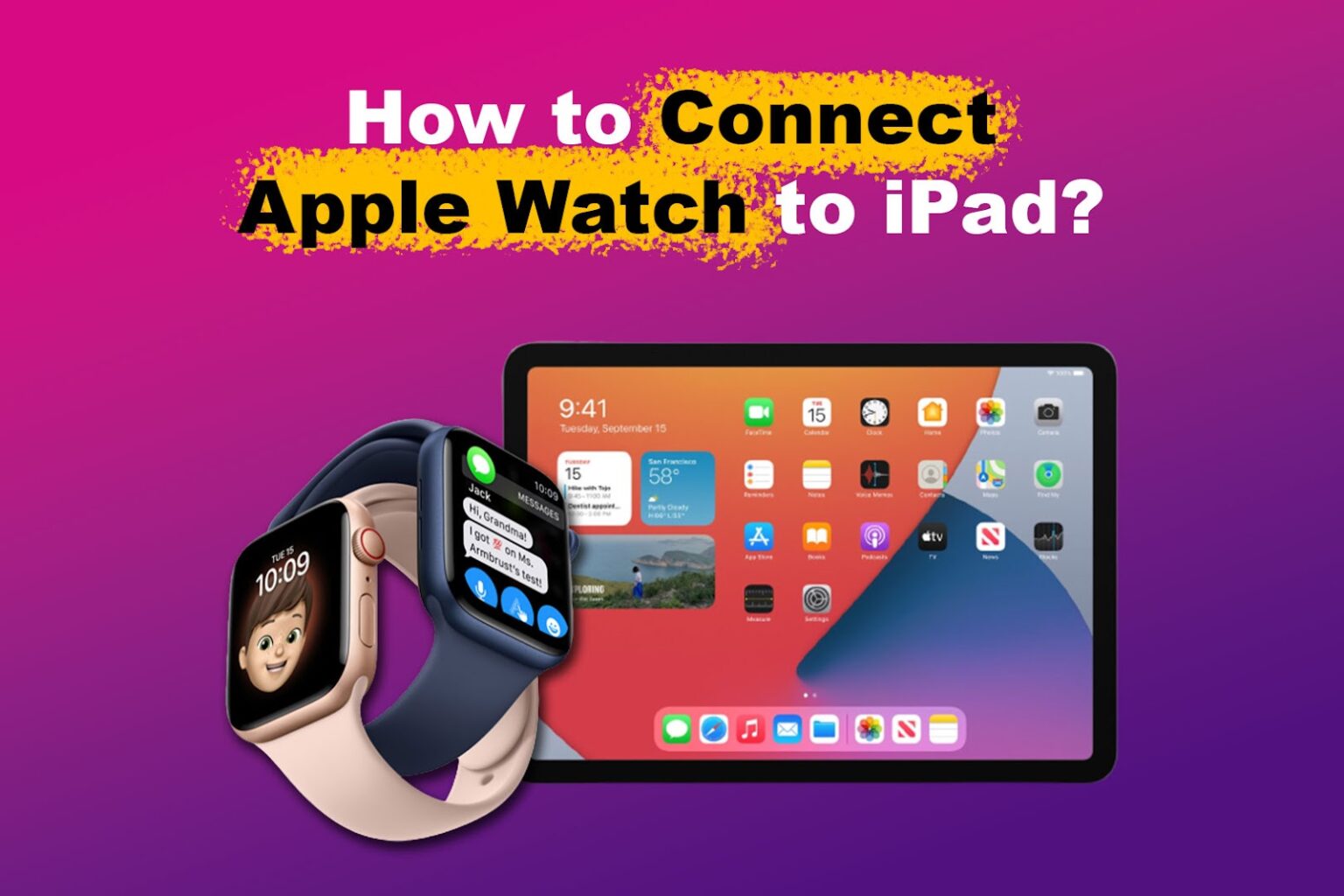
If you are in the United States and want to pair an Apple Watch with an iPad, there is one key limit: Apple Watch cannot pair directly with an iPad. Apple Watch setup and management require an iPhone and the Apple Watch app.
You can still use an iPad with your Apple Watch for some tasks, such as Apple Fitness+ workouts, iCloud services, and viewing certain health or activity data. The usual setup is:
- Pair the Apple Watch with a compatible iPhone.
- Sign in to the same Apple Account on the iPhone and iPad.
- Use supported Apple services on the iPad.

Can an Apple Watch Pair Directly With an iPad?
No. An Apple Watch does not pair directly with an iPad through Bluetooth, Wi-Fi, or the Apple Watch app.
Apple provides the Watch app for iPhone, not iPad. The iPhone handles the watch setup, software updates, settings, apps, notifications, and much of the data exchange between the watch and Apple services.
An iPad can connect to other Bluetooth accessories, such as headphones, keyboards, and game controllers. That does not mean it can act as an Apple Watch setup device. The Apple Watch pairing process uses Apple Watch features that are built into iOS on iPhone.
This applies to both Wi-Fi and cellular Apple Watch models. A cellular Apple Watch may work away from its paired iPhone after setup, but it still needs an iPhone for the initial setup.
What You Need Before Setting Up Apple Watch
To set up an Apple Watch, you generally need:
- A compatible iPhone
- The latest available iOS version supported by that iPhone and watch
- Bluetooth turned on
- Wi-Fi or cellular service
- An Apple Account
- The Apple Watch and iPhone charged
- The iPhone’s passcode, if one is enabled
Apple Watch compatibility depends on the exact watch model and software version. Older iPhone models may not support newer Apple Watch models. Check Apple’s official compatibility information before you buy or update either device.
You also need access to the iPhone used for setup. Borrowing an iPhone may let you complete setup, but the watch will remain linked to that iPhone and its Apple Account unless you later erase and pair it with another compatible iPhone.

How to Set Up an Apple Watch Using an iPhone
Use these steps if you currently have access to a compatible iPhone.
1. Update the iPhone
Open Settings > General > Software Update on the iPhone. Install any update that is required for your Apple Watch model.
If the iPhone cannot install the required iOS version, the watch may not appear as compatible. Do not erase the watch until you confirm that the iPhone can support it.


2. Turn on Bluetooth and Wi-Fi
On the iPhone:
- Open Settings.
- Tap Bluetooth and turn it on.
- Connect the iPhone to a Wi-Fi network or confirm that cellular data is available.
Keep the iPhone and Apple Watch close together during setup.
3. Turn on the Apple Watch
Press and hold the side button until the Apple logo appears. Wait for the watch to start.
If the watch shows a normal watch face, it may already be paired with another iPhone. If it displays an Activation Lock screen, the previous owner must remove it from their Apple Account before you can use it.
4. Open the Watch app
On the iPhone, open the Watch app.
Tap Pair New Watch. You can also hold the iPhone over the animation shown on the Apple Watch and follow the on-screen instructions.
5. Choose setup or restore
Select one of these options:
- Set Up as New Apple Watch if you want a clean setup.
- Restore from Backup if you previously used an Apple Watch and have a backup available.
Restoring a backup can bring back settings and app information, but not every watch setting or piece of data transfers in the same way.
6. Sign in and create a passcode
Follow the prompts to sign in to your Apple Account. You may also be asked to create a passcode for the watch.
A passcode helps protect information on the watch. If you use Apple Pay, a passcode is required.
7. Finish the setup
Choose your preferred settings for:
- Notifications
- Location Services
- Siri
- Emergency SOS
- Activity and health features
- Apple Pay
- Automatic app installation
- Cellular service, if supported
Keep the devices near each other until setup finishes. The process can take time, especially if the watch needs a software update.
You will know setup is complete when the Apple Watch shows its normal watch face and the Watch app on the iPhone displays the watch as connected.

How to Use an iPad With a Paired Apple Watch
After pairing the Apple Watch with an iPhone, you may use the iPad for selected Apple services. The iPad does not replace the iPhone, but it can work alongside it.


Use Apple Fitness+ on an iPad
If you subscribe to Apple Fitness+, you can start many workouts on an iPad. Your Apple Watch can track workout information, such as heart rate and active calories, while the workout plays on the iPad.
The basic setup is:
- Pair the Apple Watch with an iPhone.
- Sign in to the same Apple Account on the iPhone and iPad.
- Open the Fitness app on the iPad.
- Choose a workout.
- Select the Apple Watch when prompted to connect it.
The watch and iPad may need an internet connection and compatible software. If the watch does not appear, keep the paired iPhone nearby and make sure Bluetooth is enabled.
View activity and health information
The iPad may show some Apple Health or Fitness information when the data is available through iCloud and the relevant apps support that device.
Your iPhone remains the main device that manages Apple Watch health data. The iPad does not become the watch’s primary health-data host simply because both devices use the same Apple Account.
Health data is private and sensitive. Review Settings > [your name] > iCloud > Health on supported devices if you need to confirm whether Health syncing is enabled.
Use Messages and other iCloud services
An Apple Watch can access some messages and notifications through its iPhone connection and Apple services. An iPad signed in to the same Apple Account may also receive messages through iMessage and other supported services.
This does not create a direct Apple Watch-to-iPad pairing. It only allows compatible services to work across devices through the Apple ecosystem.
Use Find My
Find My can help locate an Apple Watch, iPhone, or iPad when the devices are correctly linked to your Apple Account and supported by Apple’s Find My network.
Use the Find My app on the iPad or visit iCloud services in a browser. The watch must be associated with your Apple Account, and location features must have been enabled as required.

What to Do If You Do Not Have an iPhone
You cannot complete normal Apple Watch setup with an iPad alone.
You have a few options:
- Use your own compatible iPhone.
- Ask a trusted family member to help with setup.
- Buy or use a compatible iPhone for the watch.
- Consider a different smartwatch that supports iPad or iPadOS directly.
Apple’s Apple Watch For Your Kids, previously known as Family Setup in many support materials, can allow an Apple Watch to be managed for a family member who does not have their own iPhone. However, the organizer still uses an iPhone for setup and management. An iPad by itself is not a replacement for that iPhone.
Family setup also has limits. Some Apple Watch features, apps, health functions, and cellular services may not work in the same way as they do when the watch is paired normally to the wearer’s iPhone. Carrier support and plan requirements can also vary in the United States.


Troubleshooting Apple Watch and iPad Problems
Because the iPad cannot pair directly with Apple Watch, first identify which connection is failing.
The iPad does not find the Apple Watch
This is expected if you are trying to pair the watch from the iPad. Use the Watch app on a compatible iPhone instead.
The iPhone does not find the Apple Watch
Try these checks in order:
- Place the iPhone and watch close together.
- Turn Bluetooth on.
- Confirm that Wi-Fi or cellular data is available.
- Restart both devices.
- Update the iPhone if an update is available.
- Open the Watch app and try pairing again.
- If the watch was used before, erase it only after checking for Activation Lock.
Do not erase a watch that belongs to someone else unless the owner has removed it from their Apple Account. Erasing the device alone does not remove Activation Lock.
The Apple Watch shows an Activation Lock screen
Activation Lock means the watch is still linked to another Apple Account. The previous owner must enter their account details or remove the watch from their account through Apple’s device-management tools.
If you bought the watch secondhand and the seller cannot remove Activation Lock, contact the seller or marketplace. Apple generally cannot remove the lock without valid proof of ownership.
Fitness+ does not connect to the watch on the iPad
Check the following:
- The watch is paired with the iPhone.
- The iPhone and iPad use the same Apple Account.
- Bluetooth is on.
- The watch is unlocked and worn correctly.
- The iPad and iPhone have compatible software.
- The Fitness+ subscription is active.
- The iPhone is nearby if the service requests it.
If the iPad plays the workout but does not show watch metrics, you may still be able to complete the workout. The problem is usually a connection, account, software, or device-compatibility issue rather than a failed iPad pairing.
The watch will not update
Apple Watch updates normally use the Watch app on the paired iPhone. Place the watch on its charger, keep it near the iPhone, and make sure the iPhone has internet access.
The watch may need enough battery power and storage space before an update can begin. If the update fails repeatedly, restart both devices and check Apple’s current support instructions for the exact watch and iPhone models.

Apple Watch, iPhone, and iPad: What Each Device Does
This table shows the practical role of each device.
| Task | Apple Watch | iPhone | iPad |
|---|---|---|---|
| Initial Apple Watch setup | No | Yes | No |
| Manage watch settings | Limited on watch | Yes | No direct management |
| Install watchOS updates | No | Yes | No |
| Pair directly with Apple Watch | No | Yes | No |
| Use Apple Fitness+ screen | Limited | Yes | Yes, on supported models and software |
| Track workouts | Yes | Yes | Displays workout content |
| View some synced Apple services | Yes | Yes | Yes, where supported |
| Manage cellular watch service | Limited | Usually through Watch app | No |
| Remove Activation Lock | No | Account owner required | Account owner required |
The main distinction is simple: the iPhone is the Apple Watch’s paired host, while the iPad is a companion device for selected services.


Common Mistakes to Avoid
Trying to use the iPad’s Bluetooth menu
The Bluetooth menu is not the Apple Watch setup tool. Pairing the watch from Settings > Bluetooth on the iPad will not work.
Assuming the same Apple Account creates a watch connection
Using the same Apple Account on an iPhone and iPad helps sync supported services. It does not pair the Apple Watch to the iPad.
Buying a cellular watch to avoid an iPhone
Cellular service can help an Apple Watch stay connected when the paired iPhone is not nearby. It does not remove the iPhone requirement for setup and management.
Erasing a used watch before checking ownership
A used Apple Watch can remain protected by Activation Lock after an erase. Confirm that the seller has removed it from their Apple Account before buying or resetting it.
Expecting every iPhone feature on iPad
Some Apple Watch settings, notifications, carrier tools, and health functions require the paired iPhone. iPad support varies by app and service.

Frequently Asked Questions
Can I pair an Apple Watch with an iPad Pro?
No. An iPad Pro cannot directly pair with an Apple Watch. You need a compatible iPhone for setup and watch management.
Can I use an Apple Watch with an iPad and no iPhone?
Not for normal setup. You need an iPhone, either your own or one used by a family organizer through Apple’s supported family setup features.
Can I use Apple Fitness+ on an iPad with an Apple Watch?
Yes, in supported configurations. The Apple Watch must first be paired with an iPhone, and the iPad, iPhone, watch, and Fitness+ account must meet Apple’s compatibility requirements.
Can an Apple Watch connect to an iPad over Wi-Fi?
An Apple Watch may use Wi-Fi for some functions after it has been set up with an iPhone. That is not the same as pairing it directly with an iPad.
How do I transfer Apple Watch data to an iPad?
Apple Watch data normally moves through the paired iPhone and supported iCloud services. Sign in to the same Apple Account on the iPhone and iPad, then check the relevant iCloud and app settings.

Final Answer
You cannot pair an Apple Watch directly to an iPad. Set up the watch with a compatible iPhone first, then use the iPad for supported services such as Apple Fitness+, iMessage, Find My, and selected iCloud data.
If you only have an iPad, the next step is to find a compatible iPhone or use Apple’s family setup option through someone who has one. Before buying a used watch, confirm that Activation Lock has been removed.
Official Apple Resources
- Set up and pair your Apple Watch
- Apple Watch user guide
- Apple Fitness+
- Apple Watch compatibility
- Set up Apple Watch for a family member

Rubel Miah is the Senior Editor at MyStyleGrid.com, where he brings a sharp editorial eye and an unshakable love for fashion to everything he does. A true style addict, Rubel lives and breathes trends, from streetwear to high fashion, and has a knack for turning inspiration into impactful stories. With years of experience in fashion journalism and digital media, he curates content that empowers readers to express themselves through style. When he’s not editing features or forecasting the next big thing, you’ll find him hunting down vintage pieces or capturing street style moments around the city.