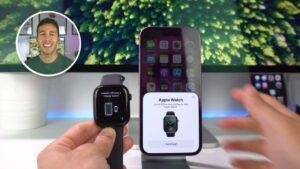
To connect an Apple Watch in the United States, place the watch near a compatible iPhone, turn it on, and follow the setup steps in the Apple Watch app. You will need your Apple Account password, a Wi-Fi or cellular connection, and an iPhone that meets Apple’s compatibility rules.
The basic process takes about 10 to 30 minutes. A software update, cellular plan, or backup restore may take longer.

What you need before pairing an Apple Watch
Before you start, check these requirements:
- An iPhone, not an iPad or Android phone
- The latest available version of iOS for your iPhone
- An Apple Watch with enough battery power
- Your Apple Account password
- Wi-Fi or a cellular data connection
- The passcode for your iPhone
- The previous owner’s help if the watch is used
Apple Watch compatibility depends on the watch model and its version of watchOS. Newer Apple Watch models may require a newer iPhone and iOS version than older models. Check Apple’s official Apple Watch compatibility page before you begin.
Can you connect an Apple Watch to Android?
No. Apple Watch does not pair directly with Android phones. It is designed to work with an iPhone through the Apple Watch app.
A cellular Apple Watch still needs an iPhone for its first setup. After setup, some cellular functions can work away from the iPhone, but the watch remains linked to that iPhone and Apple Account.
Charge the devices
Charge the Apple Watch and iPhone before pairing. A low battery can interrupt setup, especially when the watch must install an update.
Keep both devices close together. Do not turn off Bluetooth during setup.
How to connect an Apple Watch for the first time
Follow these steps if the watch is new, erased, or ready for a new owner.
1. Turn on the Apple Watch
Press and hold the side button until the Apple logo appears.
If the watch does not turn on, place it on its charger for at least a few minutes. If a red lightning symbol appears, the battery needs more charge.
2. Open the Apple Watch app on your iPhone
Unlock the iPhone and open the built-in Watch app.
Tap All Watches if needed, then tap Add Watch. You can also hold the iPhone near the Apple Watch. The iPhone should display a setup prompt.
Tap Continue.
3. Choose the setup option
Apple normally gives you two choices:
- Set Up for Myself — Use this when the watch is for you.
- Set Up for a Family Member — Use this for a child or someone who does not have their own iPhone, if Family Setup is supported in your region and by the watch model.
For a personal watch, choose Set Up for Myself.
4. Scan the pairing animation
An animated pattern appears on the Apple Watch.
Hold the iPhone over the watch so the pattern fits inside the yellow outline on the iPhone screen. The camera reads the pattern and pairs the devices.
If the camera does not work, tap Pair Apple Watch Manually. Then tap the information icon on the watch and select its name from the iPhone.
Enter the six-digit code shown on the watch if the iPhone asks for it.
5. Restore a backup or set up as new
the iPhone may ask whether you want to restore the Apple Watch from a backup.
Choose Restore from Backup if you want to bring back settings, watch faces, and compatible app data from an earlier Apple Watch.
Choose Set Up as New Apple Watch if this is your first Apple Watch or you want a clean setup.
A backup does not copy every item from the iPhone. Some apps and settings may need to sync again.
6. Sign in with your Apple Account
Enter your Apple Account password when requested.
This step helps enable services such as:
- Activation Lock
- Find My
- Apple Pay
- Messages and contacts
- Health data sync
- App downloads
- iCloud features
If two-factor authentication is enabled, enter the verification code sent to your trusted device or phone number.
7. Create an Apple Watch passcode
A passcode protects data on the watch and is required for features such as Apple Pay.
You can create a four-digit passcode or use a longer passcode. The watch may ask for the passcode each time you put it on after removing it.
Do not use a passcode that is easy to guess.
8. Set up health and safety features
The setup process may ask about:
- Health details
- Activity goals
- Emergency SOS
- Fall Detection
- Noise notifications
- Location Services
- Apple Pay
- Wrist Detection
Review each setting rather than skipping every option. Some features depend on your age, location, watch model, and local support.
Emergency and health features can support a response, but they do not replace emergency services or medical care.
9. Set up cellular service, if available
If your Apple Watch supports cellular service, you may see an option to add it to a wireless plan.
The iPhone and Apple Watch usually need to use the same carrier for standard cellular setup. Carrier support, plan terms, fees, and coverage vary across the United States.
You can skip cellular setup and return to it later in the Watch app.
10. Wait for the sync to finish
Keep the iPhone and Apple Watch close together while setup completes. Place the watch on its charger if the process includes a software update.
A progress wheel or Apple logo may remain on the watch for several minutes. Do not force a restart during an update unless Apple’s instructions tell you to do so.
The watch is ready when you can see the watch face and the Watch app shows the device as connected.
How to connect an Apple Watch that was paired before
A used Apple Watch must be erased and removed from the former owner’s account before you can use it.
If the previous owner still has the paired iPhone, ask them to:
- Open the Watch app.
- Tap All Watches.
- Tap the information button beside the watch.
- Tap Unpair Apple Watch.
- Enter their Apple Account password if asked.
Unpairing erases the watch and removes Activation Lock when completed correctly.
If the previous owner no longer has the iPhone, they can erase the watch through their Apple Account or Find My settings. However, erasing the watch alone may not remove Activation Lock.
What is Activation Lock?
Activation Lock is an anti-theft feature linked to Find My. It prevents another person from setting up the watch without the original owner’s Apple Account password.
If setup asks for someone else’s Apple Account password, the watch is still linked to that person. The seller must remove it. Apple generally cannot remove Activation Lock without valid proof of ownership under its support process.
Do not buy a used Apple Watch that remains linked to another person’s account.
How to reconnect an Apple Watch after losing the connection
An Apple Watch can lose contact with its iPhone because of distance, Bluetooth problems, Airplane Mode, or a software issue.
Look at the watch face:
- A green iPhone icon usually means the watch is connected.
- A red iPhone icon means the watch is not connected to the iPhone.
- A red X can indicate that Bluetooth or another connection is unavailable.
- A Wi-Fi symbol may mean the watch is using a known Wi-Fi network instead of a direct Bluetooth link.
Try these steps in order:
- Move the iPhone and Apple Watch close together.
- Turn off Airplane Mode on both devices.
- Make sure Bluetooth and Wi-Fi are on in the iPhone’s Settings app.
- Restart the iPhone.
- Restart the Apple Watch.
- Open the Watch app and check whether the watch appears under All Watches.
- Install available iOS and watchOS updates.
- If the problem continues, unpair and pair the watch again.
Do not erase the watch as your first step. Unpairing removes local content and requires setup again.
What to do if Apple Watch pairing fails
Pairing problems usually come from an unsupported device, an old software version, a weak connection, or Activation Lock.
The pairing animation will not scan
Tap Pair Apple Watch Manually on the iPhone. Then tap the information icon on the watch and choose its name.
If manual pairing also fails, restart both devices and try again. Keep the watch face clean and hold the iPhone steady over the animation.
The Apple Watch says it needs an update
Update the iPhone first. Then connect the iPhone to Wi-Fi and place the Apple Watch on its charger.
Keep both devices close during the update. The watch may need at least 50% battery, depending on the update process.
If the update stops, restart the iPhone and watch only after the watch is no longer showing an active update screen.
The iPhone says the Apple Watch is not supported
Check the exact Apple Watch model and iPhone model. Compatibility is tied to the watchOS and iOS versions, not just the age of the hardware.
Older iPhones may not support newer watchOS versions. If the iPhone cannot update to the required iOS version, you may need a newer iPhone or a watch that supports the current iPhone software.
The watch is stuck on the Apple logo
Keep the watch on its charger and near the iPhone for a reasonable period if an update is in progress.
If there is no progress and the watch remains unresponsive, press and hold the side button and Digital Crown together until the Apple logo appears. Apple advises avoiding a force restart while a software update is actively installing.
If the watch still does not start, contact Apple Support or an Apple Store. Repeated force restarts can make an update problem harder to diagnose.
The iPhone asks for another person’s Apple Account
This is Activation Lock. The original owner must remove the watch from their account.
A factory reset does not by itself prove that the watch is ready for a new owner. If you bought the watch from a seller who cannot remove the lock, request a refund.
The Apple Watch will not connect to cellular service
First, confirm that:
- The watch model supports cellular service.
- Your carrier supports Apple Watch service.
- The iPhone and watch use an eligible plan.
- Your address and region support the required service.
- The watch is not an imported model with different cellular bands or regional limits.
Cellular setup problems often require the carrier to check the plan. Contact the carrier before erasing the watch.
How to tell whether the Apple Watch is connected
The setup worked when:
- The iPhone shows the watch in the Watch app.
- The watch displays a normal watch face.
- The Watch app shows settings for the watch.
- Notifications or calls can reach the watch when the iPhone is nearby.
- The watch can sync apps or health data.
To check the connection, open the Control Center on the Apple Watch. A green iPhone icon indicates a connection. You can also open the Watch app on the iPhone and tap All Watches.
A cellular model may remain useful away from the iPhone, but that does not mean the watch has been fully independent. It still depends on the paired iPhone for management and some features.
Important setup limits and common mistakes
Avoid these common errors:
- Trying to pair the watch with an Android phone
- Starting setup with too little battery
- Forgetting the iPhone passcode or Apple Account password
- Buying a used watch without checking Activation Lock
- Turning off Bluetooth during pairing
- Walking away from the iPhone during a software update
- Assuming every Apple Watch supports cellular service
- Assuming every cellular carrier supports every watch model
- Erasing the watch before checking whether a backup is available
- Using Family Setup without checking feature and carrier limits
Family Setup can be useful for a family member who does not have an iPhone. However, it may not provide every feature available when the watch is paired directly with the user’s own iPhone. Availability also varies by country, carrier, age, and watch model.
Apple Watch connection options at a glance
| Situation | Best action | Main limitation |
|---|---|---|
| New Apple Watch | Use the Watch app and scan the pairing animation | Requires a compatible iPhone |
| Your old Apple Watch | Restore from a backup or set it up as new | Some data may need to sync again |
| Used Apple Watch | Have the former owner unpair it | Activation Lock must be removed |
| Watch for a child or family member | Use Family Setup if supported | Some features may not be available |
| Apple Watch with cellular | Add it through a supported carrier | Plans and fees vary |
| Android phone owner | Use an iPhone instead | Apple Watch does not pair with Android |
| Pairing fails | Update, restart, and check compatibility | Erasing may be needed only later |
Frequently asked questions
Can I connect an Apple Watch without an iPhone?
You need an iPhone for the initial setup of an Apple Watch. A cellular model can perform some tasks away from the iPhone after setup, but it still requires an iPhone for management and software support.
Can I pair one Apple Watch with two iPhones?
An Apple Watch is normally paired with one iPhone at a time. To use it with another iPhone, you must transfer or unpair it and complete setup on the second phone.
Can I connect two Apple Watches to one iPhone?
Yes. Apple supports more than one Apple Watch on an iPhone. You can switch between watches in the Watch app, although only one watch may be active on your wrist at a time.
Why does my Apple Watch say it is not connected?
The watch may be too far from the iPhone, or Bluetooth, Wi-Fi, or Airplane Mode may be affecting the link. Move the devices together, check the connection settings, and restart both devices.
Will unpairing delete my Apple Watch data?
Unpairing erases the Apple Watch. If a backup is available, you can restore compatible settings and data during the next setup. Health and activity data may also depend on iCloud settings and the backup status of the iPhone.
Official help and next steps
Apple’s instructions can change as iOS and watchOS change. For the latest model requirements and setup details, use:
- Set up your Apple Watch
- Apple Watch compatibility
- If you can’t pair or connect your Apple Watch
- Unpair and erase your Apple Watch
If you are ready to connect the watch now, charge both devices, update the iPhone, open the Watch app, and select Add Watch. If the watch is used, confirm that the previous owner removed Activation Lock before spending time on setup.
Rubel Miah is the Senior Editor at MyStyleGrid.com, where he brings a sharp editorial eye and an unshakable love for fashion to everything he does. A true style addict, Rubel lives and breathes trends, from streetwear to high fashion, and has a knack for turning inspiration into impactful stories. With years of experience in fashion journalism and digital media, he curates content that empowers readers to express themselves through style. When he’s not editing features or forecasting the next big thing, you’ll find him hunting down vintage pieces or capturing street style moments around the city.