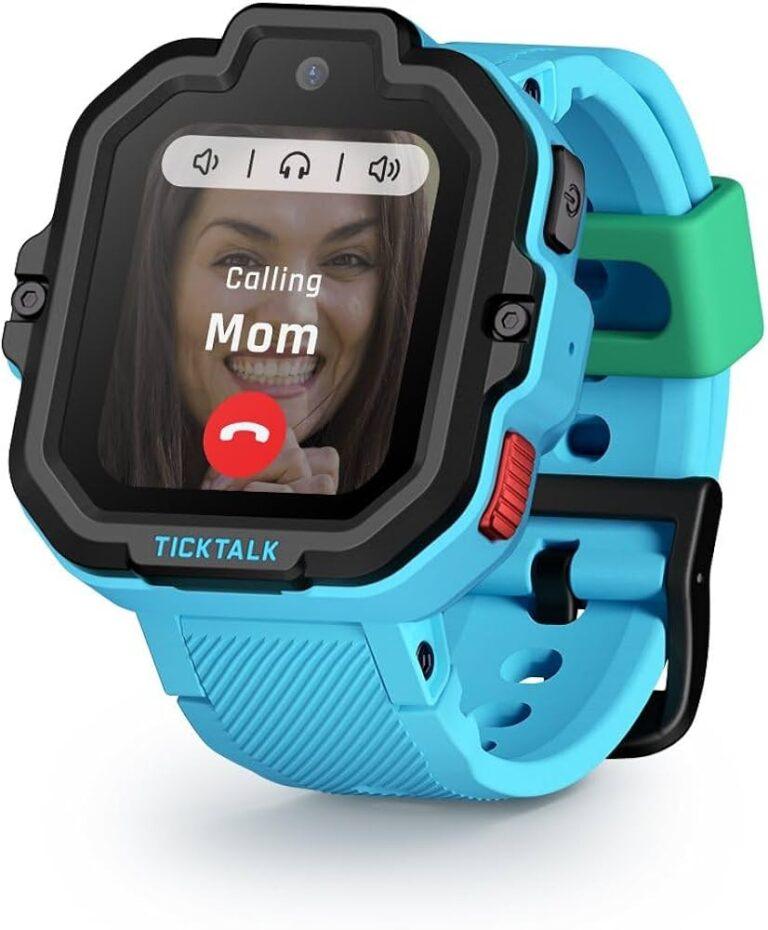
You can text on a smartwatch by using voice dictation, a tiny keyboard, quick replies, or emojis.
Learning how do you text on a smartwatch is easier than it first seems. Most modern watches connect to your phone, show incoming messages, and let you reply without pulling your phone from your pocket. The exact steps depend on your watch, phone, messaging app, and cellular plan, so this guide explains each method clearly and helps you choose the fastest option.
How do you text on a smartwatch?
To understand how do you text on a smartwatch, think of the watch as a small remote screen for your phone. It can receive notifications through Bluetooth, Wi-Fi, or a cellular connection. Some models can also send messages on their own when they have mobile service.
Follow these basic steps:
- Wake the watch by tapping the screen, pressing a button, or raising your wrist.
- Open the message notification or messaging app.
- Tap Reply, Reply Message, or the message field.
- Choose a reply method:
• Speak your message
• Type on the screen
• Select a suggested response
• Draw letters with handwriting input
• Send an emoji or sticker - Check the message before sending it.
- Tap Send or press the main action button.
The watch may need to stay connected to your phone. Bluetooth is often enough when your phone is nearby. Wi-Fi or cellular service may be needed when you leave your phone behind.
In practical use, short messages work best. A reply such as “I’m on my way” takes only a few seconds. A long message can feel slow on a small screen, much like trying to write a note on a postage stamp.

What you need before texting from a smartwatch
Before asking how do you text on a smartwatch, check whether your devices support messaging. Compatibility is the most common reason a reply option does not appear.
You usually need:
• A compatible smartwatch
• A compatible smartphone
• A messaging app supported by both devices
• A Bluetooth, Wi-Fi, or cellular connection
• Updated watch and phone software
• Notification and microphone permissions
Apple Watch works best with an iPhone. Wear OS watches work mainly with Android phones, although some features vary by brand and phone model. Samsung Galaxy Watch features can also change based on whether you use a Samsung Galaxy phone or another Android phone.
Your watch may show a message but not let you reply if:
• The phone is not connected
• Notifications are turned off
• The messaging app is not supported
• The watch is in a restricted mode
• The watch has no cellular or Wi-Fi connection
• The phone does not allow background access
A cellular watch has its own mobile connection, but it still needs a supported carrier plan. Cellular service is not automatically included with the watch purchase.
How do you text on a smartwatch with voice dictation?
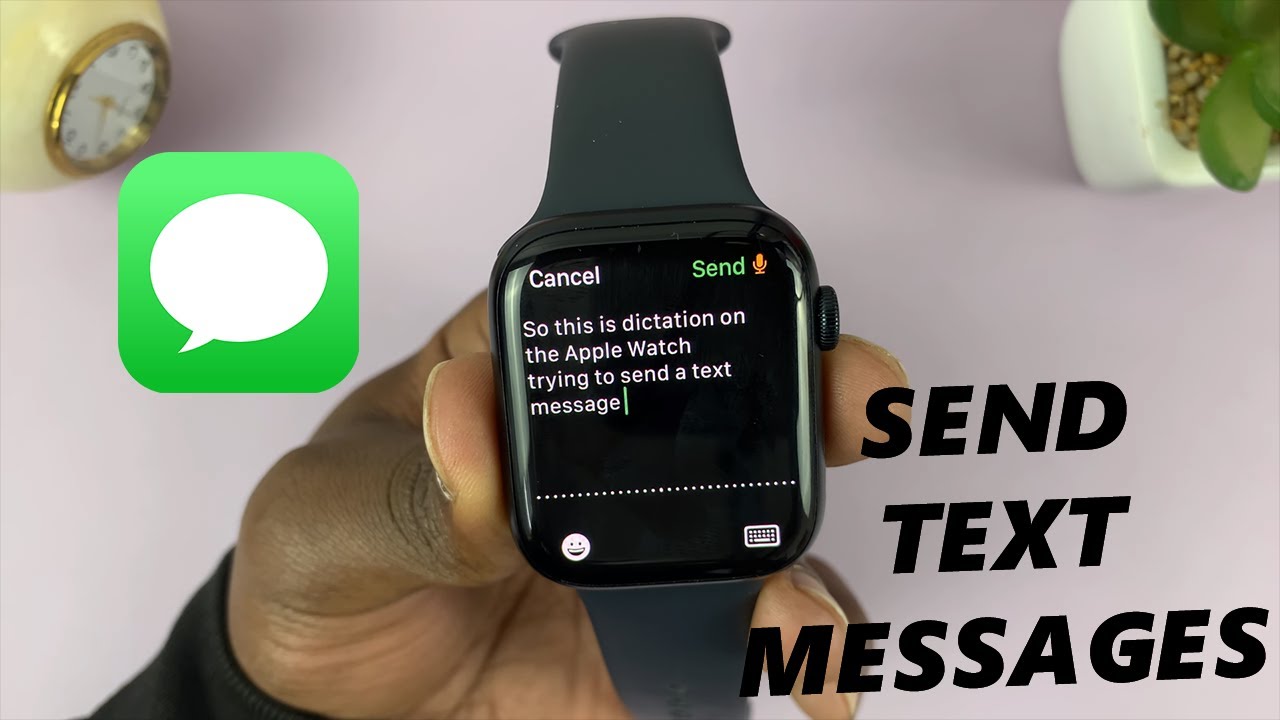
Voice dictation is usually the fastest way to learn how do you text on a smartwatch. It works well when you need to send a natural sentence but do not want to tap tiny keys.
Try these steps:
- Open the message notification.
- Tap the microphone icon or Dictate option.
- Speak in a clear, steady voice.
- Pause when you finish.
- Review the text.
- Tap Send.
Say punctuation when needed. For example, say, “I will be there at six comma see you soon.” The watch may add punctuation automatically, but it can make mistakes with names, street addresses, and unusual words.
Voice input works best in a quiet place. Wind, traffic, music, and crowded rooms can reduce accuracy. Speak toward the watch without shouting. Short phrases also help the watch understand you.
Always check the transcription before sending sensitive messages. A small mistake can change the meaning of a sentence. “Meet me at the station” and “Meet me at the doctor” may sound similar to a device in a noisy room.
How do you text on a smartwatch with a keyboard?
Many newer watches include a small touch keyboard. This option answers how do you text on a smartwatch when you want more control and privacy than voice input provides.
To type a message:
- Open the conversation.
- Choose the keyboard icon.
- Tap each letter or swipe across the letters.
- Use the backspace key to correct errors.
- Review the message.
- Select Send.
Small keyboards take practice. Turn your wrist toward you, use the tip of your finger, and type slowly at first. Predictive text can save time by suggesting common words.
Some watches support QWERTY keyboards, while others offer T9-style typing. T9 lets you tap a number or letter group and choose the correct word. Older or smaller watches may support only voice replies and preset messages.
A keyboard is useful when:
• You are in a quiet office or classroom
• You need to send a private reply
• Your accent is not recognized correctly
• You are sending a name or specific term
• You cannot speak aloud
Typing a long message on a watch is still uncomfortable. For detailed conversations, use your phone.

How do you text on a smartwatch with quick replies?
Quick replies are preset messages that make how do you text on a smartwatch simple and fast. Common options include “Yes,” “No,” “I’m busy,” “Call you later,” and “I’m driving.”
Open a message, scroll through the suggested replies, and tap the response that fits. Some watches create smart replies based on the message you received. For example, a text that asks “Are you free?” may produce replies such as “Yes, I am” or “Not right now.”
You can often customize quick replies in the watch app on your phone. Look for settings such as:
• Messages
• Notifications
• Quick replies
• Default responses
• Smart replies
Custom responses are useful for repeated situations. You might add “I’m in a meeting,” “I’ll be home soon,” or “Please email me the details.”
Quick replies are convenient, but they can sound impersonal. Choose a response that matches the situation. A preset “Sounds good” may not be the best answer to an important family message.
How do you text on an Apple Watch?
For many iPhone users, how do you text on a smartwatch means learning how to use the Apple Watch Messages app. Apple Watch can display iMessages and standard text messages when paired with an iPhone.
To reply on an Apple Watch:
- Raise your wrist when a message arrives.
- Tap the notification.
- Scroll down and tap Reply.
- Choose Dictate, Scribble, emoji, or the keyboard if available.
- Review the reply.
- Tap Send.
The available reply tools depend on the Apple Watch model and software version. Scribble lets you draw letters with your finger. Dictation is often easier for full sentences, while emoji works well for casual chats.
Apple Watch users with cellular service can often send messages away from their iPhone. Without cellular service, the watch may need Wi-Fi or a nearby iPhone. Emergency and carrier features can vary by region and plan.
If messages do not arrive, check the Watch app on the iPhone. Confirm that message notifications are enabled and that the watch is not locked.
How do you text on a Wear OS smartwatch?
Wear OS devices from brands such as Google, Samsung, and other manufacturers may support message replies through notifications or a dedicated messaging app. The exact interface differs by model.
A common process looks like this:
- Tap the incoming message notification.
- Swipe up to view actions.
- Tap Reply.
- Select voice input, keyboard, emoji, or a suggested response.
- Send the message.
Some Wear OS watches can run messaging apps directly. Others mainly mirror notifications from the phone. A watch with LTE may send messages without a nearby phone, but the app and carrier must support that feature.
Google Assistant or another voice assistant may also help. You can say a command such as, “Send a message to Jordan saying I’m five minutes late.” Review the result before sending, especially when the contact name is common.
Samsung watches may offer extra features when paired with Samsung phones. These can include expanded message controls, synced conversations, or additional keyboard options. Compatibility can change after software updates, so check the current settings on both devices.
How do you text on a smartwatch without a phone?
The answer to how do you text on a smartwatch without a phone depends on the watch model and connection type. A Bluetooth-only watch normally needs your phone nearby. A cellular watch can connect to a mobile network when it has an active plan.
You may text without your phone when:
• Your watch supports LTE or cellular service
• Your carrier activates a compatible watch plan
• The watch has adequate network coverage
• The messaging app supports standalone use
• Your contacts and account are correctly synced
Wi-Fi can also help. If the watch connects to a known Wi-Fi network, some messaging services may work even when the phone is away. This does not always support ordinary SMS text messages.
There are limits. Battery life may drop faster with cellular use. Some features, such as photo messages, group chats, or full conversation history, may work better with the phone nearby.
Before relying on a watch during a run or hike, test it at home. Send a message, receive a reply, and make sure the watch uses the intended network.
Texting on a smartwatch while driving
A smartwatch can reduce the need to handle your phone, but it should not become another distraction. Voice dictation and preset replies are safer choices than typing while driving.
Use these habits:
• Set up voice commands before starting the trip
• Use Do Not Disturb or driving mode when possible
• Reply only when stopped in a safe place
• Avoid reading long conversations while moving
• Use emergency features when there is a genuine need
Laws about device use vary across the United States. A watch may still count as an electronic device under local distracted-driving rules. The safest approach is to keep your attention on the road.
For runners and cyclists, quick replies can be helpful. Still, stop in a safe area before reading anything that needs thought.
Common smartwatch texting problems and fixes
When how do you text on a smartwatch stops working, the cause is often a simple connection or permission issue.
Try these fixes in order:
- Check the watch battery and unlock it.
- Confirm Bluetooth is enabled on the phone.
- Open the phone’s companion app.
- Make sure the watch shows as connected.
- Turn message notifications off and on.
- Restart both devices.
- Install pending software updates.
- Check microphone and notification permissions.
- Confirm the messaging app is supported.
- Contact the carrier if cellular service fails.
If dictation is missing, check microphone access. If the microphone works in one app but not another, the problem may be limited to that app.
If you can receive messages but cannot send them, check the connection type. A Bluetooth watch may display notifications through the phone but lose reply functions when the phone is too far away.
If only some contacts fail, review contact names and account syncing. Duplicate contacts can also confuse voice assistants.
How to text more efficiently from a smartwatch
The best way to learn how do you text on a smartwatch is to match the method to the message. Use dictation for a sentence, quick replies for a simple answer, and emojis for casual communication.
These habits make texting easier:
• Keep replies under one or two sentences
• Use voice input for names only after checking the text
• Create custom quick replies for frequent needs
• Use a keyboard for private or exact wording
• Keep the watch software updated
• Clean the screen so taps register correctly
• Turn on haptic feedback if you miss alerts
• Use a phone for long or emotional conversations
Do not rush. A watch saves time only when the message is accurate. Sending a wrong message and then correcting it can take longer than using your phone from the start.
One practical lesson stands out: prepare before you need the feature. Add useful quick replies, test dictation, and learn where the Reply button appears. This small setup can make the difference between a smooth response and a frustrating one.

Privacy and security when texting from a smartwatch
Smartwatch messages can contain private information. Notifications may appear on your wrist while other people are nearby, so review your privacy settings.
Consider these options:
• Hide message previews on the watch face
• Require a passcode when the watch is removed
• Disable notifications for sensitive apps
• Avoid dictating private details in public
• Use a secure screen lock
• Install updates from official app stores
• Remove old watches from your account
Voice assistants may process spoken words through cloud services, depending on the device and settings. Read the privacy information for your watch and phone before using voice input for confidential information.
A lost watch can expose messages if it remains unlocked. Most modern watches offer wrist detection or automatic locking. Turn those features on whenever possible.
Frequently Asked Questions About How Do You Text on a Smartwatch
Can you text from any smartwatch?
No. Some basic watches only display notifications, while others let you send replies. Texting depends on the operating system, phone compatibility, messaging app, and available connection.
Do you need your phone to text from a smartwatch?
A Bluetooth watch usually needs your phone nearby. A cellular watch may send messages without the phone, provided it has an active plan and supports standalone messaging.
What is the fastest way to text on a smartwatch?
Voice dictation is usually the fastest method for complete sentences. Quick replies are faster for simple answers such as “Yes,” “No,” or “Call me later.”
Can you type on a smartwatch?
Many modern smartwatches include a small keyboard, handwriting input, or both. Smaller and older models may support only voice dictation, preset replies, emojis, or short responses.
Why can I receive texts but not reply on my smartwatch?
Your watch may be disconnected, or the messaging app may not support replies on that device. Check Bluetooth, Wi-Fi, cellular service, notification permissions, and software updates.
Can you text from a smartwatch while driving?
You may be able to use voice replies, but safety and local laws come first. Avoid interacting with the watch while the vehicle is moving, and use hands-free features only when they are legal and safe.
Conclusion
Knowing how do you text on a smartwatch comes down to four main tools: voice dictation, a small keyboard, quick replies, and emojis. Your phone connection, watch model, messaging app, and cellular plan determine which tools are available.
Start by setting up custom replies and testing voice input. Use the watch for short messages, and switch to your phone when a conversation needs detail or care. Explore your watch settings today, and share your favorite texting method or smartwatch tip in the comments.

Rubel Miah is the Senior Editor at MyStyleGrid.com, where he brings a sharp editorial eye and an unshakable love for fashion to everything he does. A true style addict, Rubel lives and breathes trends, from streetwear to high fashion, and has a knack for turning inspiration into impactful stories. With years of experience in fashion journalism and digital media, he curates content that empowers readers to express themselves through style. When he’s not editing features or forecasting the next big thing, you’ll find him hunting down vintage pieces or capturing street style moments around the city.