You can add an Apple Watch to an AT&T plan through the Watch app, AT&T, or an eligible account.
Learning how to add Apple Watch to AT&T plan service is easier when you know what your watch, iPhone, and wireless account need first. This guide explains the full process, including eligibility, setup steps, costs, common errors, and ways to avoid losing service during activation.
What You Need Before Adding an Apple Watch to AT&T
Before you begin, check that your devices and account meet AT&T and Apple requirements. Most activation problems happen because one small detail was missed before setup.
To add an Apple Watch to an AT&T plan, you usually need:
• An Apple Watch with cellular support. GPS-only Apple Watch models cannot connect to AT&T’s cellular network.
• A compatible iPhone, usually an iPhone 6s or newer with a supported iOS version.
• The latest version of watchOS that your Apple Watch can run.
• An active AT&T wireless account in good standing.
• An eligible AT&T phone plan that supports smartwatch service.
• The AT&T account password or account security details.
• Wi-Fi or a strong cellular connection during setup.
Your Apple Watch and iPhone should also use compatible software. Open the iPhone’s Watch app and select General, then Software Update. Update the iPhone first if an update is available.
The watch does not need to be the same model as your iPhone. However, cellular Apple Watch models sold in different regions may support different network bands. If you bought the watch outside the United States, check its model number with Apple before trying to activate it.

Check Whether Your Apple Watch Supports Cellular Service
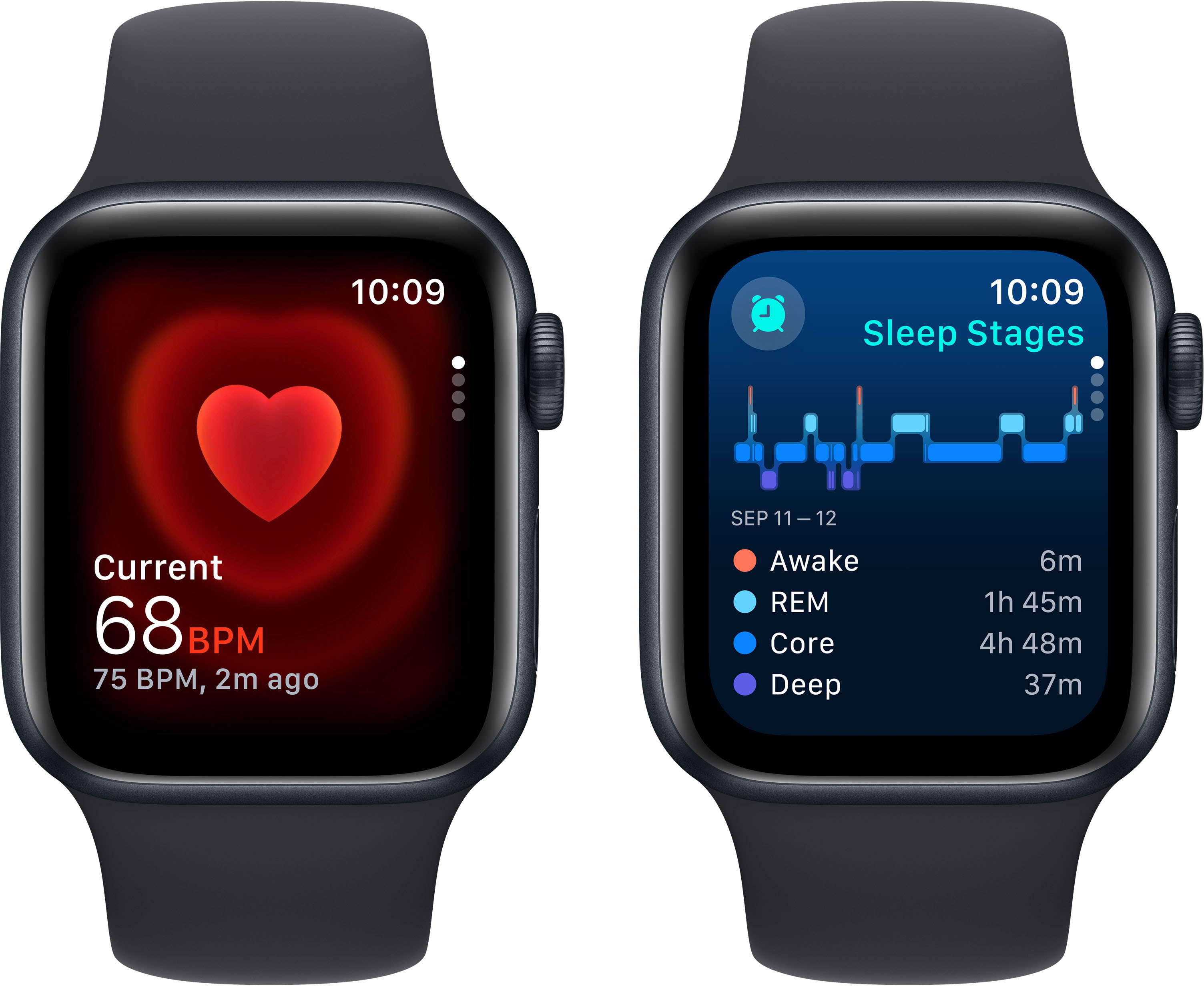
Apple sells Apple Watch models in two main forms: GPS and GPS + Cellular. Only the GPS + Cellular version can use AT&T service when your iPhone is not nearby.
To check your model:
-
Open the Watch app on your iPhone.
-
Tap the My Watch tab.
-
Select General.
-
Tap About.
-
Look for the model number and cellular information.
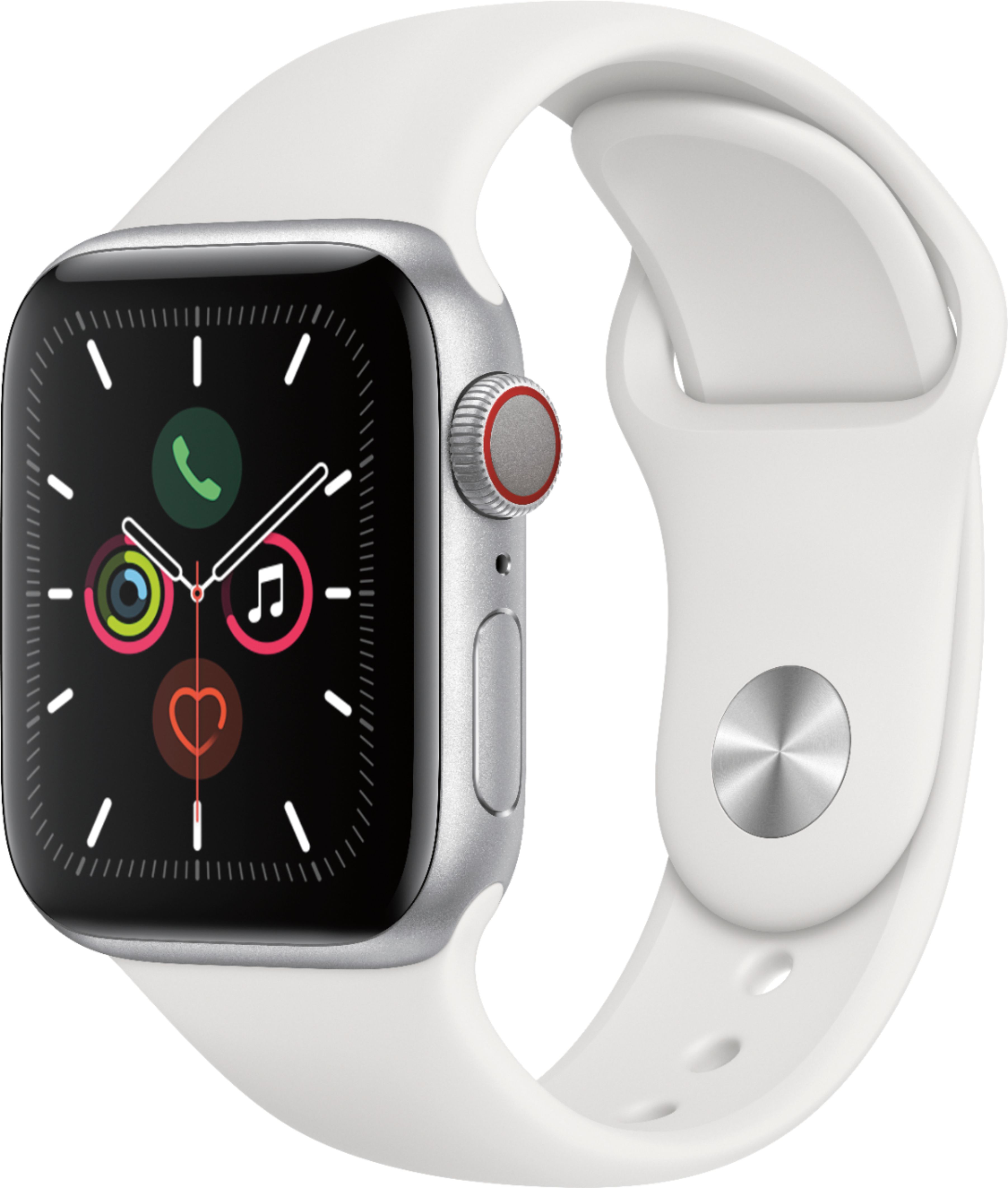
You can also check the watch case and original packaging. A cellular model often includes “Cellular” in its product description. Some models have a red ring or red accent on the Digital Crown, but this design detail is not the only way to confirm cellular support.
If the Watch app shows a Mobile Data or Cellular option, the watch may support cellular activation. If that option is missing, the watch may be a GPS-only model, may not be paired correctly, or may not be compatible with the iPhone.
A used Apple Watch can work, but it must be removed from the previous owner’s Apple Account. The former owner should turn off Activation Lock and erase the watch. Without this step, you may not be able to pair or activate it.
How to Add Apple Watch to AT&T Plan Using the iPhone
The simplest way to add Apple Watch to AT&T plan service is through the Apple Watch app. The app guides you through pairing, account approval, and cellular activation.
Follow these steps:
-
Turn on the Apple Watch and place it near your unlocked iPhone.
-
Wait for the pairing message to appear on the iPhone.
-
Tap Continue.
-
Choose Set Up for Myself, or select the family setup option if you are configuring a watch for another person.
-
Scan the watch animation with the iPhone camera.
-
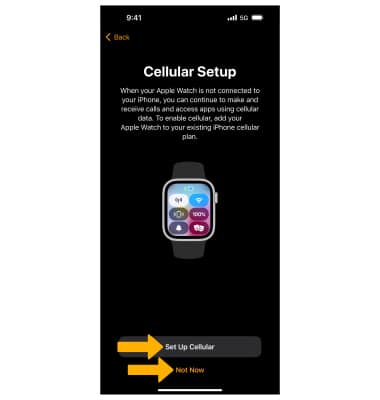
Choose Set Up Cellular when the option appears.
-
Sign in to your AT&T account if requested.
-
Review the wireless plan details and monthly charge.
-
Accept the terms and confirm the activation.
-
Finish the setup and wait for the cellular connection to become active.
The exact screen names may vary by iOS version, watchOS version, account type, and AT&T plan. Do not close the Watch app while activation is running. The process may take several minutes.
During setup, AT&T may connect the watch to your iPhone’s phone number through NumberSync. This lets the watch make and receive calls using the same primary number, even when the iPhone is away.
When activation is complete, open the Watch app and go to My Watch, then Cellular. The status should show AT&T or an active cellular connection. You can also swipe up on the watch face or open Control Center to check the cellular icon.
How to Add Apple Watch to AT&T Plan Through AT&T
If the Watch app does not complete activation, you can try adding the watch through AT&T’s website, app, or customer support team.
Start by signing in to your AT&T account. Look for options such as Manage Devices, Add a Device, Wearables, or Smartwatch. AT&T may ask for the watch’s IMEI or EID. You can find these details in the Watch app under General and About.
When adding the watch, confirm that:
• The correct wireless account is selected.
• The watch is being added to the correct phone line.
• The selected plan supports Apple Watch service.
• The monthly smartwatch charge is clear.
• Any activation or installment charge is shown before you approve the order.
After AT&T adds the watch, return to the iPhone’s Watch app. Tap Cellular and follow the prompts to complete the connection. In some cases, the watch may need to restart before the cellular plan appears.
If you contact AT&T, explain that you want to add a cellular Apple Watch using NumberSync. This wording helps the representative understand that you need smartwatch activation, not a separate standard phone line.

Understanding AT&T Apple Watch Plans and Costs
The cost to add Apple Watch service depends on your AT&T account and the available wearable plan. Prices, taxes, promotions, and fees can change, so check the final amount shown during activation.
The total cost may include:
• A monthly smartwatch access charge.
• Taxes and regulatory fees.
• A one-time activation fee in some cases.
• The cost of the Apple Watch if you purchase it through AT&T.
• Installment payments if you finance the watch.
Adding a watch usually does not require a second full smartphone plan. Instead, the watch uses a connected wearable line or feature tied to your AT&T account. NumberSync can allow the watch to share your iPhone number for calls and messages.
Read the order summary carefully. A low advertised monthly price may not include taxes, equipment payments, or other account charges. Also check whether a promotion requires a specific phone plan, trade-in, installment agreement, or minimum service period.
Prepaid, business, military, employee, and multi-line accounts may have different rules. Some accounts may require an authorized user or account owner to approve the activation.
How NumberSync Works on Apple Watch
NumberSync is AT&T’s feature for connecting compatible devices to your primary wireless number. After setup, your Apple Watch can often make and receive calls and messages without the iPhone sitting beside you.
The watch still needs cellular coverage for independent use. When the iPhone is nearby, the watch may use Bluetooth or Wi-Fi instead. When the iPhone is away, the watch can switch to the AT&T network if cellular service is active.
NumberSync does not mean the watch has every feature of the iPhone. The watch has its own limits for apps, battery life, streaming, and data use. Emergency calling may also depend on location, network access, and the information stored on the device.
Keep your emergency contact and medical information current in the Health app. These details can help emergency responders, but they do not replace professional emergency services.

Test the Apple Watch After Activation
After you add Apple Watch to AT&T plan service, test it before leaving the house. A quick test can reveal an activation problem while support is still easy to reach.
Use this checklist:
-
Turn off Bluetooth on the iPhone.
-
Move the iPhone several yards away, or place it in Airplane Mode while keeping the watch active.
-
Check that the cellular icon appears on the Apple Watch.
-
Make a test call from the watch.
-
Send a text message.
-
Open a weather or map app.
-
Check whether the watch can connect to the AT&T network.
Avoid testing inside a basement, elevator, or large building with weak coverage. Try an outdoor location with a clear signal.
If calls work but data does not, restart both devices and check the cellular settings. If the watch shows No Service, the plan may still be processing, the account may not support the watch, or the watch may not have the correct regional model.
Common Problems When Adding Apple Watch to AT&T
Many problems have simple causes. Work through these checks before requesting a replacement watch or changing your phone plan.
The cellular option is missing
The watch may be a GPS-only model. It can also disappear if the iPhone or watch software is outdated, the devices are not paired correctly, or the region is not supported.
Activation keeps spinning
A weak Wi-Fi connection, an AT&T account session error, or a service outage can interrupt activation. Close the Watch app, restart the iPhone and watch, then try again.
The watch says the plan is not supported
Your AT&T plan may not support connected wearables. Account type, billing status, location, and employer-managed restrictions can also affect eligibility.
The watch is linked to another Apple Account
This is Activation Lock. The previous owner must remove the watch from their Apple Account before you can use it.
Calls do not use the iPhone number
NumberSync may not be active, or the watch may not have finished registering. Check the cellular plan in the Watch app and confirm that the watch is connected to the correct AT&T line.
The watch shows No Service
Move to an area with stronger coverage, restart the watch, and confirm that cellular is enabled. If the issue continues, AT&T may need to refresh the wearable line.
One practical lesson is to avoid deleting the cellular plan as a first step. Removing it can create more work and may require AT&T to reactivate the line. Restarting the devices and checking the account first is safer.
How to Remove or Transfer an Apple Watch
You should remove the watch correctly before selling it, returning it, or moving it to another iPhone. A normal erase is not always enough because the cellular plan and Activation Lock may remain connected.
To unpair the watch:
-
Keep the iPhone and Apple Watch close together.
-
Open the Watch app.
-
Tap All Watches.
-
Tap the information button beside the watch.
-
Select Unpair Apple Watch.
-
Follow the prompts to remove the cellular plan if you are no longer using it.
-
Enter your Apple Account password if requested.
Unpairing the watch creates a backup and removes Activation Lock when completed properly. If you are keeping the AT&T service but moving the watch to a new iPhone, choose the option that keeps the cellular plan when it is available.
If you are selling the watch, erase it and confirm that it no longer appears in your Apple Account device list. Then contact AT&T if the wearable line remains on your bill.
Tips for a Smooth AT&T Apple Watch Setup
A few small steps can make the process faster and prevent billing surprises.
• Charge the iPhone and Apple Watch before activation.
• Update both devices before pairing them.
• Use the account owner’s AT&T login when possible.
• Keep the AT&T account PIN nearby.
• Confirm the watch is a US-compatible cellular model.
• Review the monthly cost before accepting service.
• Do not reset the watch repeatedly during activation.
• Test calls and data before relying on the watch away from your iPhone.
• Keep the watch near the iPhone until setup is complete.
• Save the confirmation email or order number.
Apple and AT&T can change supported devices and plan rules. For the most accurate information, compare the details shown in your Watch app and AT&T account at the time of activation.
Frequently Asked Questions About How to Add Apple Watch to AT&T Plan
Can I add a GPS-only Apple Watch to an AT&T plan?
No. A GPS-only Apple Watch cannot connect directly to AT&T cellular service. It can still use your iPhone’s connection through Bluetooth or Wi-Fi.
Do I need a new phone number for my Apple Watch?
Usually, no. Compatible AT&T service can use NumberSync to connect the Apple Watch with your iPhone’s existing number. The watch may still have a separate internal line for account and network management.
How much does it cost to add Apple Watch to AT&T plan?
The cost varies by AT&T plan, promotions, taxes, and account type. Review the final activation screen because the monthly wearable charge may not include the cost of the watch or installment payments.
Can I add Apple Watch to AT&T plan without an iPhone?
No. Apple Watch setup and management require a compatible iPhone. A cellular watch can work away from the iPhone after activation, but it still depends on the iPhone for initial setup and many settings.
Why will AT&T not activate my Apple Watch?
The most common reasons are an unsupported plan, an outdated device, an account restriction, weak internet, or a watch from an incompatible region. Confirm eligibility, update both devices, and contact AT&T if the Watch app still cannot complete activation.
Can I use an Apple Watch bought from another retailer with AT&T?
Often, yes, if it is a compatible cellular model for the United States and is not locked to another Apple Account. Check the model, EID, and cellular support before starting activation.
Can I add an Apple Watch to an AT&T family plan?
In many cases, yes. The account owner may need to approve the wearable line, and the watch may need to connect to a specific iPhone line. Rules can differ by plan type and account setup.
Conclusion
Adding a cellular Apple Watch to AT&T mainly involves checking compatibility, pairing the watch with your iPhone, selecting Set Up Cellular, and approving the wearable service. NumberSync can then connect the watch to your existing iPhone number for calls and messages.
Before you add Apple Watch to AT&T plan service, confirm that the watch supports cellular, your account is eligible, and the monthly cost is clear. Complete a test call and data check before depending on the watch away from your iPhone.
Follow the steps above, keep your devices updated, and contact AT&T with your watch’s IMEI or EID if activation fails. Explore Apple and AT&T support resources for the latest plan details, and share your setup experience if these steps helped.

Rubel Miah is the Senior Editor at MyStyleGrid.com, where he brings a sharp editorial eye and an unshakable love for fashion to everything he does. A true style addict, Rubel lives and breathes trends, from streetwear to high fashion, and has a knack for turning inspiration into impactful stories. With years of experience in fashion journalism and digital media, he curates content that empowers readers to express themselves through style. When he’s not editing features or forecasting the next big thing, you’ll find him hunting down vintage pieces or capturing street style moments around the city.