Most people love using a smartwatch for tracking health, checking messages, and even making payments. But what happens when you try to download a new app, and nothing happens? The smartwatch app store not downloading applications is a problem many people face. This can be very frustrating, especially when you need a certain app to work right away.
I have faced this issue myself. I once tried to install a weather app before going out, but my smartwatch would not download it. It took me a while to find the solution. Now, I want to share all the steps and tips that actually work. This guide is for anyone who wants simple answers in clear English. Whether you use Wear OS, Apple Watch, or Samsung Galaxy Watch, you will find help here.
Let’s get started and fix your smartwatch so you can download apps without stress.
Why Smartwatches Fail To Download Apps
Understanding the problem is the first step. There are several reasons why your smartwatch app store may not download apps. Here are the main causes:
- Poor internet connection – Smartwatches need Wi-Fi or mobile data to download apps.
- Low storage space – No space means no new apps can be downloaded.
- Outdated software – Old versions of your watch’s system or app store can block downloads.
- App store errors – Sometimes, the app store itself has bugs or glitches.
- Account issues – Wrong or expired accounts can cause problems.
- Sync problems – If your watch and phone are not syncing, downloads may fail.
- Incorrect settings – Some settings may block app downloads.
Many beginners only check the internet connection. But they forget about storage space, updates, or account issues. Let’s go through each solution step by step.
Check Your Internet Connection
A stable internet connection is the most basic need for downloading apps. If your smartwatch cannot connect, downloads will not start.
How To Test And Fix Your Connection
- Open any app that needs the internet, such as weather or news. If it works, your connection is fine.
- If it does not work, try these steps:
- Turn off Wi-Fi or mobile data, then turn it back on.
- Move closer to your router if you use Wi-Fi.
- Restart your smartwatch.
- If your watch uses your phone’s connection, make sure your phone is connected too.
Common Mistakes
Some people forget that smartwatches may switch between Wi-Fi and Bluetooth. If your phone is not nearby or not connected, your watch may lose the internet. Always check both devices.

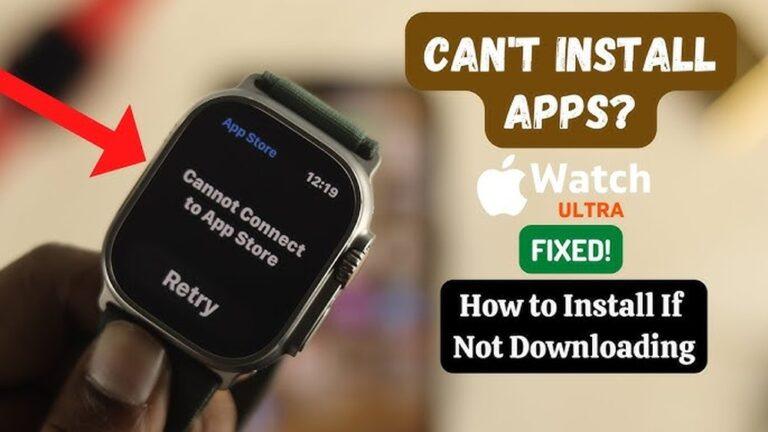
Credit: www.apple.com
Free Up Storage Space
Smartwatches have limited storage. If you run out of space, you cannot download new apps.
How To Check Storage
- On most watches, go to Settings > Storage. You will see how much space is left.
How To Free Up Space
- Delete unused apps. Hold the app icon, then select uninstall.
- Remove old music, podcasts, or photos.
- Clear cache and temporary files. This option is in settings or the app store menu.
- Restart your smartwatch after deleting files.
Pro Tip
Smartwatches often keep temporary files you do not see. Restarting your device after clearing space helps remove these hidden files.
Update Your Smartwatch And App Store
Outdated software can cause many problems, including failed downloads.
Steps To Update
- Go to Settings > System > Software Updates on your watch.
- Download and install any updates.
- Update the app store app itself if possible.
Why Updates Matter
Many people skip updates because they take time. But updates fix bugs, improve speed, and add support for new apps. I once could not download a single app until I updated my watch’s operating system.
Check Your Account
You need to be signed in with the correct account to use the app store. This is true for both Google accounts (Wear OS), Apple IDs (Apple Watch), and Samsung accounts (Galaxy Watch).
Steps To Check
- Open your app store app.
- Check if your account is signed in.
- If you see any errors, log out and log in again.
- For security, check your account on your smartphone too.
Common Issues
- Expired passwords or account verification failures.
- Using a different account on your watch and phone.
Restart And Re-pair Your Devices
Sometimes, a simple restart solves the problem. If not, re-pairing can help.
Restart
- Turn off your smartwatch, wait 30 seconds, then turn it back on.
Re-pair
- Unpair your watch from your smartphone.
- Restart both devices.
- Pair them again using the official app (Wear OS, Watch app, etc. ).
When To Try This
If you have tried everything above and apps still won’t download, a restart or re-pair can fix hidden sync problems.
Check App Store Settings
Some settings can block downloads. For example, settings that limit downloads to Wi-Fi only or parental controls.
What To Check
- Open the app store on your smartwatch.
- Look for settings like Download only on Wi-Fi or Parental controls.
- Turn off any settings that may block downloads.
- Save changes and try again.
Non-obvious Insight
Some watches have a data saver mode that blocks large downloads. Turn off data saver to fix this.
Clear App Store Cache And Data
App stores, like all apps, store cache and data. Sometimes, these files become corrupted.
Steps For Most Smartwatches
- Open Settings > Apps > App Store.
- Tap Clear cache and Clear data.
- Restart your watch.
- Try downloading the app again.
Note
This step will log you out of the app store, so have your password ready.
Reset Network Settings
Network settings control Wi-Fi, Bluetooth, and mobile data. If these settings are broken, downloads will not work.
How To Reset
- Go to Settings > System > Reset > Reset network settings.
- This will forget all saved Wi-Fi and Bluetooth connections.
- Reconnect to your network.
When To Use This
If your watch cannot connect to any network, resetting network settings can fix deep problems.
Check App Compatibility
Not all apps work with all smartwatches or software versions.
How To Check
- Read the app’s description in the app store.
- Make sure your watch’s OS version is supported.
- Some apps are only for certain countries or devices.
Example
I once tried to install a fitness app, but it never showed up. Later, I learned the app was only for newer watches.
Hidden Tip
Even if your app store shows the app, it may not install if your device is not supported. Always check the app’s official website for details.
Sign Out And Back In To App Store
Account issues can sometimes be fixed by signing out and back in.
Steps
- Open the app store.
- Go to the account section.
- Tap Sign out.
- Sign back in with your correct account.
Why It Works
This refreshes your account tokens. It often solves invisible account errors.
Try Downloading From Your Smartphone
Some watches let you install apps from your phone. This is often easier and faster.
How-to
- Open the smartwatch companion app on your phone (Wear OS, Watch app, Galaxy Wearable).
- Go to the app store section.
- Choose and install the app to your watch.
When To Try
If your watch’s app store is slow or buggy, installing from your phone can work around the problem.
Factory Reset As A Last Resort
If nothing else works, a factory reset can fix stubborn problems. But this will erase all data on your watch.
Steps
- Backup your important data.
- Go to Settings > System > Reset > Factory reset.
- Follow the instructions.
Be Careful
Only use this as a last step. You will need to set up your watch again from scratch.
Compare Common Causes And Solutions
To help you find the issue faster, here’s a quick comparison.
| Problem | Most Likely Solution | Time Needed |
|---|---|---|
| No internet | Check Wi-Fi/data | 2-5 mins |
| No storage | Delete files/apps | 5-10 mins |
| Old software | Update system/app store | 10-30 mins |
| Account problem | Sign out/in | 3-7 mins |
| App not compatible | Check requirements | 2 mins |
When To Contact Support
If you have tried every step and nothing works, it might be a hardware problem or a rare bug.
What To Do
- Collect details: Model number, OS version, error messages.
- Contact the official support team for your smartwatch.
- Share all the steps you have already tried.
This saves time and helps support solve your problem faster.
Real-world Example
A friend of mine had a Samsung Galaxy Watch that would not download any apps. He checked his internet and storage. Both were fine. We found out his watch was using an old Samsung account that was no longer active. Signing in with his new account fixed the problem in minutes. Sometimes, the answer is simple, but easy to miss.
Data Table: Major Smartwatch Brands And App Store Download Issues
Here is a quick look at the most common download issues by brand.
| Brand | Main App Store | Common Download Problem |
|---|---|---|
| Apple Watch | App Store | Account errors, software out of date |
| Wear OS (Google/Samsung) | Google Play Store | Sync issues, wrong account, network |
| Fitbit | Fitbit App Gallery | Sync problem, storage full |
| Garmin | Connect IQ | Not compatible, software outdated |
Quick Troubleshooting Checklist
Sometimes, you need a fast check before doing deep fixes.
- Is your watch connected to the internet?
- Do you have enough free space?
- Is your software up to date?
- Are you signed in with the correct account?
- Have you restarted your watch?
- Is the app supported on your device?
- Have you checked app store settings?
If you answer “no” to any, start there.
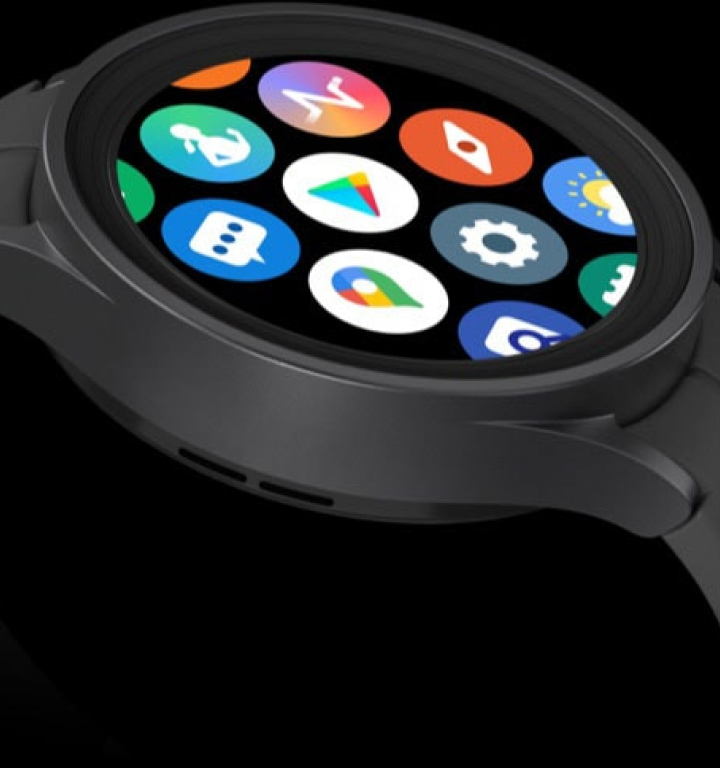
Credit: www.samsung.com
Why Apps Still Won’t Download After Fixes
Sometimes, even after trying everything, apps still won’t download. Here are two advanced reasons:
- Region restrictions: Some apps are blocked in your country. Using a VPN or changing your region may help, but this can break rules.
- Beta software bugs: If you use a beta (test) version of your watch’s software, downloads may fail. Go back to a stable version if possible.
How Updates Can Break Or Fix App Downloads
Many people do not realize that a new update can sometimes cause new bugs. If your watch stopped downloading apps after an update, check forums or the official support site for known problems. Sometimes, waiting for the next update is the only answer.
When You Might Need Professional Help
If your watch is under warranty and nothing works, do not try risky solutions. Take it to an authorized repair center. If there is a hardware problem, only professionals can fix it.
Personal Experience: What Finally Worked For Me
When I could not download apps on my watch, I tried the obvious steps first. But the real issue was my account had two-factor authentication turned on, and my watch was not verifying it. I signed out, removed two-factor, signed back in, and the app store worked again.
Always check for hidden account security settings. They can block downloads without clear error messages.
Frequently Asked Questions
What Should I Do If My Smartwatch Says “waiting For Download”?
This usually means your watch is connected but cannot start the download. Check your internet connection first. Make sure you have enough storage space. If the problem continues, restart your watch and try again. Sometimes, signing out and in to your account helps.
Why Do Some Apps Not Show Up In My Smartwatch App Store?
Not all apps are available for every watch. The app may not support your device or software version. Some apps are also blocked in certain countries. Always check the app’s official website for details on device compatibility.
Can I Download Apps To My Smartwatch Without Using The App Store?
For most watches, you must use the official app store. Some brands, like Garmin, let you use a companion app on your phone. It is not safe to install apps from unknown sources, as this can harm your device.
Will Factory Reset Delete All My Apps And Data?
Yes, a factory reset will erase all apps, messages, music, and settings. Make sure to back up anything important before you reset. You will need to set up your watch again from the beginning.
Where Can I Find More Help For Smartwatch App Store Problems?
You can find help on official support sites, user forums, or by contacting customer service for your watch brand. For general tech advice, Google’s Wear OS Help Center is a trusted source.
Getting your smartwatch app store working again can be simple if you follow the right steps. I hope this guide has made the process clearer and less stressful. With patience and the right actions, you will be downloading your favorite apps again in no time.

Credit: www.youtube.com

Rubel Miah is the Senior Editor at MyStyleGrid.com, where he brings a sharp editorial eye and an unshakable love for fashion to everything he does. A true style addict, Rubel lives and breathes trends, from streetwear to high fashion, and has a knack for turning inspiration into impactful stories. With years of experience in fashion journalism and digital media, he curates content that empowers readers to express themselves through style. When he’s not editing features or forecasting the next big thing, you’ll find him hunting down vintage pieces or capturing street style moments around the city.