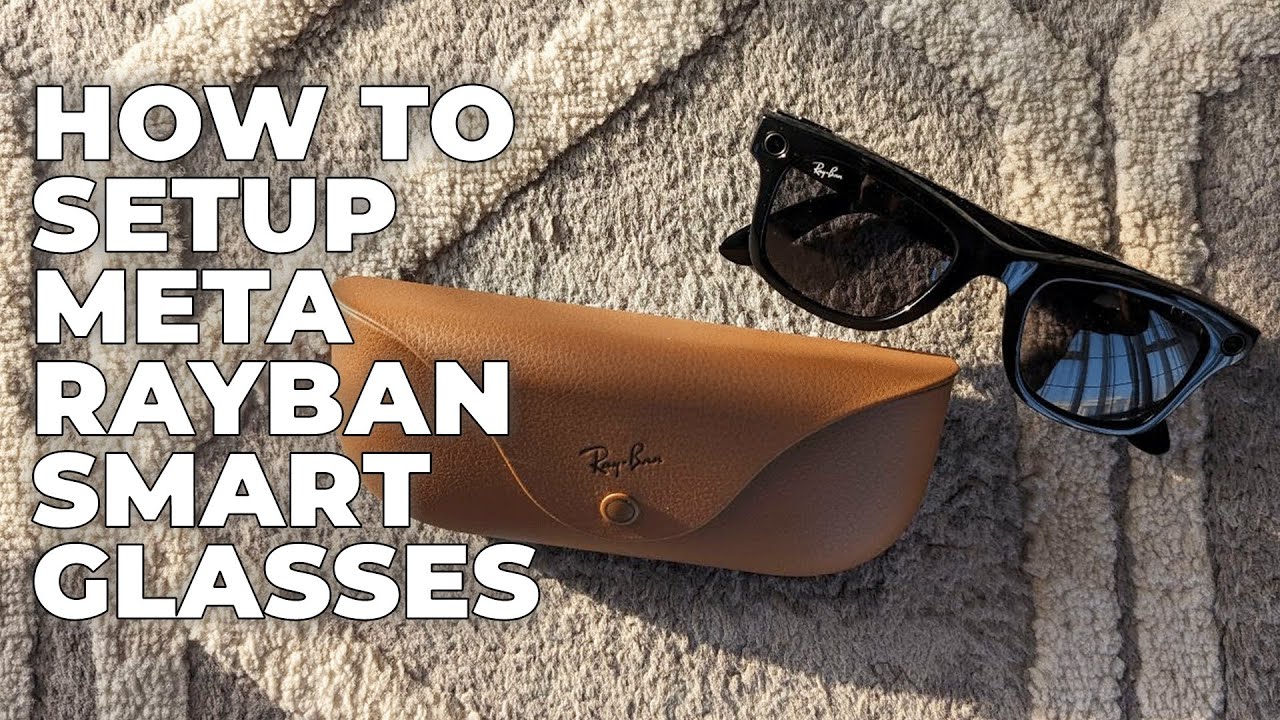
To set up Meta Ray-Ban smart glasses, install the Meta View app, pair the glasses, and follow the guided setup.
Learning how to set up Meta Ray-Ban glasses is simple once you understand the order. You need the right app, a charged pair of glasses, a compatible phone, and a stable Bluetooth connection. This guide walks you through setup, privacy choices, voice controls, updates, and common fixes so you can start using your glasses with confidence.
What You Need Before Setting Up Meta Ray-Ban Glasses
Before you begin, gather everything you need. A few minutes of preparation can prevent most setup problems.
You will need:
• A pair of Ray-Ban Meta smart glasses
• The charging case that came with the glasses
• An iPhone or Android phone
• The latest Meta View app
• A Meta account
• Wi-Fi or mobile data
• Bluetooth enabled on your phone
Ray-Ban Meta glasses work with the Meta View mobile app. The app manages pairing, camera settings, media transfers, calls, updates, and privacy controls.
Check your phone’s software before you start. Compatibility can change as apps receive updates, so confirm the current requirements in the Apple App Store or Google Play Store. In general, use a recent version of iOS or Android for the smoothest experience.
Charge the glasses inside the case for a while before setup. You do not need a full charge, but a low battery can interrupt pairing or a firmware update. Keep the glasses near your phone during the entire process.
A useful setup lesson is to avoid opening the case and immediately pressing every button. Let the glasses charge, install the app first, and then follow the app’s instructions. This creates a clean connection from the start.

How to Set Up Meta Ray-Ban Glasses Step by Step
The setup process normally takes about 10 to 20 minutes. It may take longer if the glasses need a firmware update.
1. Install the Meta View App
Open the App Store on your iPhone or the Google Play Store on your Android phone. Search for Meta View, then install the official app from Meta Platforms.
Avoid unofficial companion apps. They may not support the glasses and could create privacy or security risks.
After installation, open Meta View and sign in with your Meta account. If you do not have an account, the app will guide you through account creation.
2. Turn On Bluetooth and Other Permissions
Turn on Bluetooth in your phone settings. The app may also request access to:
• Camera and microphone
• Photos or media
• Notifications
• Location services
• Contacts
Some permissions support key features. For example, microphone access is needed for calls and voice commands. Photo access helps save captured images and videos to your phone.
You do not have to approve every optional permission. Read each request and allow only what you need. You can change permissions later in your phone settings.
3. Place the Glasses in the Charging Case
Put both glasses into the charging case. Make sure the charging contacts line up correctly.
Open the case while the glasses are inside. The status light should show that the case and glasses have power. If the light does not appear, charge the case with the supplied USB-C cable.
Keep the case open and place it close to your phone.
4. Start Pairing in Meta View
In the Meta View app, select the option to add or connect a new device. Choose Ray-Ban Meta when the app displays the available products.
The app will search for the glasses. When they appear, select them and follow the instructions on screen.
You may need to press and hold the power switch on the glasses. The app will explain when to do this. Do not close the case or move the glasses far away while pairing.
5. Confirm the Pairing Code
Your phone may show a pairing code. Compare it with the code displayed in the app, if one appears, and confirm that both match.
This step helps ensure that your phone connects to the correct glasses. It is especially useful if other Bluetooth devices are nearby.
Once pairing is complete, give the glasses a clear name. A simple name such as “My Ray-Ban Meta” makes them easier to find in the app.
6. Install Any Available Updates
Meta View may ask you to update the glasses. Accept the update if your phone has enough battery and a stable internet connection.
Keep the glasses in the charging case during the update if the app requests it. Do not force-close the app or turn off Bluetooth.
Updates can improve stability, camera performance, sound, voice commands, and compatibility with newer phones. They may also change the location of certain settings, so the app may look slightly different after an update.
7. Review Privacy and Sharing Settings
During setup, Meta View may ask how you want to manage media, voice features, and cloud services. Review these choices instead of tapping through them without reading.
Pay attention to:
• Automatic media imports
• Voice recording and voice command settings
• Cloud backup options
• Notification access
• Contact syncing
• Instagram, Facebook, or WhatsApp connections
The glasses include a front-facing capture LED. This light is designed to show when the camera is recording. Never cover or disable it, and always respect local privacy laws and the people around you.
8. Learn the Main Controls
After pairing, the app offers a short tutorial. Complete it before using the glasses in public.
The main controls include:
• Power switch: Turns the glasses on or off.
• Capture button: Takes a photo or starts or stops video recording.
• Touchpad: Controls volume and some media functions.
• Temple speaker: Plays calls, music, and voice responses.
• Microphone system: Captures your voice and surrounding sound.
• “Hey Meta” voice command: Starts supported hands-free features.
The exact controls can vary by software version. Use the in-app tutorial as the final reference for your model.
How to Transfer Photos and Videos From Meta Ray-Ban Glasses
One of the main reasons people learn how to set up Meta Ray-Ban glasses is to capture hands-free photos and videos. The glasses store captured media until it transfers to the Meta View app.
To transfer media:
-
Open the Meta View app.
-
Turn on Bluetooth and Wi-Fi.
-
Place the glasses near your phone.
-
Open the media section in the app.
-
Allow the app to import or download the files.
The glasses may use Wi-Fi for faster transfers. Bluetooth helps with the connection and control, but large videos can take longer to download.
Keep the app open during the first transfer. If you leave the app too soon, the import may pause. Also check that your phone has enough free storage.
The capture button usually takes a photo with a short press. A longer press may start video recording, depending on the current controls. You can also use a supported voice command to capture media.
Remember that hands-free recording does not remove the need for consent. Tell people when recording is appropriate, and avoid filming in private places such as bathrooms, medical areas, or changing rooms.
How to Use Voice Commands on Meta Ray-Ban Glasses
Voice commands make the glasses feel more natural. You can ask the glasses to take a photo, play music, make a call, or answer a simple question.
Say the wake phrase clearly, then give a short command. For example:
• “Hey Meta, take a photo.”
• “Hey Meta, record a video.”
• “Hey Meta, play music.”

• “Hey Meta, call Mom.”
• “Hey Meta, what is the weather?”
Available commands depend on your region, language, account, app version, and connected services. Some features may require an internet connection.
If voice commands do not work, check the following:
• Make sure the glasses are powered on.
• Speak toward the microphones.
• Confirm that the voice assistant feature is enabled.
• Check your phone’s internet connection.
• Update the Meta View app and glasses.
• Try a short, direct command.
In noisy places, voice control may be less reliable. I recommend using the physical capture button when you are at a concert, on a busy street, or near loud traffic. Simple controls are often faster than repeating a command several times.

Connecting Meta Ray-Ban Glasses to Music, Calls, and Messaging
Meta Ray-Ban glasses can work as open-ear audio glasses. They can play music and route calls through built-in speakers while you remain aware of nearby sounds.
To connect music services, open Meta View and look for the audio or connected services settings. Follow the prompts for the service you want to use. You may need to install a separate music app or sign in to an existing account.
For phone calls, allow microphone and phone permissions when requested. You can then use voice commands or the touch controls to answer and end calls.
Messaging support depends on the phone platform and the services available in your region. Some actions may work with WhatsApp, Messenger, or other supported apps. Meta can change supported services over time, so check the current list inside Meta View.
Keep the volume at a safe level. Open-ear audio can still become too loud, even though the ear canal is not sealed. You should be able to hear important sounds around you, especially when walking, cycling, or traveling.
How to Adjust Meta Ray-Ban Settings
After you learn how to set up Meta Ray-Ban glasses, spend a few minutes customizing them. Small changes can make daily use much easier.
Open Meta View and review these settings:
Camera and Media Settings
You may be able to adjust video quality, capture preferences, and media import behavior. Higher video quality can use more storage and battery.
Audio Settings
Adjust volume and review sound preferences. If audio feels too quiet, first check your phone volume, app volume, and glasses volume.
Voice Settings
Review the wake phrase, language, assistant options, and voice feedback. Some voice features may not be available in every country.
Notifications
Choose which phone notifications can reach the glasses. Limiting alerts helps reduce distraction during work, driving, or exercise.
Connected Accounts
Review linked social media, messaging, and music accounts. Remove any account you no longer use.
Privacy Controls
Check camera, microphone, contacts, and cloud-related settings. You can often change these options later without resetting the glasses.
A good rule is to customize one setting at a time. If something changes unexpectedly, you will know which setting caused it.

Common Problems When Setting Up Meta Ray-Ban Glasses
Even when you follow the correct steps, setup may fail. Most problems have a simple fix.
The Glasses Do Not Appear in the App
Make sure Bluetooth is on and the glasses are charged. Place them in the case, close the lid for a few seconds, then open it again.
If the glasses still do not appear, restart your phone and reopen Meta View. You can also turn Bluetooth off and back on.
Pairing Stops Halfway
Keep the phone and glasses close together. Turn off nearby Bluetooth devices that may compete for attention.
A weak internet connection can also interrupt account setup or updates. Switch to a reliable Wi-Fi network and try again.
The App Cannot Import Photos
Check that Meta View has permission to access photos and local storage. Confirm that the glasses and phone have enough battery.
If media import remains stuck, close and reopen the app. Do not delete the app until you confirm that important media has already transferred.
Voice Commands Are Not Responding
Check the microphone permission and confirm that the glasses are powered on. Speak after the wake phrase and use a clear, short sentence.
If the glasses are connected to the wrong phone, disconnect them from unused devices and try again.
The Glasses Disconnect Often
Keep the Meta View app updated. Also install available glasses firmware updates.
If disconnections continue, forget the glasses in your phone’s Bluetooth settings and pair them again through Meta View. Avoid pairing them directly from the Bluetooth menu first, because the app needs to manage the full connection.
You Need to Reset the Glasses
A factory reset should be the last step. It can remove the current connection and require you to set up the glasses again.
Before resetting, transfer important media and review the official in-app instructions. The reset method can vary by model and software version.

Battery, Charging, and Care Tips
Battery life depends on camera use, calls, music, voice features, and software activity. Frequent video recording uses more power than occasional photos or audio.
For better battery performance:
• Store the glasses in the charging case when you are not using them.
• Keep the charging contacts clean and dry.
• Avoid leaving the case in extreme heat.
• Install software updates when convenient.
• Reduce unnecessary notifications.
• Lower the volume when practical.
The case itself needs regular charging. Use a suitable USB-C power adapter and cable. If the case does not charge, inspect the port for dust and test another compatible cable.
Clean the glasses with a soft, dry microfiber cloth. Do not spray cleaner directly onto the lenses, cameras, speakers, or charging contacts.
The glasses are not designed for swimming or deep water. Water resistance does not mean waterproof protection. Remove them before showering or entering a pool.
Treat the cameras and speakers like small electronics built into eyewear. A little care helps protect both performance and comfort.
Safety and Privacy Tips for Meta Ray-Ban Glasses
Learning how to set up Meta Ray-Ban glasses also means learning how to use them responsibly. The camera and microphones can capture people, conversations, and places around you.
Follow these best practices:
• Tell people when you are recording them.
• Follow workplace, school, and venue rules.
• Do not use the glasses to record private conversations without permission.
• Avoid wearing them while driving if they distract you.
• Keep your eyes on the road and obey local driving laws.
• Do not rely on voice responses for medical, legal, or financial decisions.
• Protect your Meta account with a strong password and two-factor authentication.
The privacy LED is an important part of the product’s design. If the LED is blocked, damaged, or not working as expected, stop using the camera until the issue is resolved.
The glasses can offer useful accessibility and hands-free features, but they are not a substitute for professional advice or emergency equipment. Use them as a helpful tool, not as your only source of information.

How to Unpair or Move Meta Ray-Ban Glasses to Another Phone
You may need to move the glasses to a new phone, sell them, or give them to another person. Start by transferring any photos and videos you want to keep.
Then:
-
Open Meta View on the current phone.
-
Select the glasses from the device list.
-
Open device settings.
-
Choose the option to remove, unpair, or disconnect the glasses.
-
Follow the instructions to complete the removal.
If another person will use the glasses, perform a factory reset according to the current Meta View instructions. This helps remove your account connection and personal settings.
The new owner should install Meta View and complete the setup process with their own Meta account. Do not simply hand over the glasses while they remain linked to your account.
If you are keeping the glasses but changing phones, sign in to the same Meta account on the new phone. The app may still require you to pair the glasses again.

Frequently Asked Questions About How to Set Up Meta Ray-Ban
Do I need the Meta View app to set up Meta Ray-Ban glasses?
Yes. The Meta View app manages pairing, software updates, media transfers, settings, and many connected features. You should install the official app before attempting the first setup.
Can I use Meta Ray-Ban glasses without a Meta account?
Some basic functions may work without a full connection, but the main smart features require the Meta View app and a Meta account. Without the account, you may not have access to media management, updates, calls, or voice features.
Why will my Meta Ray-Ban glasses not connect to my phone?
Check the battery, Bluetooth, app permissions, and internet connection first. If the problem continues, restart both devices and pair the glasses through Meta View rather than directly through the phone’s Bluetooth menu.
How long does it take to set up Meta Ray-Ban glasses?
Most users can complete setup in about 10 to 20 minutes. The process may take longer if the app downloads a firmware update or imports a large amount of media.
Can I connect Meta Ray-Ban glasses to more than one phone?
The glasses are generally managed through one active phone connection at a time. To use another phone, disconnect or remove the glasses from the first phone, then pair them with the second phone through Meta View.
How do I reset Meta Ray-Ban glasses?
Use the reset instructions shown in the Meta View app for your model and software version. Transfer important media first, because resetting can remove the current connection and personal settings.
Do Meta Ray-Ban glasses need Wi-Fi?
Wi-Fi is not needed for every basic function, such as taking a photo. However, internet access is useful for setup, updates, media transfers, voice features, and connected services.
Conclusion
Setting up Meta Ray-Ban glasses involves four main steps: charge the glasses, install Meta View, pair the device, and review the permissions and settings. After that, learn the camera button, touch controls, voice commands, media transfer process, and privacy features.
The best approach is to take setup slowly. Keep the glasses near your phone, install updates, test one feature at a time, and adjust notifications and permissions to fit your daily routine.
Now that you know how to set up Meta Ray-Ban glasses, complete the process and capture a test photo or make a short call. Then explore the official Meta View help resources for new features, and share your setup experience or questions in the comments.

Rubel Miah is the Senior Editor at MyStyleGrid.com, where he brings a sharp editorial eye and an unshakable love for fashion to everything he does. A true style addict, Rubel lives and breathes trends, from streetwear to high fashion, and has a knack for turning inspiration into impactful stories. With years of experience in fashion journalism and digital media, he curates content that empowers readers to express themselves through style. When he’s not editing features or forecasting the next big thing, you’ll find him hunting down vintage pieces or capturing street style moments around the city.